Support Center

FAQ

Filter
  • QHow to explain the code in CDR

    A

    Descriptions

    Users can get call hangup side and reasons on the device CDR. In order to know the detailed information, you can go to enable the GSM Code option.

    Click Call Configuration>SIP Configuration to enable the GSM code option.
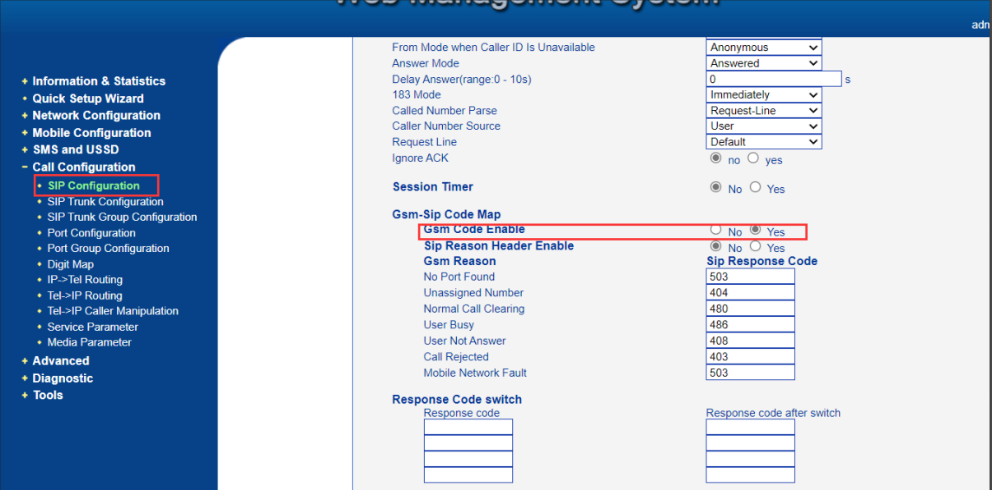


    After that, users can get different detailed reason codes in the CDR and know more about the hangup reason.



    Note:The status codes are returned from the operator side for reference. 

    Explanations

    [ Explain the common CDR values] 

    "ANSWERED",  means answering the call normally

    "NOT ANSWERED", means call answering timeout

    "BUSY", the other side is busy

    "NO DIALTONE", NO Dial tone

    "NO ANSWER", GSM side no response

    "SDP NEG FAILED", The SDP negotiation fails

    "CANCELED", caller cancels the call 

    "DIAL TIMEOUT", Dialing failure ( This value is dialed for the second time)  

    "FORBID CALL", forbidding the call means there is forbidden call rules setted

    "ROUTE WRONG",The source of the route is not the SIP SERVER, but it is configured to accept calls only from the SIP SERVER

    "PORT BUSY", the port is already occupied

    "PORT NOT ONLINE", the port is not registered

    "NO TIME LEFT", the call length has ended

    "PORT UNREGISTERED", the port is not registered 

    "TRANSACTION NOT EXIST", SIP transaction does not exist 

    "NOT ALLOW WAITING", the port is occupied and call waiting is not allowed

    "REJECT ANONYMOUS CALL", anonymous call is rejected

    "GET STD CAP FAILED", SDP resolution failed

    "CRCX FAILED", failed to create RTP connection

    "MDCX FAILED", Modify RTP connection failed

    "REJECTED", call rejection (for incoming calls)

    "PORT NUM EMPTY", port unassigned number

    "PASSWORD ERROR", password error

    "DIGIT_MAP_NOT_MATCH", digit map does not match

     "NUM_TOO_LONG_OR_SHORT", the number is too long or too short

     "IP NOT ANSWERED", IP side not answering

     "OTHER", other case

     "NO CARRIER",means NO CARRIER


    [About "NO CARRIER "]

    Here are some of the common NO carrier values

    1---Unassigned number,this cause indicates that the called party can not be reached because, although the called party number is in a valid format, it is not currently allocated.

    When the code shows in the CDR, please change the number format, add or delete the country code and test again.

    8--This cause indicates that the call is being preempted.

    Usually, when gets this error, SIM card is blocked by the operator . Please ask users to check it.

    16--normal call clearing: This cause indicates that the call is being cleared because one of the users involved in the call has requested that the call be cleared. Under normal situations, the source of this cause is not the network.

    31--normal, unspecified: This cause is used to report a normal event only when no other cause in the normal class applies.

    When get 16 and 31, mean Call too much. The base station is busy and may also be rejected / also belong to the normal hang-ups, it appears more then one may also be blocked by the operator. Normal hang up.No ways.

    34---no circuit/channel available: This cause indicates that there is no appropriate circuit/channel presently available to handle the call.

    44---requested circuit/channel not available: This cause is returned when the circuit or channel indicated by the requesting entity can not be provided by the other side of the interface.

    When get 34 and 44, it usually indicates no available lines . Please try to change different GSM audio coding(Click Mobile configuration>Basic configuration) Or change BCCH (Click Mobile Configuration-->BCCH)



    17---User busy: This cause indicates that the called party is unable to accept another call because the user busy condition has been encountered, this cause value may be generated by the called party or by the network. In case of user determined user busy, it is noted that the user equipment is compatible with the call.

    When user gets this on gateway, it usually means that called party is busy, user can try calls minutes later.


    21---Call rejected: This causes indicates that the equipment send this cause does not wish to accept this call, although it could have accepted the call because the equipment sending this cause is neither busy or incompatible. The network may also generate this cause, indicating that the call was cleared due to a supplementary service constraint. This diagnostic field may contain additional information about the supplementary service and reason for rejection.

    21 is one kind of SIM card blocking . When users get this error on UC2000, please arrange call tests manually with the SIM on the gateway and mobile phone. Sometimes, the mobile operator may block the SIM acts it allows the SIM to call the number which is the same operator with it, but not allow to call the number of different operators.

    57---bearer capability not authorized: This cause indicates that the user has requested a bearer capability that is implemented by the equipment that generated this cause, but the user is not authorized to use.

    This error indicates that your SIM may not have the service . For example, your sim is only allowed to call national numbers, but you call international numbers, then you may get this error . Please contact the Operator.

    127---interworking, unspecified: This cause indicates that there has been interworking with a network which does not provide cause for actions it takes. Thus, the precise cause a message that is being sent can not be ascertained.

    This is another kind of SIM blocking, when get this error, please arrange manually tests on the gateway and replace them with new sim cards when it is always no carrier 127.

    779--Generally when using sim-bank, there are card compatibility issues.

    Upgrade the latest SIM bank software and test . If not solved, contact Dinstar support guys to get involved.When with local SIM cards, if you have this error, please contact Dinstar support team.

    780-2161--- assignment reject.

    781-2162---Access barred.

    782-2165--- RR connection release

    Usually accompanied by low ASR/ACD

    When gets no carrier 2161, 2162 and 2165, please arrange call tests manually, and adjust the GSM Audio Coding, and try to bind the ports with different BCCH and see if it is ok or not. Also, please try to change the IMEI of the ports. If this does not help, please replace the SIM cards since the ones on the gateway may already be blocked. 


    [Learn More]

    If you want to know more about "no carrier" code information, Here is a link for reference.  

    https://developer.signalwire.com/freeswitch/FreeSWITCH-Explained/Troubleshooting-Debugging/Hangup-Cause-Code-Table_3964945/#q850-to-sip-code-table

    (This is defined by the Q850 protocol, but it may be interpreted differently by different operators.)

    1

    Unassiagned number(未分配的号码(空号))

    3

    No route to destination(无至目的地的路由)

    6

    Channel unacceptable(不可接受的信道)

    16

    Normal clearing(正常清除)

    17

    User busy(用户忙)

    18

    No user responding(无用户响应)

    19

    User alerting,no answer(已有用户提醒,但无应答)

    21

    Call rejected(呼叫拒绝)

    22

    Number changed(号码改变)

    26

    Non selected user clearing(清除未选择的用户)

    27

    Destination out of order(终点故障)

    28

    Incomplete number(无效号码格式(不完全的号码))

    29

    Facility rejected(设施被拒绝)

    30

    Response to status enquiry(对状态询问的响应)

    31

    Normal,unspecified(正常,未规定)

    34

    No circuit/channel available(无电路/信道可用)

    38

    Network out of order(网络故障)

    41

    Temporary failure(临时故障)

    42

    Switching equipment congestion(交换设备拥塞)

    43

    Access information discarded(接入信息被丢弃)

    44

    Requested circuit/channel not available(请求的电路/信道不可用)

    47

    Resources unavailable,unspecified(资源不可用,未规定)

    49

    Quality of service unavailable(服务质量不可用)

    50

    Requested facility not subscribed(未预订所请求的设施)

    55

    Incoming calls barred within the CUG

    57

    Bearer capability not authorized(承载能力未认可)

    58

    Bearer capability not presently available(承载能力目前不可用)

    63

    Service or option not available,unspecified(无适用的业务或任选项目,未规定)

    65

    Bearer service not implemented(承载业务不能实现)

    68

    ACM equal to or greater than ACMmax

    69

    Requested facility not implemented(所请求的设施不能实现)

    70

    Only restricted digital information bearer(仅能获得受限数字信息承载能力)

    79

    Service or option not implemented(业务不能实现,未规定)

    81

    Invalid transaction identrfier value(无效处理识别码)

    87

    User not member of CUG

    88

    Incompatible destination(非兼容目的地址)

    91

    Invalid mandatory information(无效过渡网选择)

    95

    Semantically incorrect message(无效消息,未规定)

    96

    Invalid mandatory information(必选消息单元差错)

    97

    Message type non-existent or not implemented(消息类型不存在或不能实现)

    98

    Message type not compatible with protocol state(消息与控制状态不兼容,消息类型不存在或不能实现)

    99

    Information element non-existent or not implemented(信息单元不存在或不能实现)

    100

    Conditional IE error(无效信息单元内容)

    101

    Message not compatible with protocol state(消息与呼叫状态不兼容)

    102

    Recovery on timer expiry(定时器超时恢复)

    111

    Protocol error,unspecified(协议差错,未规定)

    127

    Interworking,unspecified(互通,未规定)

  • QHow to deal with system error

    A

    Descriptions

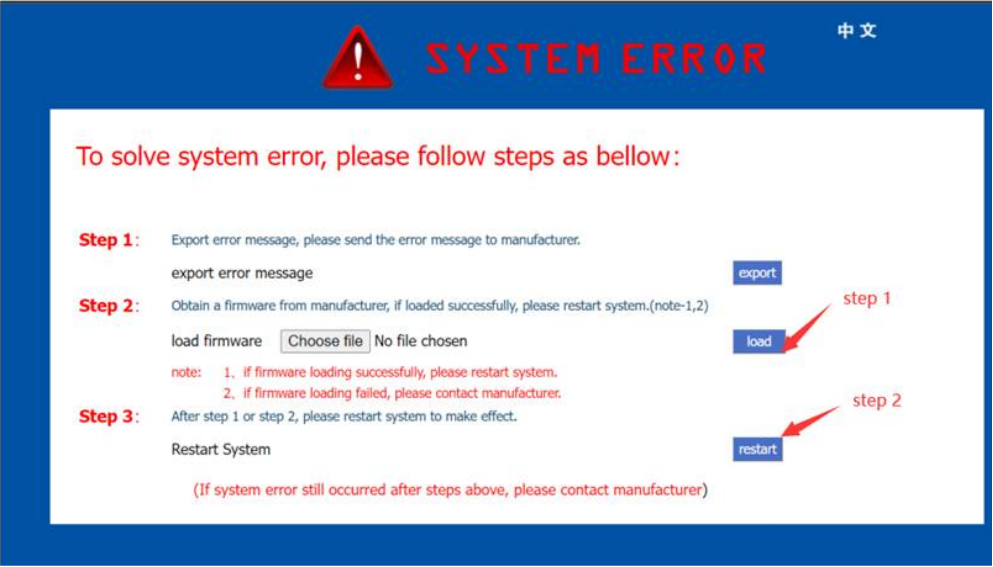
    Users access the device GUI as usual,but they can't  access the GUI smoothly.The device GUI shows like the following picture"System error". In the Guide,we will show how to deal with system error issues on UC2000 devices.


    Operations

    1.Export error message

    Click export to get the error message and send it to Dinstar technical supports.

    2.Load the attached file “dagpkgucarm.ldf”

    Click load to load the "wgpkgarmuc.ldf" file sent by technical support.

    3.Click the button “restart” after upload successful.

    After loading successfully ,please click restart . When the device is up ,you can access the GUI smoothly .

    If the file is loaded successfully and finish restarting,you access the devcie Gui also shows "error system".Now please contact the Dinstat support for devcie flash.


  • QHow to upgrade the EC25 module though LTE

    A

    Descriptions

    Sometimes, the EC25 module version is too old or faces some issues that need to be upgraded. When we do module upgrading, we can do that through the Internet of SIM cards itself .

     Operations

    1.Set the APN in modules

    Currently, Port 0,port 1 and port2 use JIO SIM cards. So please input JIO APN. Different SIM card, APN different


    2.Check the module information

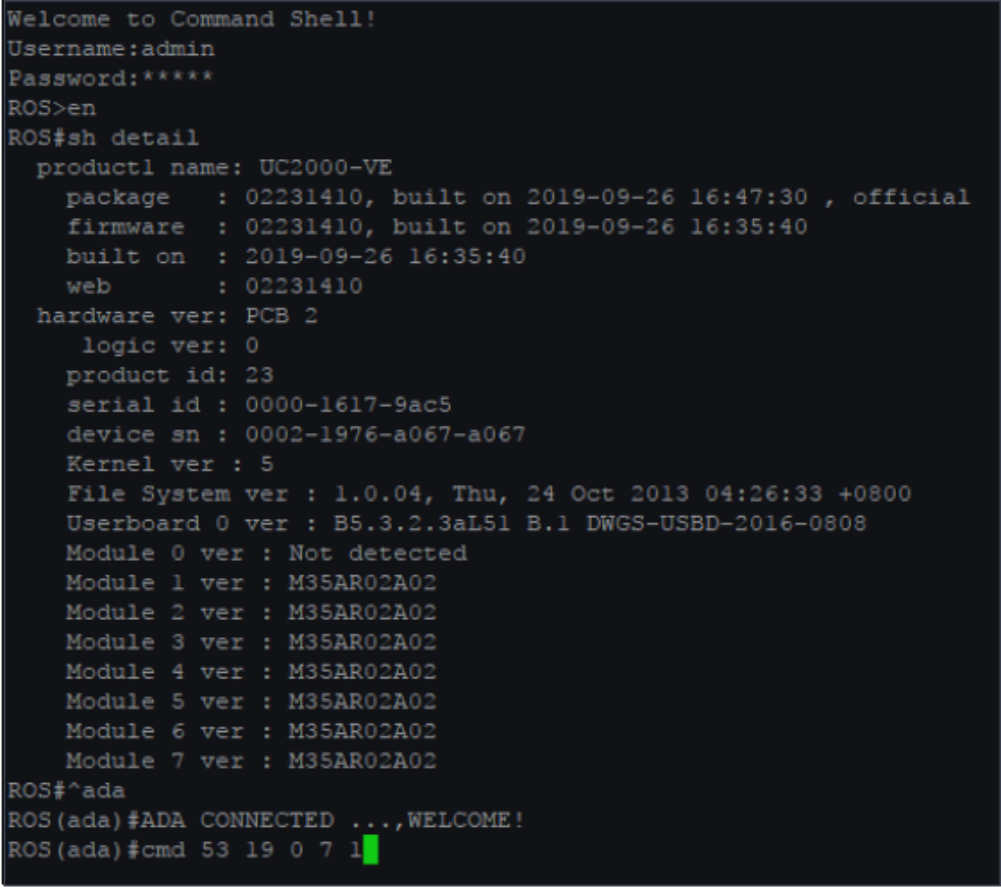
    Telnet into the device and get the module information.Enter the following commands,

    Welcome to Command Shell! 

    Username:admin 

    Password:***** 

    ROS>en 

    ROS#show details

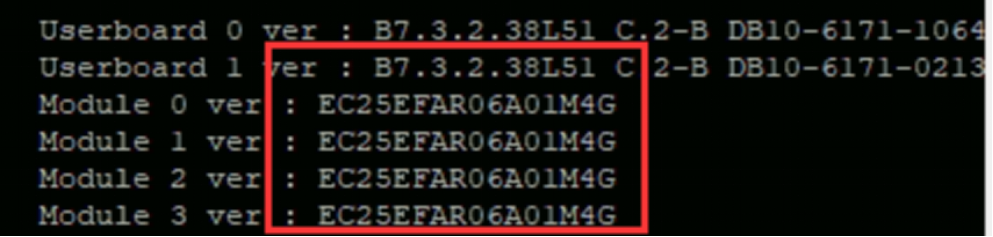
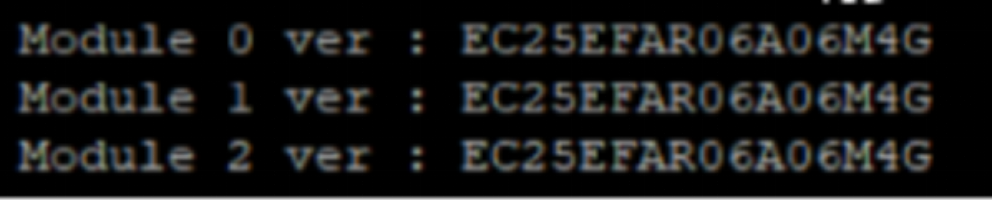
     And then you will get the module information.As the picture shows below.


    The current module is EC25EFAR06A01M4G. You have to upgrade the version from  EC25EFAR06A01M4G to  EC25EFAR06A06M4G

    3. Set monitor the device 

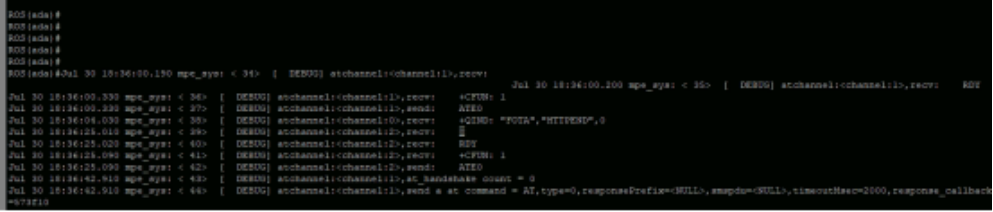
    Go "ROS^ada"  and open the AT commands to monitor the device.

    Welcome to Command Shell! 

    Username:admin 

    Password:***** 

    ROS>en 

    ROS#^ada

    ROS(ada)#cmd 53 19 0 2 1 

    In the example, we do module upgrade in port 0,1,2, so the input command is cmd 53 19 0 2 1

    [Explanations]

    cmd 53 19 X Y 1      //the X and Y means the star and end port.   

    if you test port 0, the X Y should be 0 0 

    if you test port 3,4,5, the X Y should be 3 5 

     4. Upgrade the modules

    Open the other telnet window and in the "config" input upgrade command.

    The command is mobile cmd upgrade 0 2 


    File Link:  

    http://server02.dinstarcloud.com/provision/vsftp/upload/module/EC25E/EC25EFAR06A03M4G_to_EC25EFAR06A06M4G.zip

    NOTE : Please get the file link from Dinstar technical supports


     [Explanations]

    mobile cmd upgrade X Y URL   //the X and Y means the start and end ports. URL is the target link to download module file.


    5.Monitor the device 

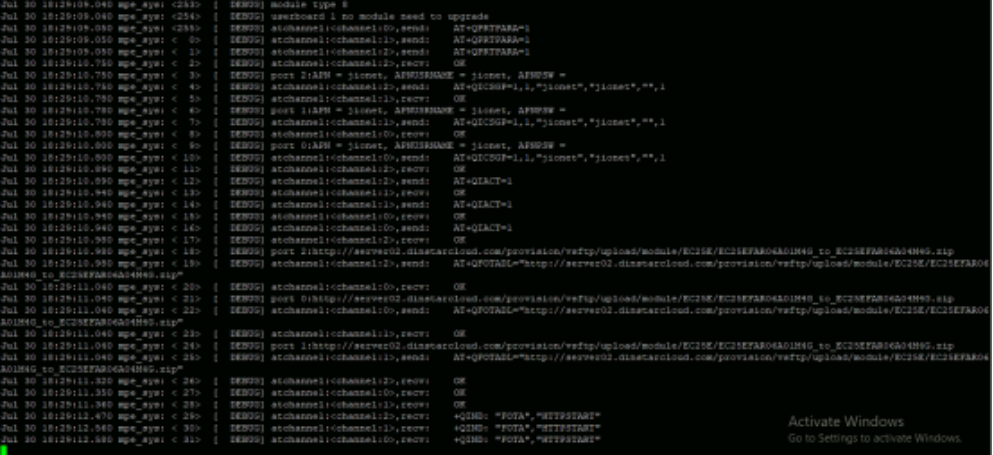
    In the first monitor telnet window, it will  upgrade process.

    Modules try to download the file.


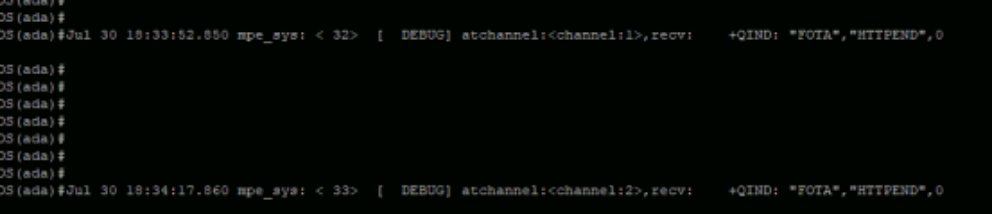
    The module file download completed.


     Keep waiting  for about 5 mins, the module is trying to upgrade. 

     After upgrading OK, the modules reboot automatically. 


    Results

    1.Check the module version

    After module up,  check the module version. Upgrade successful.


     Note: Don’t forget to remove the APN  after all steps completed.


  • QHow to set call time limit on UC2000

    A

    Backgrounds

    Some wireless gateway devices on the client side do landing services, and some SIM cards cause operators to pay attention to that SIM card and make restrictions because of too frequent calls. In order to solve this problem and manage SIM cards better, we can set different call time limits in different ports of the device to make the device operate more smoothly.

    Enviornment

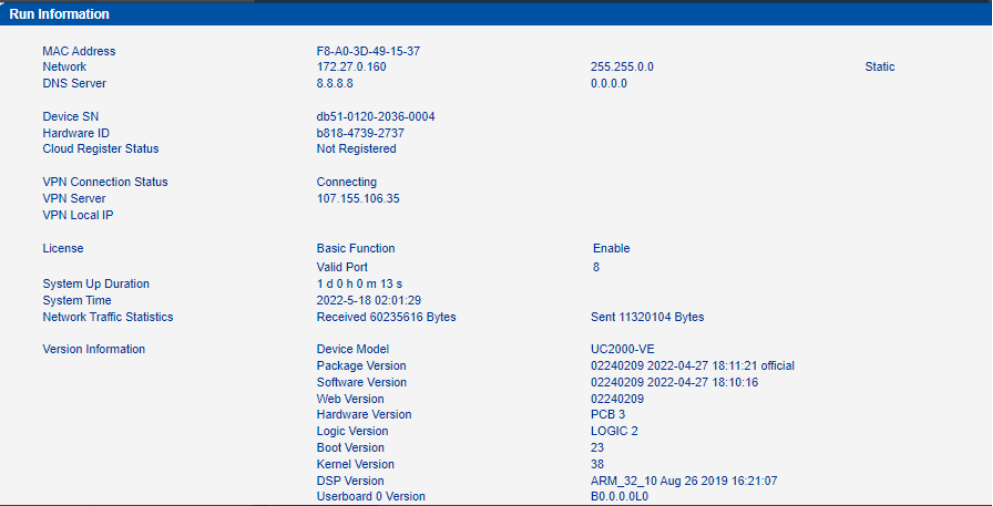
    This is the demo device system information


    Operation

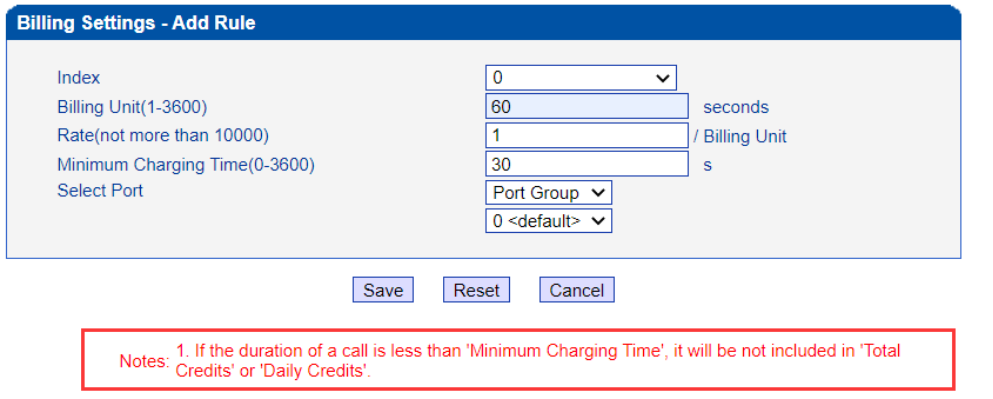
    1.Billing Settings 

    Click Advanced>Billing setting.Add a rule.The following picture shows that every 60s count as 1.00/billing rate and less than 30s will not be included.

    Billing Unit: set the billing unit, 60 seconds, for example.

    Rate: Set the billing rate . It defines how much every billing unit.

    Minimum Charging Time: set minimum charging time . Some operators do not charge if the call is less than a few seconds after the call is connected, Users can set that value here. If the operator starts billing once the call is connected, please set 0 here. 

    2.Call limit settings

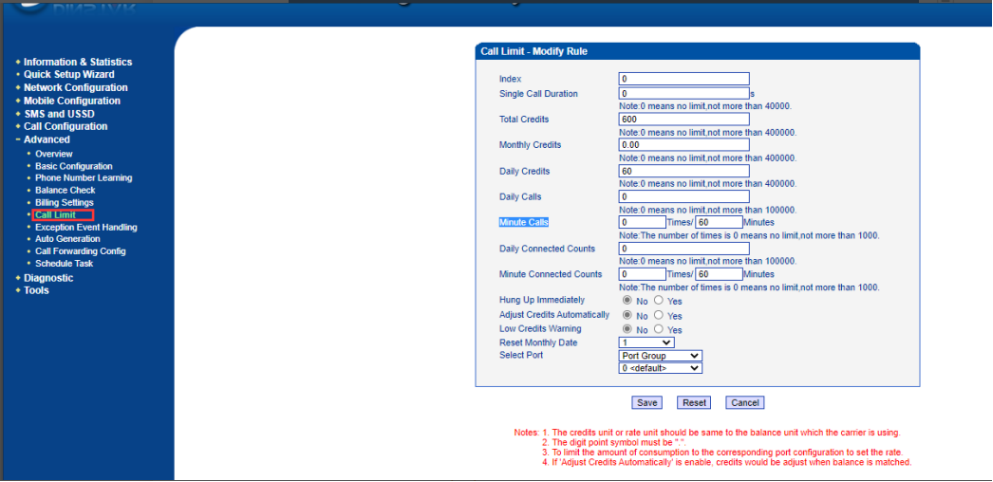
    Click Advanced>Call limit . Add a rule.The following picture shows that the total credits is 600 ,it is the port that can use 600 credits at most, and daily credit is 60,it means the port can use 60 at most one day.The minute calls is 0 times/60 minutes , meaning the port can call many times in 60 minutes.


    Single Call duration: set single call duration, it defines the maximum duration every single call can take, 0 means no limit. If you set 2, it means every call can use 2s at most, and call will be disconnected if gets to the limit.

    Total Credits: set total credits, it defines the maximum credit the port can use, 0 means no limit. If you set 600, it means the port can use 600 credits at most.

    Daily Credits: set daily credits, it defines the maximum credit the port can use in one day, 0 means no limit. If you set 60, it means the port can use 60 at most one day, and the data will be cleared at 0’clock of everyday.

    Daily calls:set daily calls ,to limit the port to make call times

    Minute Calls:set minute calls,number of calls that a port can make per unit of time. For example,set 2 times /20mintues means in 20 minutes you can call twice.

    Daily connected counts:set daily connected counts ,means the port can be connected counts.

    Minute connected counts:set minute connected counts,number of call connections that a port can make per unit of time, For example,set 2 times /20mintues means in the 20 minutes they can be connected twice.


    Adjust Credits Automatically: If enabled to adjust credits automatically, it is used to work together with Balance Check function . When enabling both balance check function and billing, the gateway will automatically regulate the balance.

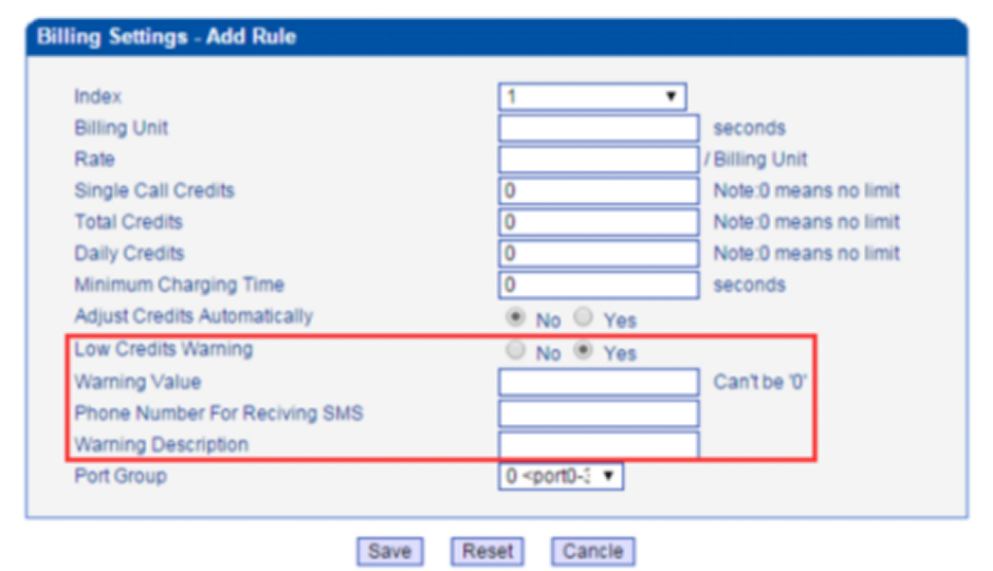
    Low Credits Warning: If enabled the low credits warning. The gateway will select one port from gateway to send warning SMS to your mobile phone to remind you the SIM is low balance.


    Warning Value: set the balance threshold . When balance is less than this value, the gateway will select one port from the gateway automatically to send the warning SMS. 

    Phone Number For Receiving SMS: set one mobile phone number, which is used to receive the warning SMS. It only supports entering one mobile number.

    Warning Description: set warning description, low balance, for example. It only supports 15 characters at most.

    Port Group: set one port group, all the ports in this group will apply this rule.


  • QHow to configure sms to e-mail&e-mail to sms on UC2000

    A

    Backgrouds

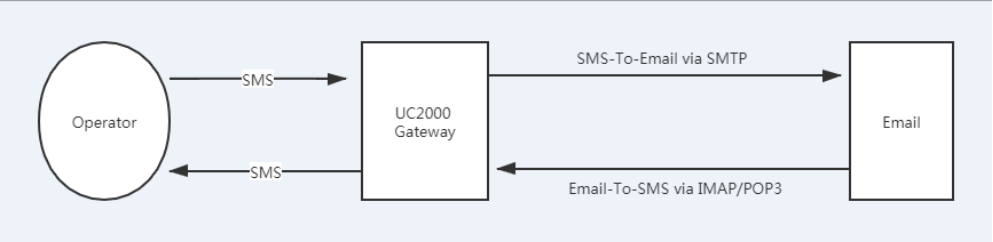
    The UC2000 devices support SMS-To-Email and Email-To-SMS function. The   UC2000 login your email as a third party mail client. When use Email-To-SMS function, the devices will manage your email. And it will read the unread email first, then download the email and convert to SMS to send out if it matches the correct subject email. When using SMS-To-Email function, the gateway will control your mail to edit a new email and send it to destination email address when gateway receives SMS .

    The file shows how to configure SMS-To-Email and Email-To-SMS, and How to solve SMS-To-Email and E-mail to SMS not working  

    Preparations

    A UC2000-VE-8G

    Two email address ’’support@dinstar.com” and “dyh941901@gmail.com “

    support@dinstar.com is destination when using SMS-To-Email  

    dyh941901@gamil.com is sender when use Email-To-SMS

    Email-To-SMS use IMAP/POP3 protocol and SMS-To-Email use SMTP protocol. 


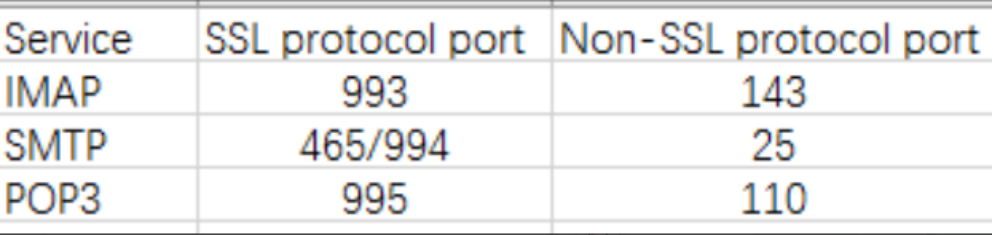
    Email usually use IMAP/SMTP/POP3 ports like below sheet. SSL protocol port is used for encrypted communication. Different emails may use different ports please confirm with email provider first.

    NOTE:

    1.Same configuration will apply to Dinstar other UC2000 series gateways. (If the current firmware version of the gateway is without the function, please upgrade it.)

    Operations

    [Target]

    Send SMS to destination email address successfully 

    Get email from destination email address and change them to sms then send out

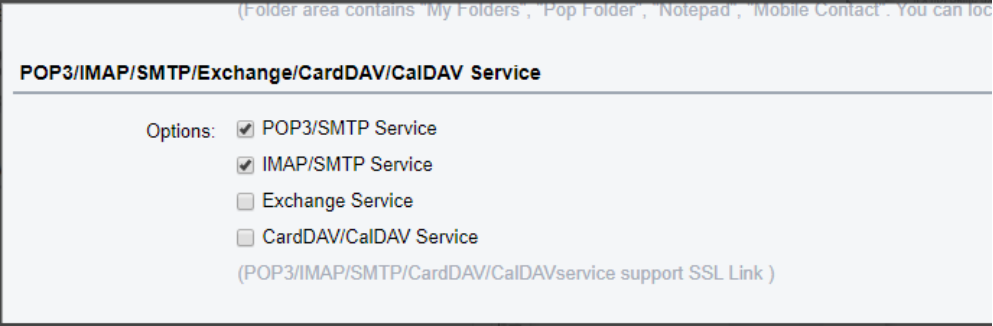
    1.Enable SMTP service 

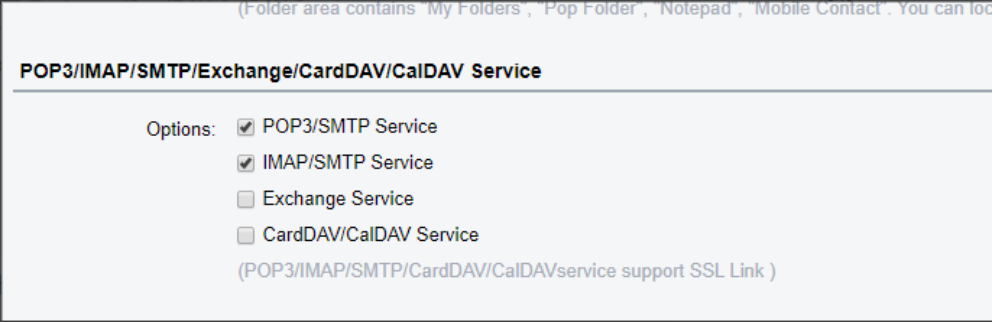
    Please enable SMTP service on email of Email Account .

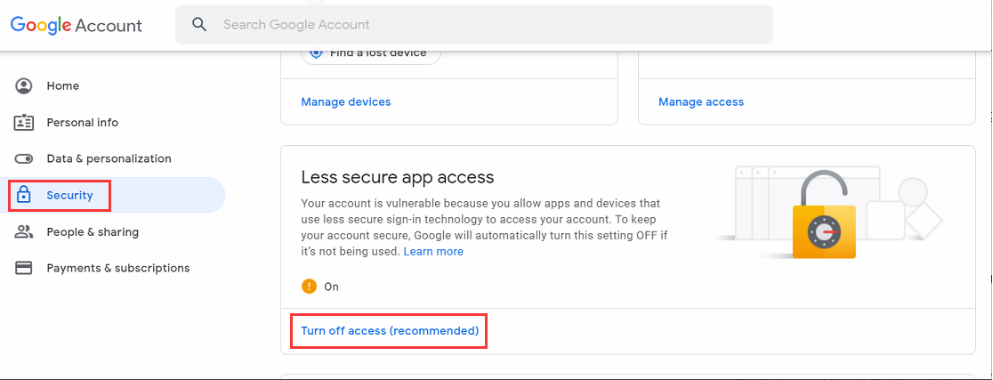
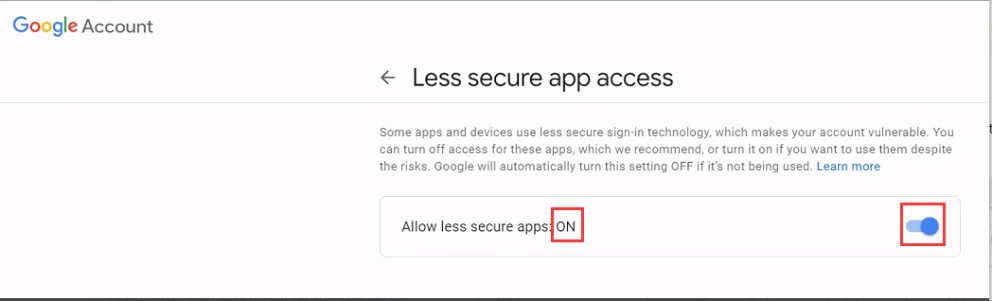
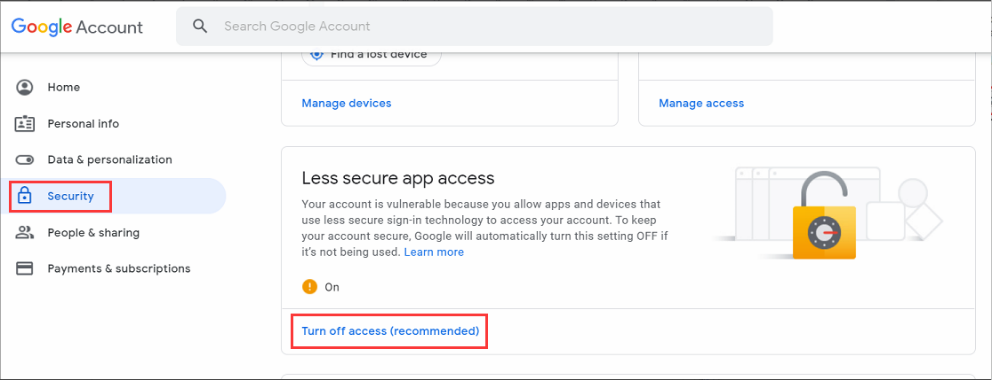
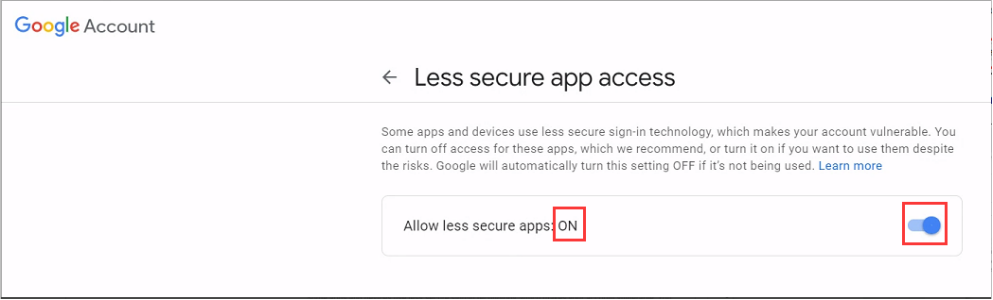
    We use Gmail and Gmail enabled SMTP service in default. Please turn on access and allow less secure app access on Gmail. 

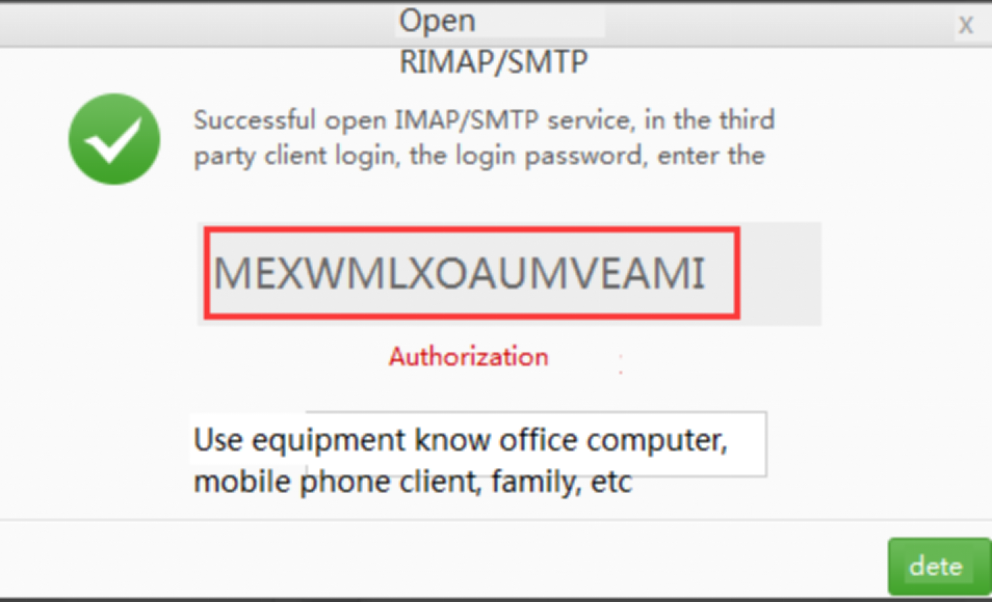
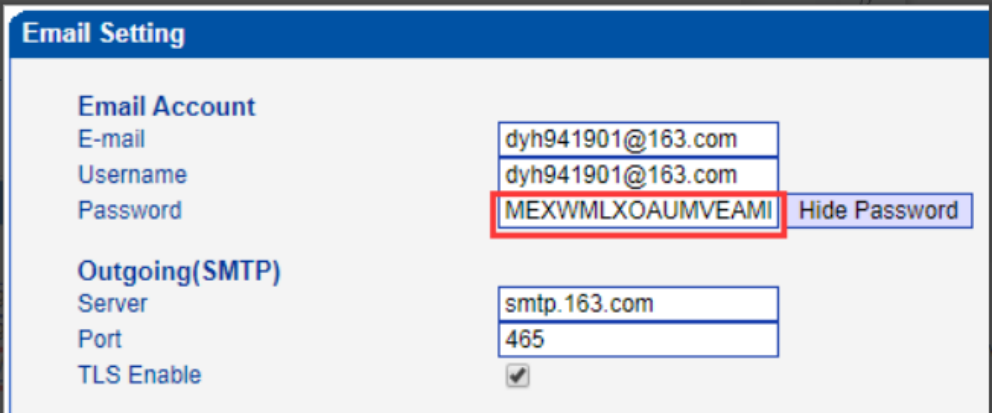
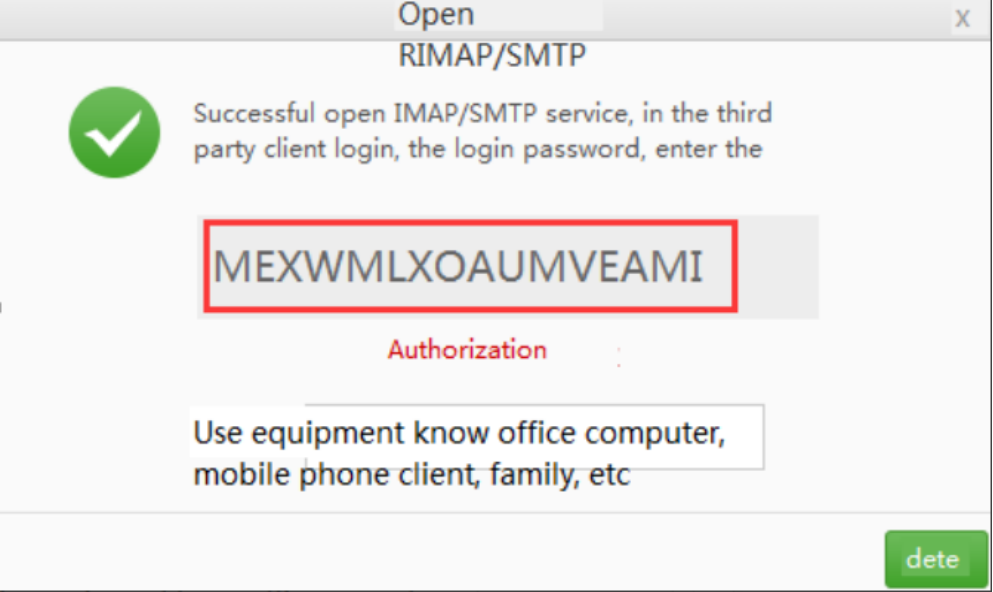
    Some email will show a authorization code when you enable SMTP service.We enable SMTP service in 163 mail and it shows a authorization code, Gmail doesn’t have the authorization code

    It shows a authorization code ‘MFXWMLXOAUMVEAMI’ on below screenshot .

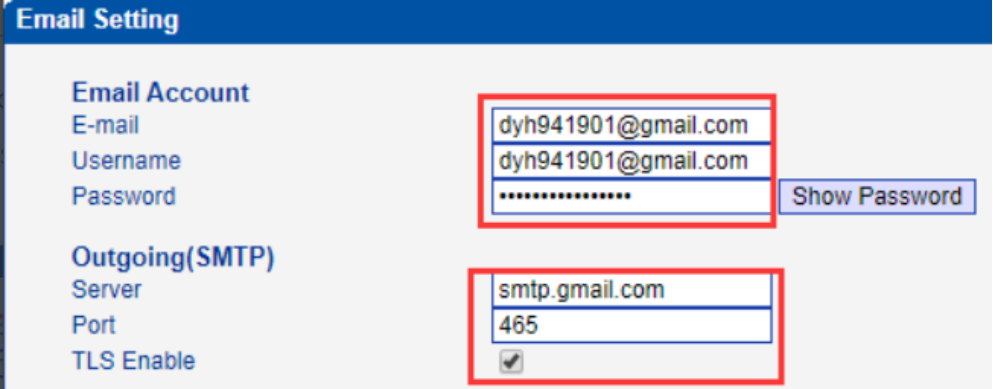
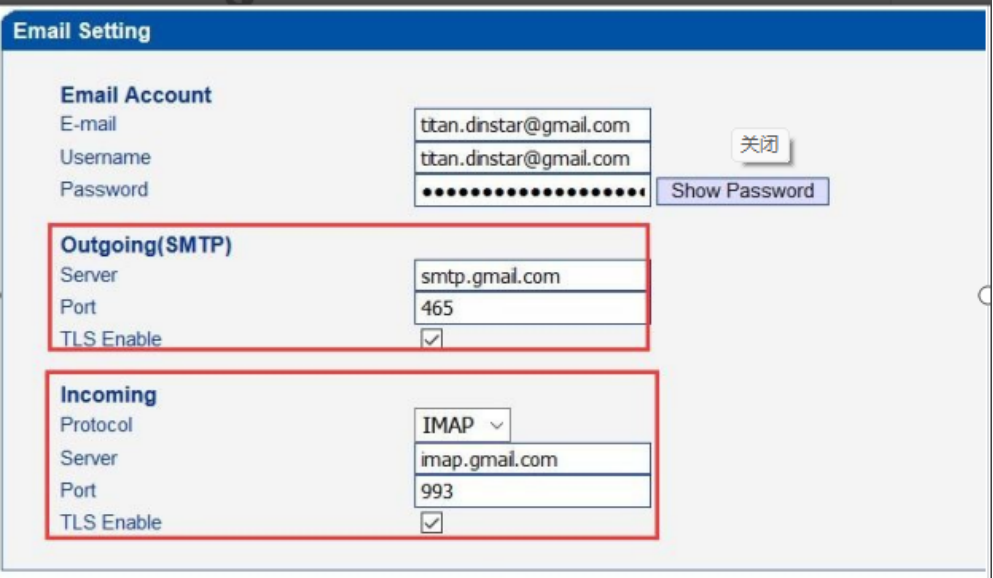
    2.Configure email account and SMTP on device

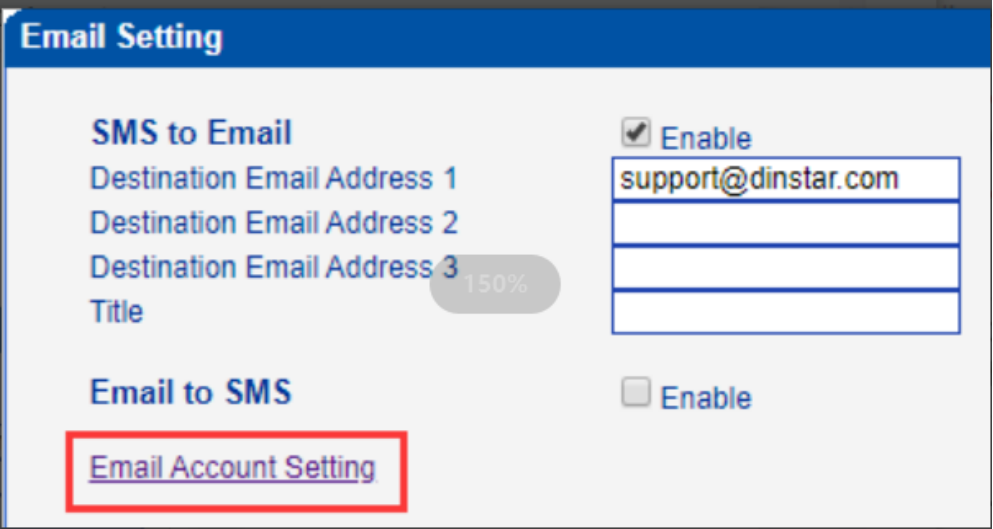
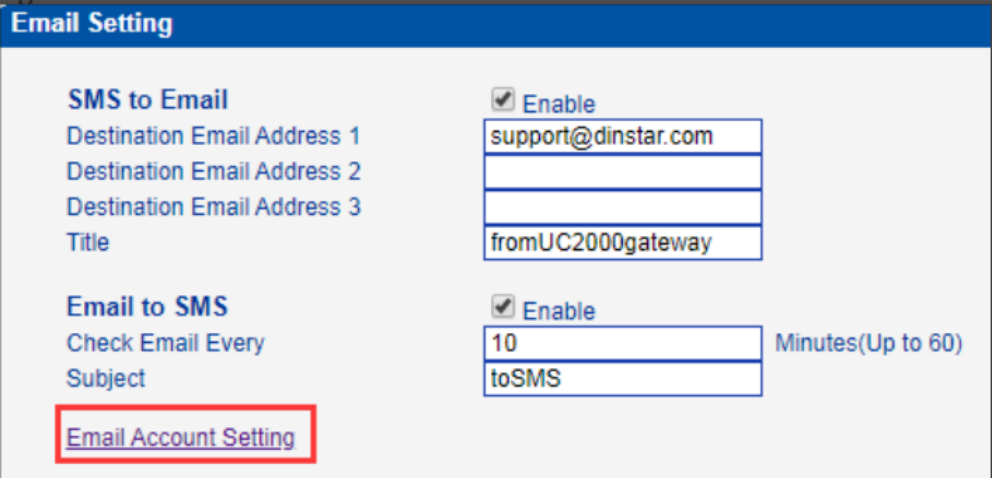
     Please click Email Account Setting and configure email account 

    In the demo, the password is Gmail account password. Gmail SMTP server is smtp.gamil.com and Gmail only uses SSL port, so please type 465 as SMTP port and enable TLS.

    [Note]

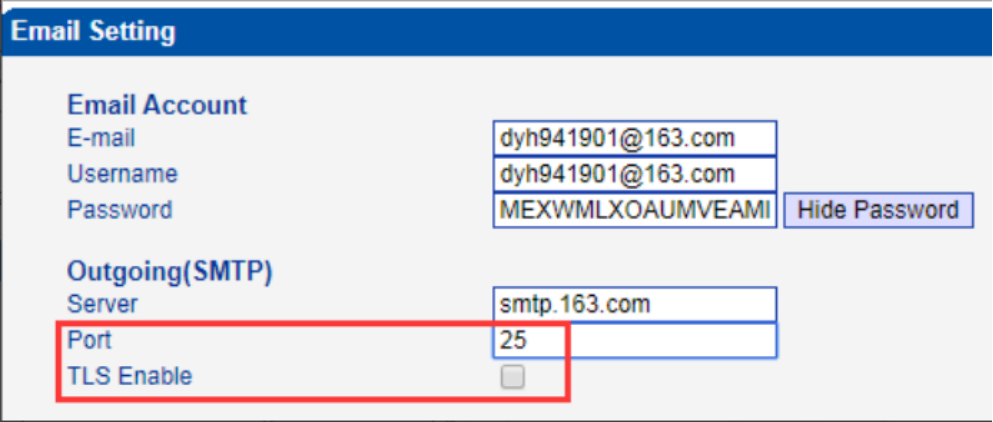
    1.If you use other email and it shows authorization code, you should use authorization code to replace account password .

    If you don‘t want to encrypt with TLS ,please just use NON-SSL port and don’t enable TLS.

    3.E-mail destination settings

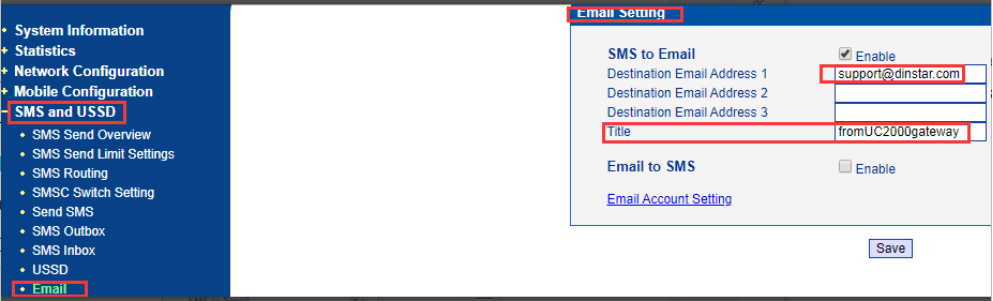
    Click SMS and USSD—Email ,Set a destination email address to receive sms. Here you can set three different destination addresses. Title is subject of email received .

    We set support@dinstar.com as destination email address 1 here.


    4.SMS to Email testing

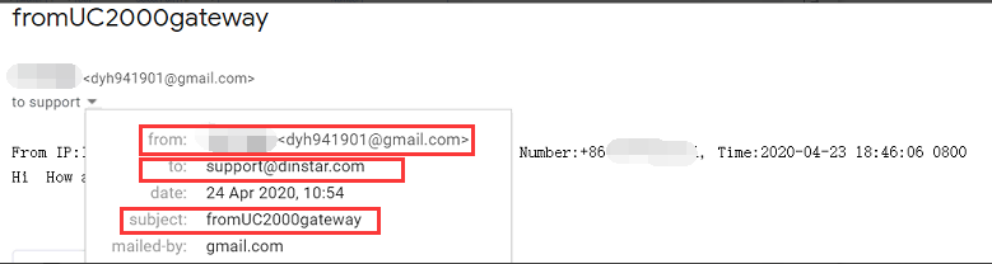
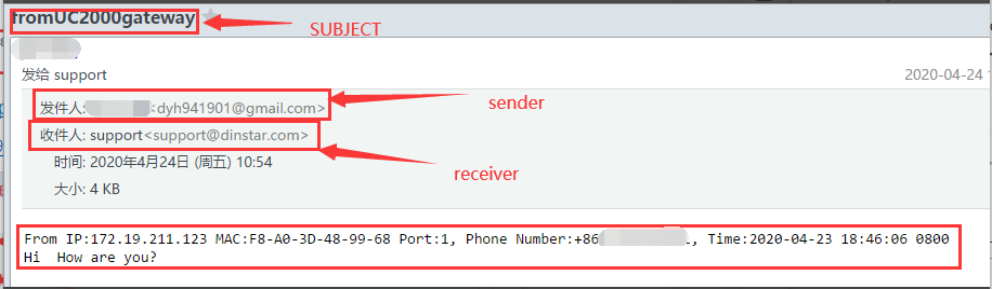
    The gateway will send an email to support@dinstar.com from dyh941901@gmail.com when gateway receives a new SMS.

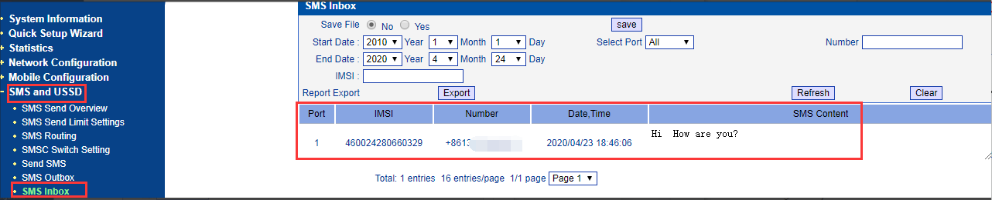
    We send a SMS to gateway and check the gateway SMS Inbox.a


    Check out box of Email dyh941901@gmail.com 

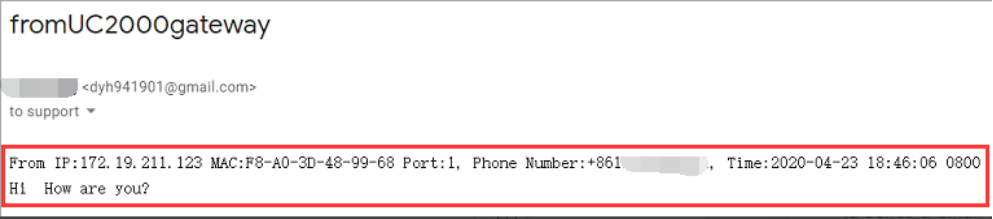
    It converts SMS to email and sends a email to destination email address support@dinstar.com


    Check inbox of email support@dinstar.com .


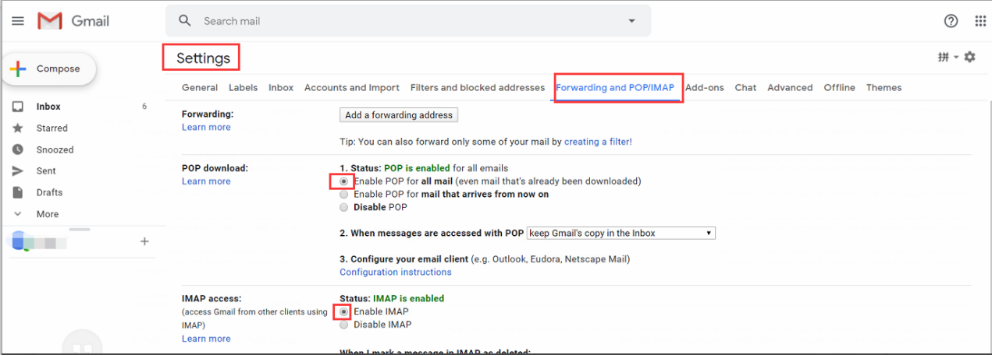
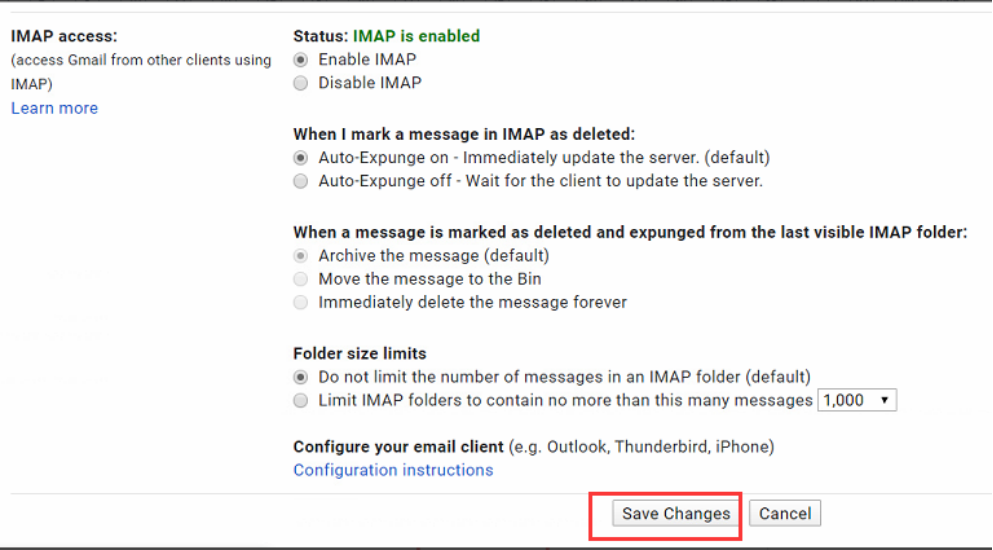
    5.Enable IMAP/POP3 service

    Please enable IMAP/POP3 service on email of Email Account .

    We enabled IMAP/POP3 service on dyh941901@gmail.com email.


    And also turn on access and allow less secure app access on Gmail. 


    [NOTE]

    Some email will show an authorization code when you enable IMAP/POP3 service.

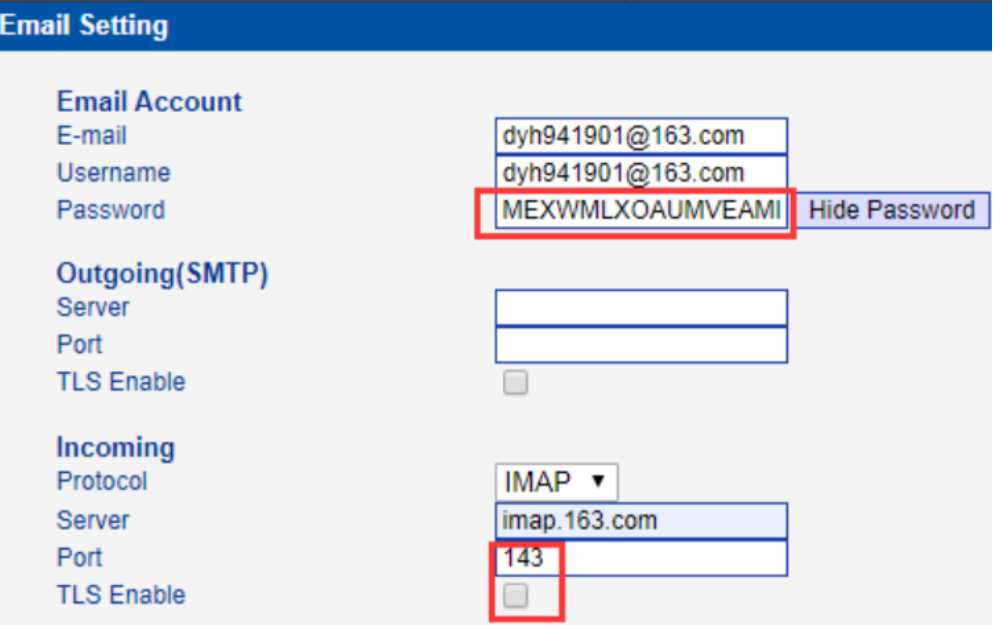
    We enable IMAP/POP3 service in 163 mail and it will show an authorization code.Gmail doesn’t have the authorization code

    It shows a authorization code ‘MFXWMLXOAUMVEAMI’ on below screenshot .

    6.Configure Email Account

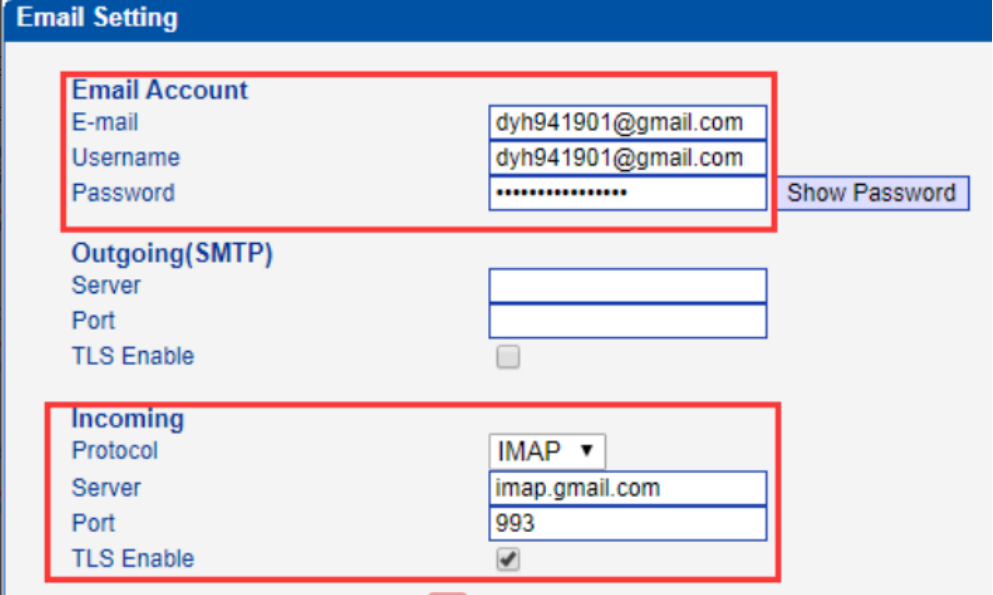
    Click SMS and USSD—Email--Email Account Setting and configure email account as below.

    Password is Gmail account password. Gmail IMAP server is imap.gmail.com and POP3 server is pop.gmail.com. Gmail only uses SSL port, so please type 993 as IMAP port and 995 as POP port and enable TLS.

    [NOTE] 

    If you use other email and it shows authorization code on step 3.2, you should use authorization code to replace account password .

    If you don’t want to encrypt with TLS ,please just use NON-SSL port and don’t enable TLS.

    UC2000 gateways periodically check the unread list of email-box and read the unread emails which are within the maximum length allowed for receiving processing (no more than 300 characters or use text mode).

    [NOTE]

    In IMAP protocol, the read flag is set if read email successfully. And if read failed, the gateway will read the email again, up to three times, and sets it as read if it still fails.

    In POP3 protocol, the email is deleted if it is read successfully and not deleted if it is read failed (wait until the next interval time checked).

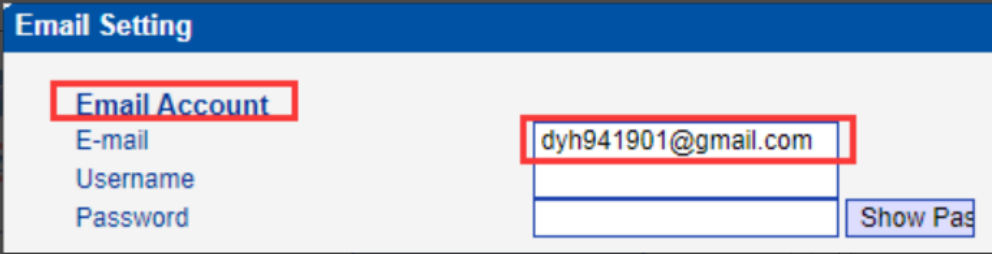
    In the guide, we set dyh941901@gmail.com as email account . Then gateway will periodically check the unread list of this email and read unread email.

    7. Check period and Subject setting

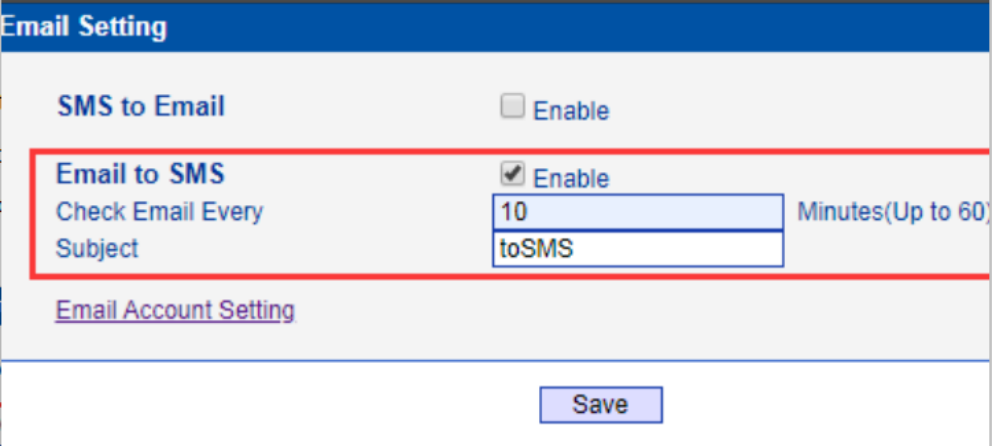
    We set check email every 10 min and ‘toSMS’ as subject .So the gateway will check the unread list of Gmail and read unread email every 10 min. And the gateway will filter all email which subject is ‘toSMS’ .

    8.Email  Format 

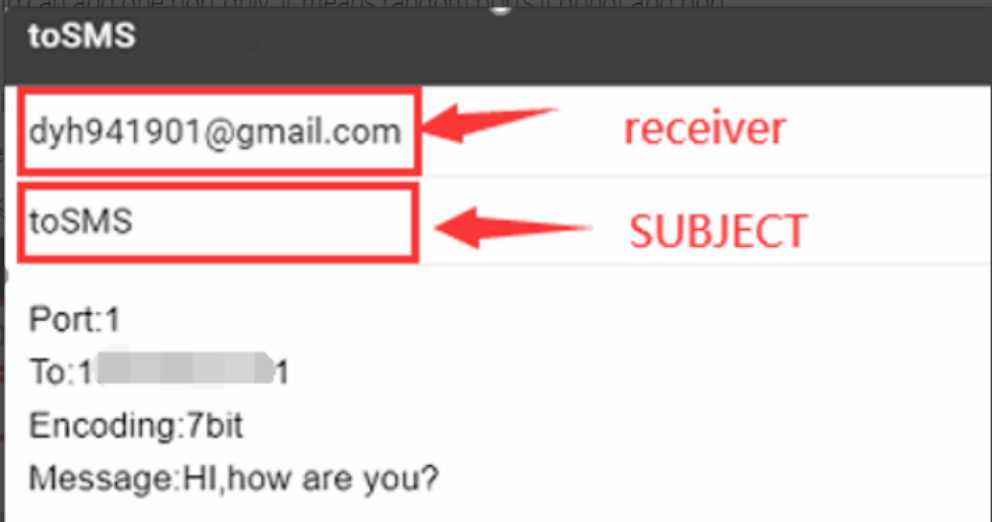
    Email format of Email to SMS:

    Subject:xxxxx       //Subject keywords in the WEB configuration must be included

    Port:xx           // Optional field,xx means port No ,you can select which one port to send SMS and can add one port only .it means random ports if donot add port. 

    To:xxx             // xxx means destination phone number and can add one only.   

    Encoding:7bit/UCS2       //Optional field, using UCS2 encoding by default, note that 7bit must be lower case

    Message:xxxx           //xxxx means content of SMS

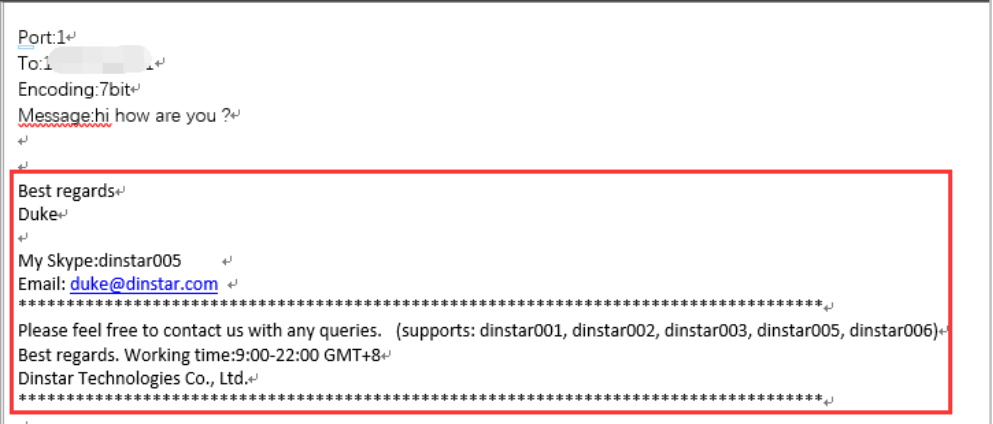
    [NOTE]

    The email content don’t add other words except above words ,like signature.

    9. Email to SMS testing

    We can use any email address to send a email to dyh941901@gmail.com with correct format.Check Inbox of dyh941901@gmail.com.It receives a unread email in In-Box .


    The gateway reads the email and converts email to SMS then sends it out .

    [NOTE]

    Don’t read the email and keep unread status .the gateway will check unread list only .


    Trouble shooting

    Users use the E-mail to SMS,SMS to E-mail functions.But they are not working normally.Please follow the steps to check the issue.


    1.Ping SMTP/IMAP server

    If the device can ping through the server address,please follow the next step. If the device can’t ping through the server address,please check the network of device.

    2.Check device configuration 

    Confirm the information is correct,such as e-mail address,account information,SMTP/IMAP server and ports.The picture is just an example.


    3.Check the e-mail address

    Check your E-mail address could be log in in your mail server successfully

    4.Check by telnet

    Please try to telnet of gateway and input follow command.

    [Commands]


    ROS>en

    ROS#sh detail

    ROS#^config

    ROS(config)#deb port all ROS(config)#ex ROS#^ada

    ROS(ada)#[079-19:27:46:370]ADA CONNECTED ...,WELCOME!

    ROS(ada)#turnon 84

    ROS(ada)#turnon 40

    ROS(ada)#cmd 40 1 1

    ROS(ada)#cmd 40 2 1

    After entering the commands , please do SMS test . Then get the package to technical support.


  • QHow to analyze which channel is included in HTTP API log

    A

    Introduction

    Sometimes, the client reports USSD/SMS passing through wrong channel when USSD/SMS is sent through HTTP API.  In those cases, it’s impossible to analyze the fault via HTTP package from the client and we need to check the logs from the UC2000 side. This  guide is aimed at helping technical personnel analyze which channel is included in HTTP API log. Since the HTTP API log does not indicate any channel information directly, we need to transform it into hexadecimal.

    Note: 

    1.The API refers to new HTTP API for USSD/SMS.

    2.If the current firmware version of the device does not support new HTTP API, please upgrade it.

    [Target] 

    Analyze which channel is included in the requests sent by HTTP client side.


    Preparations

    The channels 0-15 of the UC2000-VF side are inserted with SIM cards and registered OK. The IP of the device is 192.168.34.50. We will send HTTP requests to UC2000-VF and use one of the channels to send SMS.


     Operations

    1.Capture HTTP Log

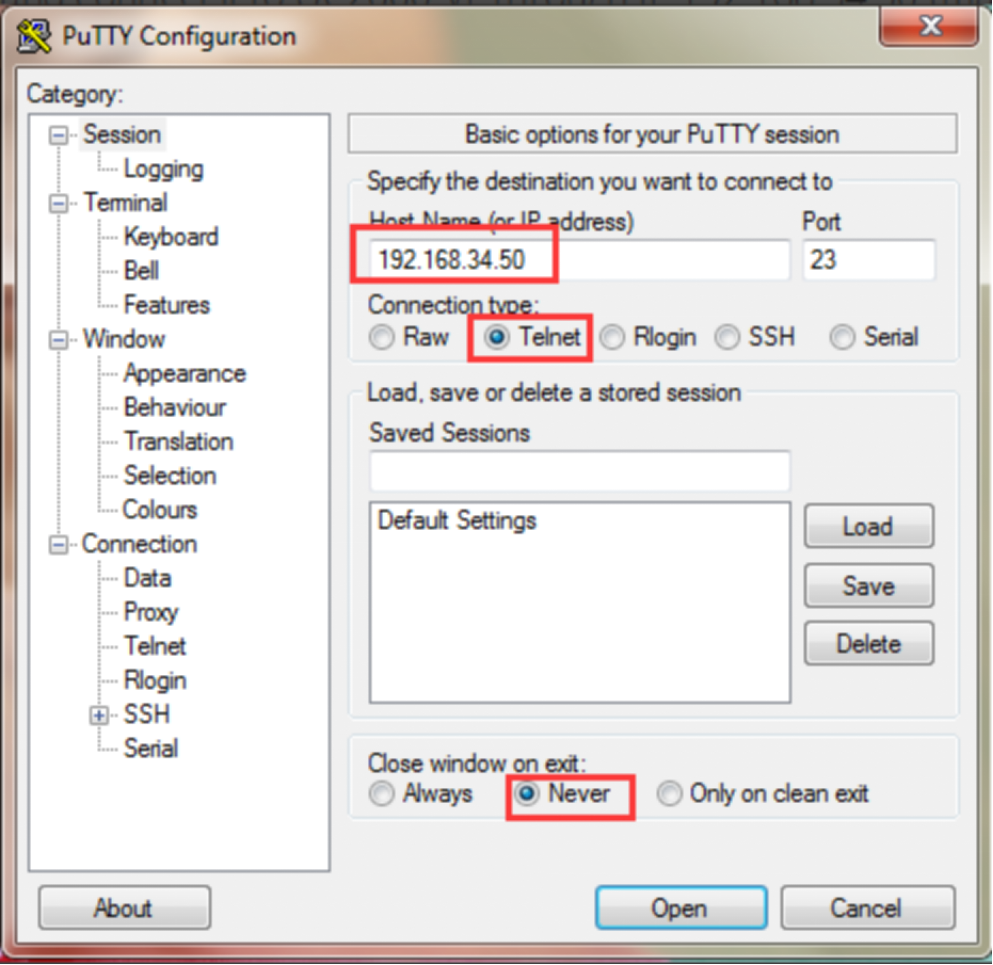
    1.1 Telnet of UC2000 device

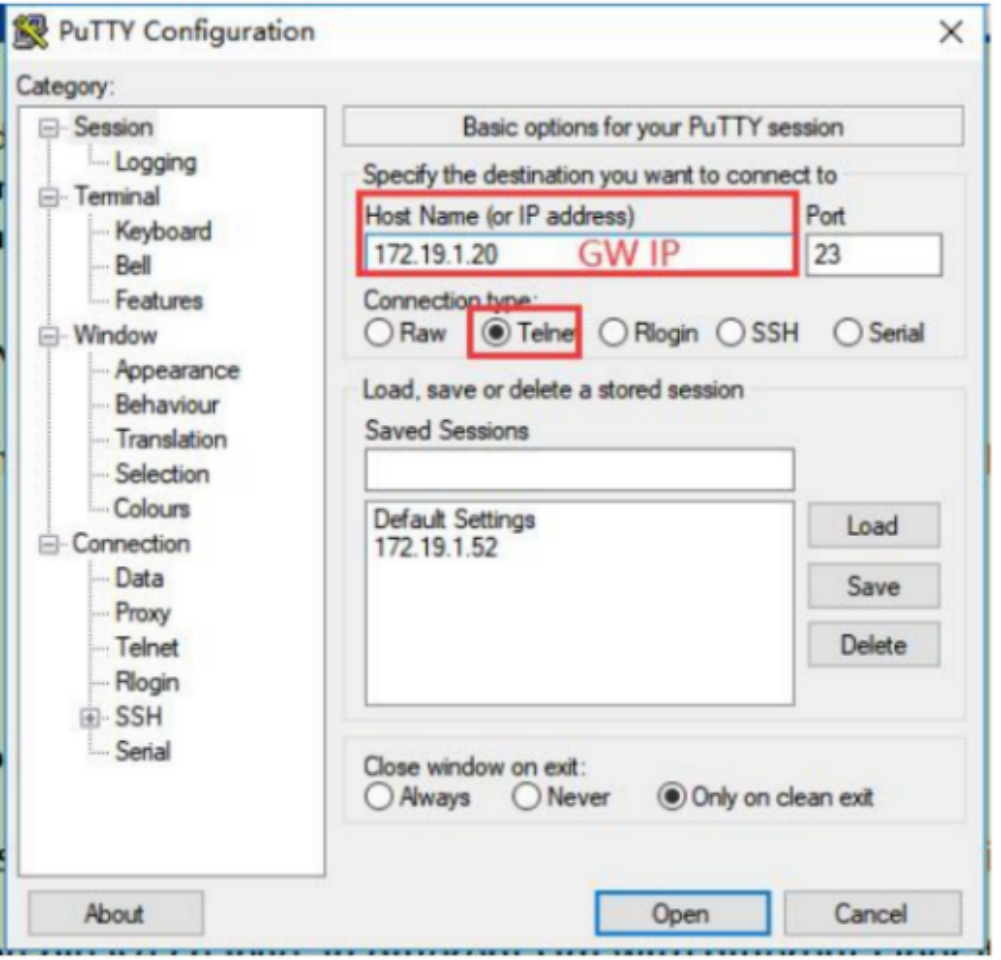
    Run the application “Putty” and connect it to UC2000-VF through IP 192.168.34.50 (make reference to the following setting). Default telnet port is 23.


    Note

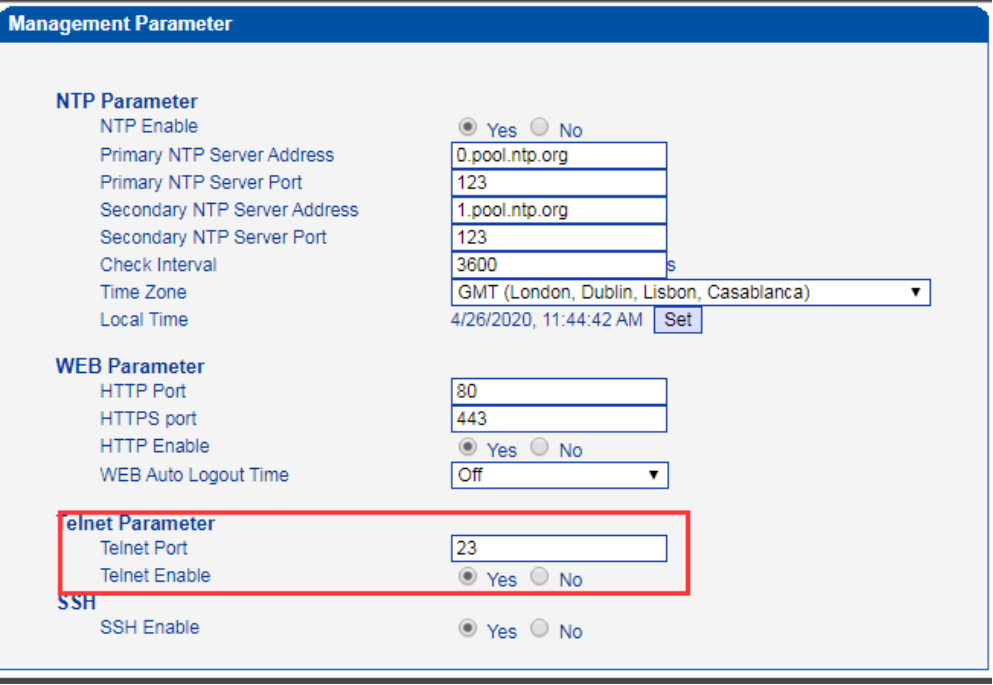
    1.If the connection fails, please click Tolls>>>>>Management page to check whether the Telnet option is enabled at the UC2000 side. 

    2.Reboot the device to make the configuration take effect.


    1.2 Make the monitor window ‘ADA’ on

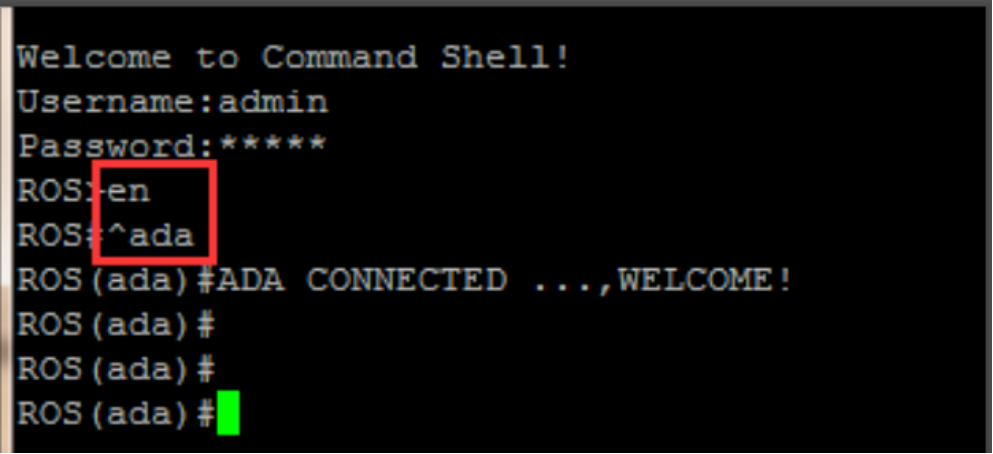
    Log in to telnet and input command “en”, then “^ada”. Press ‘Enter’ to enter into the ADA mode as follows,


    Input the turnon 84 command to open the ECC,


    2.Send the HTTP request

    Send the SMS to UC2000-VF through HTTP API.

    3.Analyse log

    3.1 Get the value of port information

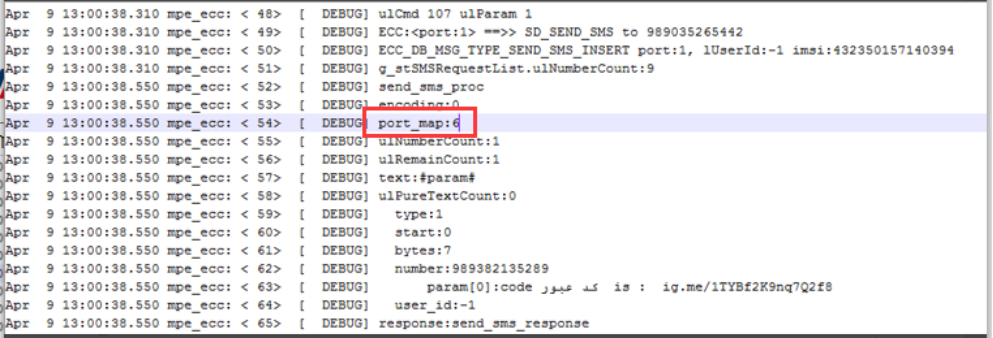
    Locate the “port_map” in the log, you will see the value. 


    3.2 Run the Calculator

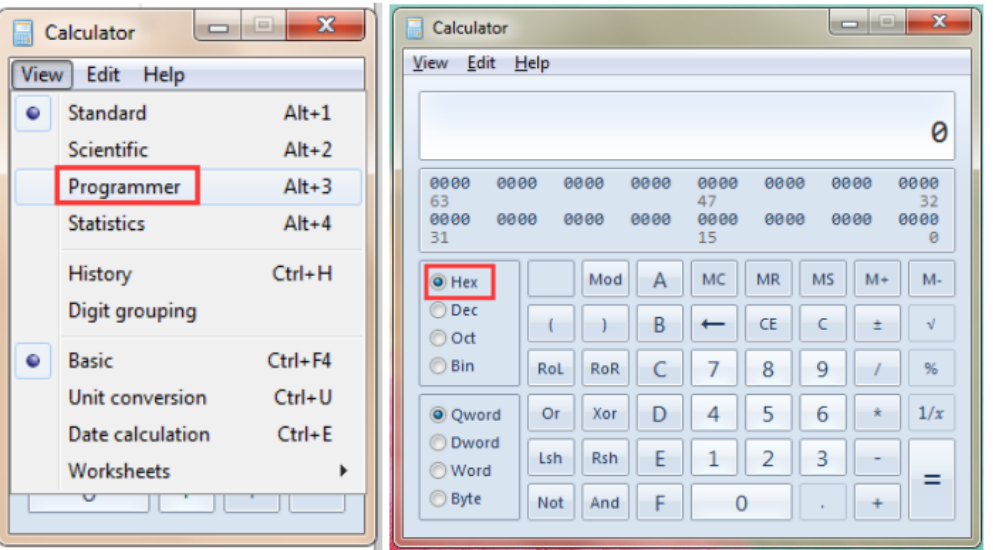
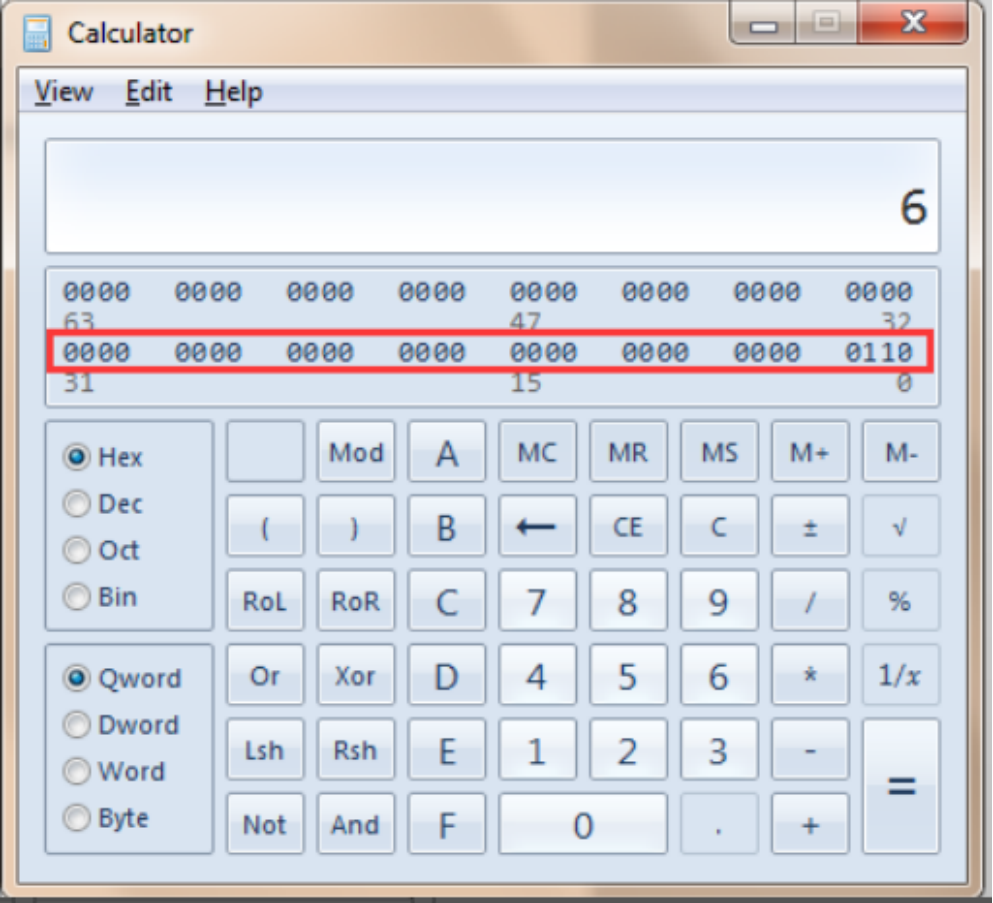
    Change the Calculator to programmer mode and choose Hex.


    3.3 Analyze the value

    Input the above value 6 in calculator, you will see it switch to hexadecimal.

    We used the first 32 digits only, because the UC2000 serials max 32 channels.

    The Rule is from right to left mapping to UC2000 channel start 0-X.

    In the red mark, you can see the 2(nd) and 3(rd) digital value are 1 and the two digits are mapped to channel 1 and channel 2 of UC2000-VF side. 


    So the HTTP client sends SMS to channel 1 and channel 2. 


  • QHow to use SMPP on UC2000

    A

    Backgrouds

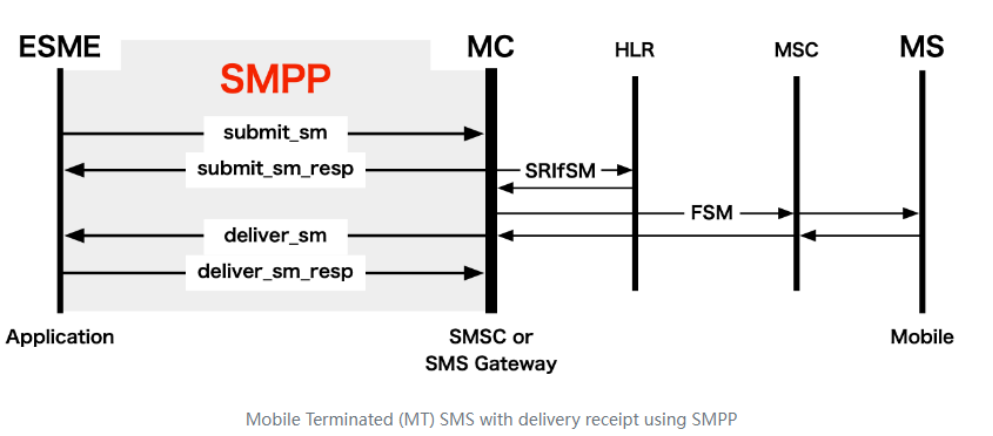
    The SMPP (Short Message Peer-to-Peer) protocol is an open, industry standard protocol designed to provide a flexible data communications interface for the transfer of short message data between External Short Message Entities (ESME), Routing Entities (RE) and Message Centres (MC). It is a means by which applications (termed ESMEs) can send SMS messages to mobile devices and receive SMS from mobile devices.

    ESME(External Short Message Entity) = SMPP 'client' (an SMS application system)

    SMSC(Short Message Service Centre) = SMPP 'server' entity


    The exchange of messages between an ESME and SMSC via SMPP may be categorised under three distinct groups of transactions as follows:

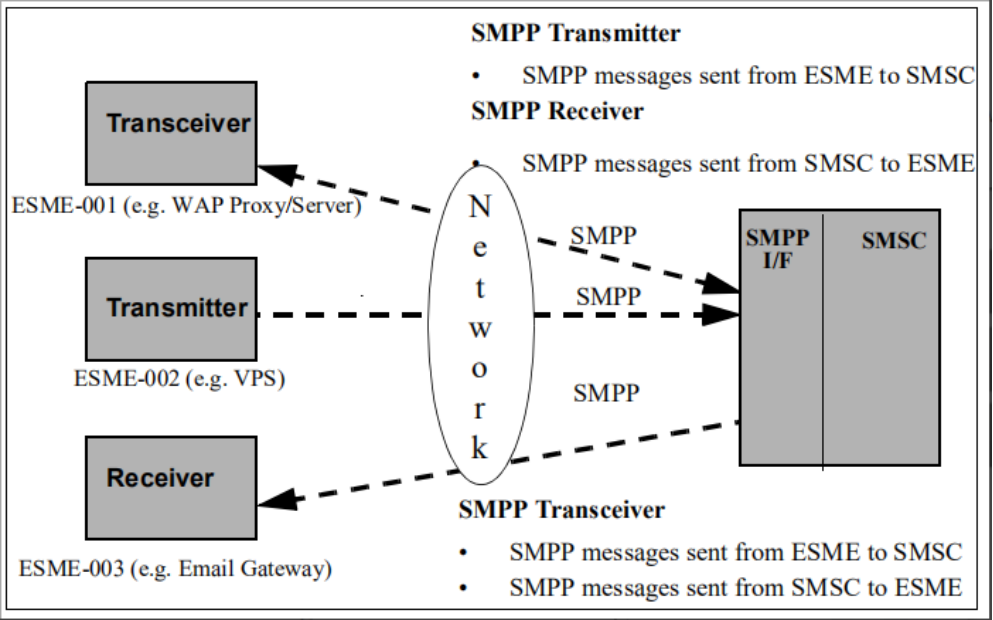
    There are three mode of SMPP :

    Transceiver: Transceiver (bidirectional Transceiver) 

    Transmitter: Transmitter (one-way delivery, only send without receiving)

    Receiver: Receiver (one-way, only receive but not send)


    Figure 1: SMPP interface between SMSC and ESME

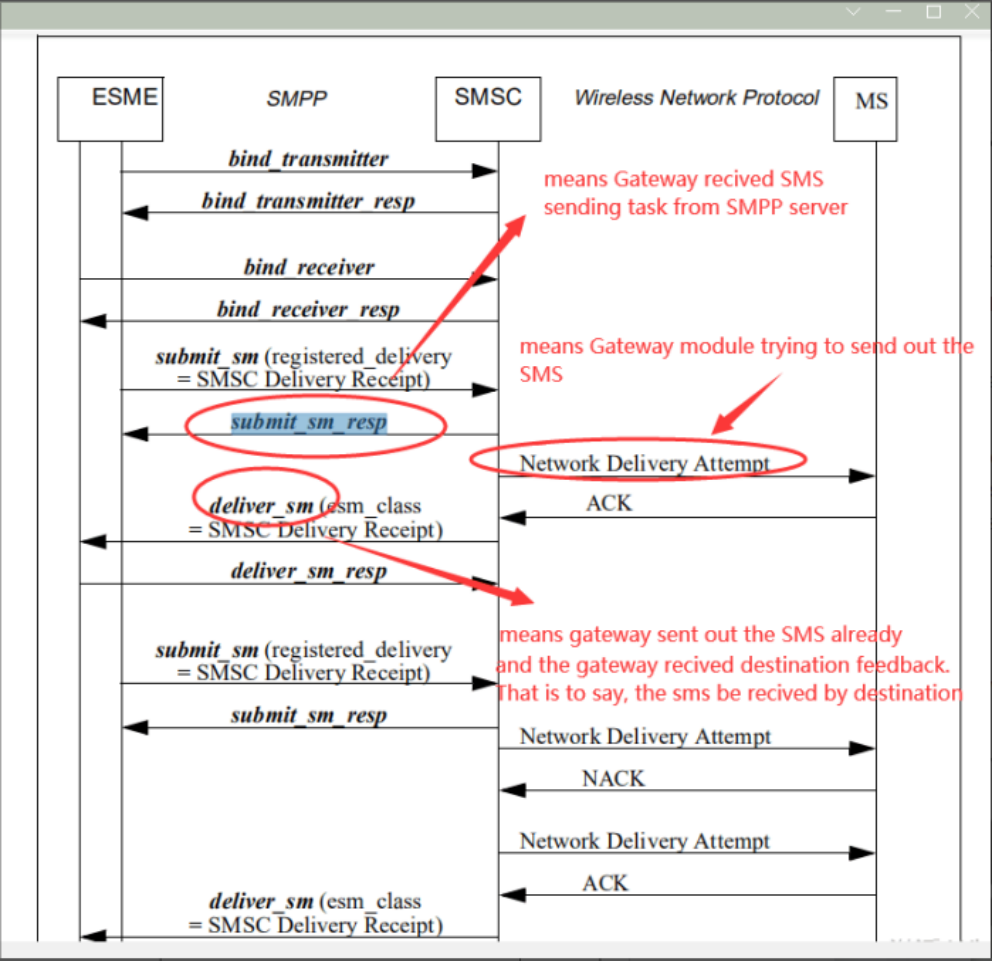
    A SMPP session between an SMSC and an ESME is initiated by the ESME first establishing a network connection with the SMSC and then issuing an SMPP Bind request to open an SMPP session.

    An ESME wishing to submit and receive messages is required to establish two network connections and two SMPP sessions (Transmitter and Receiver).Alternatively, an ESME may establish an SMPP Transceiver session over a single network connection


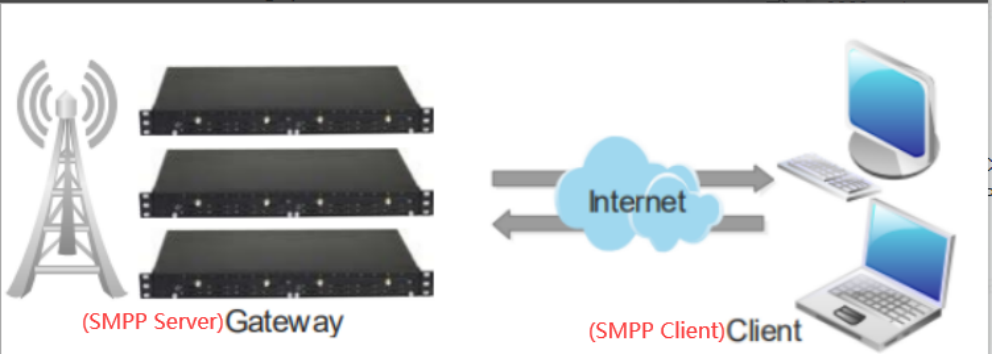
    This guide shows how to use SMPP on Dinstar UC2000 series devices.The following picture shows the connection between gateway and client. Dinstar UC2000 gateway is a SMPP server, it supports SMPP V3.4.


    Operations

    1.Connect UC2000 with SMPP client 

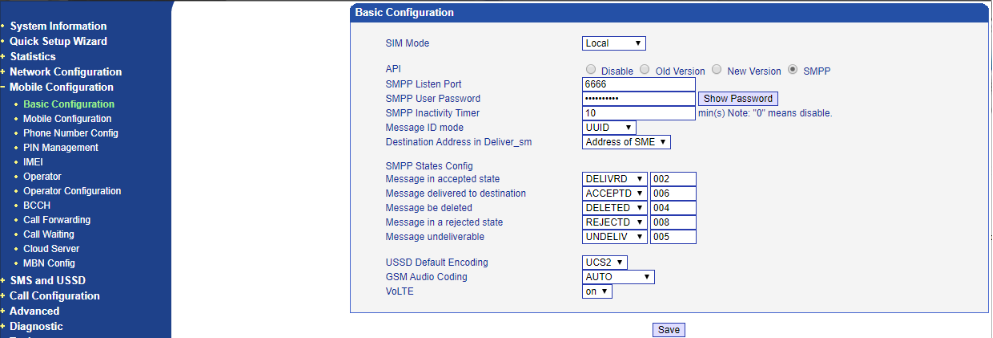
    Click Mobile Configuration > Basic configuration > API (SMPP).

    Set the SMPP port and passwords on UC2000.Confirm they are the same as the SMPP client side. 


    2.Confirm  UC2000 communicate with SMPP client normally

    Please confirm the communication between uc2000 and SMPP clients is okay.

    3.Choose the role of SMPP client

    There are three roles of SMPP protocol.They are Transmitter,Receiver and Transceiver.When you configure SMPP client, you can see it can be bound into three modes.

    [Transmitter : the SMPP client only sends SMS. ]

    [Receiver: the SMPP client only receives SMS. ]

    [Transceiver: the SMPP client can send and receive.]

    Please choose the corresponded role according to your requirement to set in the SMPP client side before sending traffic.

    NOTE:If you want to implement sending SMS to specific port , please read the following steps. 

    4.SMPP routing settings

    4.1 Send SMS to specific port

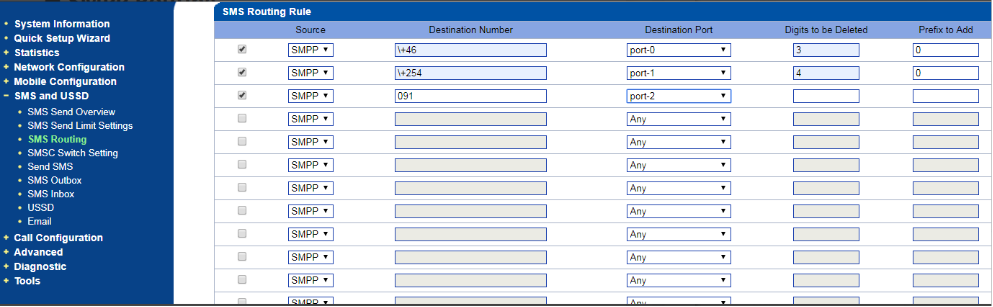
    We can set SMS routing to the specific port according to different prefixes. 


    Above first route means when i send SMS to destination number +46xxxx, UC2000 will use port 0 to send it out to destination number 0xxxx. But if no route can be used, it will go out from the idle port . This is different with the call routing.


    Checking

    [SMS send failed]

    Example

    SMPP client receives invalid message id.

    1.Do Network Capture

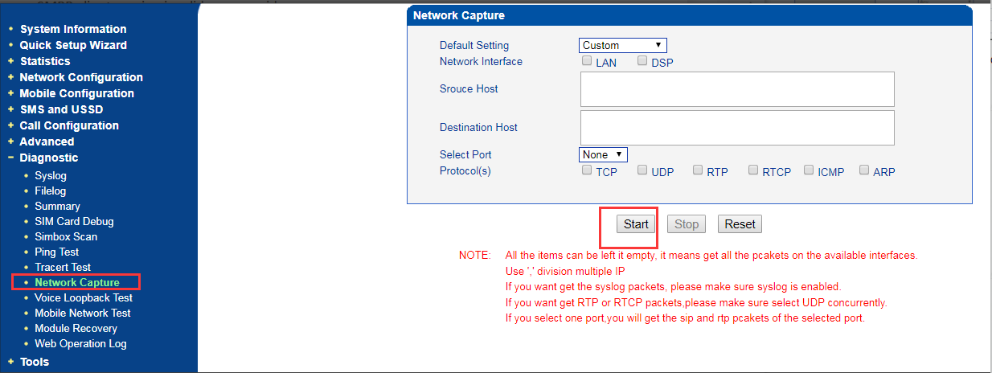
    If the SMS sent failed, please capture the network log in gateway.

    ① Choose Custom like below picture and click start 

    ② Send SMS 

    ③ Click stop and download the file 


    Then use Wire-shark to check the log.


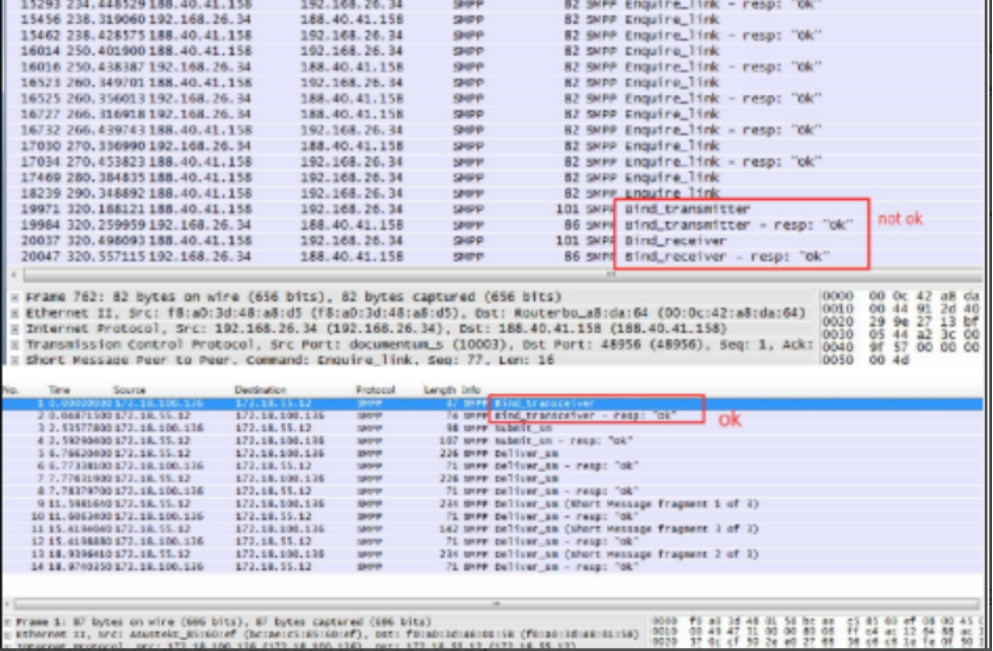
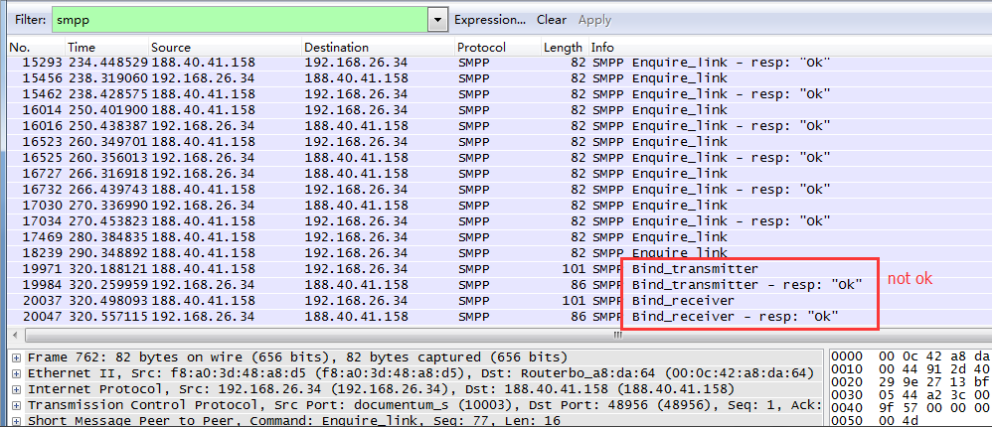
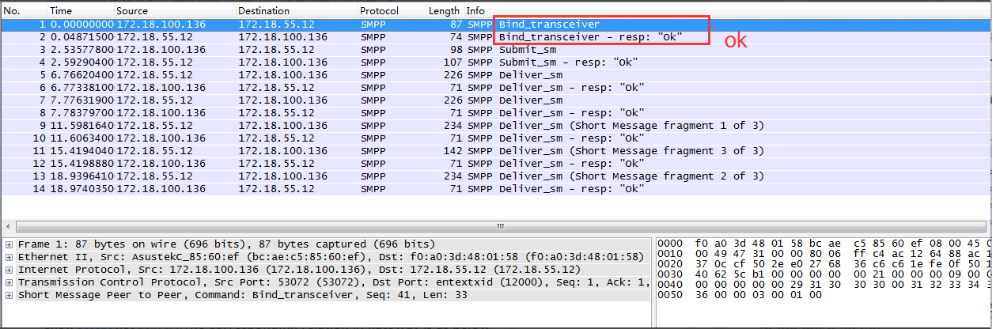
    If you see invalid message id like picture below,Please check the SMPP client role setting.        For example, if you want the SMPP client side send and receive SMS, you must bind it with Transceiver mode.


    2.Show SMPP result show accept not delivery

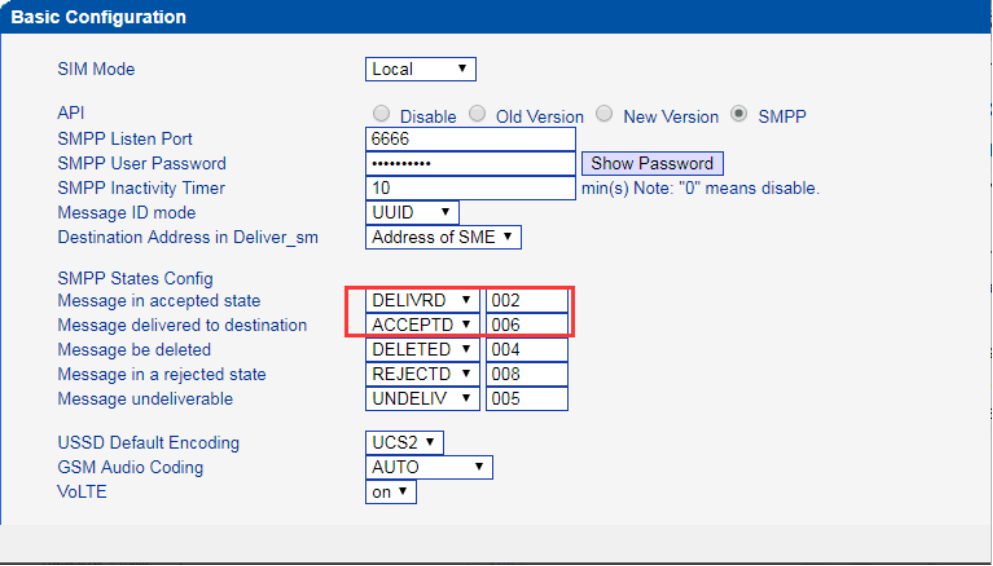
    Show accept not delivery.The corresponding relation in gateway is as below


    So when the SMS in outbox status shows Delivered, you want gateway to send Delivered to your SMPP client. And when SMS in outbox status shows Sent, you want gateway to send Accepted status to your SMPP Client, you need to set it like below:


    If the issue is still here, you can send logs and ask Dinstar support for help.


  • QHow to access the UC2000 when face ERR_SSL_VERSION_OR_CIPHER_MISMATCH

    A

    Introduction

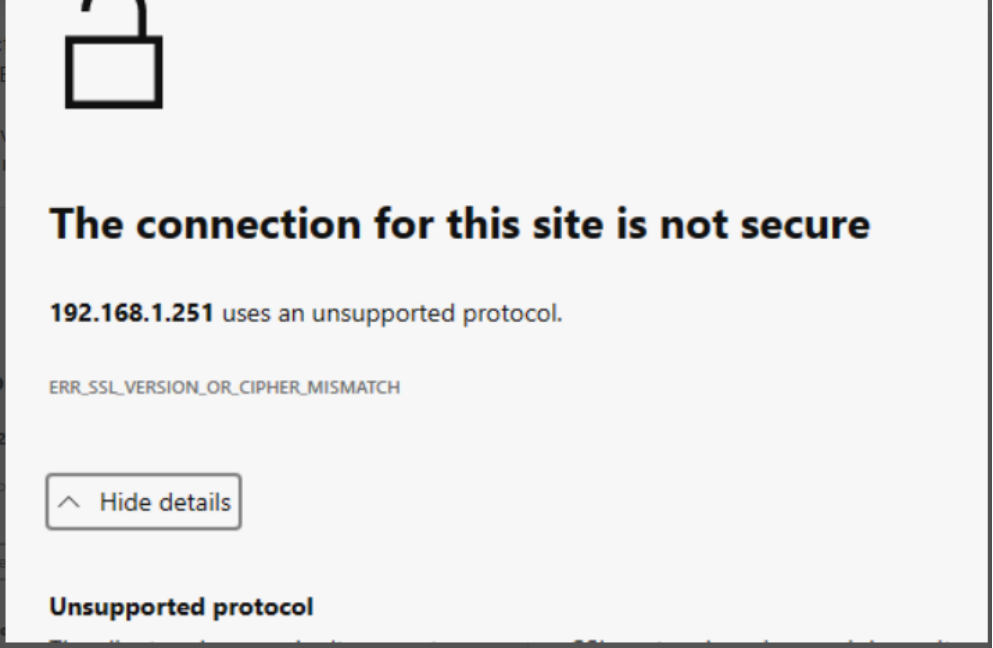
    This instruction guide is intended to show how to access the device when face ERR_SSL_VERSION_OR_CIPHER_MISMATCH in a web browser.

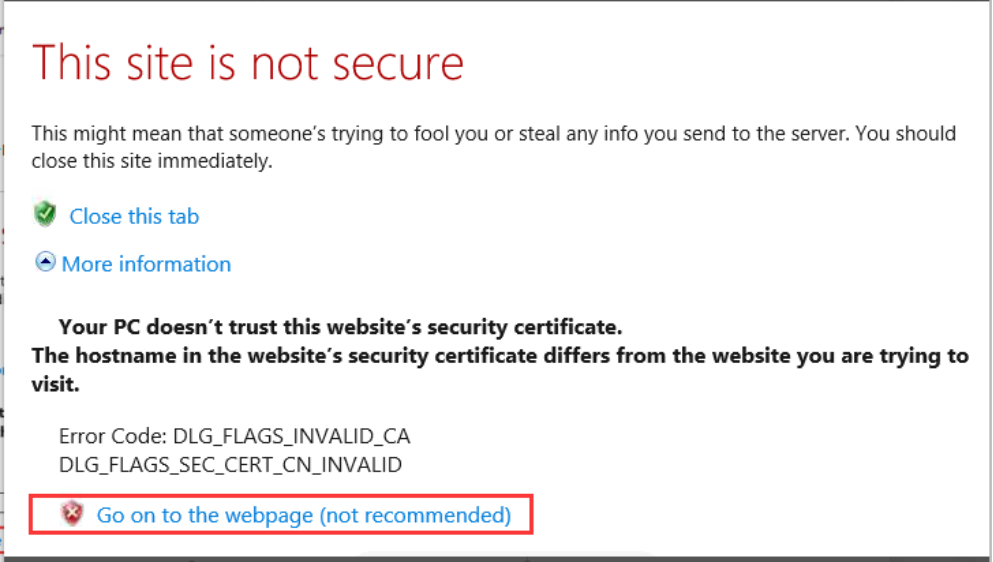
    In the new version of Chrome/Firefox/Edge, it does not support the old SSL version now. If the UC2000 using firmware xx.23.13.01 or previous that base old SSL, you will saw the following issue when try to open the GUI in web browser. 


    Operations

    The fixed way is focus on the  web browser supporting old SSL. Current, I use Edge  as an example.

    1. Run the Edge

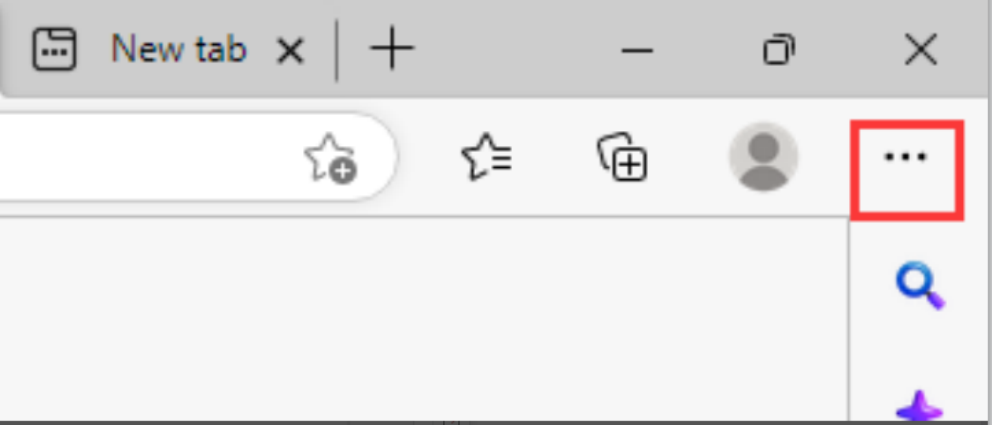
    Run the Edgeand click the button … on the top right corner.

    2.Settings 

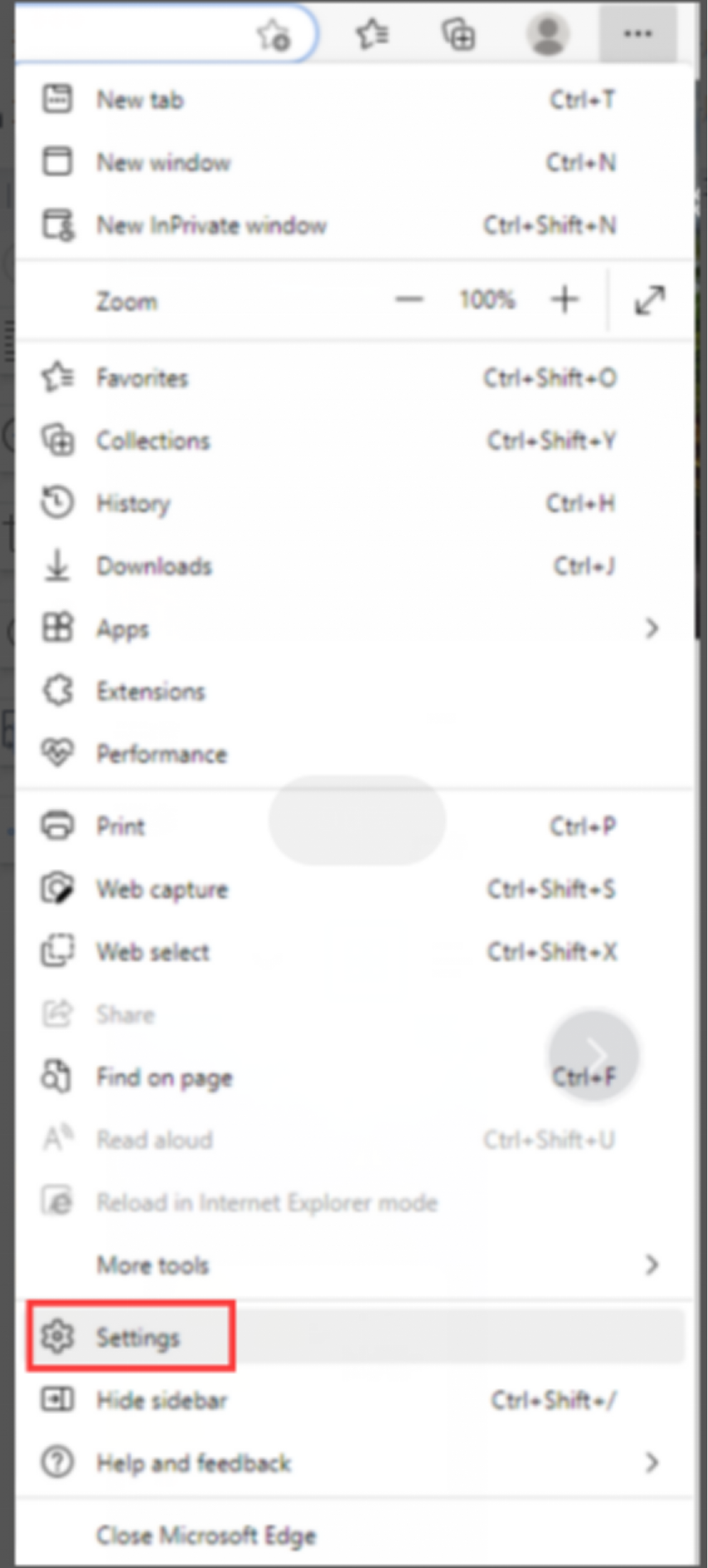
    Choose the option “Settings” in menu and go to setting page.


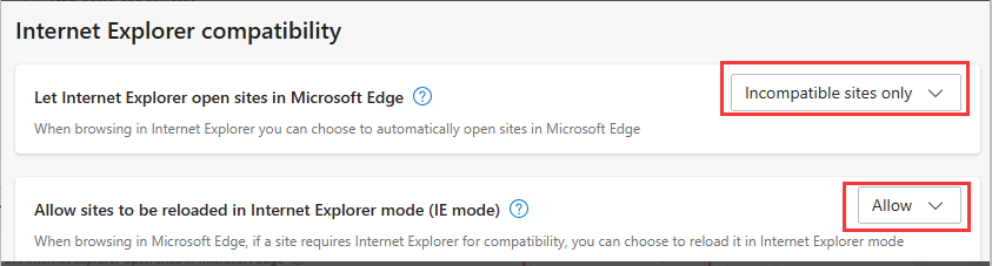
    2.1.Set “Internet Explorer compatibility "

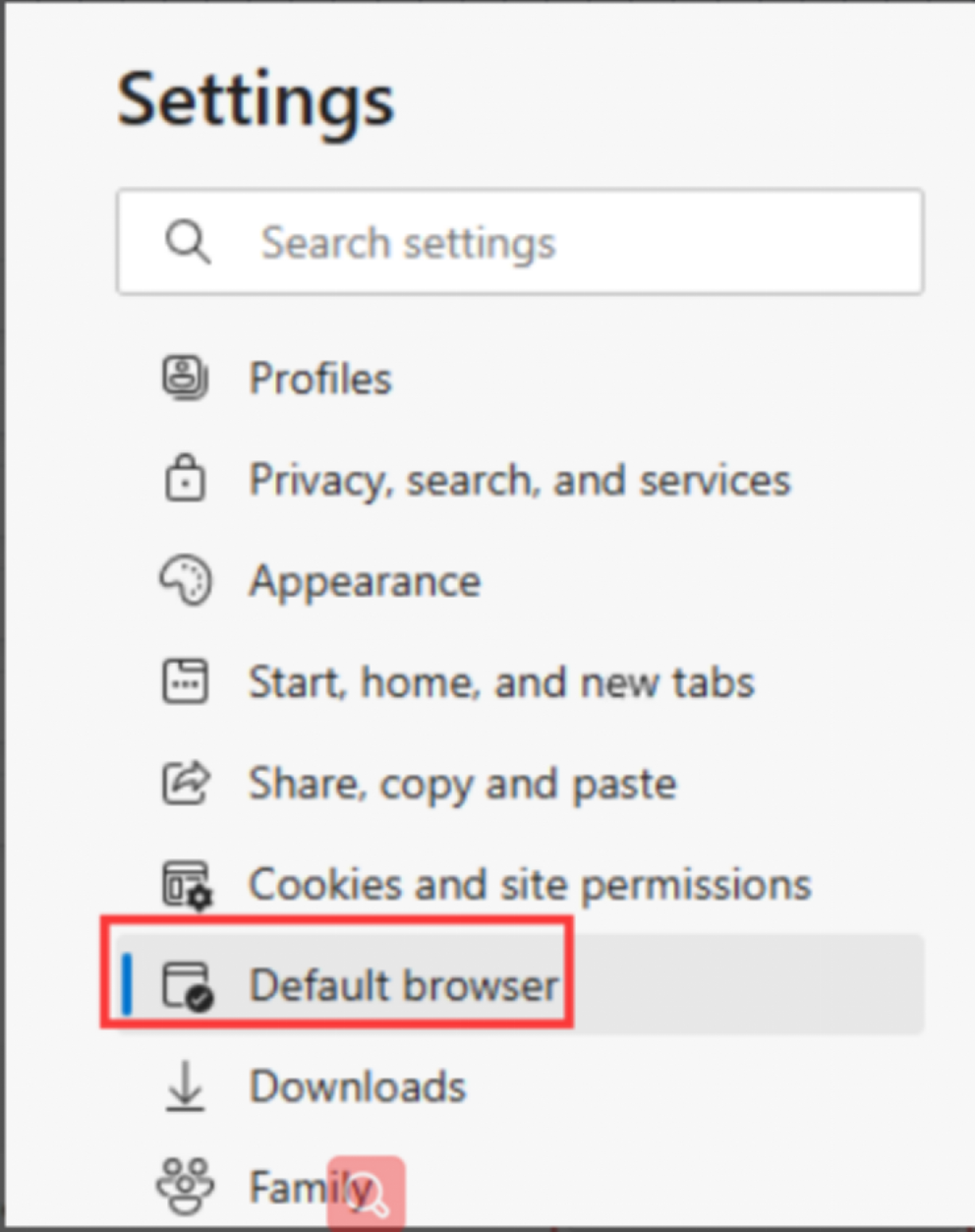
    Choose the  “Default browser” in left menu and set the “Internet Explorer compatibility” as follow.

    “Let Internet Explorer open sites in Microsoft Edge”   to  “Incompatible site only”

    “Allow sites to be reloaded in Internet Explorer mode (IE mode) to “Allow”


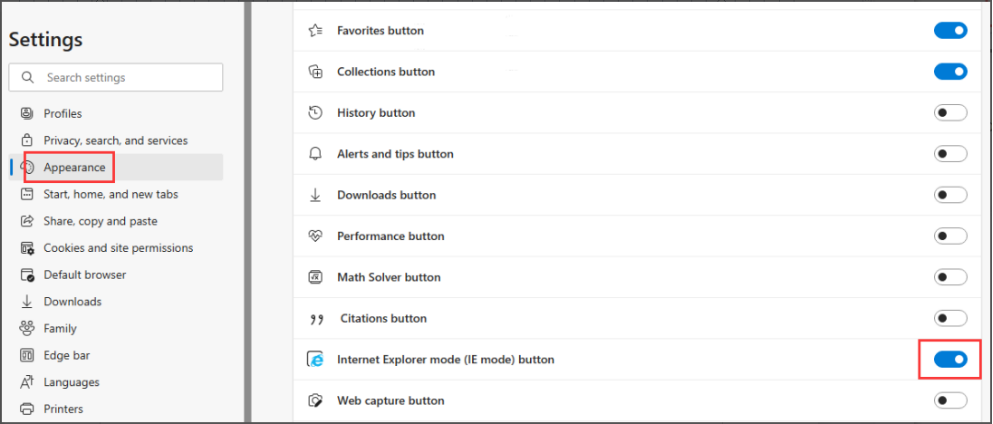
    2.3.Enable the “Internet Explorer mode(IE mode) button”

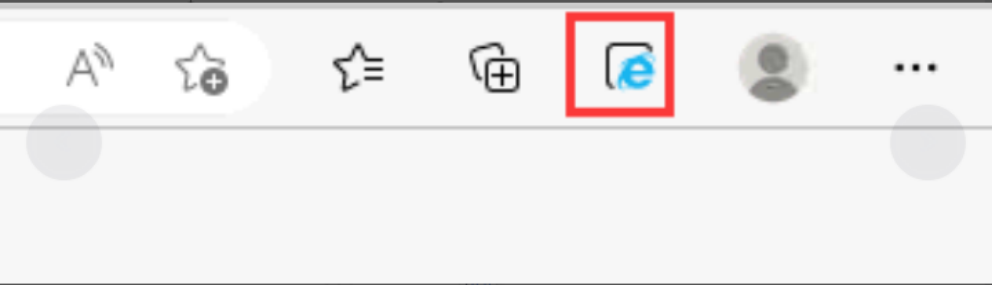
    Choose the  “Appearance” in left menu, and enable the “Internet Explorer mode(IE mode) button”. After that, the tool bar will have are icon IE 

    2.4.Open the page in IE mode

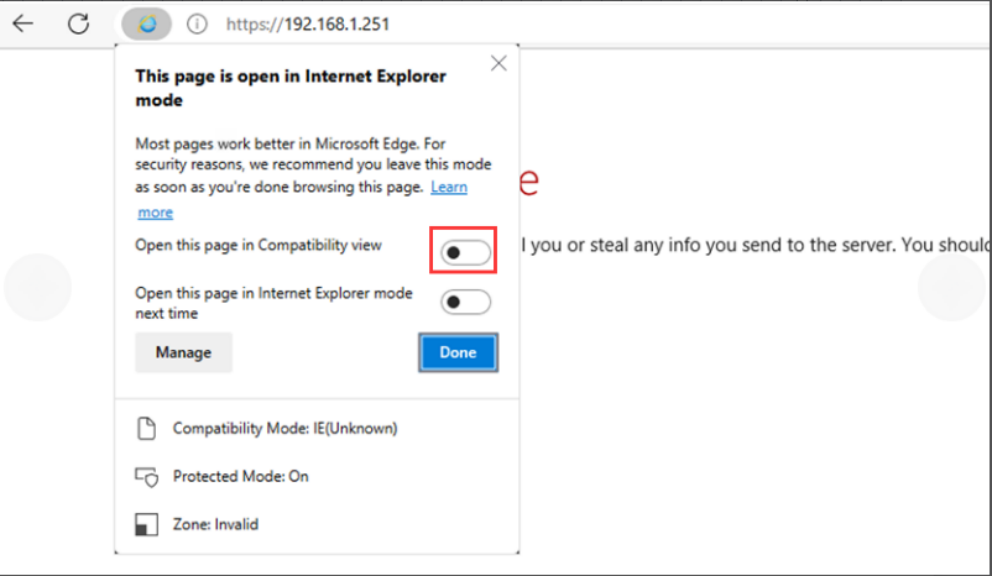
     Open new tap and input the target IP, then click the IE button, will open the page as IE mode.

    Enable the “Open this Page in Compatibility view” In the pop menu.

    2.5.Access uc2000 gui  

    We can open the UC2000 page now.  After that, upgrade the device to xx.23.15.01 or above.


  • QHow to solve sim cards unregistered issue on uc2000

    A

    SIM card unregistered is a very common problem. In this article, we divide this problem into two parts. First is all or a large number of ports are unregistered. Second, a few of ports are unregistered.

    1. All or a large number of ports are unregistered

    This is not very common But when it is encountered may be caused  by several reasons

    (1) There is no signal of the operator in the local.

    (2) The IMSI of sims not match to the local 

    (3) The IMEI sections are locked 

    (4) The sim cards' network unsuitable for the device module .

    (5) The weak signal of local area (Some customer use signal amplifier to enhance the signal ,so the signal result is okay .But the registered status and calls are not stable .)

    Here is the link about the each module support which type of  network, Please take it as reference.

    2. A few ports are unregistered

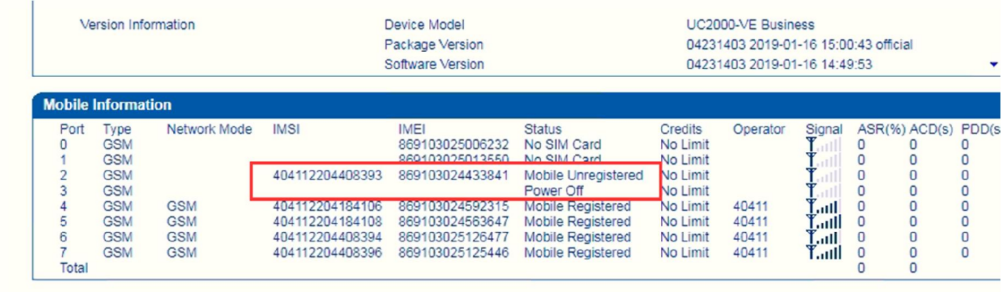
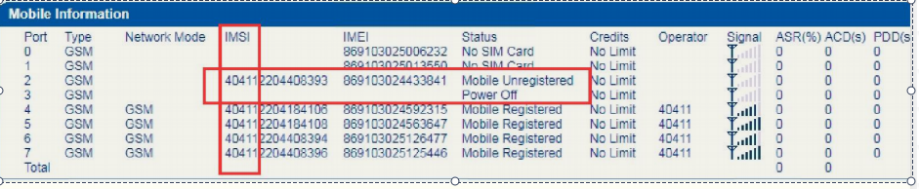
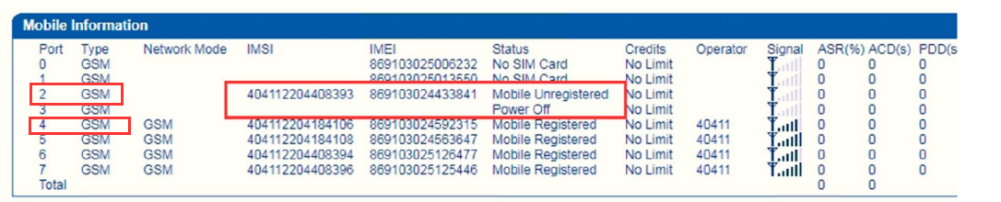
    Sim unregistered issue with lots possible reason. let's take above pic as  an example to do troubleshooting one by one.


    2.1 Check signal of ports

    Open two session on putty,one of them is used to input commands ,and the other is used to print. Please follow these steps:

    (1) Create two  putty sessions


    Save NO.1 session you create 

    (2)  Input follow commands in sessions 

    No.1 telnet:

    ROS>en

    ROS#sh detail

    ROS#sh int

    ROS#^ada

    ROS(ada)#[079-19:27:46:370]ADA CONNECTED ...,WELCOME!

    ROS(ada)#cmd 53 19 X Y 1 //the X and Y means the star and end ports


    ……

    No.2 telnet:

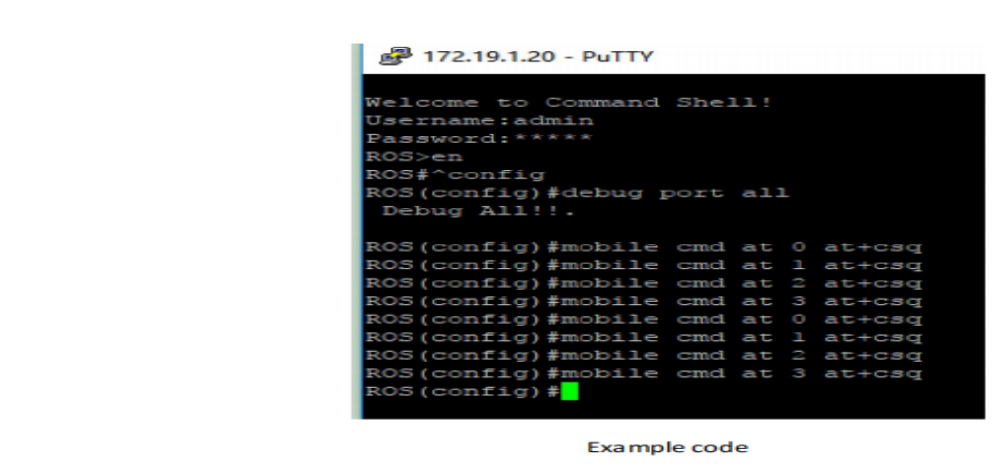
    ROS>en

    ROS#^config

    ROS(config)#mobile cmd at 30 at+csq // the X means the checked port. 

    Note: each port should check at least twice so that its signal be more accurate


    After the checking done.input 'ex' in No.1 session .Then analyse the log.


    (3)  Check signal value in log

    Search “+CSQ”: as key word. Signal value is the number just behind “+CSQ”.

    Note:the value should be over 15 so that the sim could be registered and make calls stable.

    0 and 99 means error signal

    Check if the antenna is connected well(In normally the device without antenna the value also won't be 0 and 99 ). And Most likely a module problem.follow the steps,

    a. The device module returns to factory Settings ( No effect)  ____ ROS(config)#mobile cmd at [port] AT&F

    b. Flash the module  ( No effect)

    c. RMA

    Lower than 15

    Lower than 15 value means signal is not good 

    a. Adjust the antenna or change an antenna which one is work well in other ports.

    Antenna installation Note

    Don't put it on the device cover

    Don't put it so close(Avoiding signal interference)(The interval is more than 12cm

    The antenna must be standing


    b. Check and change the feeders

    c. RMA

    Over or equal to 15

    The signal value is over or equal to 15 means the signal is okay .Follow the steps to check

    (1) Enter the commands in the No.2 session

    ROS(config)#mobile cmd at X at+COPS?      // Operators that can be currently searched

    ROS(config)#mobile cmd at X at+COPS=?    //  Operators that can be currently used

    (2) Check IMSI of sim cards 

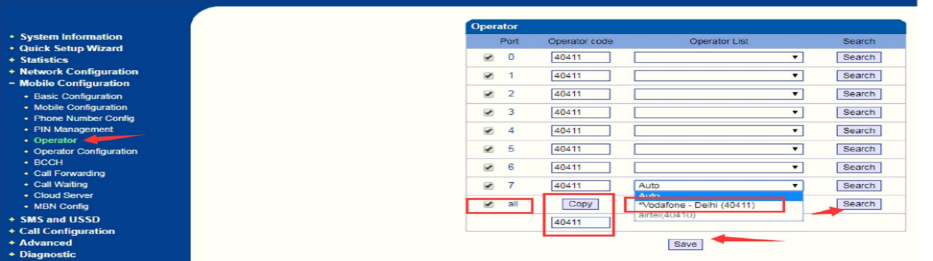
    Check unregistered sim Operator code in front 5 digit of IMSI.


    (3) Bind available Operator


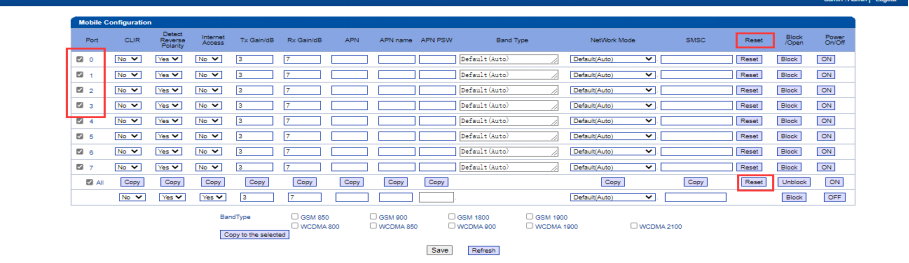
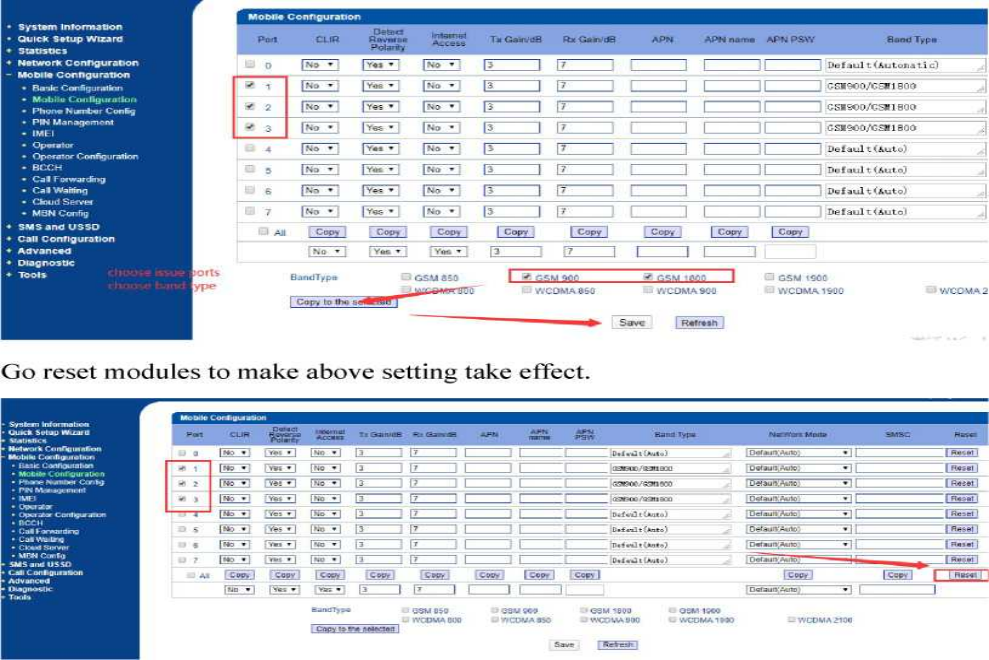
    Reset modules to make above setting take effect.


    Then you check in system information see if it works, if not , go next checking.

    (4) Bind Operator Band

    Please check your sim Operator band first. 

    Take Vodafone Operator as example.It only support GSM900 and GSM1800 band.


    Just go next  if above methods not help.

    (5) Check issue on port or sim cards

    If some ports registered while some not, please exchange sim of registered port to unregistered one (Suggest to select two sim cards from different user board.Here we  exchange sims in ports 2 and 4.


    If unregistered port still in port 2 means Port issue;

    If unregistered port moved to port 4 means Sim issue .


    Port issue

    (1) Change IMEI 

    (2) Restoring the module to factory defaults

    (3) Upgrade module 

    (4) Flash module

    (5) RMA


    SIM issue

    Check the sim whether suitable for the device module .

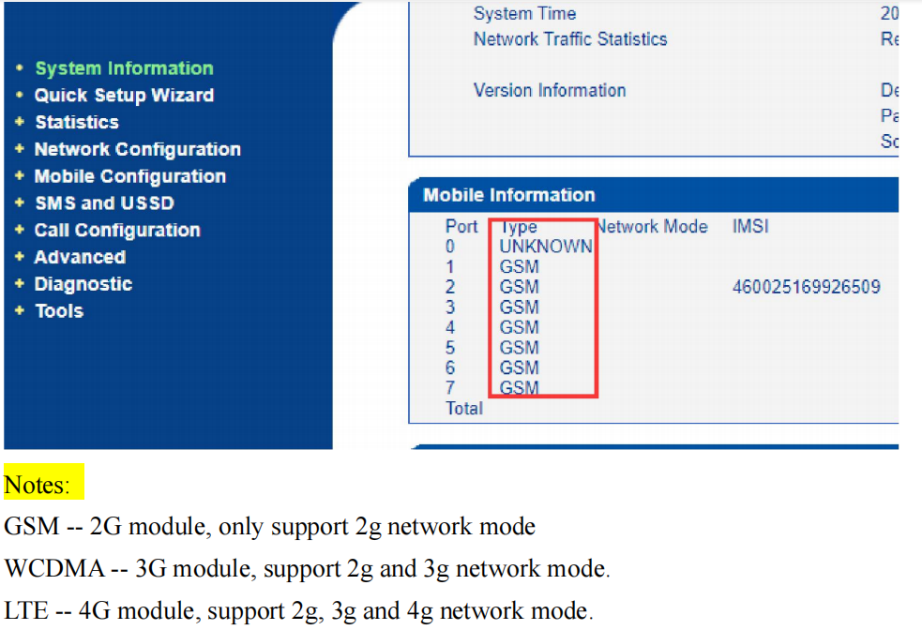
    (1) Check gateway module type


    Take GSM module as example


    Move the issued sim to a mobile phone which one can only  use 2G network , check whether  it would use normally.

    Yes > Change IMEI (failed) > Restoring the module to factory defaults (failed) >Upgrade module (failed) > Flash module (failed) > RMA 

    No > issue in sim itself if it also unregistered in mobile with 2 G network. The sim might not support 2G network, then please change a different sim with different Operator on gateway.


  • QHow to Block Operator and BCCH

    A

    Description 

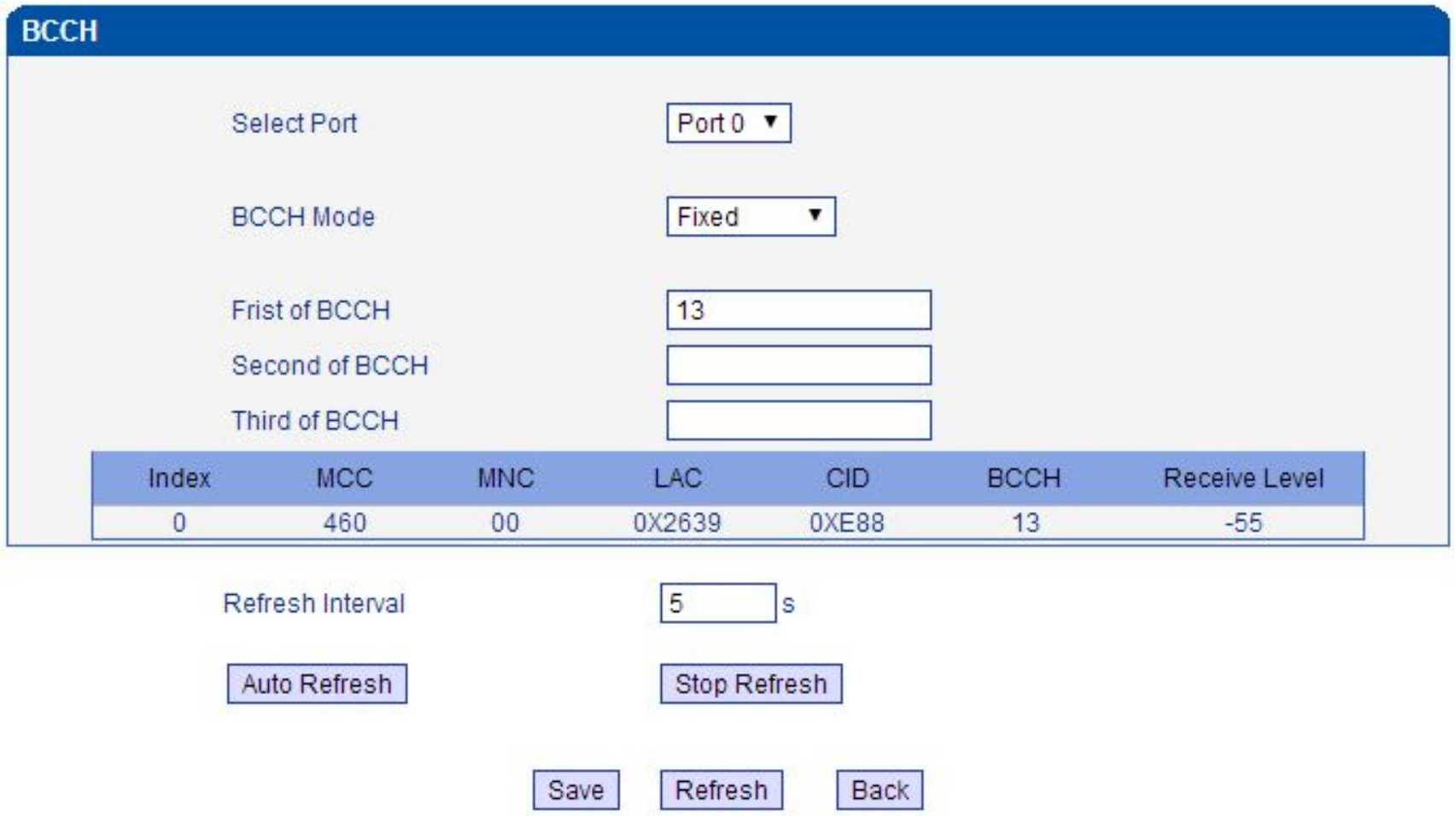
    Simcards can’t register in device well or signal poor,we need block the modules to the operator


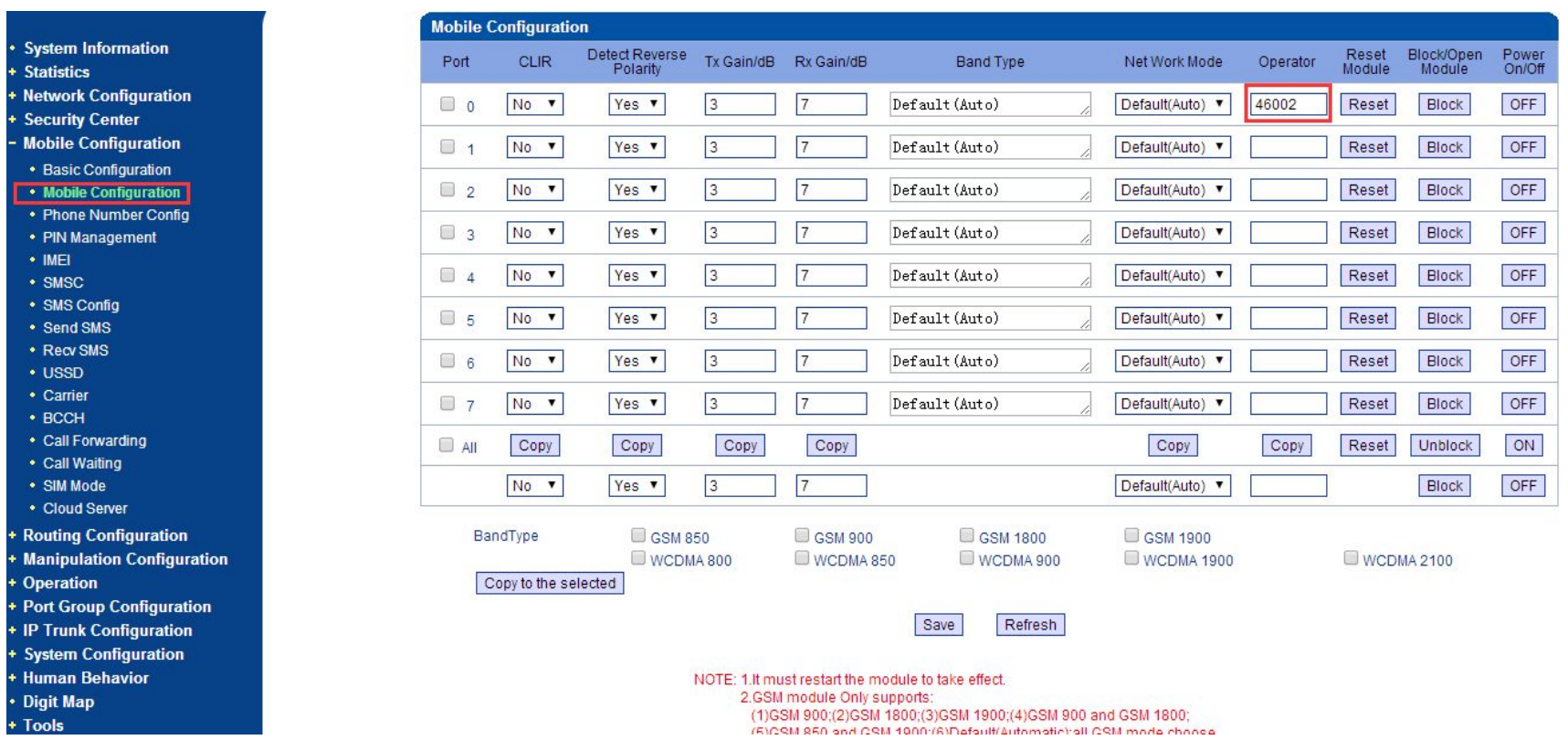
    1)First we need know the Operator number,fill it in Mobile Configuration>>Operator,then 

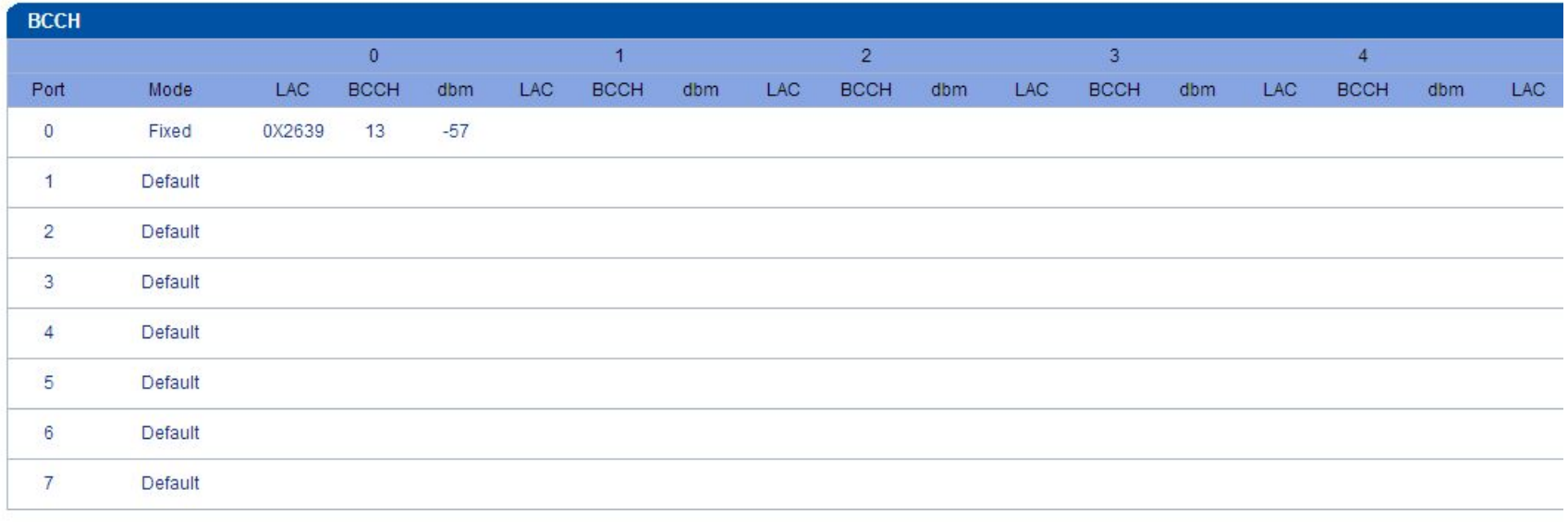
    save,the module will bind to the operator.

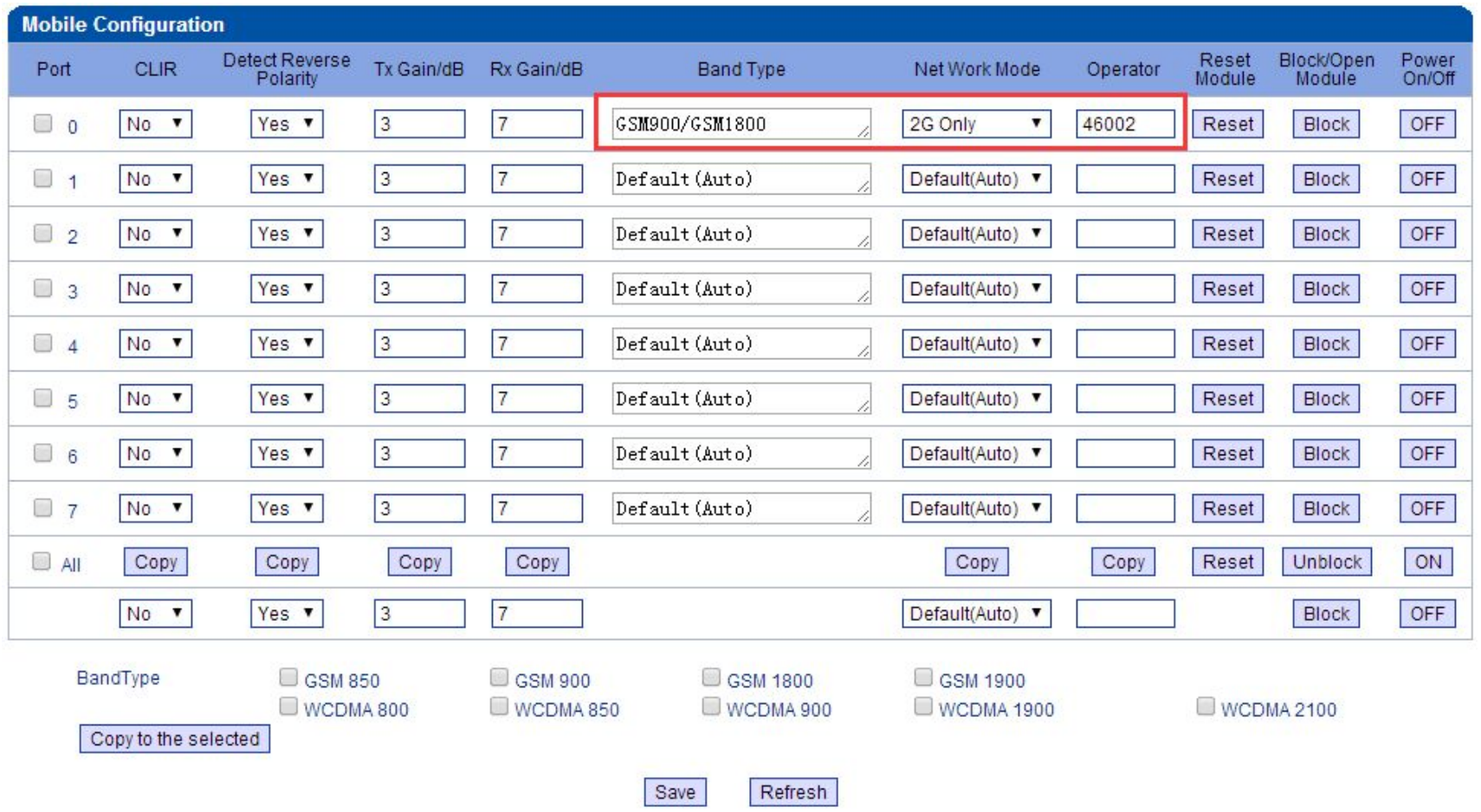
    2)We also can set Band Type and NetWork Mode,we must set correct here,if u don’t clear ,plz don’t do it.(GSM gateway only support 2G)


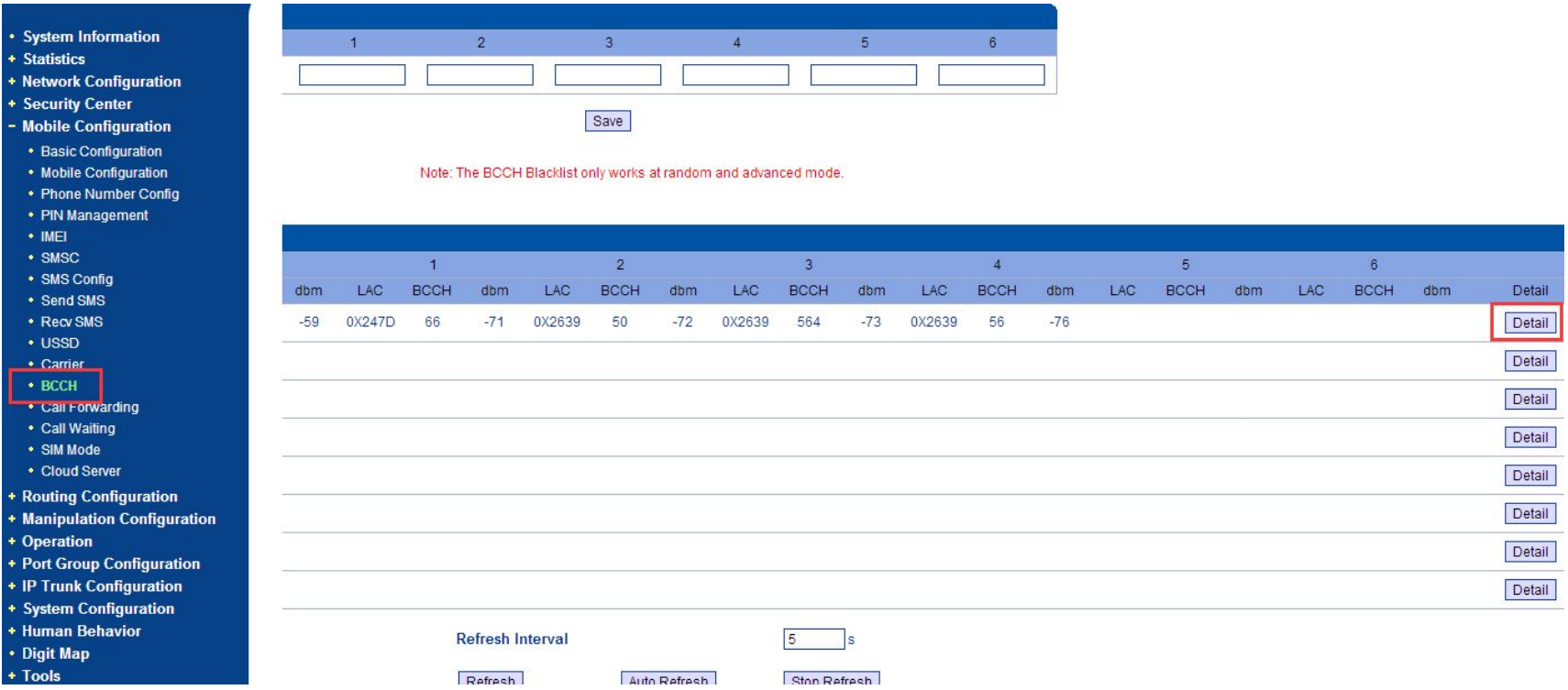
    3)if simcards can’t regist still,we need block the BCCH.


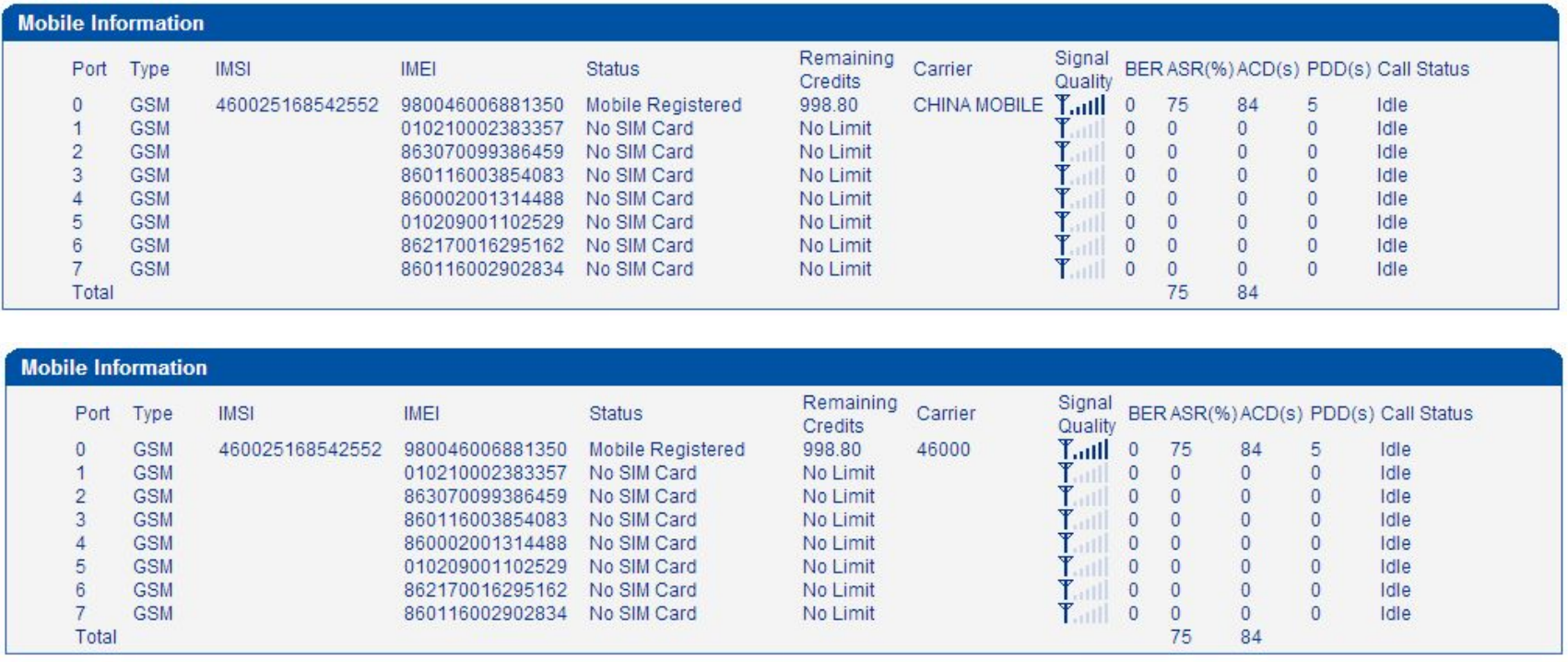
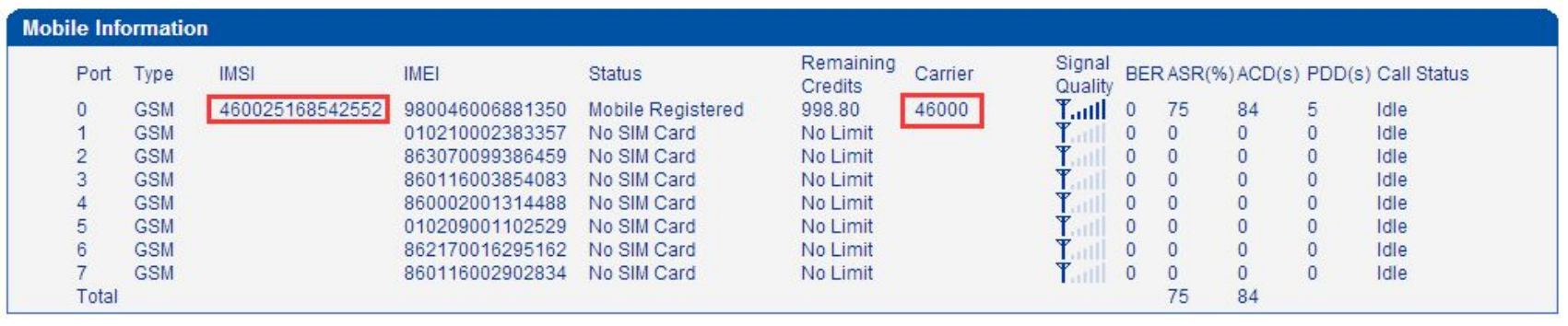
    4)Normal simcards regist well,operator will show the carrier name,but if u block operator by number,here will show carrier number


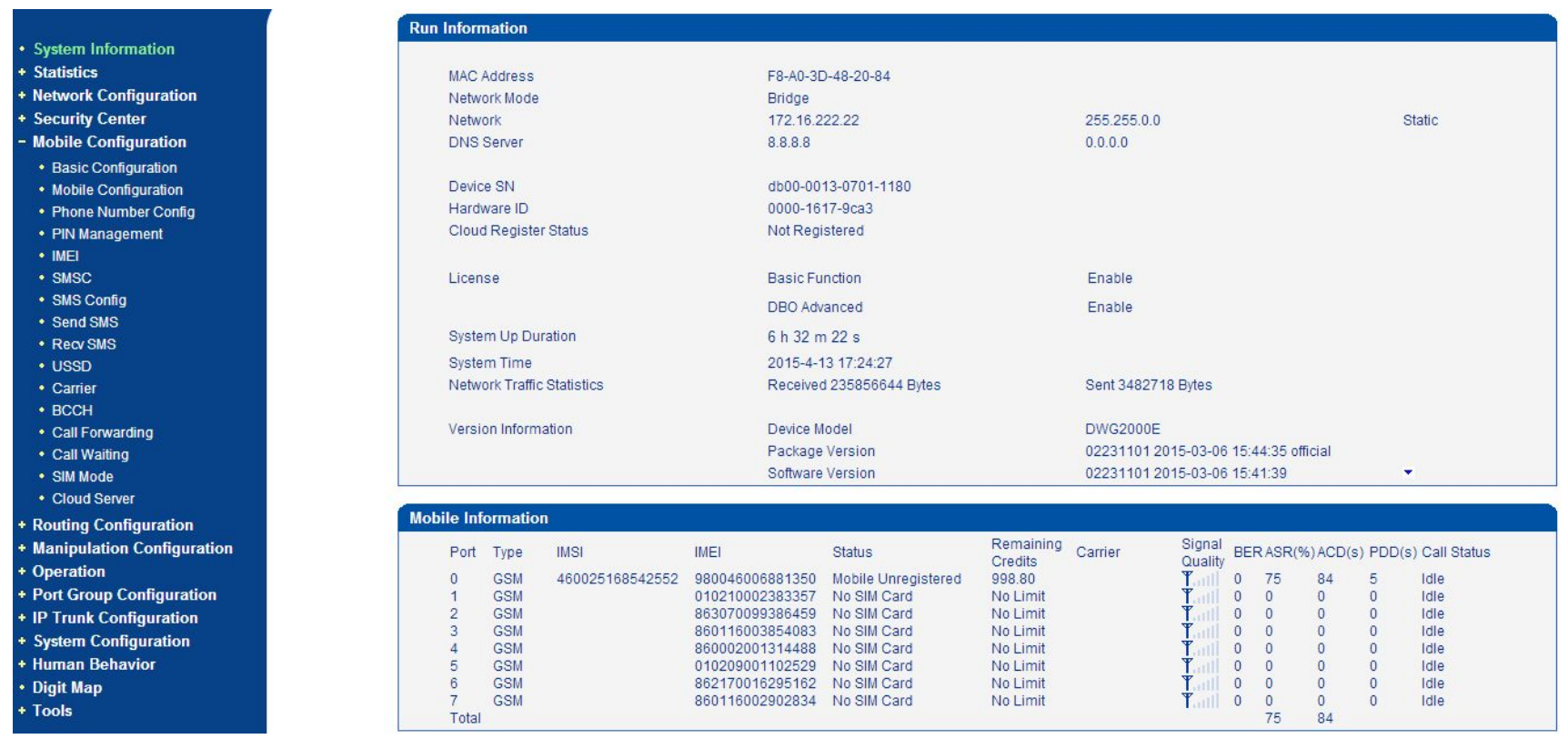
    PS:How to find out the carrier number? 

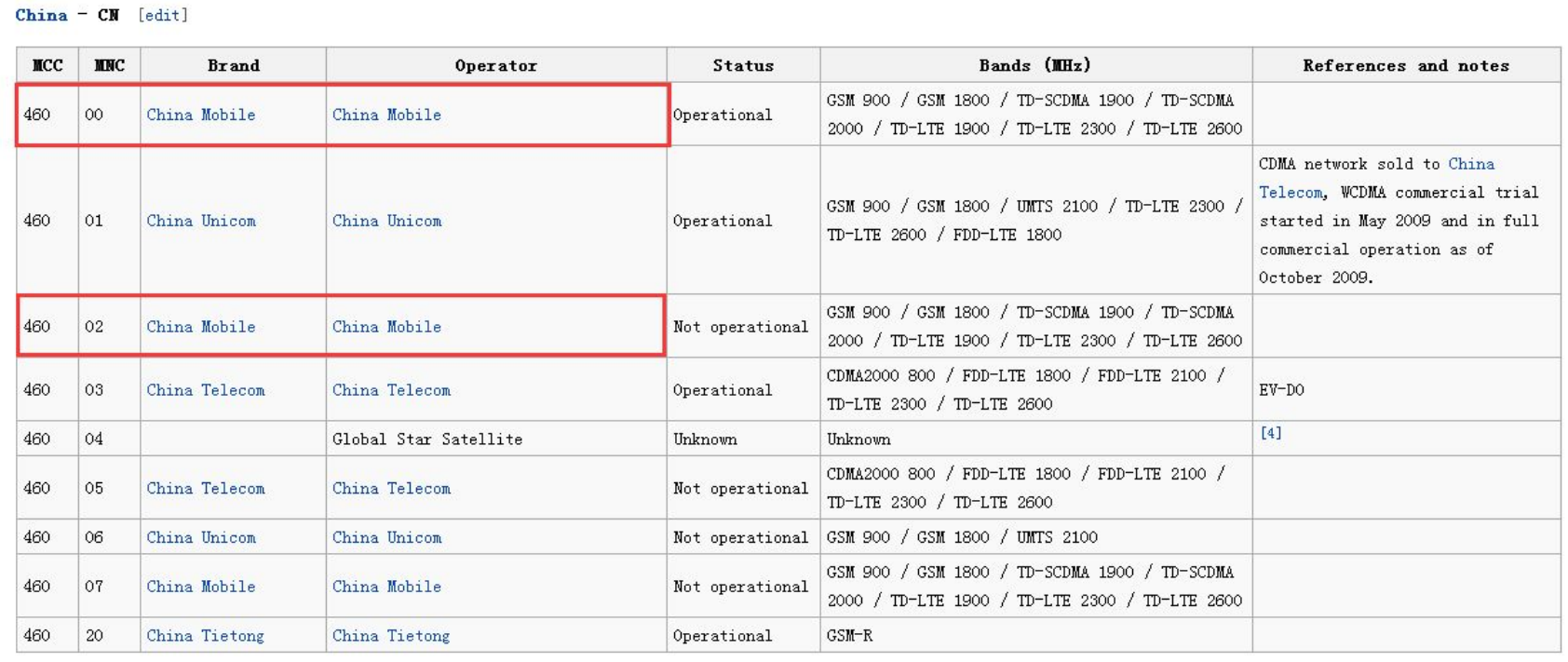
    Usually the first five or six digits of the simcards’ IMSI is the carrier number,u can also check in the Website http://en.wikipedia.org/wiki/Mobile_country_code#mw-head


    46000 and 46002 are same operator


Service Feedback
Service Feedback
Please fill in the information and submit the service
evaluation and suggestions online
  • *Name

  • *Country

  • *Company Name

  • *Email

  • *DeviceType

  • *DeviceSN

  • *Snapshot of Device SystemInformation Page