Support Center

FAQ

Filter
  • QHow to connect UC2000 with Freepbx

    A

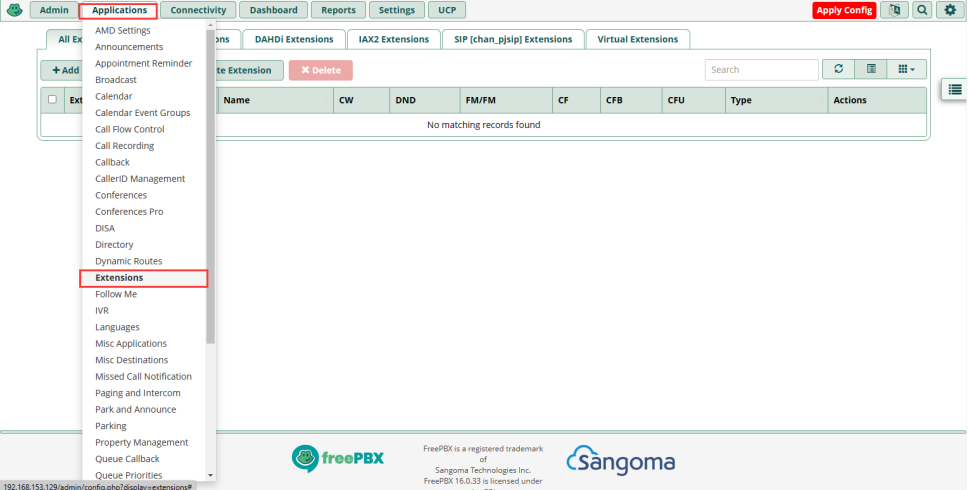
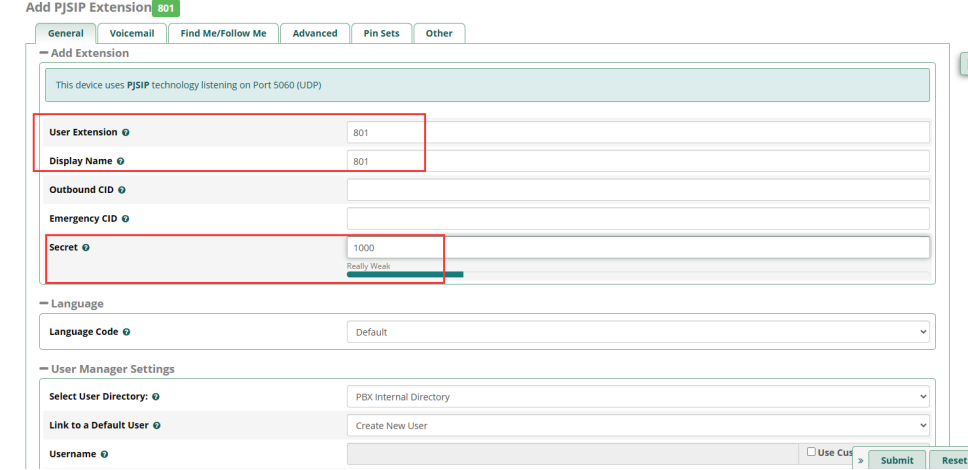
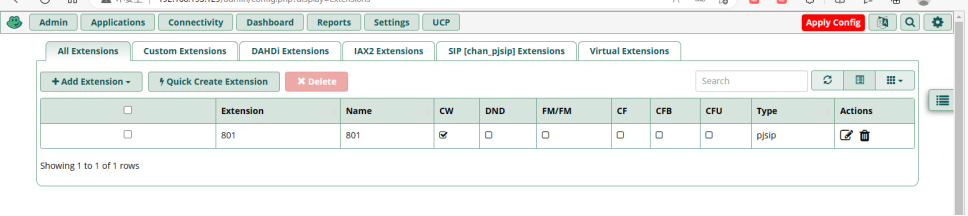
    1. Freepbx configuration

    Click Applications>>>>>>>>Extension


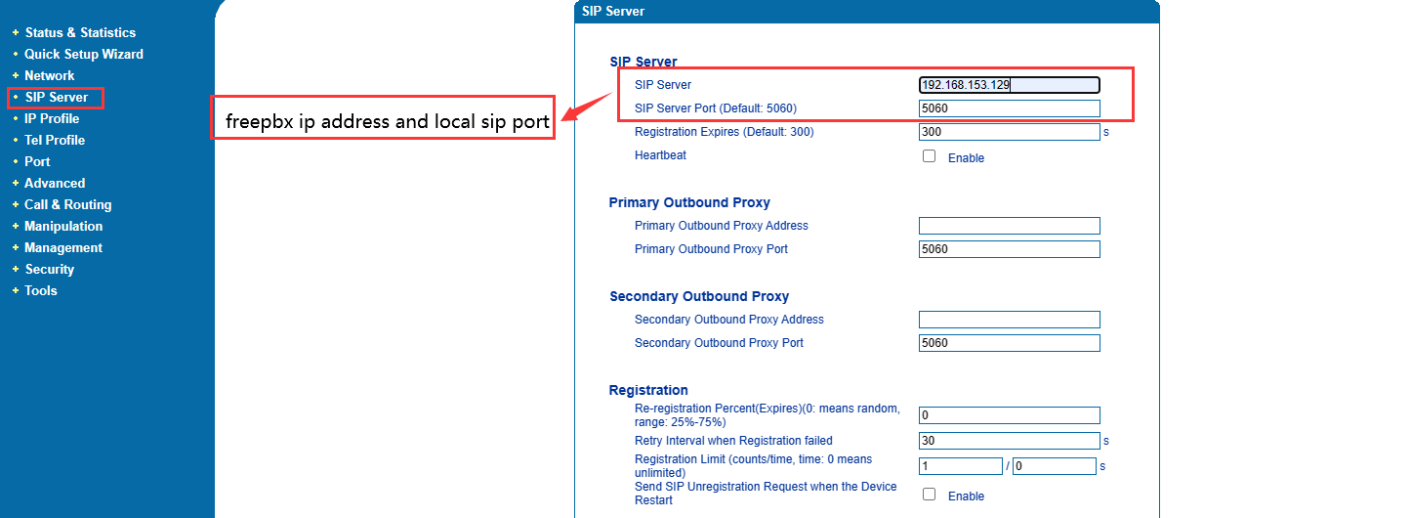
    2.  Connect DAG1000-4S to Freepbx

    Click SIP Server, then configure the sip server and sip server port


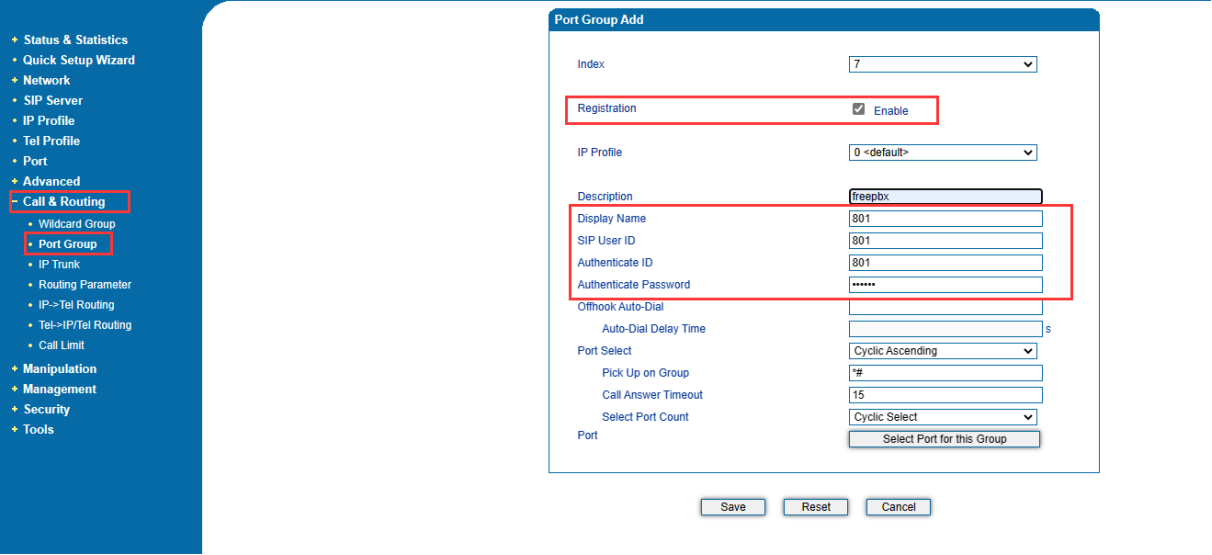
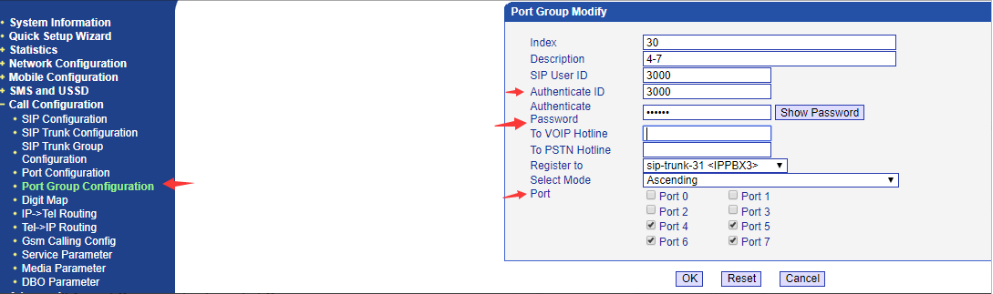
    3. Create port group in DAG1000-4S

    Click Call&Routing>>>>>>>>>Port Group


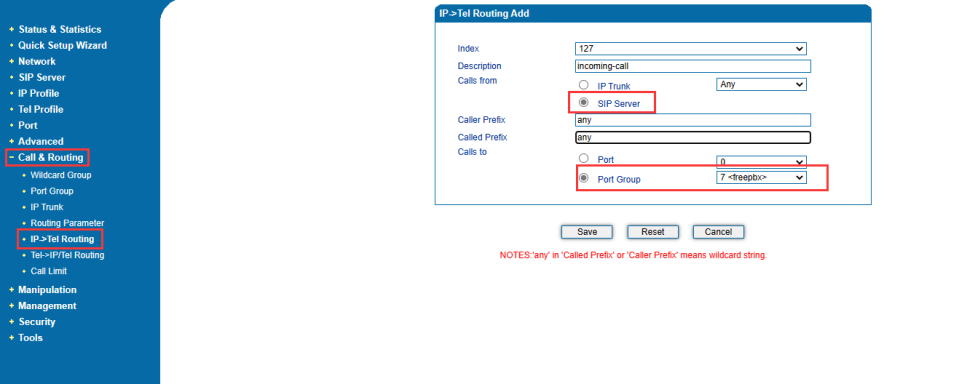
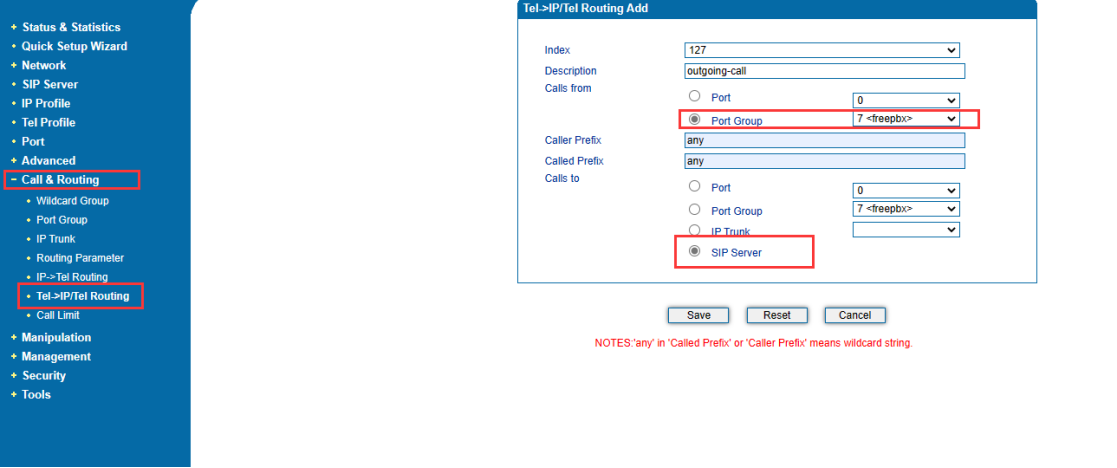
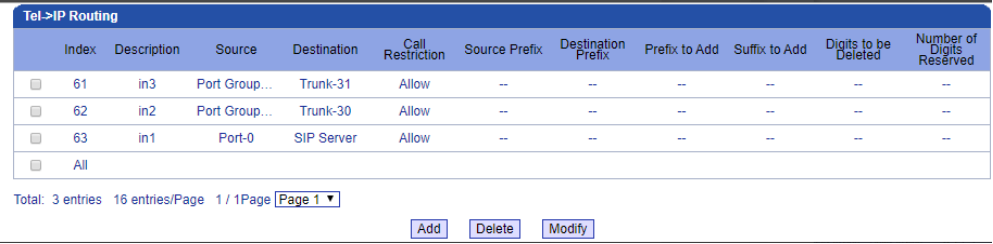
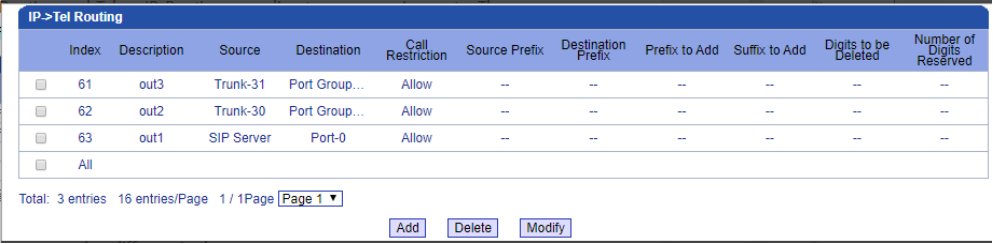
    4. Configure incoming route and outgoing route in DAG1000-4S

    1) . Incoming route

    Click Call&Routing>>>>>>>>>IP->Tel Routing


    2) . Outgoing route

    Click Call&Routing>>>>>>>>>Tel->IP/Tel routing

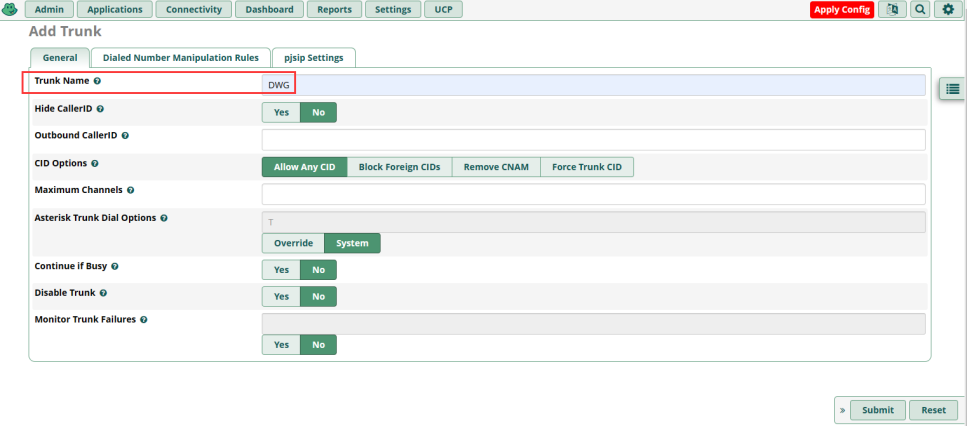
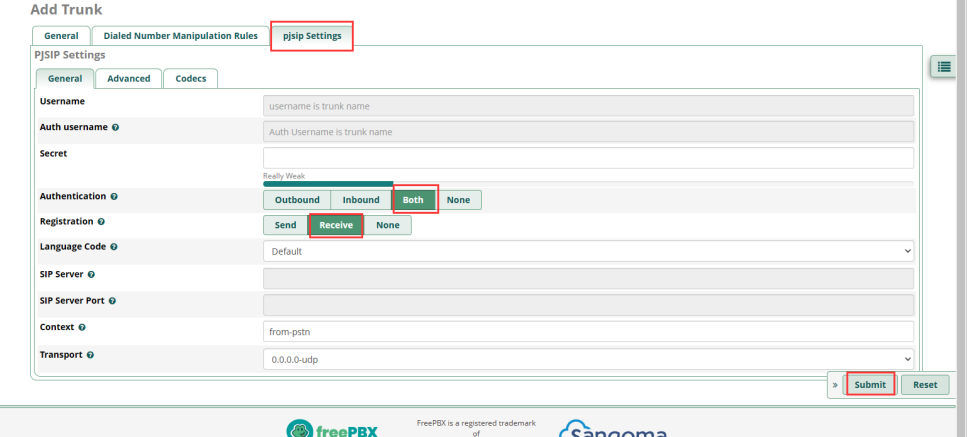
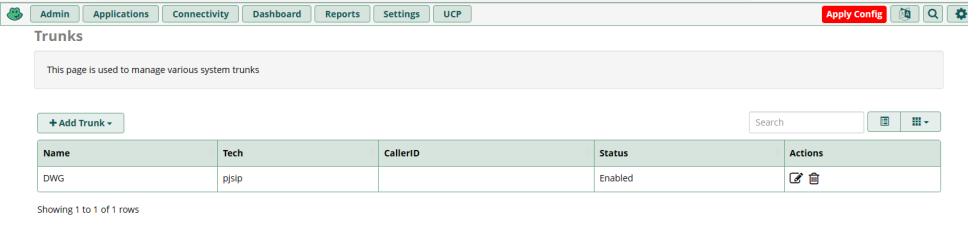
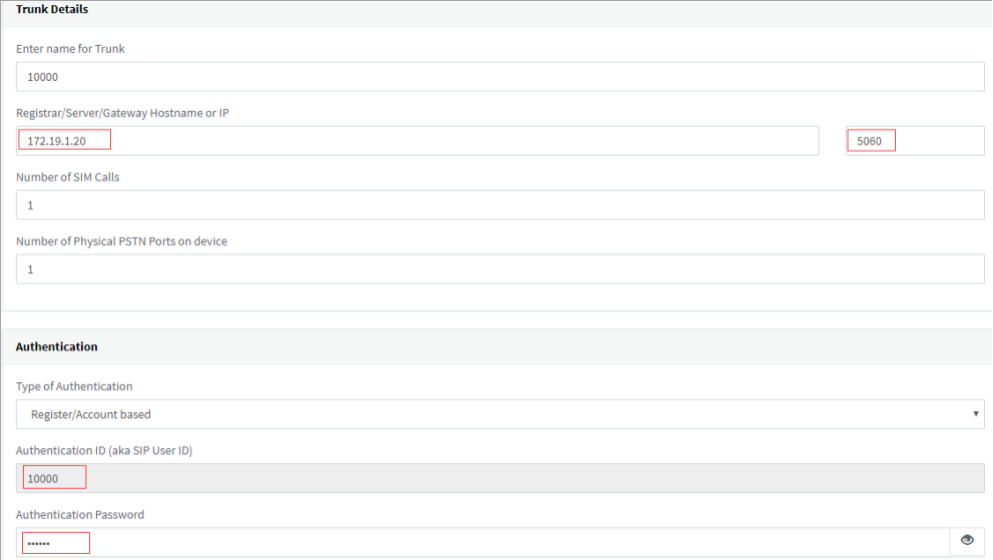
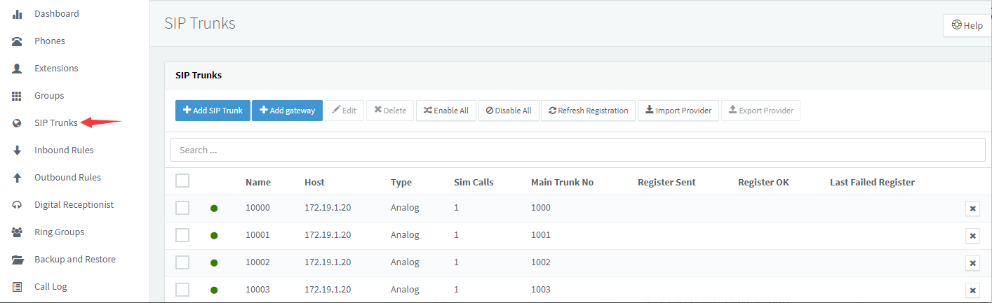
    5. Create SIP trunk in Freepbx for connecting with DWG

    Click Connectivity>>>>>>>>>Trunks


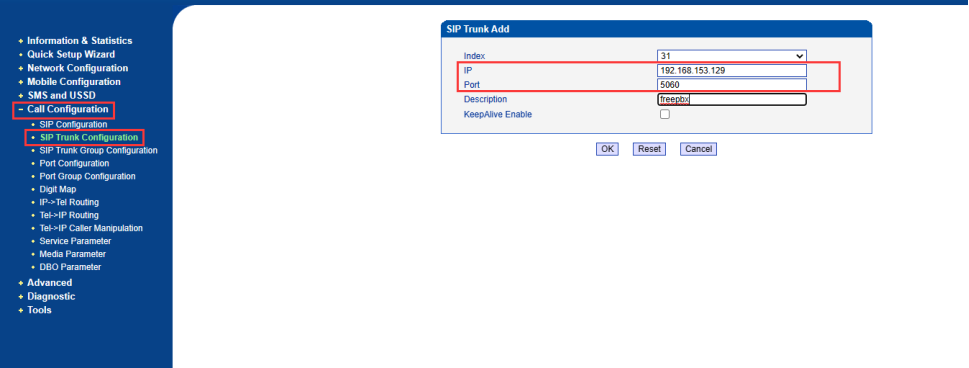
    6.  Connect DWG with Freepbx by sip trunk 

    Click Call Configuration>>>>>>>>>SIP Trunk Configuration


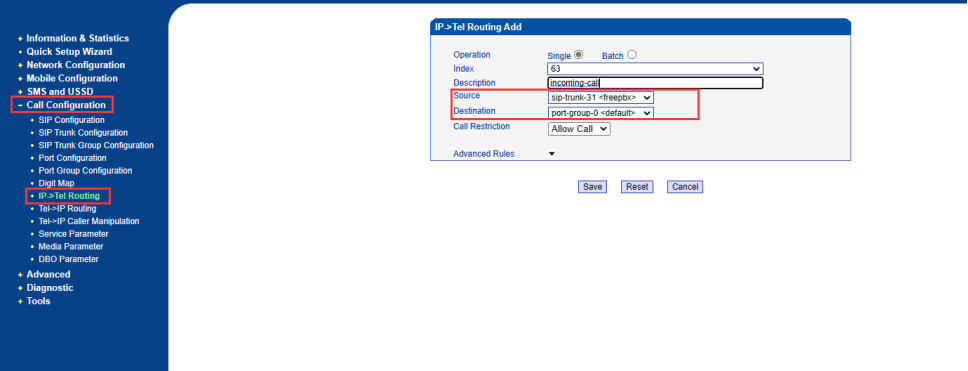
    7. Create incoming route and outgoing route in DWG

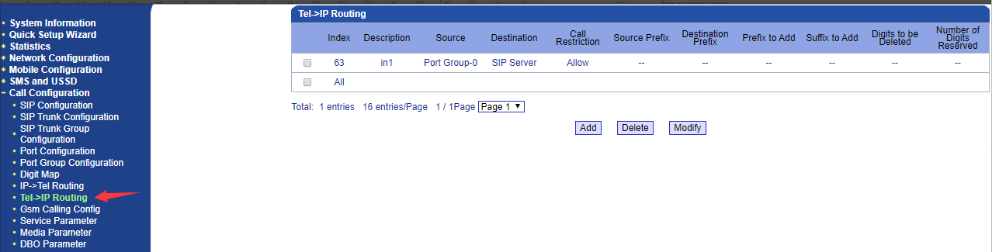
    1) Incoming route

    Click Call Configuration>>>>>>>>>Tel->IP Routing


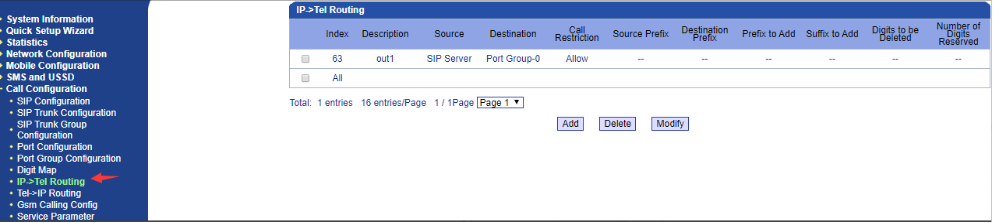
    2) Outgoing route

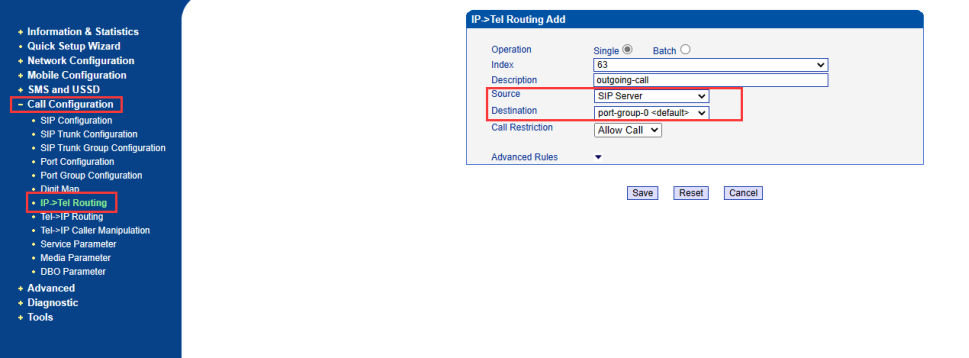
    Click Call Configuration>>>>>>>>>IP->Tel Routing

    8. Create incoming route and outgoing route in Freepbx

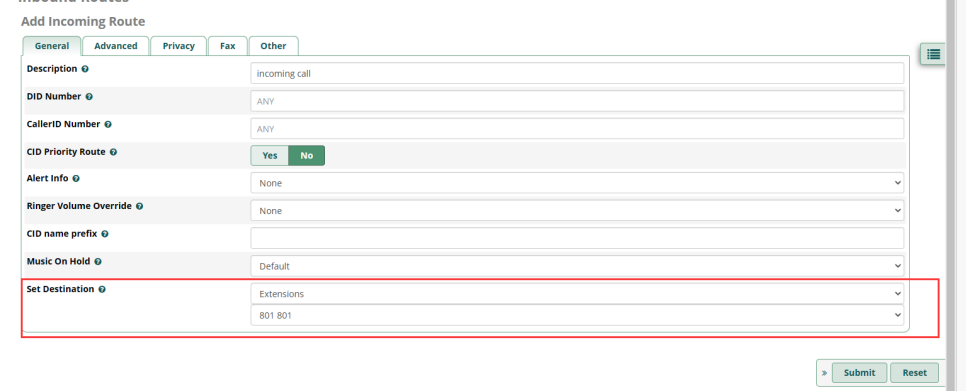
    1) Incoming route

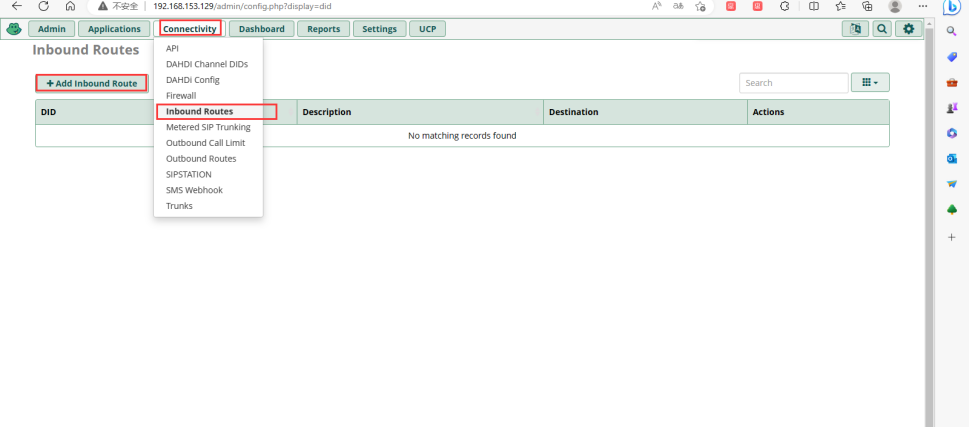
    Click Connectivity>>>>>>>>>>>Inbound routes 


    2) Outgoing route

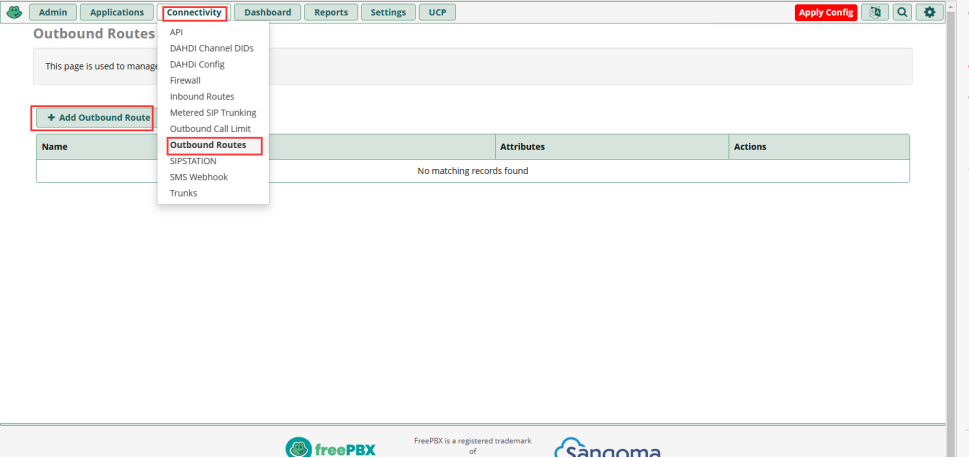
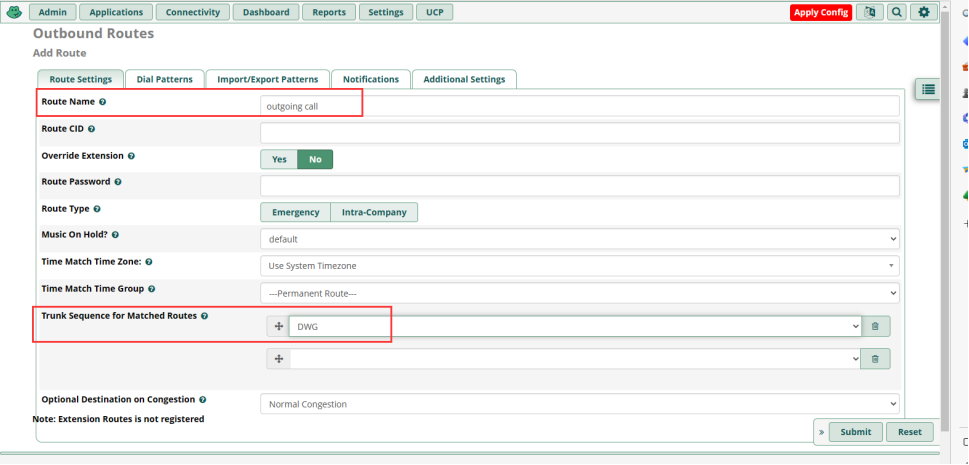
    Click Connectivity>>>>>>>>>>>Outbound routes


  • QHow to call out through DP70

    A

    Overview

    The  dialing keypad of DP70 is used for building intercom devices to call each other, such as to other indoor units; the number pressed is the room number, not the sip server's extension number. If you want to call out to other numbers, you can set the number of Quick Call and Phonebook. The specific settings are as follows.

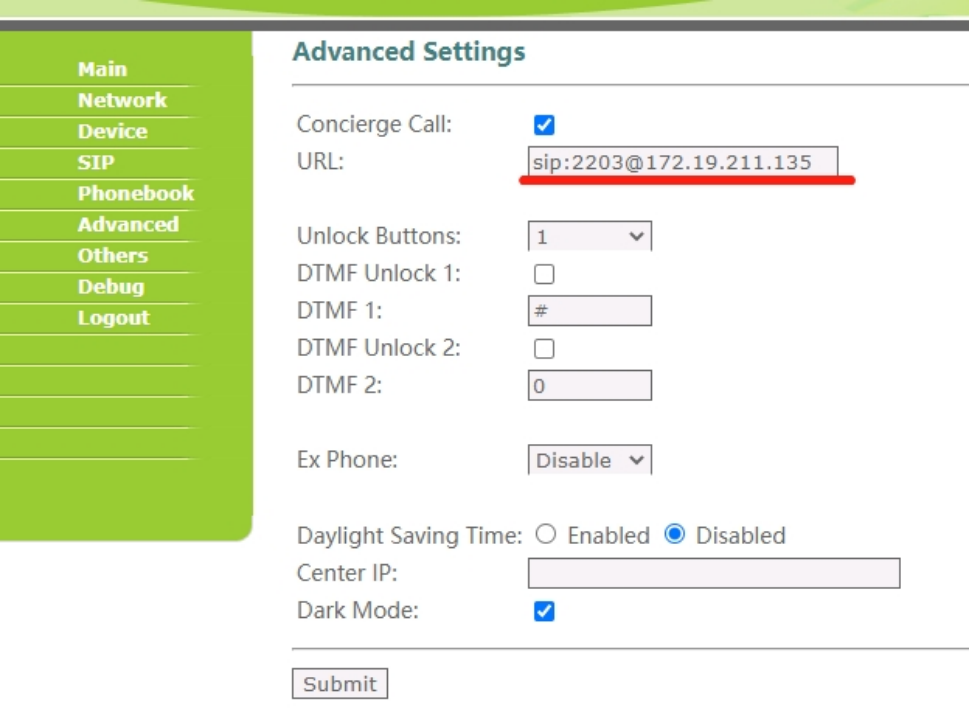
    1.Set Concierge Call

    URL format:”sip:2202@172.19.211.135”

    There are two different scenarios for the URL. 


    Scenarios 1: When the door station is registered to a sip server, the URL points to other extensions of the sip server. the "172.19.211.135" should be replaced by the IP address of the sip server. And the "2203"should be replaced by the destination extension ID.


    Scenarios 2: When the door station hasn't been registered to a sip server, the URL points to a local device that makes a SIP IP direct call. In this scenario, the "2203" can be any random number. and the "172.19.211.135" should be replaced by the destination IP


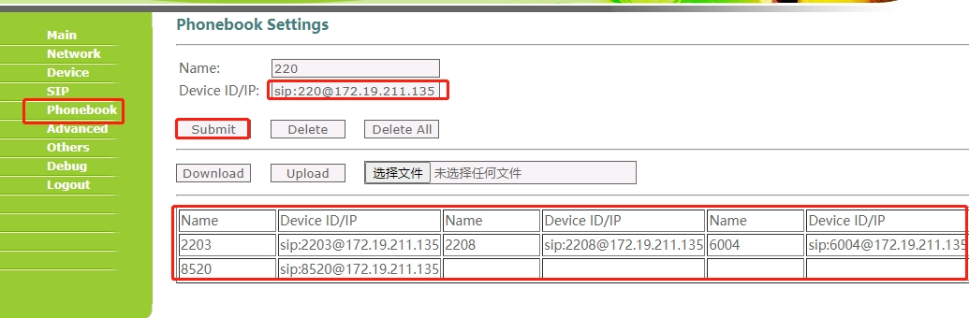
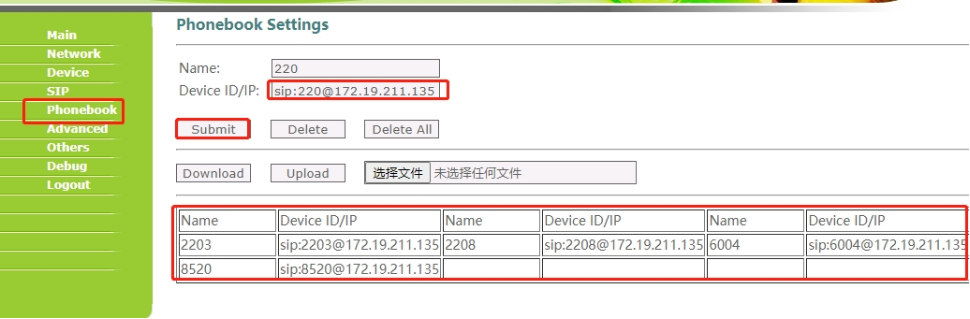
    2. Add contacts to phonebook

    The format of the URL is “sip: 1111@192.168.68.90”


    3.Make callDP70 Callout setting

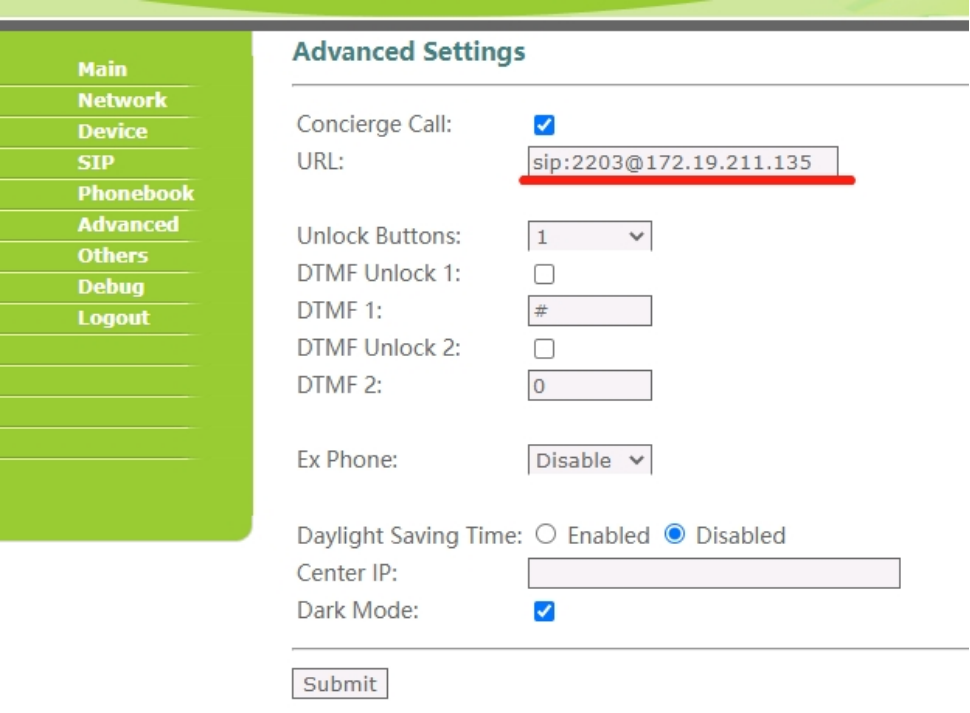
    1.Set Concierge Call

    URL format:”sip:2202@172.19.211.135”

    There are two different scenarios for the URL. 


    Scenarios 1: When the door station is registered to a sip server, the URL points to other extensions of the sip server. the "172.19.211.135" should be replaced by the IP address of the sip server. And the "2203"should be replaced by the destination extension ID.


    Scenarios 2: When the door station hasn't been registered to a sip server, the URL points to a local device that makes a SIP IP direct call. In this scenario, the "2203" can be any random number. and the "172.19.211.135" should be replaced by the destination IP


    2. Add contacts to phonebook

    The format of the URL is “sip: 1111@192.168.68.90”


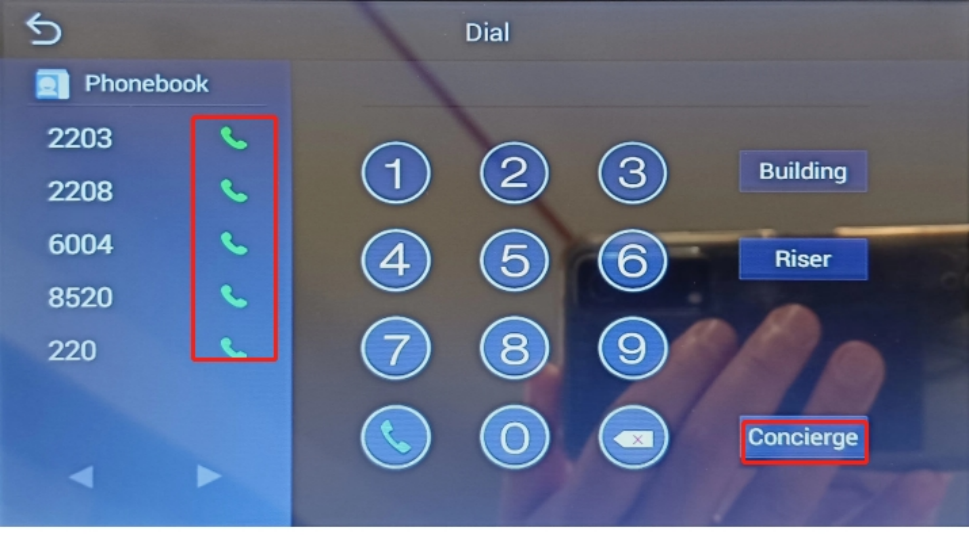
    3.Make call

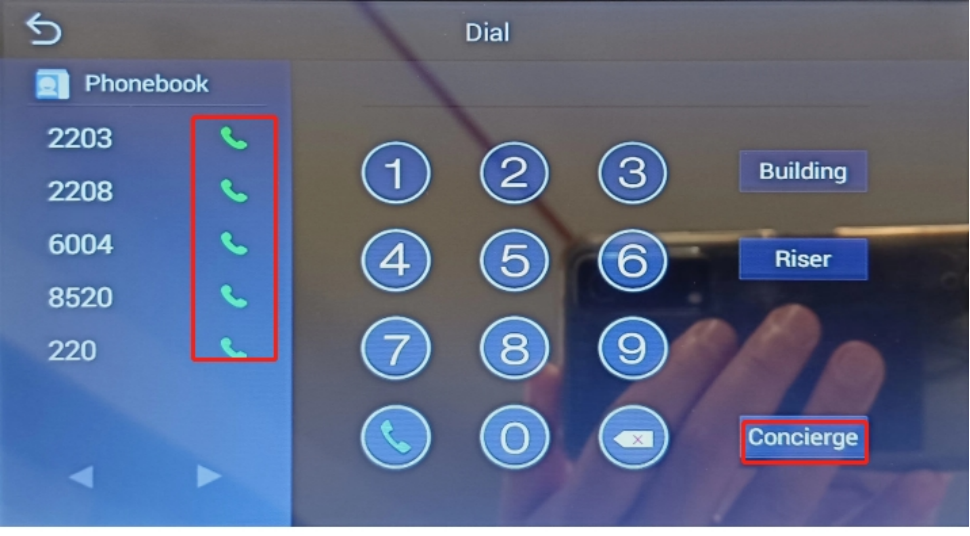
    Click Concierge or the call icon behind the phonebook contact to implement the call .


    Click Concierge or the call icon behind the phonebook contact to implement the call .


  • QHow to set up Sim-Bank to work separately with gateways with multiple specific ports

    A

    Description

    In some user scenarios, users have a SIM-bank with 128 ports and two gateways. You want them to work together.The SIM-bank insert 128 sim cards. You want to split these 128 ports to two different gateways. The SIM cards of ports 0 to 63 go to Gateway1, and ports 64 to 127 go to gateway2. 


    Operation

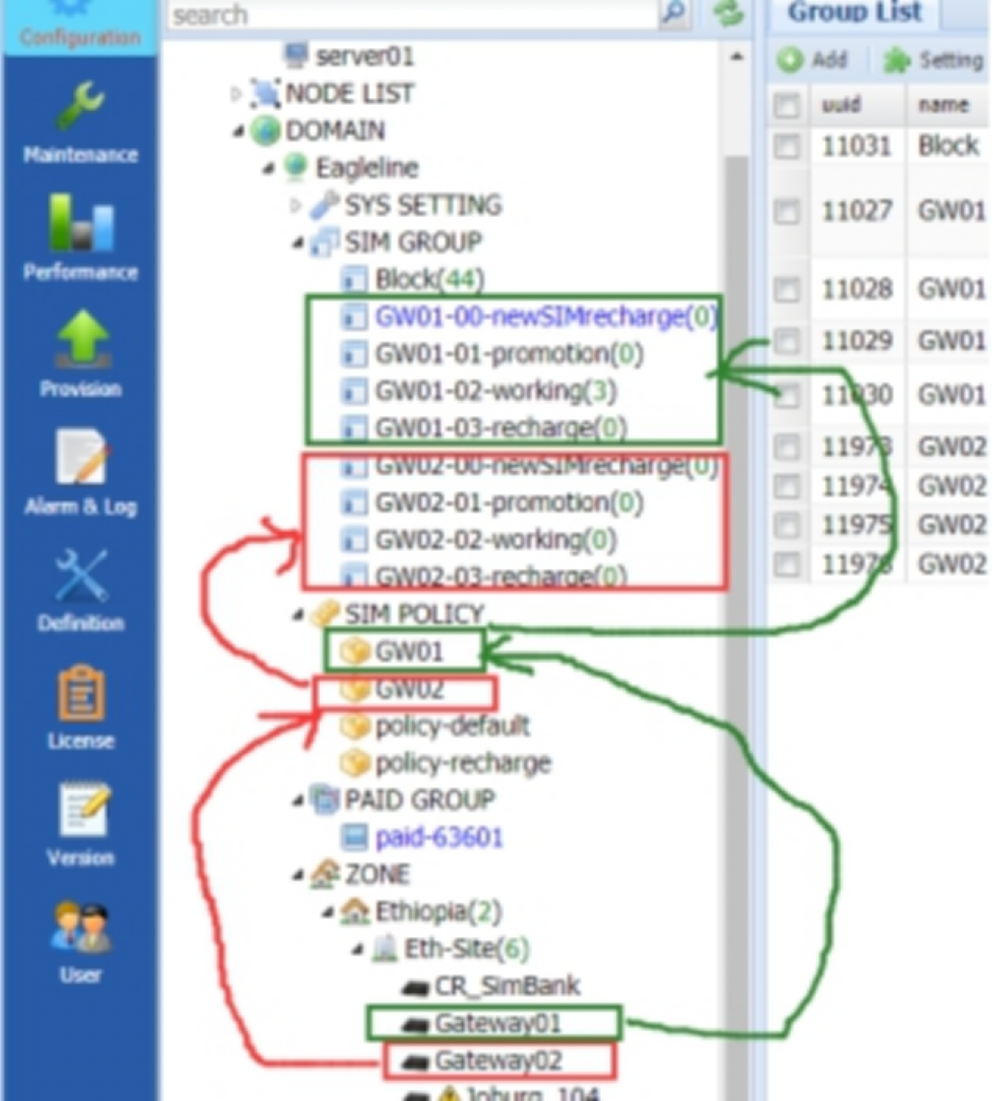
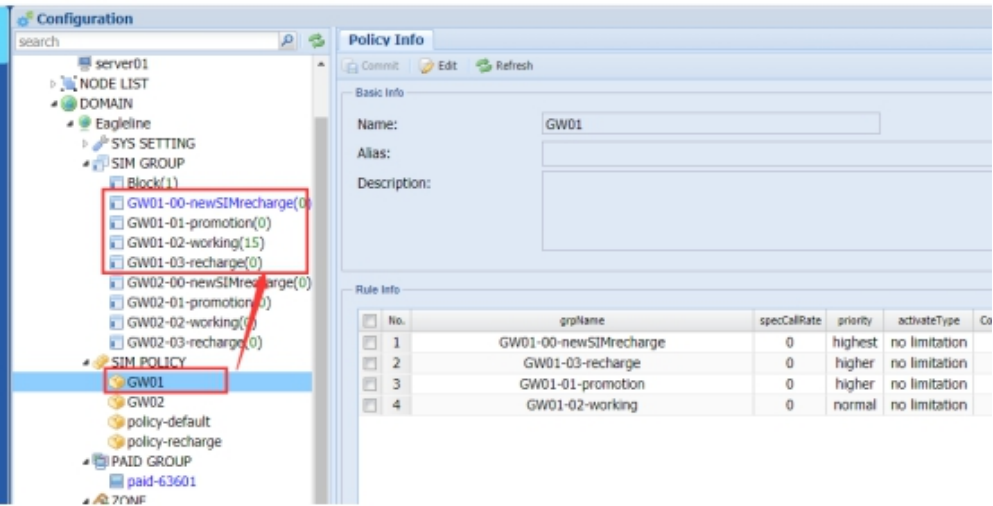
    Gateway01 use Policy-GW01; Policy-GW01 include groups with GW01-  

    Gateway02 use Policy-GW02; Policy-GW02 include groups with GW02-


    Note: after every step, please go to click refresh .


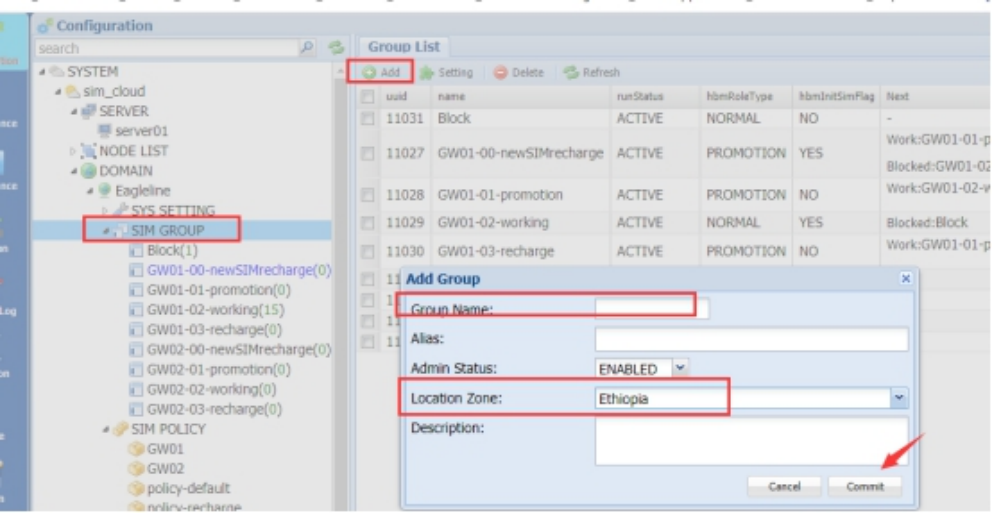
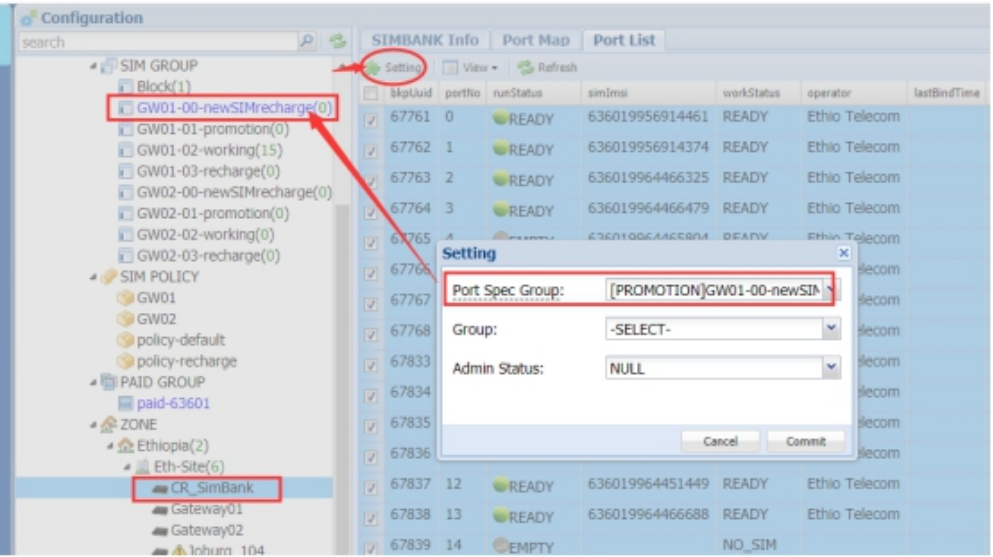
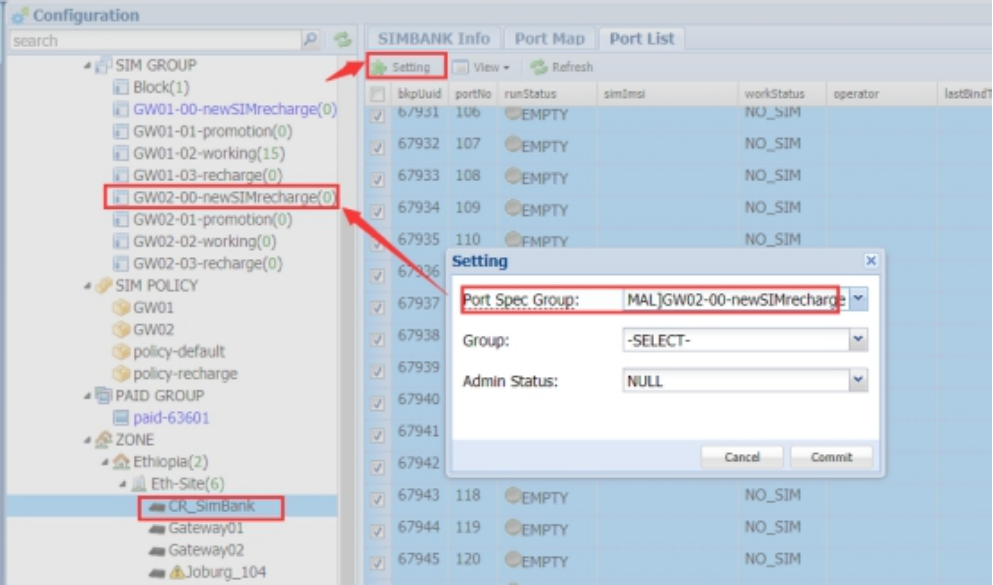
    1.Add Groups

    Add groups for Gateway01 and Groups for gateway02.


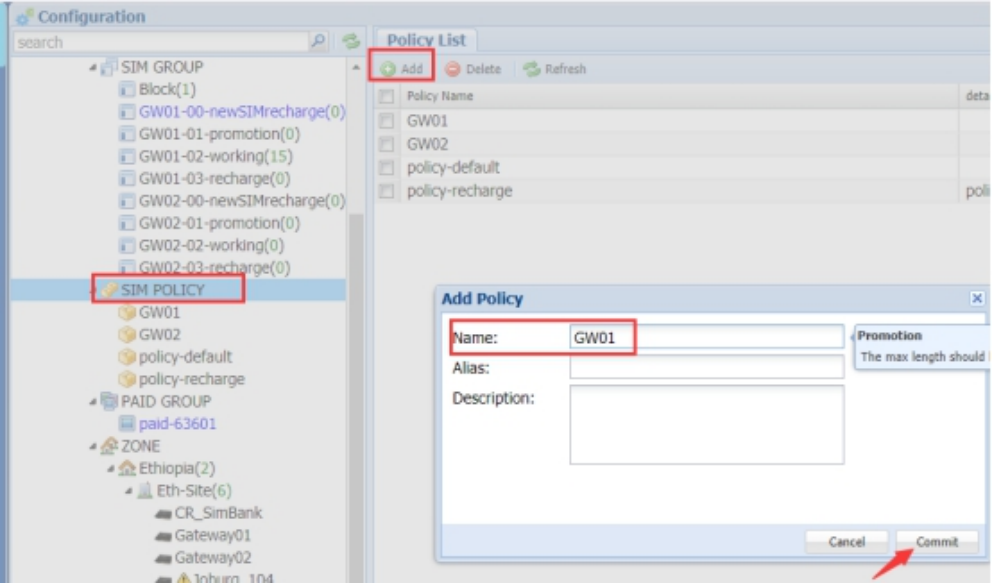
    Add one policy for Gateway 01 and one policy for gateway 02


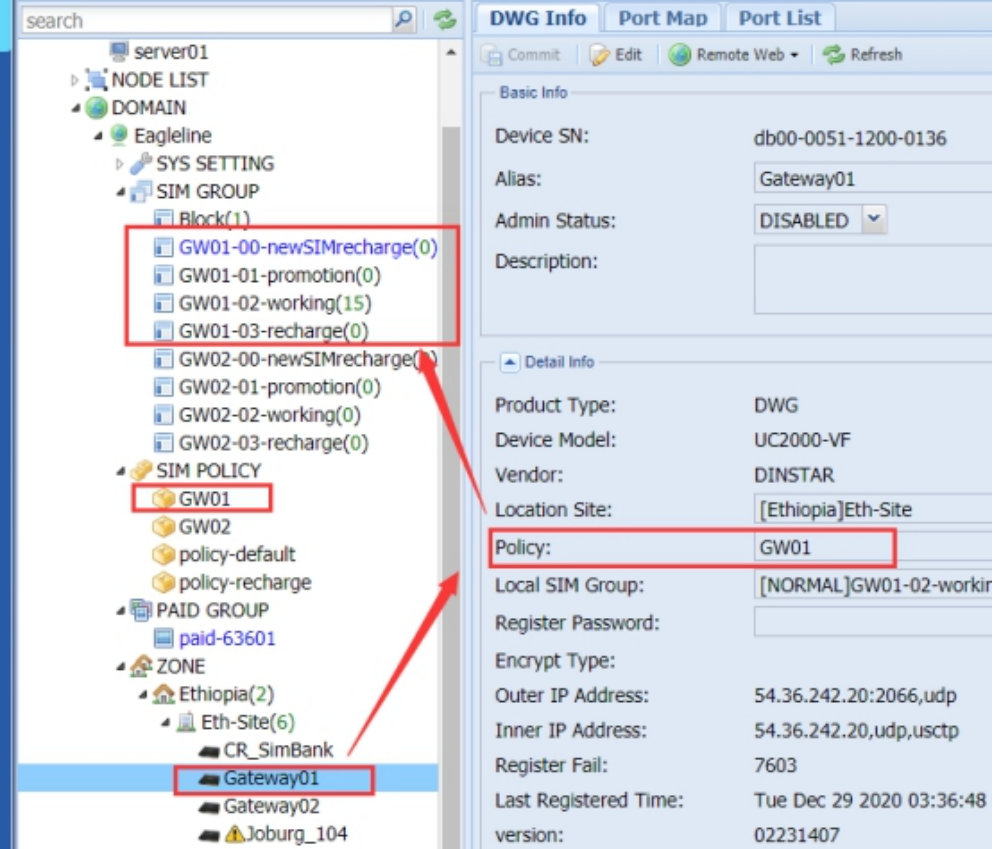
    Set Policy-GW01 for Gateway01 and Policy-GW02 for Gateway02


    2.Assign the SIM-Bank ports

    Set sim cards inserted in Sim-Bank Ports 0~63 would go Gateway01 and in Ports 64~127 go Gateway02.


  • QHow to trace the calls of SBC

    A

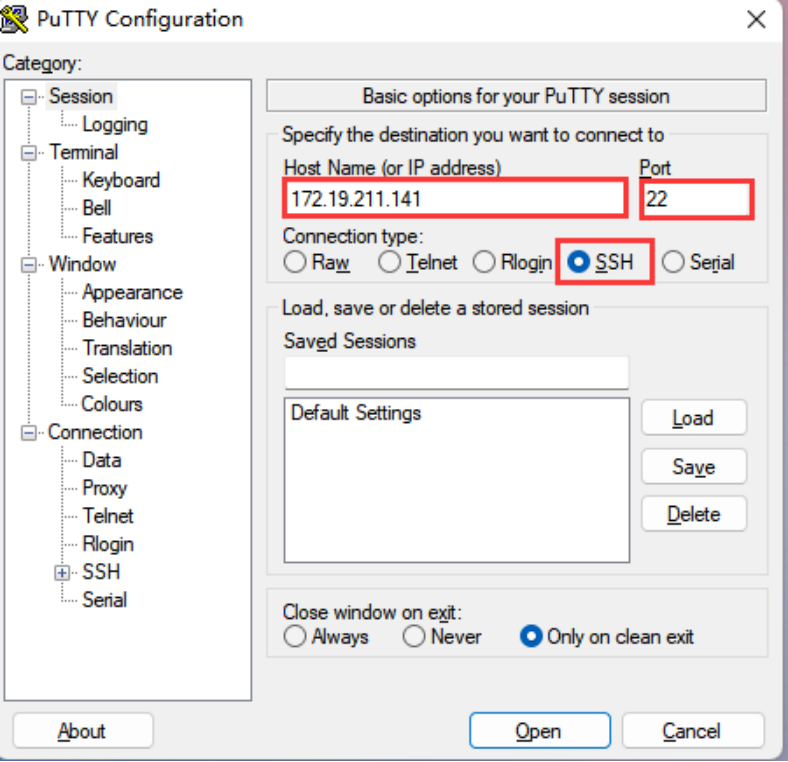
    1. SSH the SBC

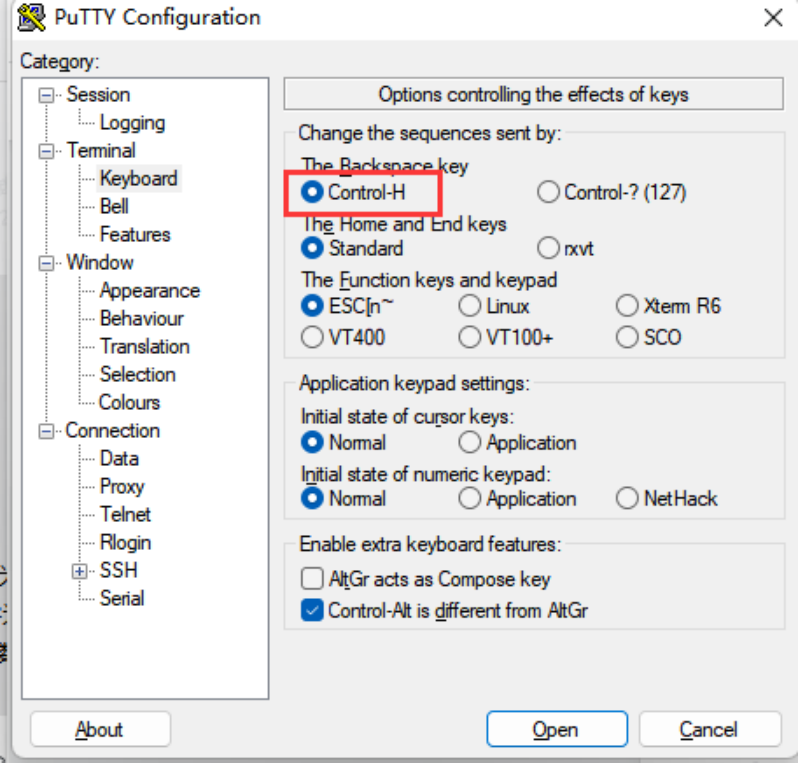
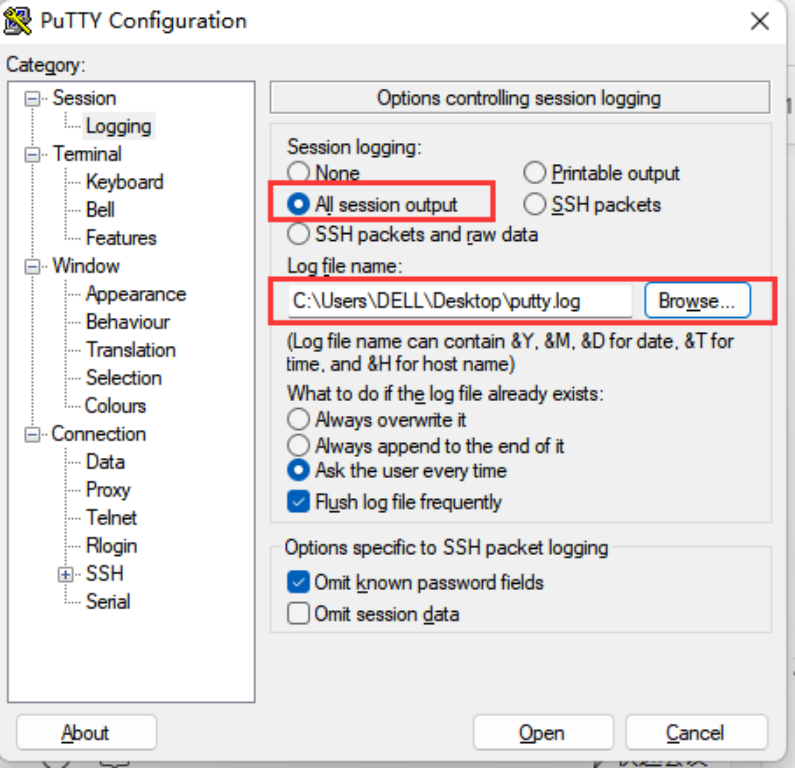
    create a session in the putty .As the following pciture show.


    you can save the session position as you want .

    Then open the session .

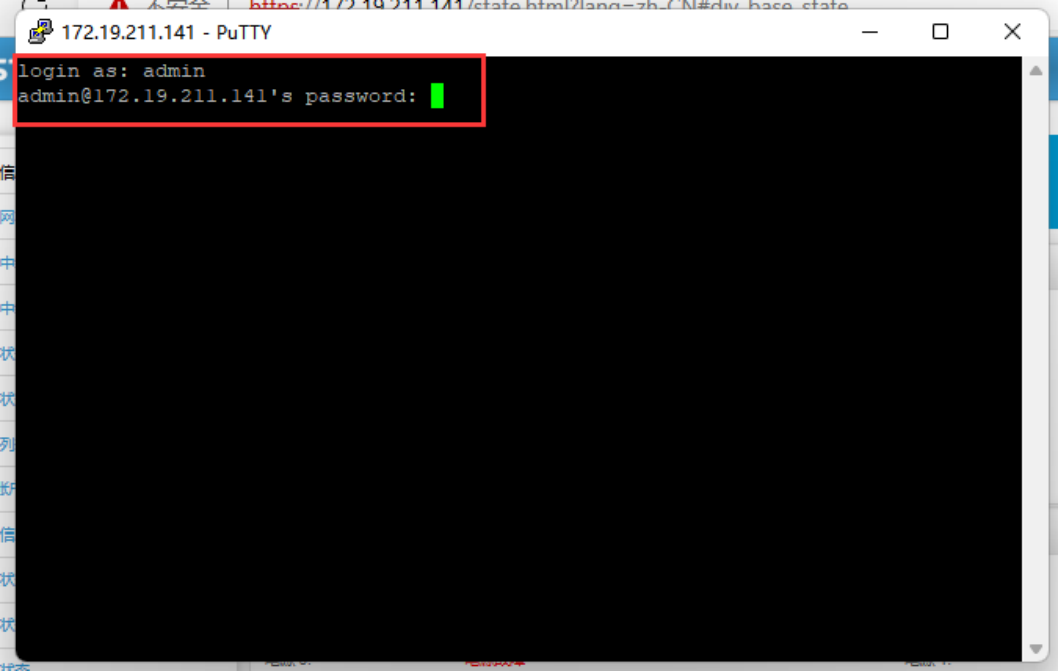
    2. Login

    The username and password are the same as web . please enter them to login.


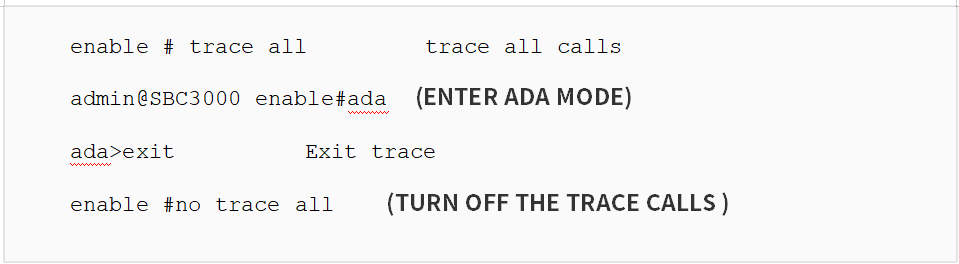
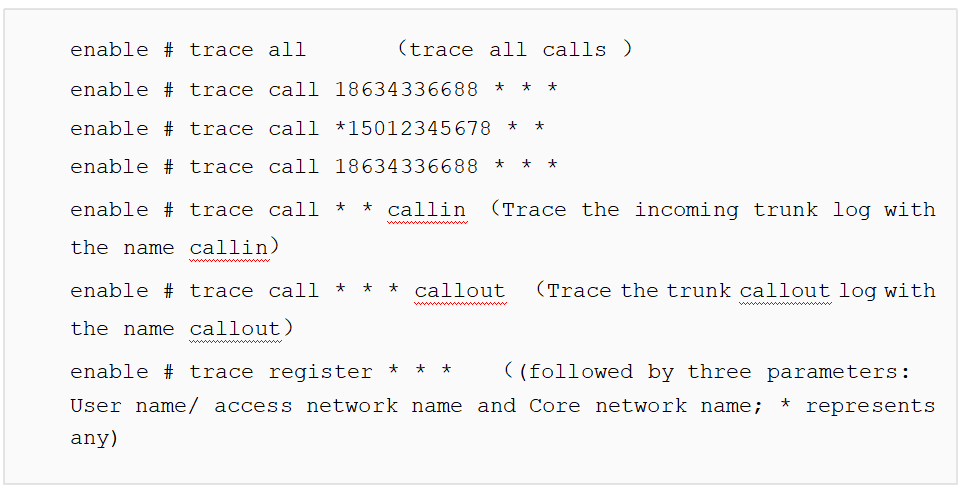
    3. Enter the commands

    admin@SBC1000 enable#  


    More detailed calls commands as below,


  • QHow to set IP trunk mode on UC2000

    A

    Descriptions

    The file targets showing how to common connect through SIP trunk between UC2000 and other client/application or IPPBX/softswtich at the same network segment or different without registering to server side. Both devices would be in trusted network. 


    Operations

    1.Set SIP Trunk to UC2000

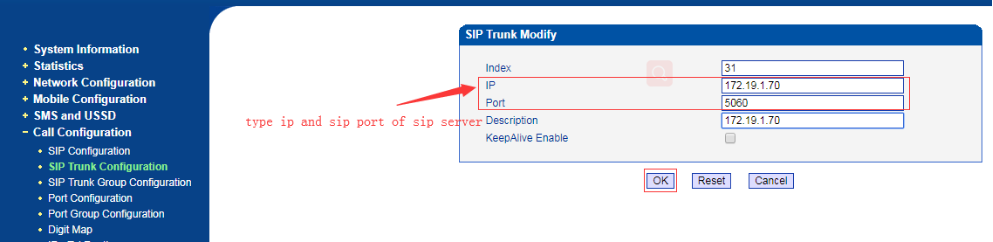
    Add a sip trunk. Open page Call Configuration-->Sip Trunk Configuration. Add a sip trunk with remote IP and sip port (IPPBX/Softswitch side local SIP port). As shown in the figure below,

    (Remote IP: 172.19.1.70; Port:5060; Description: 172.19.1.70)


    Note: If the UC2000 behind router and remote side is public network, should do port forward in router. The forward ports should include the UC2000 side local SIP port and RTP port range.

    2.Set Outbound Call in UC2000 

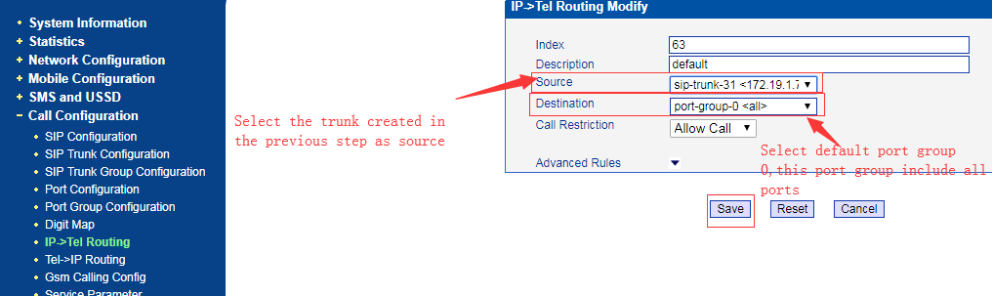
    Open page Call configuration -> IP->Tel, (IP—>Tel means IP to GSM network). Create a new route.

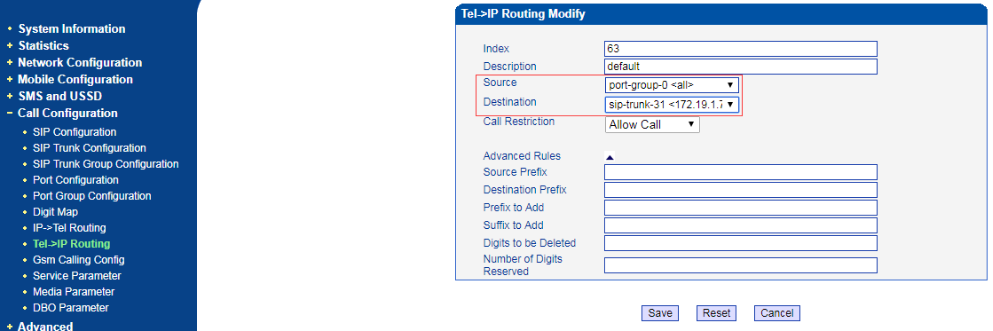
    [A route to all ports or some ports]

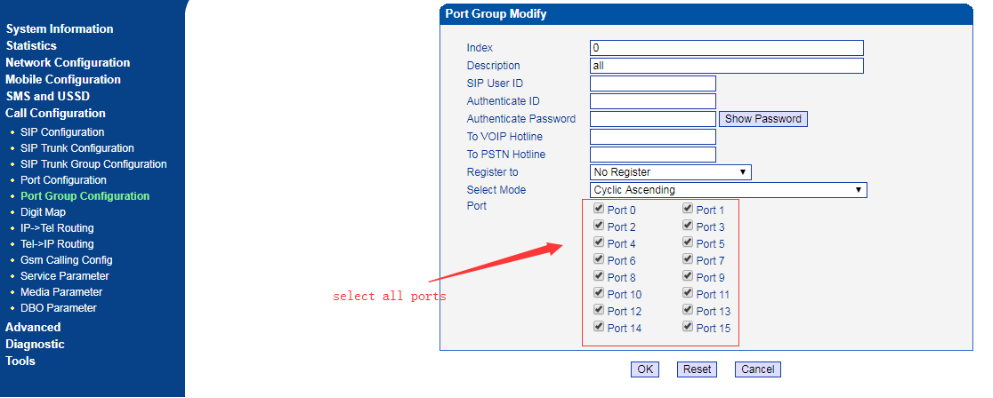
    This means the call from the Trunk31 and goes to port group 0 that include all port default.


    You can define the port group as your scenario also.


    [A route to a specific port]

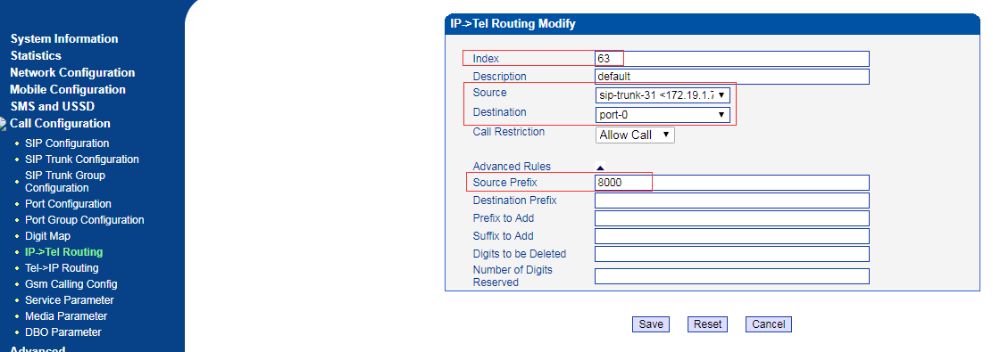
    If you want to specific call with specific port, like P2P. You can match the prefix of caller number and map the call to target port.


    On node “Advanced Rules”, we can set the condition of route and manipulation the number.

    For example, when call from sip-trunk-31 if want caller number 8000 call out through port 0 always. 

    The Source Prefix set 8000 and the Destination selected port 0.

    Note: The index value means the route priority, Index 0 means highest priority than others. The call will match the route from high to low one by one. If a call had already matched a route already, it will not match other one.

    3. Set Inbound Call to UC2000 

    Open page Call configuration>Tel->IP, (Tel—>IP means GSM network to IP side), create a new rule.


    This one means if a call from GSM network hit to any port that in port group, UC2000 will forward the call to sip-trunk-31.

    Note: if the call at UC2000 port, the call does not have the information of destination number. So the UC2000 will play IVR: ”please dial extension number”. Then the caller side tries to dial the extension number and the UC2000 forward the call to IP side.

    If you want the UC2000 redirect the call to IPPBX side directly, Need set the DID/hotline in UC2000, like the following step.

    [Set VoIP Hotline number]

    The VoIP Hotline number is real destination number when UC2000 forward call to IP side.

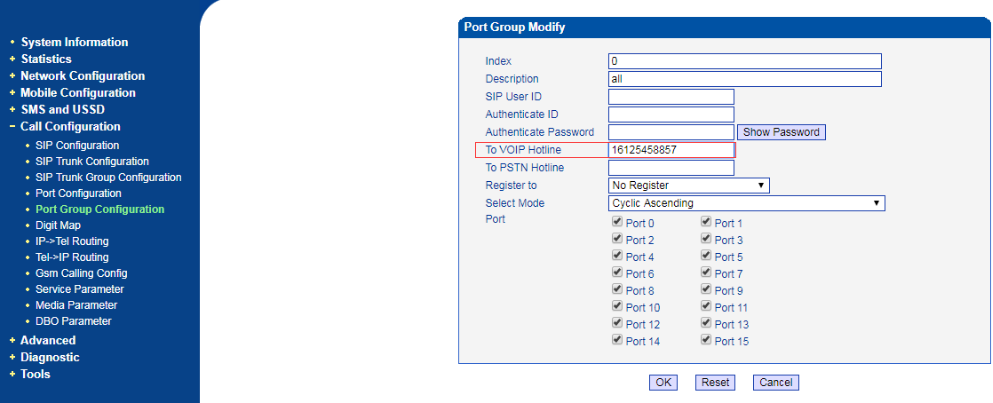
    All channels use same hotline number

    Open page Call configuration>PortGroupConfiguraiton, choose the port group that used in above route. Input the DID number of IPPBX or existing destination number to field “To VoIP Hotline”.


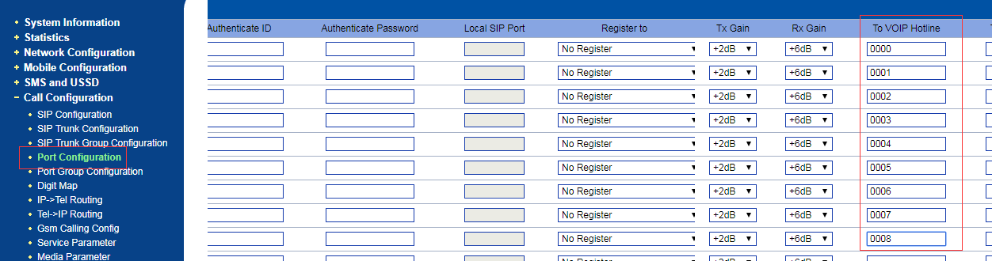
    Different channels use different hotline Number

    Open page Call configuration>Port Configuration, input the DID number of IPPBX or existing destination number to field “To VoIP Hotline”.

  • QDoor+Phone+Auto+Provisioning+Guide

    A


    1 How to Use Auto-Provisioning

    1.1  Description

    1 How to Use Auto-Provisioning

    This document is written to provide instructions for using the auto-provisioning function, which can make Dinstar Door Phone automatically update with the latest firmware, configurations, customized ringtones and local contacts stored on a DHCP/PnP/TFTP/FTP/HTTP/HTTPS server.

    That is to say, Door Phone uses DHCP/PnP/TFTP/FTP/HTTP/HTTPS network protocols to get URL, and then download firmware or configuration files from that server. These configuration files and firmware will be used to update related parameters on the Door Phone.

    By default, auto-provision is used only when Door Phone is idle, because the update might trigger a software reboot, which may interrupt a call.

    Automatic deployment has the following features:

    General configuration provisioning: In this scenario, a general configuration file is stored in the server and all Door Phones download the same configuration file to update their parameters.The General configuration provisioning file usually name as dp00000000008x.cfg.


     DP81: dp000000000081.cfg

     DP82: dp000000000082.cfg

     DP83: dp000000000083.cfg

     DP85: dp000000000085.cfg

     DP88: dp000000000088.cfg

     DP92: dp000000000092.cfg

     MAC based configuration provisioning: In this scenario, each configuration file is for a specific Door Phone with the MAC address that matches the file name. The parameters in this configuration file are for that specific Door Phone only.


    1.2 Working Principle

    A complete automatic update process consists of the following:

    Step 1. Administrator sets up the provisioning DHCP/PnP/TFTP/FTP/HTTP/HTTPS servers with the required information;

    Step 2. Door Phone gets the URL of the configuration file server;

    Step 3. Door Phone downloads the configuration file from the server with URL obtained in step 2.

    Step 4. The configuration parameters in the configuration file are written to the appropriate configuration files of the Door Phone;

    Step 5. If configuration file contains the content for upgrading the firmware, Door Phone will get the firmware and do a firmware update.

    1.3 Ways to Obtain Server URL

    When an Door Phone is powered on, it will try to obtain the upgrade server address in the following order: PNP Server à DHCP Custom Option à DHCP Option43 à DHCP Option66àUser Specified Server. You can use any one of the above methods to set up the auto provisioning.

    1.3.1 Enable PnP

    PnP stands for Plug and Play. PNP provides a proprietary automatic upgrade, when PnP upgrade mode is enabled, the Door Phone will broadcast a "SIP SUBSCRIBE" in the network. A SIP server will reply with a "SIP NOTIFY” with the URL of the firmware and/or configuration file server.

    The following procedure is for setting up PnP auto provisioning:


    First, you need to configure the SIP server to have PNP and set the update server URL in it.


    Click "Upgrade -> PnP" on the Web interface of Door Phone, and then enable PNP(Default is Enabled). The Door Phone will use PNP to get the correct auto provisioning URL and download the firmware and the configuration files;


     If Auto Provision mode is set(Default is Power On), the Door Phone will do the auto provisioning on the specified time frame as set in the automatic Auto Provision mode.
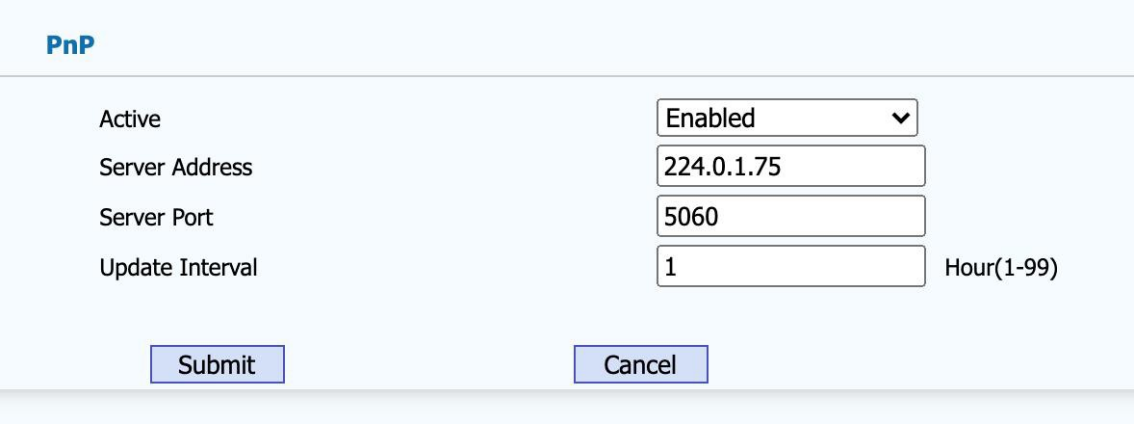
    Figure 1-1 Enable PNP Auto Provisioning

    1.3.2 DHCP Custom Option

    If Door Phone is set to use DHCP Option to obtain the auto provisioning URL, it will send a request to a DHCP server for a specific DHCP option code. First, you need to configure a DHCP option code on the Web interface of the Door Phone.

    You can use any custom DHCP option code from 128 to 254:

    Configure DHCP server to have a specific custom option code with the update server URL in it, for example, 230. And then the Door Phone will get the upgrade server URL from the DHCP server with the option code 230.

     If autop mode is set, the Door Phone will do the auto provisioning on the specified time frame as set in the autop mode.
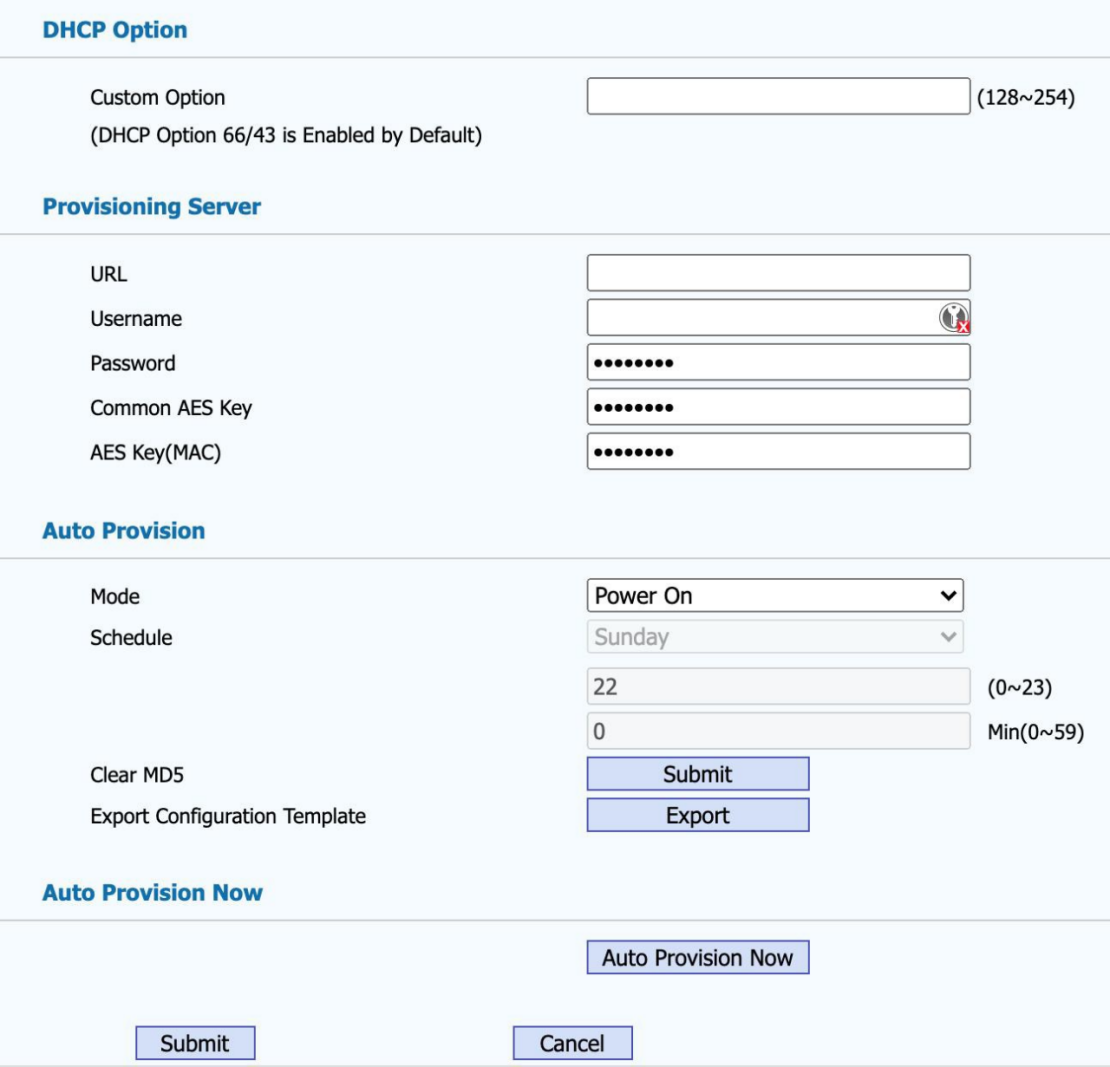
    Figure 1-2 Configure DHCP Custom Option


    1.3.3 DHCP Option 66

    If none of the above is set, Door Phone will automatically use DHCP Option 66 for getting the upgrade server URL. This is done within the software and the user does not need to configure any parameters. DHCP Option 66 is enabled by default.

    1.3.4 DHCP Option 43

    If the Door Phone does not get an URL from DHCP Option 66, it will automatically use DHCP Option 43. This is done within the software and the user does not need to configure any parameters. DHCP Option 43 is enabled by default.

    1.3.5 User-Specified Server:

    You can manually set a specific server URL for downloading the firmware and/or configuration file.


    Set update server URL (e.g., "tftp://172.21.02.03"), click [AutoP Immediately], the Door Phone will use the URL to download appropriate firmware and/or configuration files from the TFTP server and will upgrade with the downloaded files;


     If autop mode is set, the Door Phone will do the auto provisioning on the specified time frame as set in the autop mode.
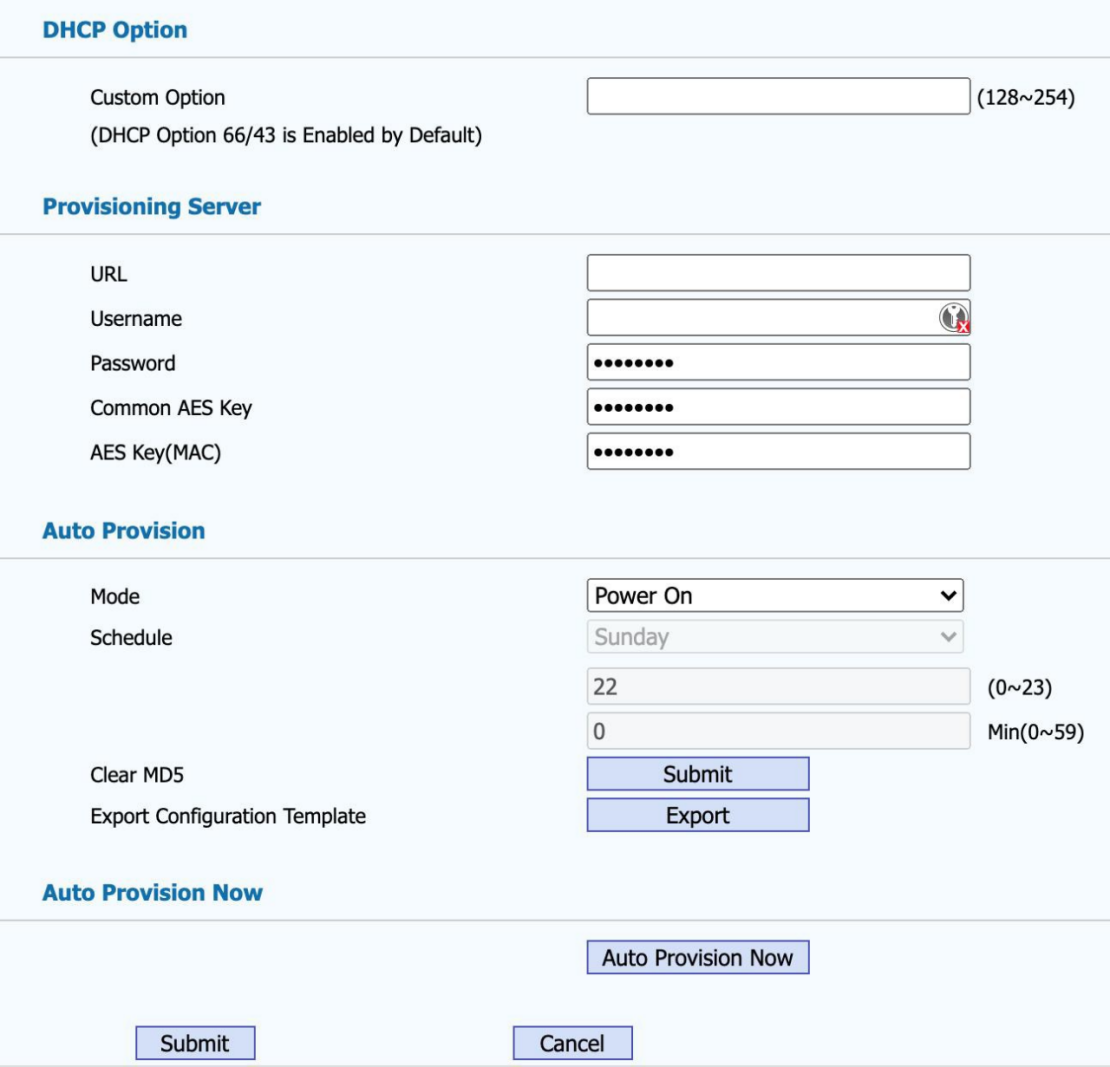
    Figure 1-3 Configure Server URL Manually


    You can also use FTP, HTTP, or HTTPS as the protocol for upgrading the firmware and/or configurations of the Door Phone. The format of them are as follows:


     TFTP Format:

    tftp://172.21.02.03/

     FTP Format:

    ftp://172.21.02.03/ (allows anonymous login)
    ftp://username:password@172.21.02.03/ (requires a user name and password)


    HTTP Format:

    http://172.21.02.03/(use the default port 80)

    http://172.21.02.03:8080/(use other ports, such as 8080)


    HTTPS Format:

    https://192.168.0.19/(use the default port 443)

    1.3.6 Auto Provision modes:

    Door Phone supports the following three modes:

    Disable: Disables auto provision. The Door Phone will not check for any updates and will not upgrade the Door Phone automatically;

    Power on: The Door Phone does the auto provisioning when the power is turned on;

    Repeatedly: The Door Phone does the auto provisioning at specified time frame periodically;

    Power on + Repeatedly: The Door Phone does the auto provisioning when the power is turned on, and meanwhile it will also does the auto provisioning at specified time frame periodically;

    Hourly Repeat: The Door Phone does the auto provisioning hourly.


    1.4Downloading Configuration File


    There are two types of configuration files for download:

    General configuration file: This configuration file has common configuration parameters for all Door Phones.

    MAC based configuration file: This configuration file is for use by a specific Door Phone with the specified MAC address. It is normally related to account information.

    If you have both of these files on the server, Door Phone will first get the General configuration file first and then get the MAC-based configuration file using its MAC address as the ID.


    1.5 Configuration Parameter Description and Application


    1.5.1 Update configuration parameters

    The parameters that will be updated should follow the following format in the configuration file, as shown in the following figure.
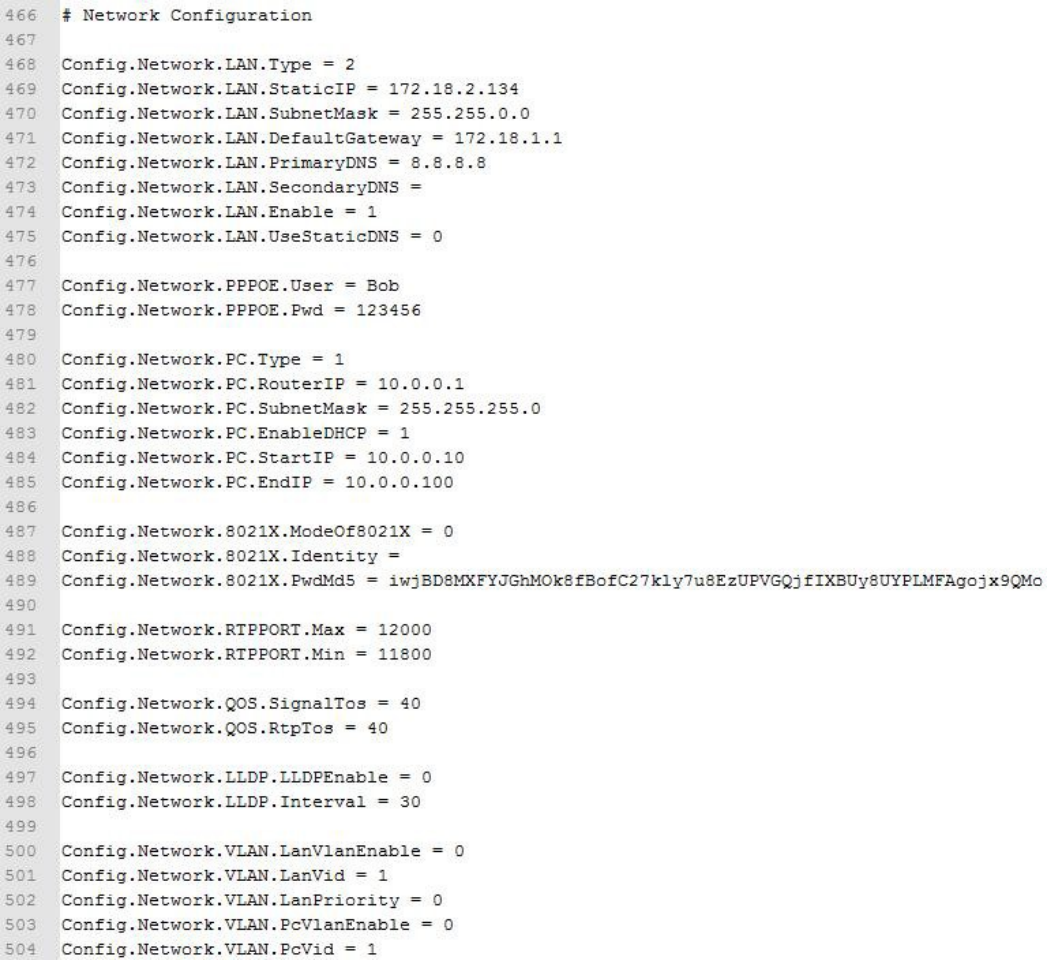
    Figure 1-4 part of the configuration file content

    The name of the parameters in the configuration file is fixed, and the user can not make any changes, the user can only fill in the value, otherwise the update will fail.



    Example: To set the PPPOE username and password info, you use the following format:

    Once the configuration file is updated successfully with the configuration file shown above, the user will login to the pppoe server by username (Bob) and password (123456).

    1.5.2 Firmware and/or Configuration File Update

    The followings are some of the common file updates.


    Firmware Update

    To update firmware, you define the following lines in the configuration file: Config.Firmware.Url = protocol name://address/path/filename

    Example:

    Config.Firmware.Url = tftp://172.21.02.03/1.0.0.135.rom

    Note: there is no filename in the above Ulrl. If no filename is in the firmware URL configuration, Dinstar Door Phone will search the default filename in the defined URL address.

    Customized Ringtones

    To set customized ringtones, you can define the following lines in the configuration file: Config.Ringtone.Url = protocol name://address/path/filename

    Example:

    Config.Ringtone.Url = tftp://172.21.02.03/Ring1.wav

    Note: Ring1.wav is a ringtone wav file. Total custom ringtone file size cannot be more than 100KB.

    Update Local Contacts

    To update local contacts, you define the following lines in the configuration file: Config.Contact.Url = protocol name://address/path/filename

    Example:

    Config.Contact.Url = tftp://172.21.02.03/Contact.xml

    Note: Contact.xml is the file name for the address book.


    Update client certificate

    To update client certificate, you can define the following lines in the configuration file: Config.Certificate.01.Url=protocol name://address/path/filename Config.Certificate.02.Url=protocol name://address/path/filename Config.Certificate.03.Url=protocol name://address/path/filename

    Config.Certificate.04.Url=protocol name://address/path/filename Config.Certificate.05.Url=protocol name://address/path/filename Config.Certificate.06.Url=protocol name://address/path/filename Config.Certificate.07.Url=protocol name://address/path/filename Config.Certificate.08.Url=protocol name://address/path/filename Config.Certificate.09.Url=protocol name://address/path/filename Config.Certificate.10.Url=protocol name://address/path/filename Example:

    Config.Certificate.01.Url=tftp://172.21.02.03/Cert1

    Update Auto Provision Settings

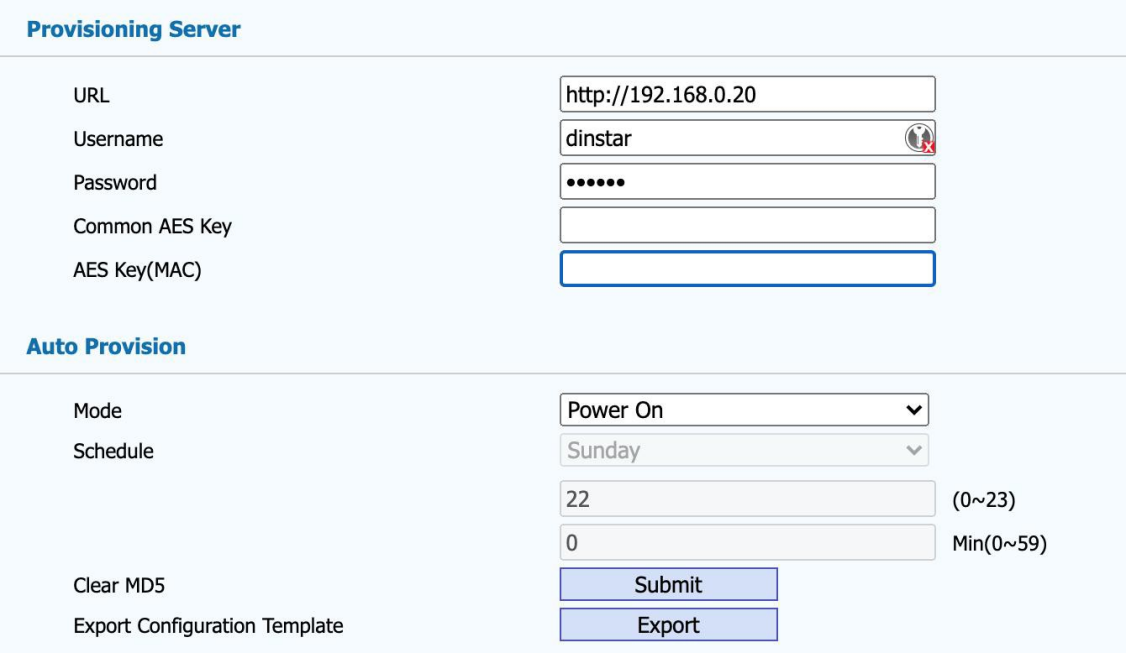
    To update auto provision settings, you define the following lines in the configuration file: Config.Autoprovision.GENERAL.Url = url

    Config.Autoprovision.GENERAL.UserName = username Config.Autoprovision.GENERAL.Pwd = password Config.Autoprovision.CFG.Version = 1.3

    Example:

    # Autoprovision Configuration Config.Autoprovision.GENERAL.Url = http://192.168.0.20 Config.Autoprovision.GENERAL.UserName = dinstar Config.Autoprovision.GENERAL.Pwd = admin Config.Autoprovision.CFG.Version = 1.3
     

    Update SIP Account

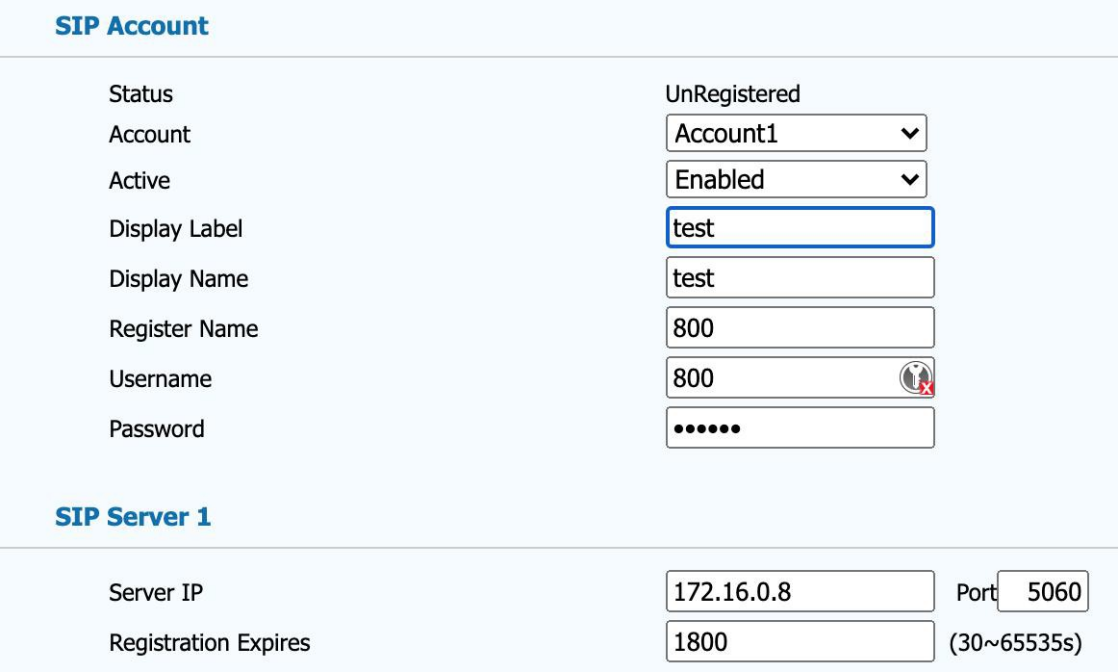
    To set sip account, you can define the following lines in the configuration file: Config.Account1.GENERAL.Enable = 1

    Config.Account1.GENERAL.Label = label_dispaly_on_door_phone

    Config.Account1.GENERAL.DisplayName = display_name Config.Account1.GENERAL.UserName = sip_account Config.Account1.GENERAL.AuthName = sip_account_for_authentication Config.Account1.GENERAL.Pwd = password Config.Account1.SIP.Server = sip_server_addr

    Config.Account1.SIP.Port = sip_server_port Example: Config.Account1.GENERAL.Enable = 1 Config.Account1.GENERAL.Label = test

    Config.Account1.GENERAL.DisplayName = test Config.Account1.GENERAL.UserName = 800

    Config.Account1.GENERAL.AuthName = 800

    Config.Account1.GENERAL.Pwd = 800

    Config.Account1.SIP.Server = 172.16.0.8

    Config.Account1.SIP.Port = 5060
    To update other sip account, you can replace Account1 to Account2 or Account3, etc...

    Update Language

    To update Language, you define the following lines in the configuration file:

    Config.Settings.LANGUAGE.Type = language_id Config.Settings.LANGUAGE.WebLang=language_id Example:

    Config.Settings.LANGUAGE.Type = 2

    Config.Settings.LANGUAGE.WebLang = 2 The language id is ranged from 0 to 15.

    0:ENGLISH

    2:CHINESE SIMPLIFIED

    3:CHINESE_TRADITIONAL

    5:PORTUGUESE

    6:SPANISH

    7:ITALIAN

    8:DUTCH

    9:FRENCH

    10:GERMAN

    13:POLISH

    14:TURKISH

    15:RUSSIAN

    Update Key

    Update Line Key

    To update Line Key, you define the following lines in the configuration file: Config.Programable.LINEKEYx.Type = linekey_type Config.Programable.LINEKEYx.Label = label_dispaly_on_phone Config.Programable.LINEKEYx.Param1 = value Config.Programable.LINEKEYx.Param2 = account Config.Programable.LINEKEYx.Param3 = extra

    Note: x for the number of line key , is ranged from 1 to 10.

    The following tables list valid value of account for each phone model.

    Note: If account is set to 0, it means automatic.

    DP81

    DP82

    DP83

    DP85

    DP92

    account

    1-2

    1-2

    1-2

    1-2

    1-2


    linekey_type

    Functional Description

    Param1

    Param2

    Param3

    0

    N/A

    -

    -

    -

    1

    DND

    -

    -

    -

    2

    Menu

    -

    -

    -

    3

    SMS

    -

    -

    -

    4

    Status

    -

    -

    -

    5

    Book

    0 - all

    10 - local

    11 - allcontacts

    22 - remote

    30 - broadsoft

    40 - ldap

    -

    -

    6

    Forward

    -

    -

    -

    7

    PickUp

    pickup code

    account

    -

    8

    Group PickUp

    group pickup code

    account

    -

    9

    Intercom

    extension

    account

    10

    Speed Dial

    speed dial number

    account

    -

    11

    History

    -

    -

    -

    12

    Favorites

    -

    -

    -

    13

    Redial

    -

    -

    -

    14

    Account

    -

    account

    -

    15

    ACD

    -

    account

    -

    16

    BLF/NewCall

    extension

    account

    -

    17

    BLF/BXFER (blind transfer)

    extension

    account

    -

    18

    BLF/AXFER (answer transfer)

    extension

    account

    -

    19

    BLFList

    -

    account

    -

    20

    CallReturn

    -

    -

    -

    21

    HotDesking

    -

    -

    -

    22

    Record

    -

    -

    -

    23

    XML Browser

    xml url

    -

    -

    24

    DTMF

    dtmf key

    -

    -

    25

    N/A

    -

    -

    -

    26

    Multicast Paging

    paging group

    -

    -

    27

    N/A

    -

    -

    -

    28

    Voice Message

    -

    -

    -

    29

    Transfer

    -

    -

    -

    30

    Call Park

    call park code

    account

    -

    31

    XML History

    -

    -

    -

    32

    XML PhoneBook

    -

    -

    -


    Example:

    Config.Programable.LINEKEY1.Type = 16 #Configure line key 1 as BLF/NewCall

    Config.Programable.LINEKEY1.Label = blf2000 #Display on the phone as blf2000
    Config.Programable.LINEKEY1.Param1 = 2000 #Press line key 1 will dial 2000
    Config.Programable.LINEKEY1.Param2 = 1 #Use account 1 when dialing
    Config.Programable.LINEKEY1.Param3 = *072000 #Use *072000 to direct pickup

    Update Soft Key

    To update Soft Key, you define the following lines in the configuration file: Config.Programable.SOFTKEY0x.Type = softkey_type Config.Programable.SOFTKEY0x.Label = label_dispaly_on_phone Config.Programable.SOFTKEY0x.Param1 = value Config.Programable.SOFTKEY0x.Param2 = account


    Note: x for the number of soft key , is ranged from 1 to 4.


    About account , see above.

    softkey_type

    Functional Description

    Param1

    Param2

    0

    N/A

    -

    -

    1

    DND

    -

    -

    2

    Menu

    -

    -

    3

    SMS

    -

    -

    4

    Status

    -

    -

    5

    Book

    0 - all

    10 - local

    11 - allcontacts

    22 - remote

    30 - broadsoft

    40 - ldap

    -

    6

    Forward

    -

    -

    7

    PickUp

    pickup code

    account

    8

    Group PickUp

    group pickup code

    account

    9

    Intercom

    extension

    account

    10

    Speed Dial

    speed dial number

    account

    11

    History

    -

    -

    12

    Favorites

    -

    -

    13

    Redial

    -

    -

    14

    N/A

    -

    -

    15

    ACD

    -

    account

    16-19

    N/A

    -

    -

    20

    CallReturn

    -

    -

    21

    HotDesking

    -

    -

    22

    N/A

    -

    -

    23

    XML Browser

    xml url

    -

    24-26

    N/A

    -

    -

    27

    Simple Menu

    -

    -

    28

    Voice Message

    -

    -

    29

    N/A

    -

    -

    30

    N/A

    -

    -

    31

    XML History

    -

    -

    32

    XML PhoneBook

    -

    -


    Example:

    Config.Programable.SOFTKEY02.Type = 10
    Config.Programable.SOFTKEY02.Label = call2000
    Config.Programable.SOFTKEY02.Param1 = 2000

    Config.Programable.SOFTKEY02.Param2 = 1

    Configure soft key 02 as speed dial , press soft key 02 will call 2000 with account 1.

    Update Function Key


    To update OK Key, you define the following lines in the configuration file: Config.Programable.OK.Type = functionkey_type Config.Programable.OK.Param1 = value Config.Programable.OK.Param2 = account

    To update CANCEL Key, you define the following lines in the configuration file: Config.Programable.CANCEL.Type = functionkey_type Config.Programable.CANCEL.Param1 = value Config.Programable.CANCEL.Param2 = account

    To update BOOK Key, you define the following lines in the configuration file: Config.Programable.BOOK.Type = functionkey_type Config.Programable.BOOK.Param1 = value Config.Programable.BOOK.Param2 = account

    To update MUTE Key, you define the following lines in the configuration file: Config.Programable.MUTE.Type = functionkey_type Config.Programable.MUTE.Param1 = value Config.Programable.MUTE.Param2 = account

    To update REDIAL Key, you define the following lines in the configuration file:

    Config.Programable.REDIAL.Type = functionkey_type Config.Programable.REDIAL.Param1 = value Config.Programable.REDIAL.Param2 = account

    To update VOICEMESSAGE Key, you define the following lines in the configuration file: Config.Programable.VOICEMESSAGE.Type = functionkey_type Config.Programable.VOICEMESSAGE.Param1 = value Config.Programable.VOICEMESSAGE.Param2 = account

    To update FORWARD Key, you define the following lines in the configuration file: Config.Programable.FORWARD.Type = functionkey_type Config.Programable.FORWARD.Param1 = value Config.Programable.FORWARD.Param2 = account

    About account , see above.


    functionkey_type

    Functional Description

    Param1

    Param2

    0

    N/A

    -

    -

    1

    DND

    -

    -

    2

    Menu

    -

    -

    3

    SMS

    -

    -

    4

    Status

    -

    -

    5

    Book

    -

    -

    6

    Forward

    0 - all

    10 - local

    11 - allcontacts

    22 - remote

    30 - broadsoft

    40 - ldap

    -

    -

    7

    PickUp

    pickup code

    account

    8

    Group PickUp

    group pickup code

    account

    9

    Intercom

    extension

    account

    10

    Speed Dial

    speed dial number

    account

    11

    History

    -

    -

    12

    Favorites

    -

    -

    13

    Redial

    -

    -

    14-19

    N/A

    -

    -

    20

    CallReturn

    -

    -

    21

    HotDesking

    -

    -

    22

    N/A

    -

    -

    23

    XML Browser

    xml url

    -

    24-27

    N/A

    -

    -

    28

    Voice Message

    -

    -

    29

    Transfer

    -

    -

    30

    N/A

    -

    -

    31

    XML History

    -

    -

    32

    XML PhoneBook

    -

    -


    Example: Config.Programable.OK.Type = 10

    Config.Programable.OK.Label = call2000

    Config.Programable.OK.Param2 = 1

    Configure OK key as speed dial , press OK key will call 2000 with account 1.

    Config.Programable.OK.Param1 = 2000

  • QHow to Apply for a public SimCloud account

    A

    Backgrouds

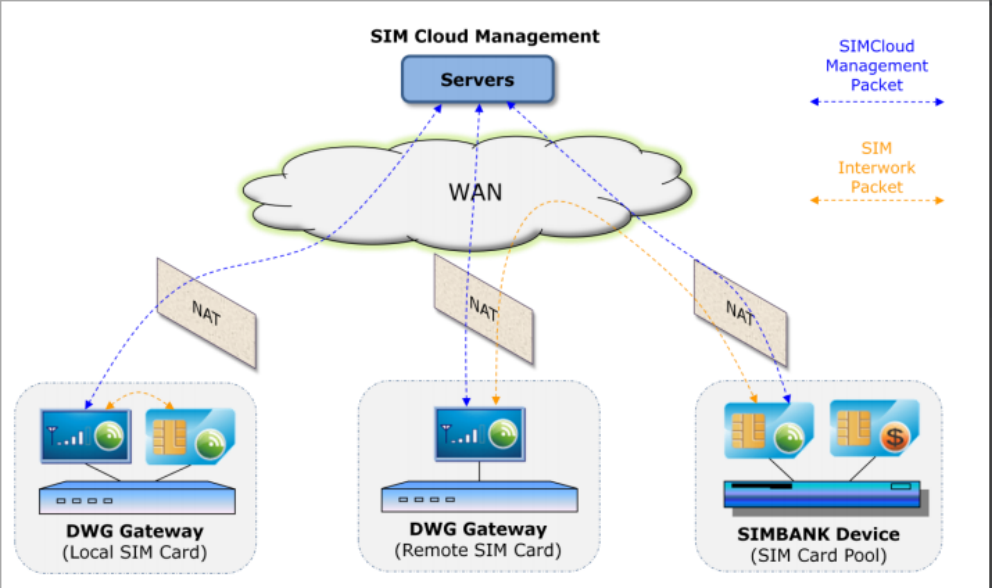
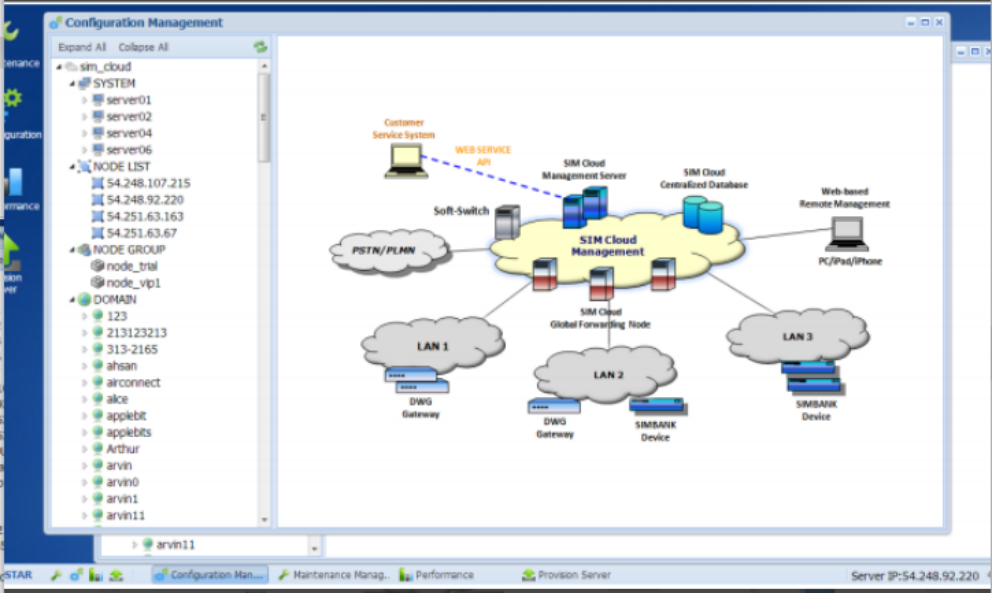
    SIMCloud is a software platform used to manage gateway devices and SIM cards. It can help you manage SIM cards much easier.  Before you use SIMcloud to manage devices and SIM cards, you need to connect the SIM bank and gateway devices via SIMCloud if you have a SIM bank.

    For example, your SIM bank is at the office while your gateway is in another city, and then the SIM bank and the gateway can be connected by SIMcloud.

    SIMcloud gets the SIM information from the SIM bank, and then transfers the SIM information to the gateway. After that, if the SIM card can register successfully, it can use the signal of the city where the gateway is placed.In case that the SIM card has no balance or is blocked, you can switch to a new SIM card at your home.

    This document is intended to guide how to apply for a new account from our public SIMCloud server.


    Preparations

    Public Website

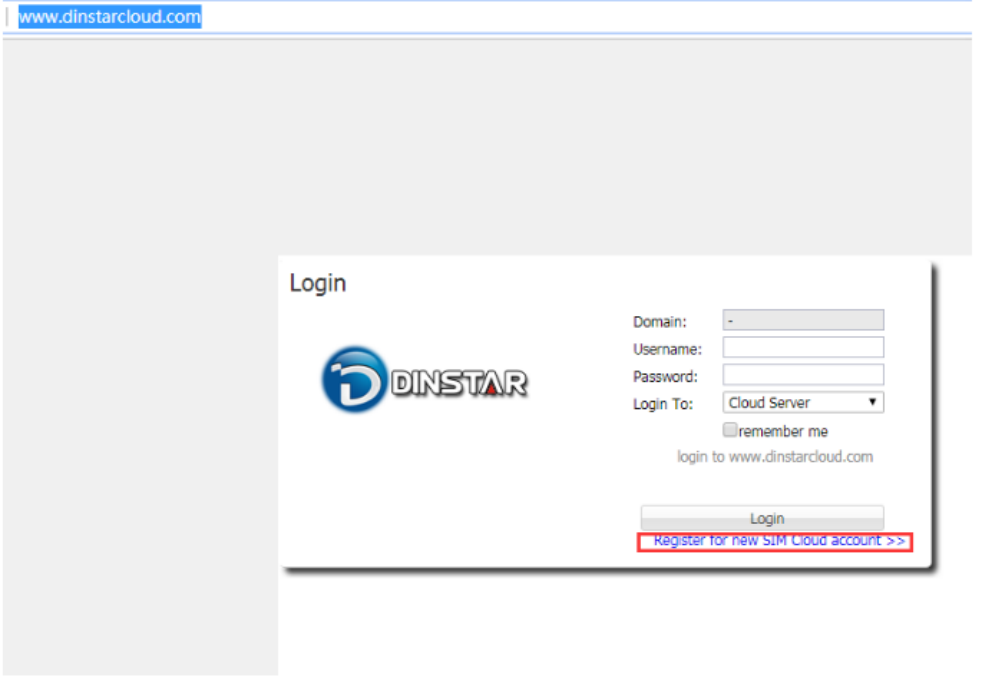
    Dinstar SIMCloud URL is http://www.dinstarcloud.com/.

    If you don’t want to show the information of Dinstar, you can open nature URL http://www.ucspeed.com/.

    Operations

    1.Register a new account 

    Login the website and Click Register for new Sim Cloud account 


    2.Choose Work Server

    Dinstar’s servers are all over the world, and you need to choose a server that has the fastest network to your device.

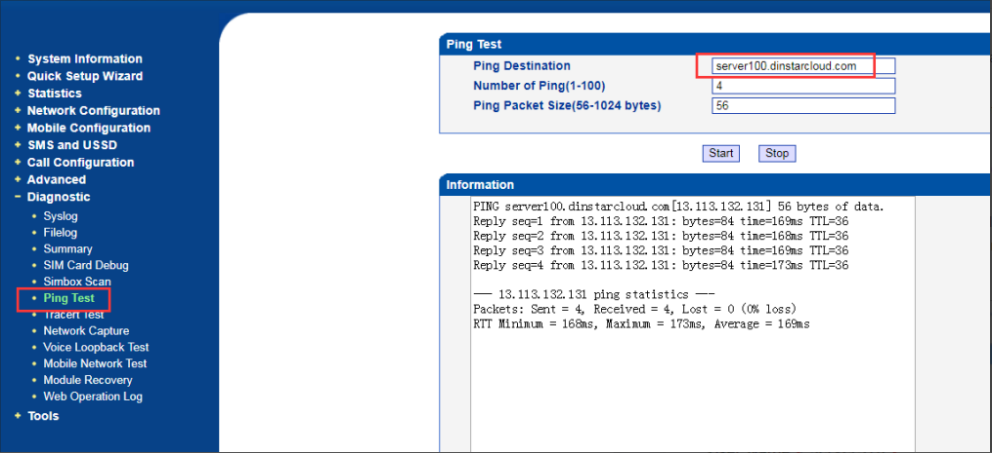
    You can ping the server on your device and check whether its network is fast and stable.

    Ping format is serverxxx.dinstarcloud.com

    For example, if you want to test server100, you can ping server100.dinstarcloud.com on your device or PC.

    If the delay time of PING is more than 200ms or there is packet lost, you should prepare a dedicated server where we can help you install SIM cloud software.


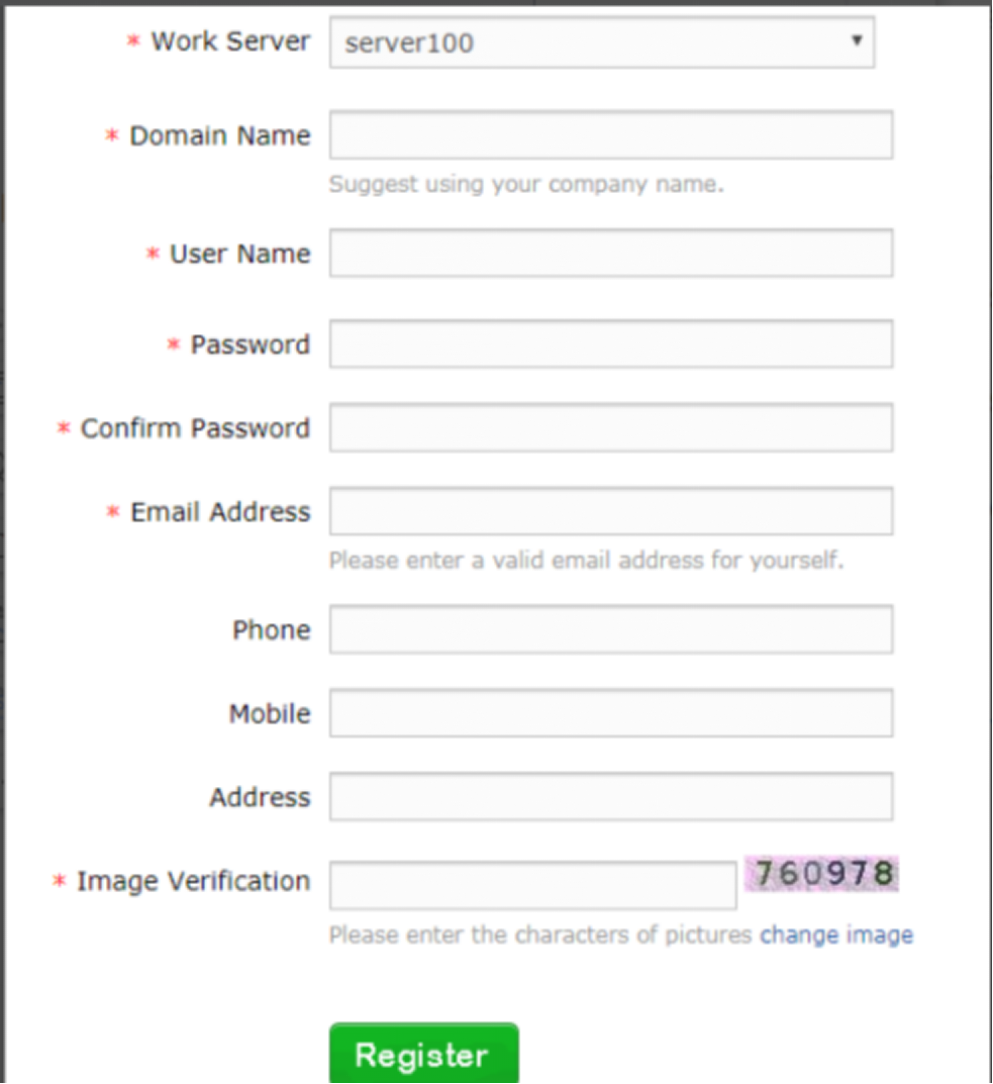
    3.Fill in the Application Information

    After choosing a server, you need to start filling in the application information.


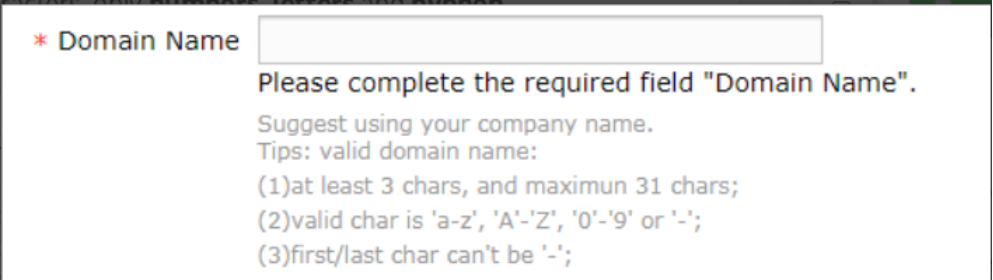
    3.1Domain Name

    This one is account of Dinstar cloud. The name should be simple and easy to remember. You can use your name or company name . For example, you set voip, and then Dinstar cloud will make are subdomain: it would be voip.dinstarcloud.com. The system will automatically complete it.


    Note: You can’t use special characters, only numbers, letters and hyphen allowed.


    3.2 User name

    You are also required to enter the username when you intend to log into your SIMCloud domain. Also, special characters cannot be used for username.

    3.3 Password

    Password is used for authentication when you intend to log into your domain. For security consideration, you can set a more complex password, but it’d better not use special characters.

    3.4 Email Address

    Email is used to send notifications, so you’d better set a real mail address.


    4.Apply for Domain Successfully

    After completing all the information and making sure you remember all of it, you can click the Register button.

    Ten minutes later, you can try to log into the domain you have applied for.

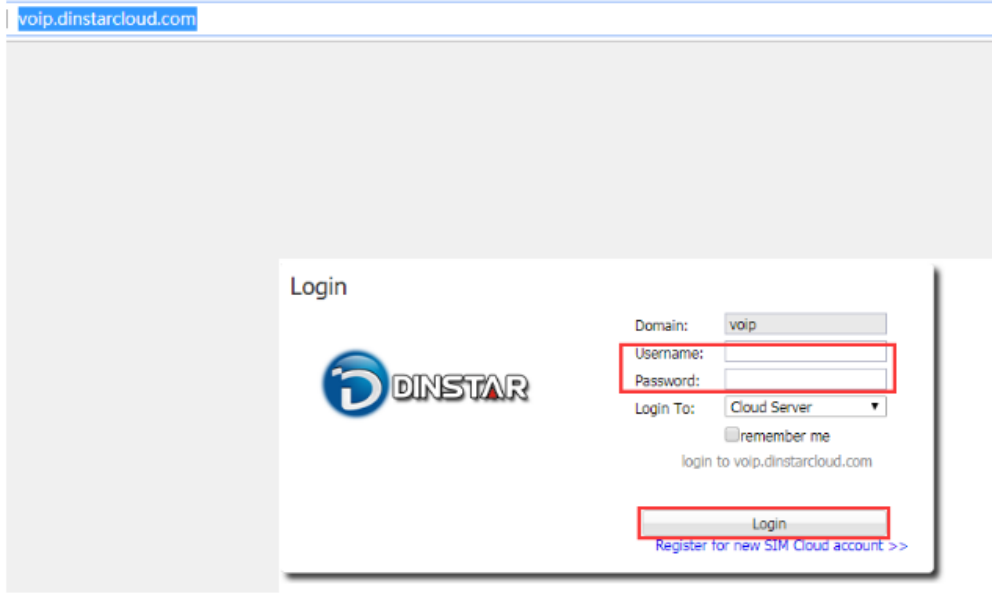
    Open the link http://voip.dinstarcloud.com.Fill in the username and pass you set.

    Cloud server is the work server used to manage the device.Account server is the license server.  Here, you need to check your license.


    After you have logged into the cloud server, you can start to configure the SIMcloud.


  • QSBC remote packet capture instructions

    A

    Remote packet capture supported versions.

    Start of remote packet capture support for versions: 1/2.9x.1.9 or 1./2.9x.2.0 and later, versions after 29th May 2018.

    Preparations

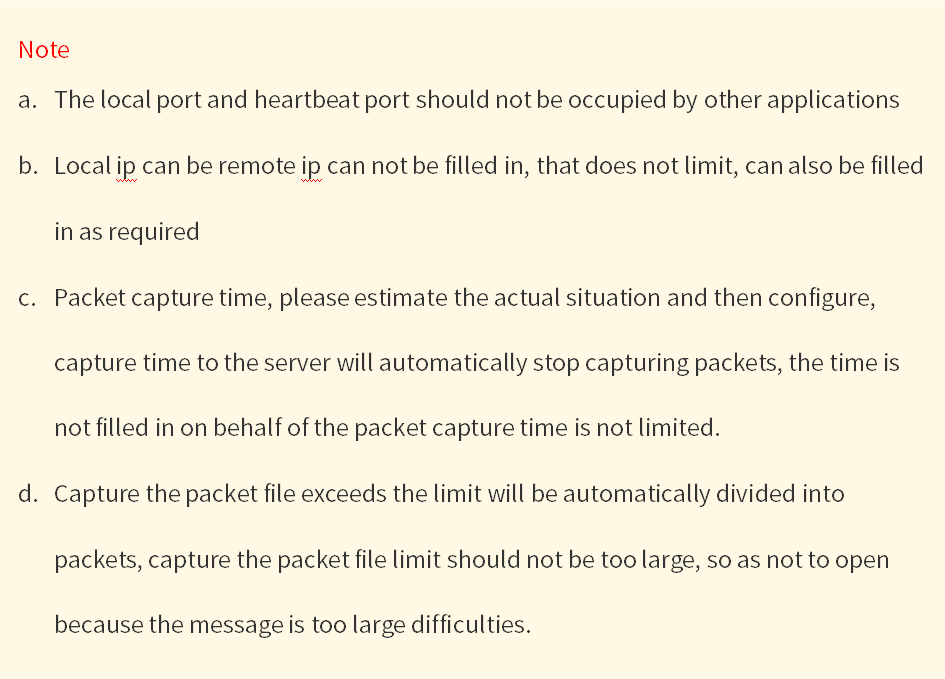
    1. By default, remote packet capture will capture the incoming and outgoing packets of all network ports of the sbc, and then send them to the remote packet capture server through the specified interface. The processing power of the packet capture server is related to the performance of the computer, if the packet traffic is too large the server will not be able to handle it, resulting in packet loss of the captured messages. Therefore,

    a. make sure that the bandwidth between the remote packet capture server and the sbc is sufficient to avoid packet loss.

    b. It is not recommended to capture packets when there are a large number of calls, and if you want to capture packets when there are a large number of calls, it is recommended to filter the port range (for example, only capture the specified sip signalling port) or IP address to limit the capture traffic to a reasonable range.

    c. Long-term packet capturing will have some impact on sbc performance.

    d, ping the server's ip address before grabbing the packet, then sbc to get the server's mac address, so that sbc can not get the server's mac address because of remote packet capture failure.

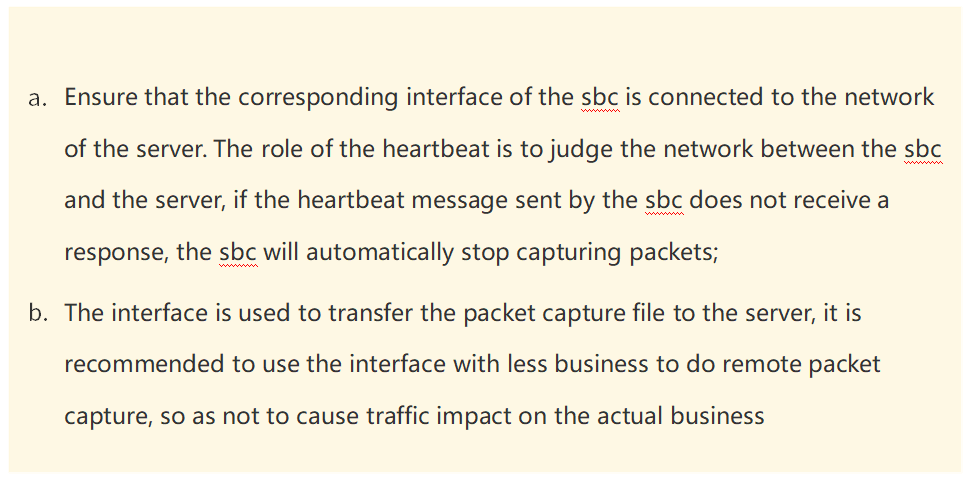
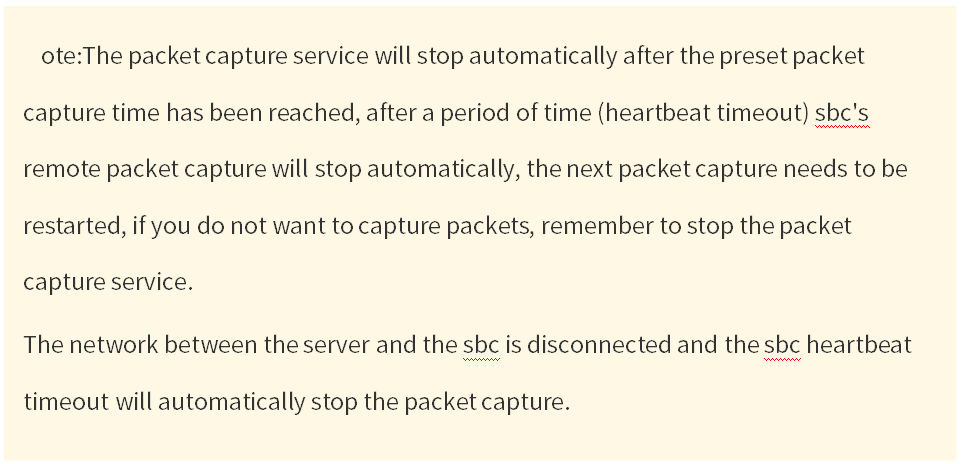
    If the server stops grabbing packets, sbc's remote packet capture will stop automatically (heartbeat timeout) soon.

    If you do not operate the web for a long time, sbc's web will automatically log out, but will not affect the packet capture.

    Do not pair more than 2 sbc remote packet captures to a single service port, it is not conducive to message analysis.

    2. The network port on the SBC used for remote packet capture is placed on the same LAN as the packet capture server. It is best to connect with a Gigabit switch and make sure that the network between the SBC and the packet capture server is connected.

    3. Place the executable in a directory on the packet capture server and ensure that the disk where the directory is located has enough storage space to hold the files generated by the packet capture.

    By default, the packet file is placed in the packet folder in the same directory as                  pcap_server.exe. 

    Steps

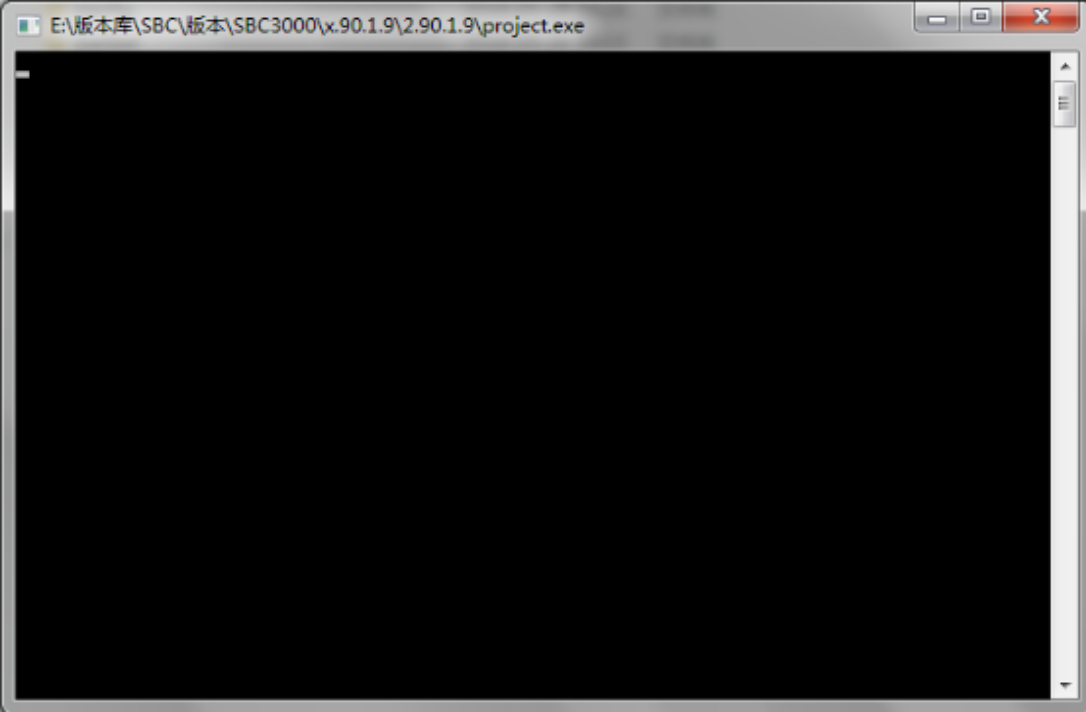
    1. Open pcap_server.exe

    Double click to open pcap_server.exe, which opens with the following display.


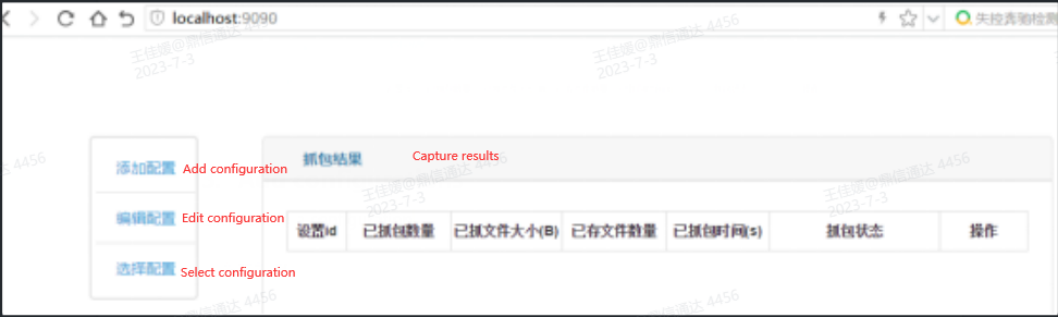
    2. Access localhost:9090

    Open your browser and type in localhost:9090 to enter the following screen


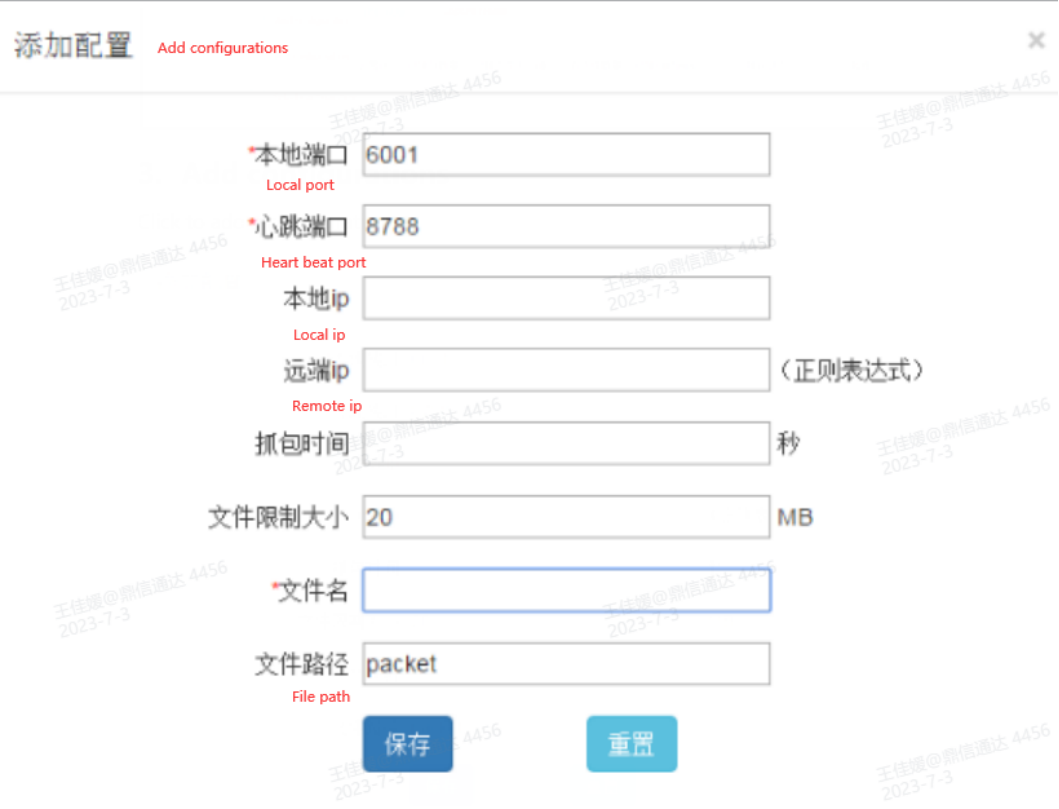
    3. Add configurations 

    Click to add a configuration


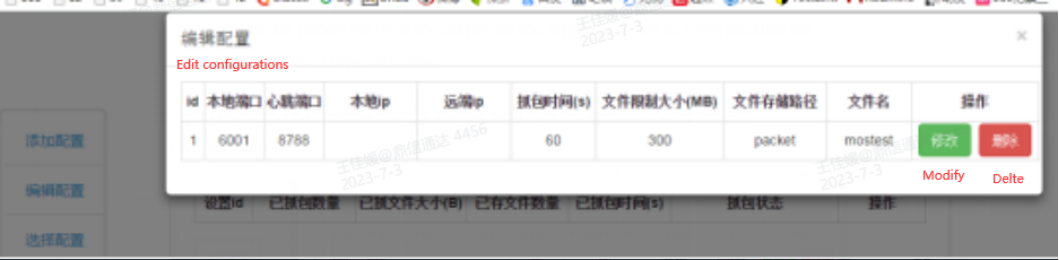
    If you want to change the configuration, you can do so by clicking on Edit Configuration.


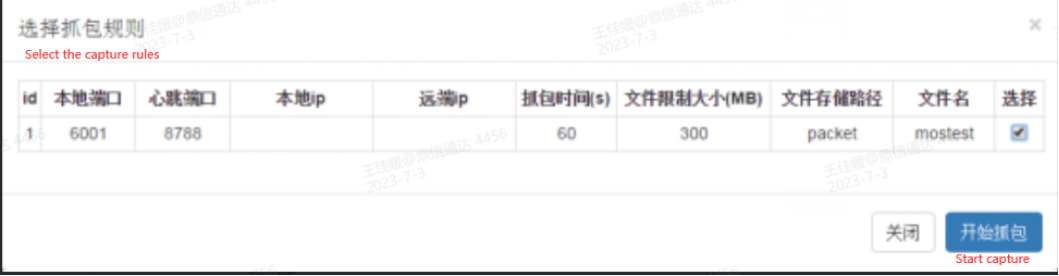
    4. Select the configurrations of the capture 

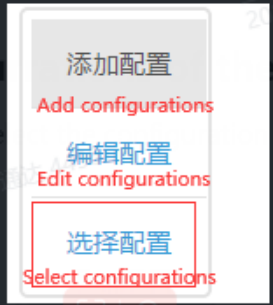
    Click on Select Configuration, select the configuration you want to capture and then click on Start Capturing Packet


    As you see, the remote packet capture is ready to recieve the  packet capture message from sbc.

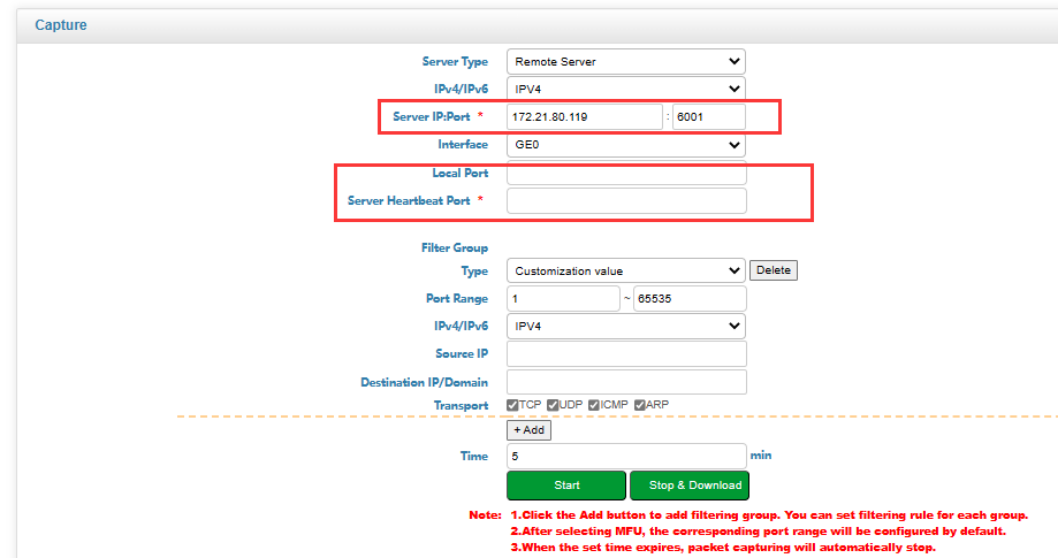
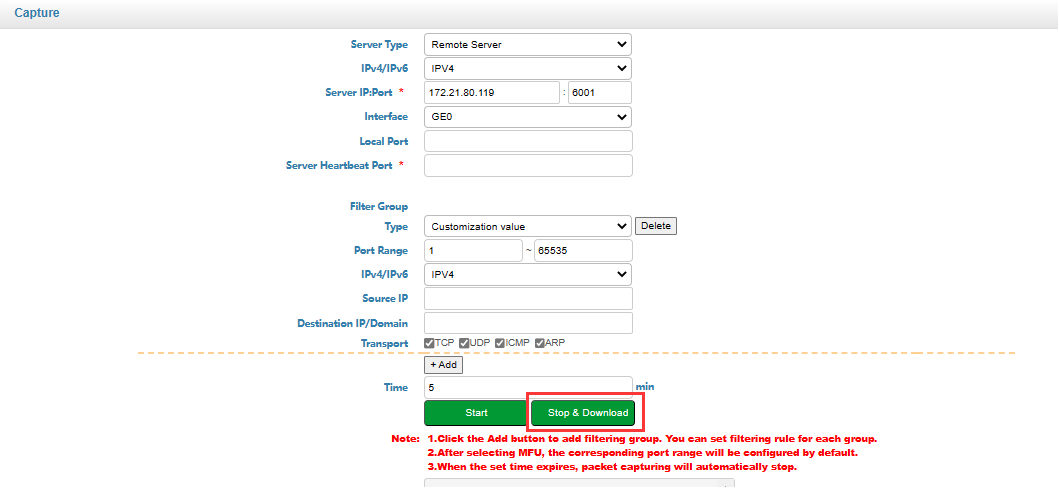
    5. Enable remote capture on sbc GUI 

    Firstly, enter the packet capture server IP address and port number 

    Note , the configuration port selected by the remote server is the same.

    Secondly ,specify the interface for transmitting packet capture messages.

    Thirdly, set the port for local transmission of SBC messages .

    Note,do not conflict with the rtp port, SIP listening port and management port.

    Finally, set the server heartbeat port 

    Note,the same as the heartbeat port set by the remote packet capture server.


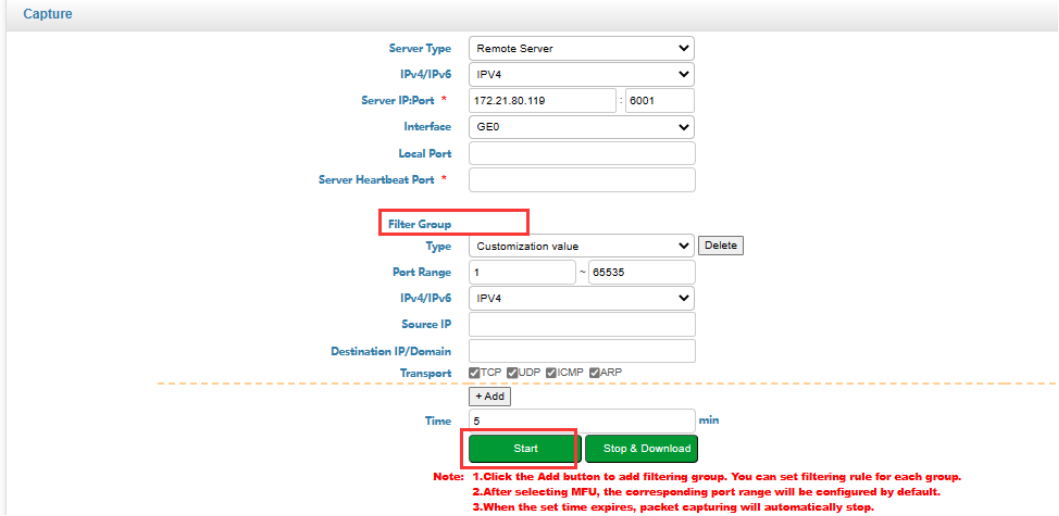
    6. Start capture 

    Enter the filter criteria according to the actual situation, and finally click on Start Packet Capture.


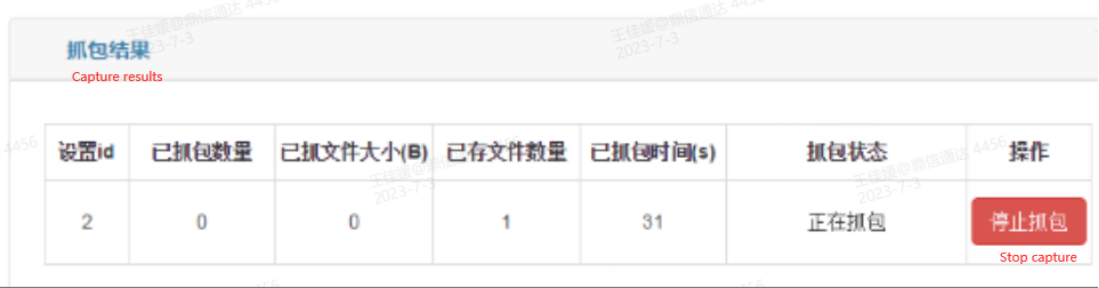
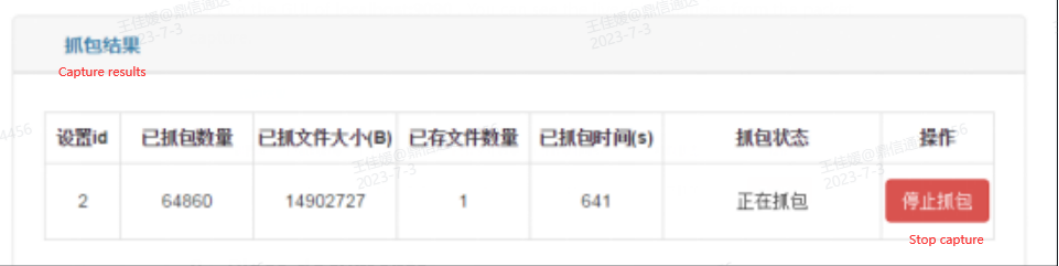
    7. Check the capture process

    Back to the GUI of localhost:9090 . You can see the live data changes from the packet capture.


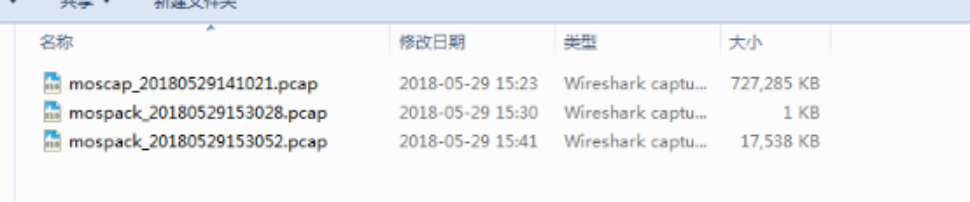
    8. Place documents

    The package file is placed in the package folder in the same directory as pcap_server.exe, and the configuration file is placed in the config file.


    9. Stop capture 

    Once the packet capture is complete, click stop & download on the sbc web to stop the capture before.Then going to localhost:9090 and clicking the stop capture button to end the capture.


  • QHow to configure uc2000 register to multiple servers
    A

    [UC2000 register to different sip servers ]

    Backgrouds

    For example,there is a eight port dinstar uc2000 gateway and 3 different sip servers. Users want port 0 register to sip server 1,port1-3 register to sip server2, port 4-7 register to sip server3.
    Sip server1 IP :172.19.1.23

    Sip server2 IP:172.19.1.48

    Sip server3 IP:172.19.1.40

    Note:This application solution first needs to ensure that the servers and the gateway can communicate with each other.


    Operations

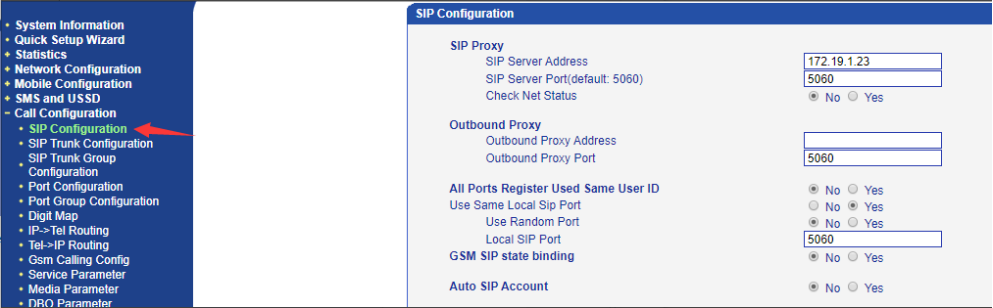
    1.Add a sip server 

    Click Call configuration>sip configuration.Add SIP Server address with sip server1 and sip port and set “All Ports Register Used Same User ID” option as No.


    2.Add sip trunks

    Click Call configuration>sip trunk configuration,Add two sip trunks of the rest of sip servers.Enter the ip ,ports,and description.


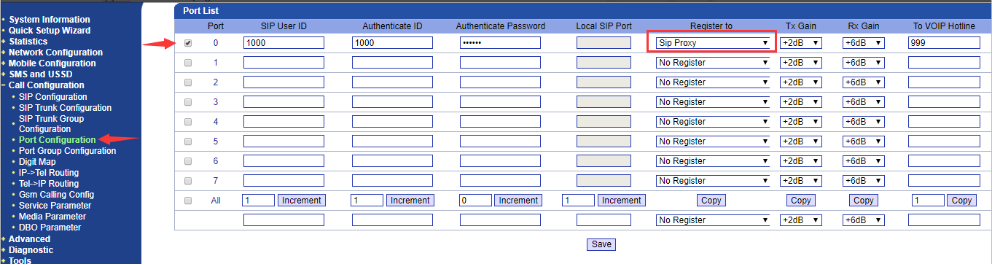
    3.Configure ports

    According to the users demands,let's do the following.


    3.1 Configure port 0 register to SIP Server 


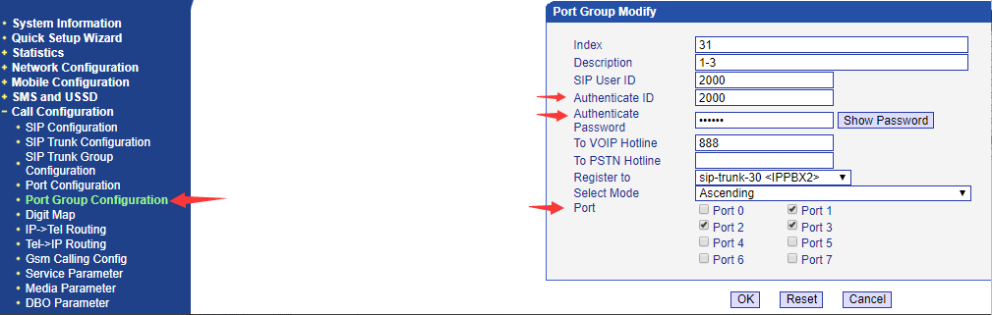
    3.2 Create a port group including port1-3

    Add ports1-3 as a port group and register to sip server 2. 


    3.3 Create a port group including ports 4-7

    Add ports4-7 as one port group and register to sip server3. 


    4.Create Inbound routes

    According to the requirements,separate Tel -> IP Routings as following picture shows below


    5.Create outbound routes


    [ UC2000 register to a sip server with different sip ports ]


    Backgrouds

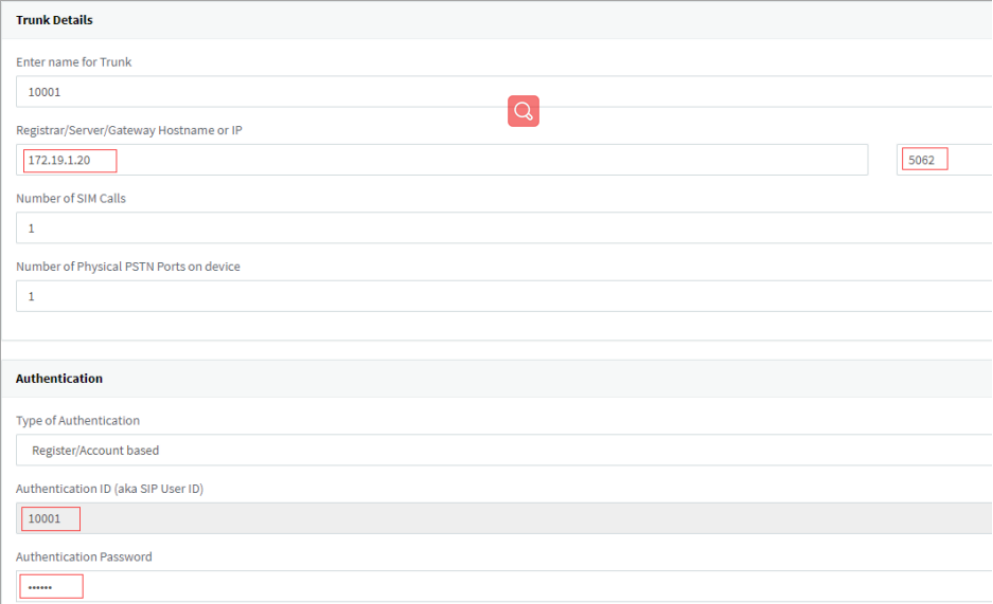
    If users want  different ports register to one sip server with different sip ports on UC2000.First, the sip server side has to add different SIP Trunks with different authentication and sip ports.As the pictures show below.


    ......

    Finish the settings on the sip server side,then continue to configure the uc2000 gateway


    Operation

    1.Add a sip server 

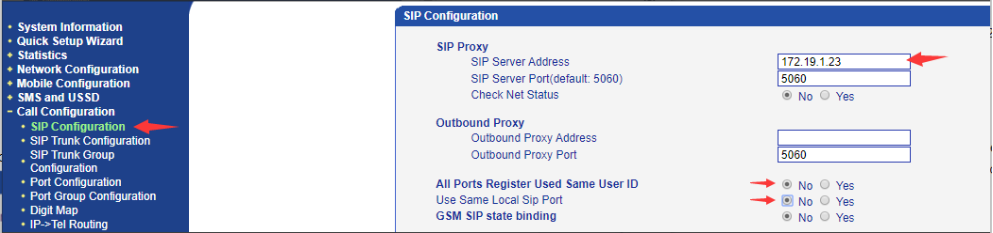
    Click Call configuration>sip configuration.Add SIP Server ip and port and set below “All Ports Register Used Same User ID” and “Use Same Local Sip Port” option as “No”, then click Save.
     

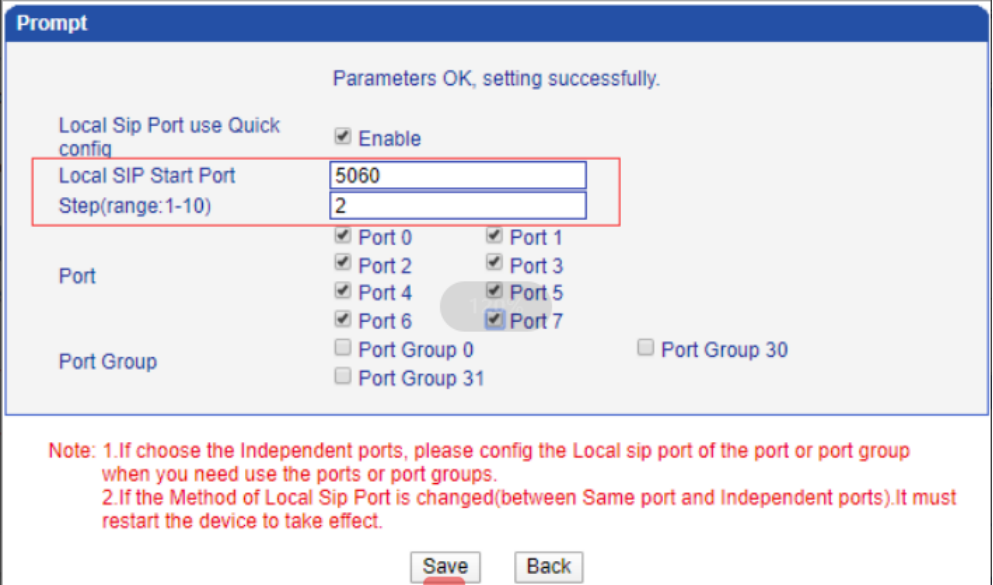
    Then the Gui will get a prompt.Click Enable and set the sip ports.
     

    Set Local SIP Start Port, Steps and choose the port which you want to apply this rule. Then click Save.


    The picture setting shows port 0 will use sip port 5060, other ports will use sip port  5060+2 like port 1 will use 5062, port 2 will use 5064 and so on. 

    2.Configure ports

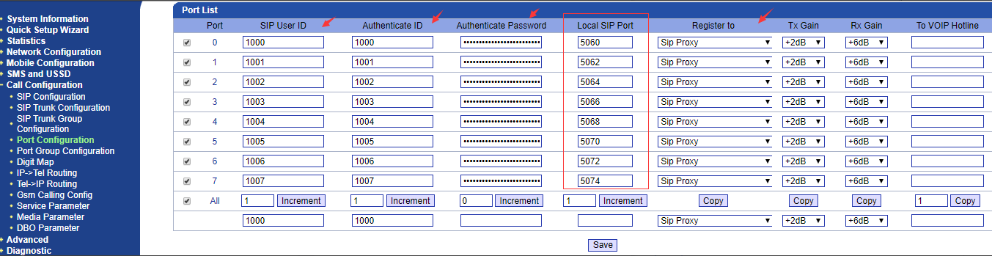
    Click Call configuration>Port Configuration.The port 0-7 are assigned with different Local SIP port . And then continue to enter other information including authentication ID, password and register to Sip Proxy. 

    If the different sip trunks have different DID in your server side, please add the DID number as “To VOIP Hotline” to each port.


    If you only set only one DID number for all the sip trunks, please create a port group including all ports and enter the To VOIP number.


    3.Add outbound routes

    Click call configuration>IP-Tel Routing.Enter description,source and destination.

    Note:Since you set different sip ports register, the call from a trunk will go directly to the port.


    4.Add inbound routes

    Click call configuration>Tel-IP routing.Enter description,source and destination.


    5.Check the status on Sip server

    Please access the sip server GUI,click SIP Trunks then you can see the register status of each trunk. 

    The below picture is an example of 3CX


  • QGuidance on the connection and configuration of DPA warning lights

    A

    1. Connection of warning lights

    The connection of the warning light can be referred to the following illustration:

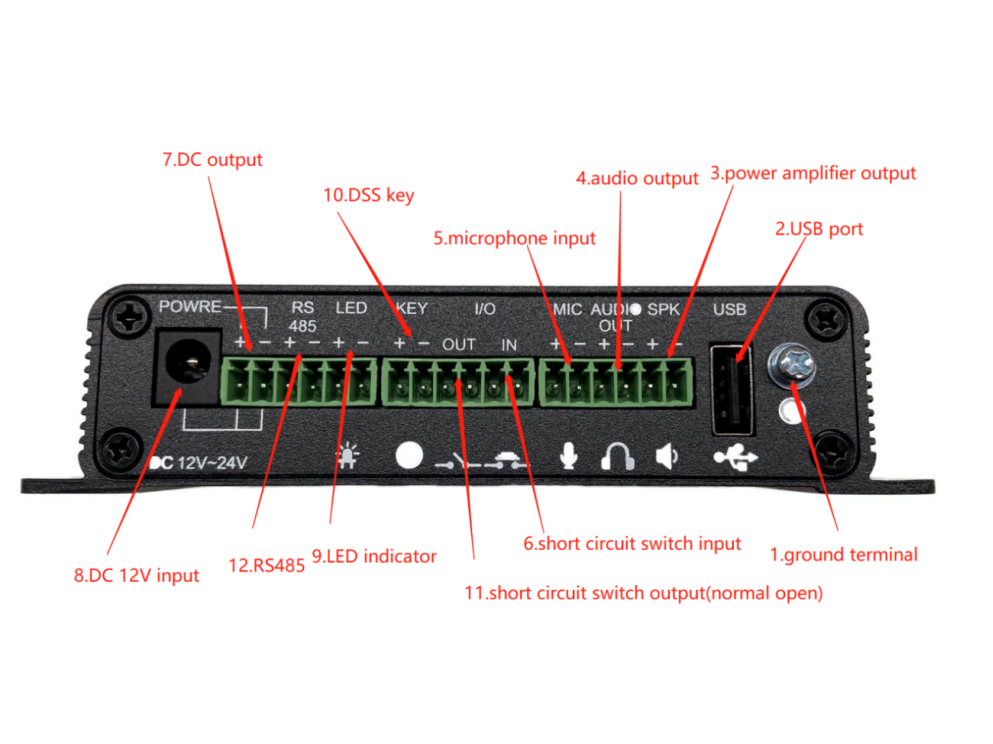
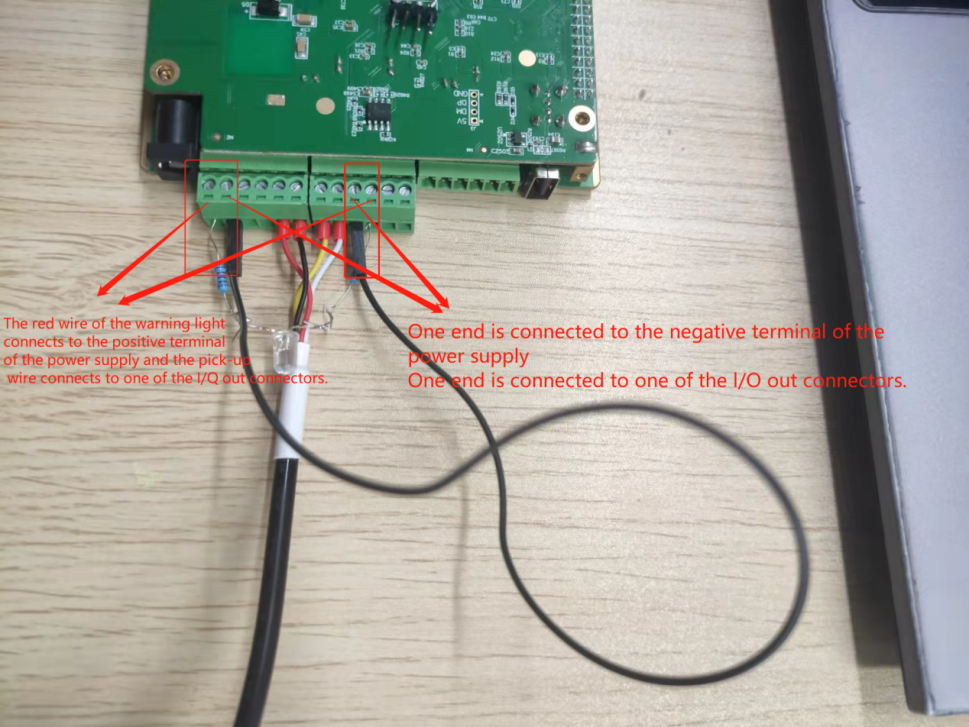
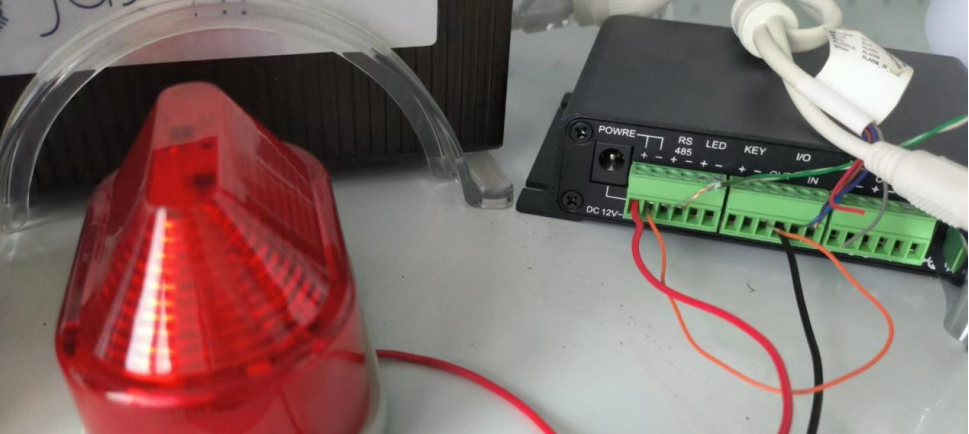
    Connect the red wire of the warning light to the positive pole of the above diagram 7 (Power,DC output), and the black wire to any port of the above diagram 11 (I/O out), and you also need to use another wire to connect the negative pole of the above diagram 7 (Power,DC output) to the other port of the above diagram 11 (I/O out, ) to form a closed loop, in order to complete the connection of the warning light.

    The specific connections are shown in the following two diagrams:


    2.  Configuration of warning lights


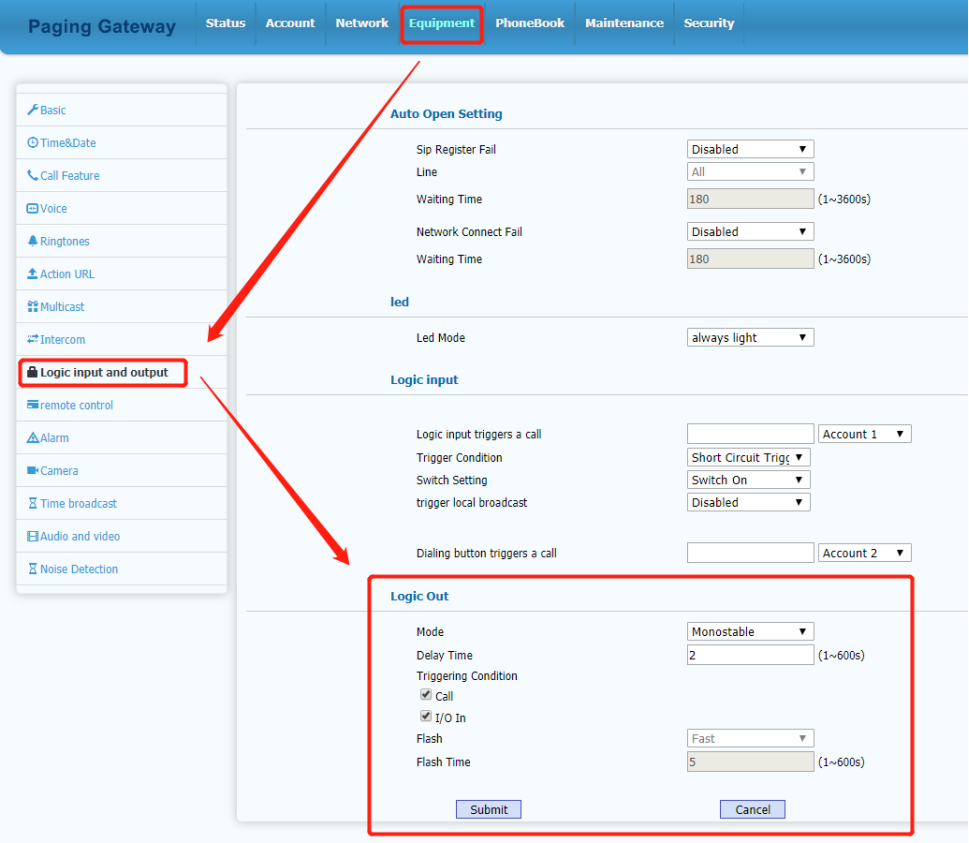
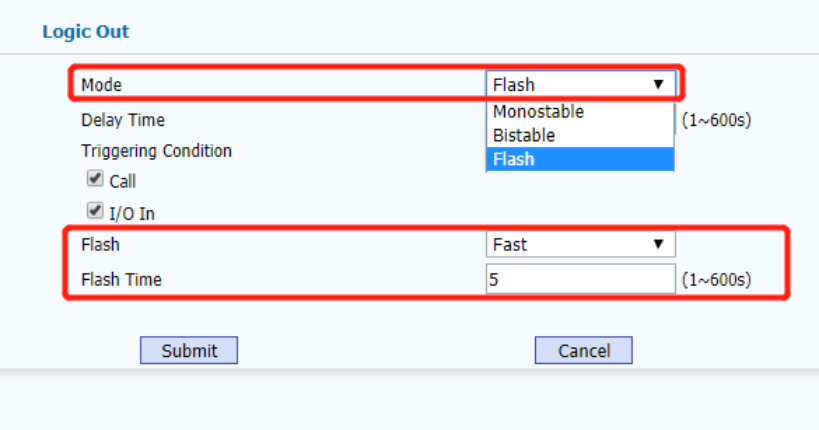
    As shown in the figure, we can find the "Equipment" interface in the web interface of DPA, select the "Logic Input and Output" column, and find the "Logic Out" position for debugging.

    2.1 Mode


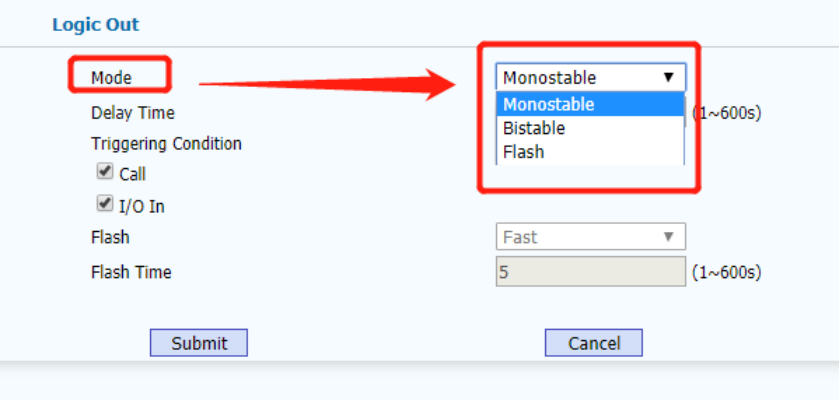
    The modes are mainly categorized as "Monostable", "Bistable" and "Flash".

    Monostable: meaning that only one state (on or off) is stable, triggered in the normally open state can be turned off for a few seconds to return to the normally open state, and the same is true for the normally closed state.

    Bistable: meaning that the two states (on or off) are stable, switching between the two states after triggering, i.e., the normally open state is triggered to the normally closed state, and triggered again, the normally closed state is changed to the normally open state.

    Flash: intermittent switching to achieve the effect of flashing warning light.


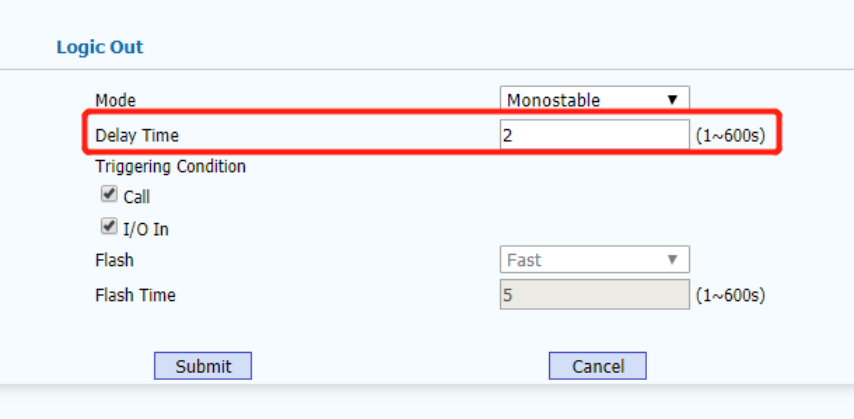
    2.2Delay Time


    Delay Time can be understood as the duration of the warning light to change the state, such as the delay time of 10s in the monostable warning light is always off, after the trigger warning light will be on for 10s.

    Ps:Delay Time does not work in Bistable mode, if Bistable mode is selected, the Delay Time column will be grayed out automatically and cannot be changed.

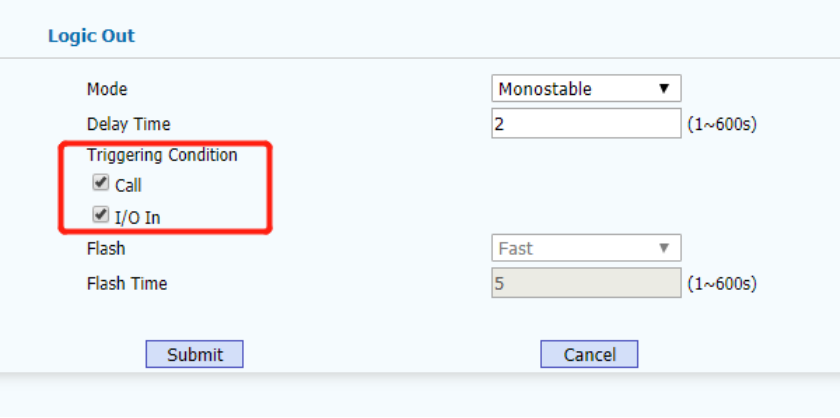
    2.3Triggering Condition


    Triggering Conditions are categorized into two types: "Call" and "I/O In" (if both are checked, the trigger will be triggered if any of the conditions are met).

    Call: After checking Call as the trigger condition, if the DPA makes a call and connects, it will trigger the logical outputs

    I/O In: After checking I/O Input as the trigger condition, the logic output will be triggered if the I/O in switch receives a predetermined message

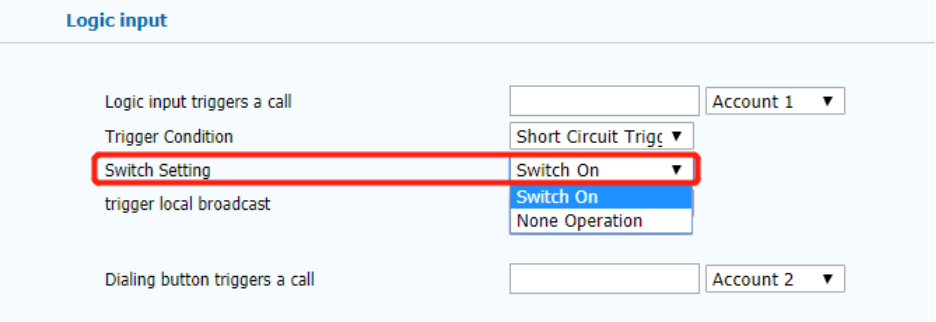
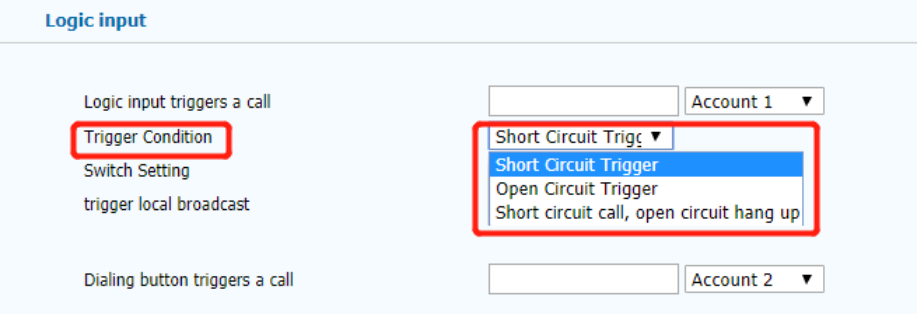
    Ps: If you select the I/O input as the trigger condition, you also need to configure the logic input accordingly (turn on the switch of the logic input and select the trigger method of the logic input)


    2.4 Flsah&Flash Time


    This option can only be debugged when the working mode is Flash.

    The specific flashing effect can be configured according to your needs.

    3. Problem handling

    3.1 Warning lights cannot be switched off after being triggered on

    Due to the previous version of the problem, the need to upgrade the version of the processing, after upgrading can be restored to the normal state (monostable off state in the triggering of the bright duration after the opening of the closure, bistable triggered by the normal switching of the switching state)

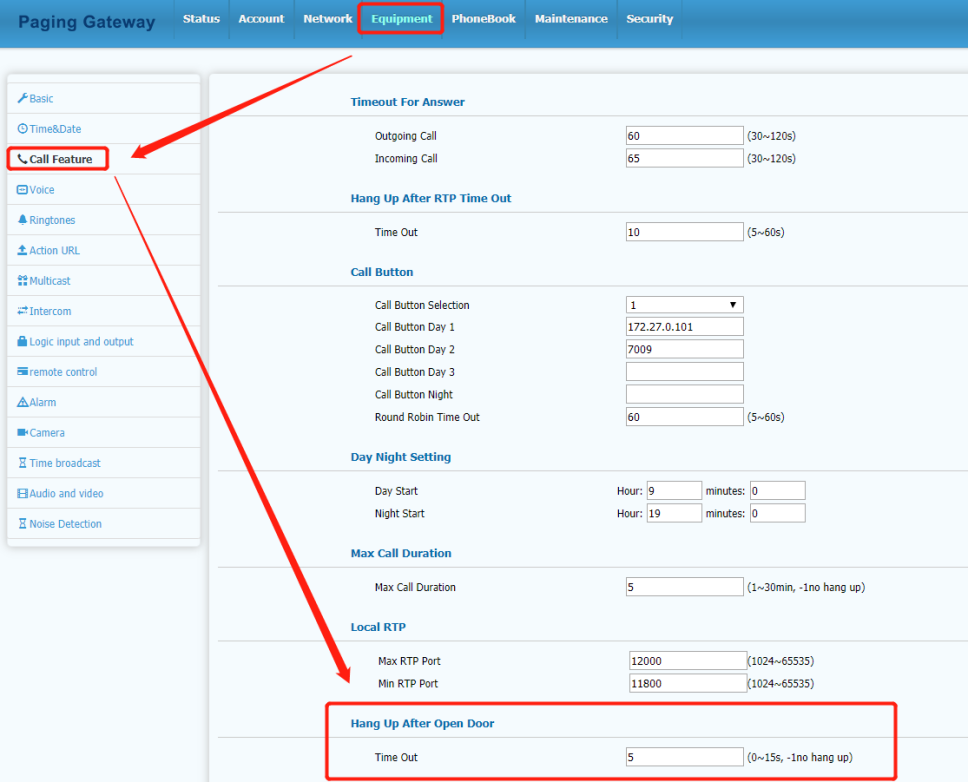
    3.2 The call hangs up automatically within a few seconds after the trigger occurs after the warning light is configured


    Need to find the configuration option "Hang Up After Open Door" in the "Call Feature" column of the "Equipment" interface, and adjust its duration, if you don't want to hang up automatically, you can fill in "-1".


Service Feedback
Service Feedback
Please fill in the information and submit the service
evaluation and suggestions online
  • *Name

  • *Country

  • *Company Name

  • *Email

  • *DeviceType

  • *DeviceSN

  • *Snapshot of Device SystemInformation Page