Support Center

FAQ

Filter
  • QHow to connect UC2000 with Freepbx

    A

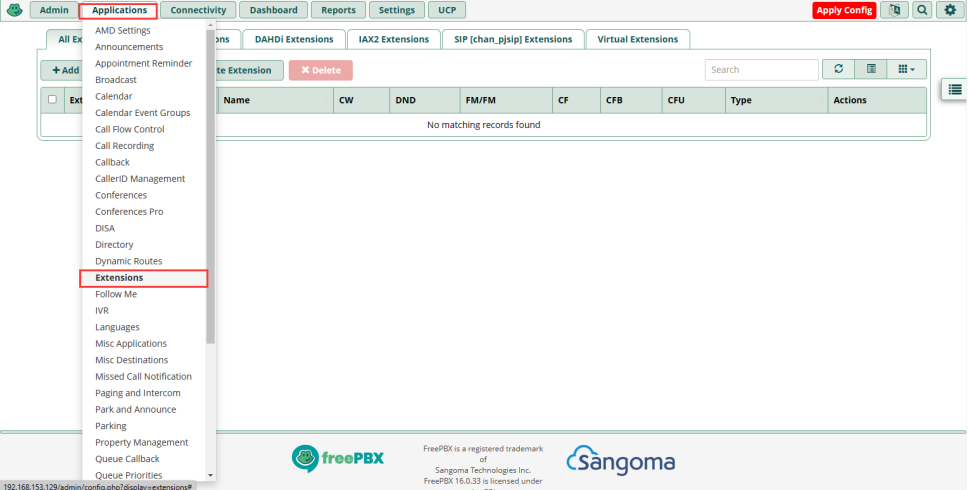
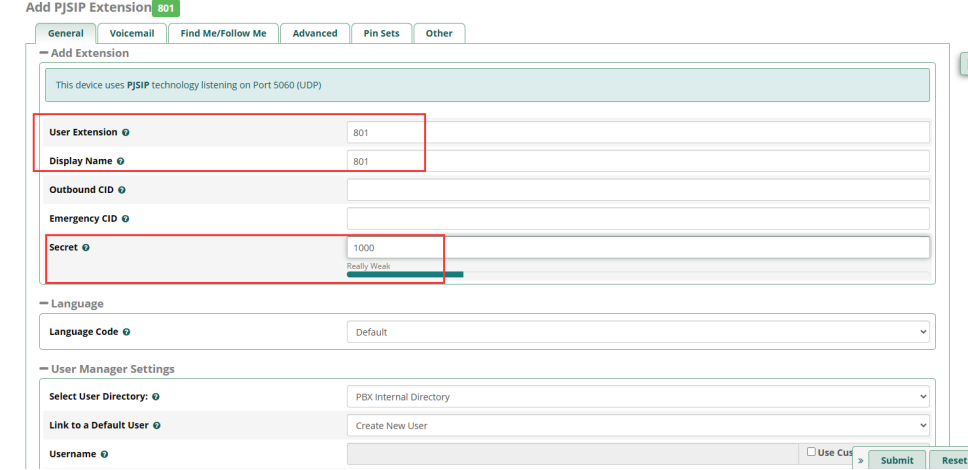
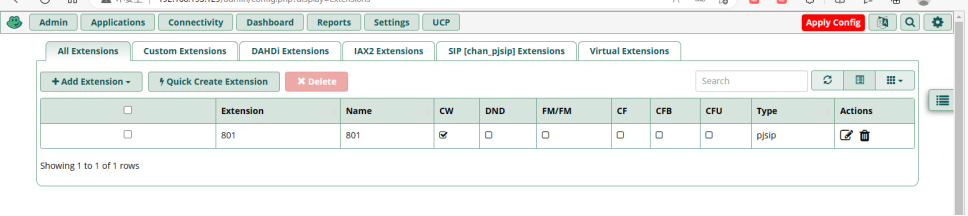
    1. Freepbx configuration

    Click Applications>>>>>>>>Extension


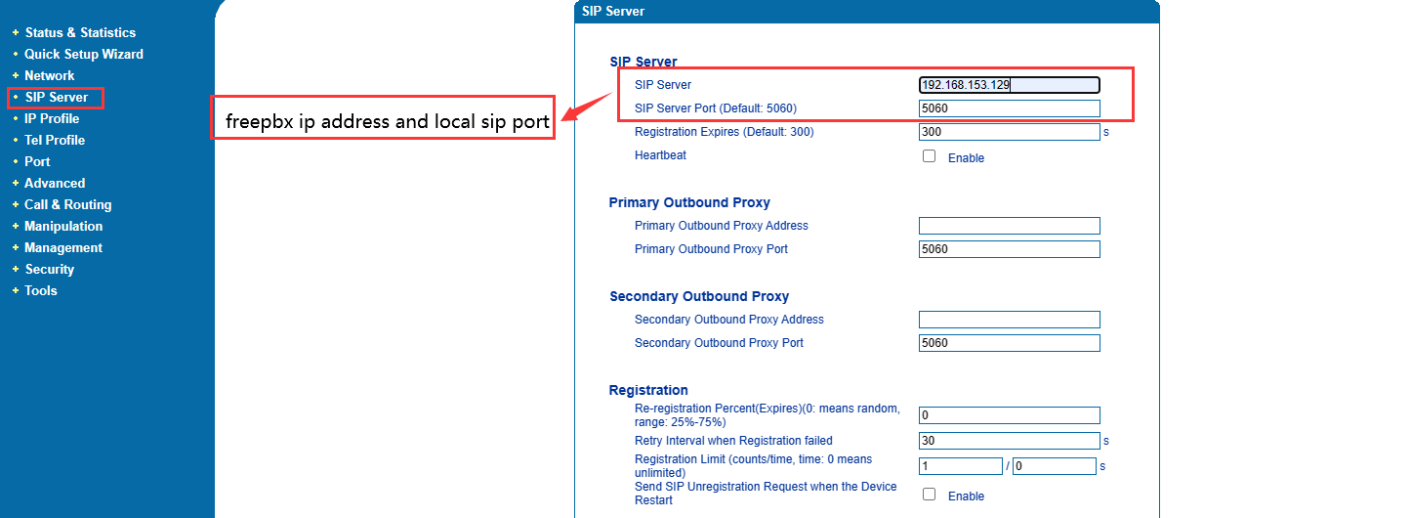
    2.  Connect DAG1000-4S to Freepbx

    Click SIP Server, then configure the sip server and sip server port


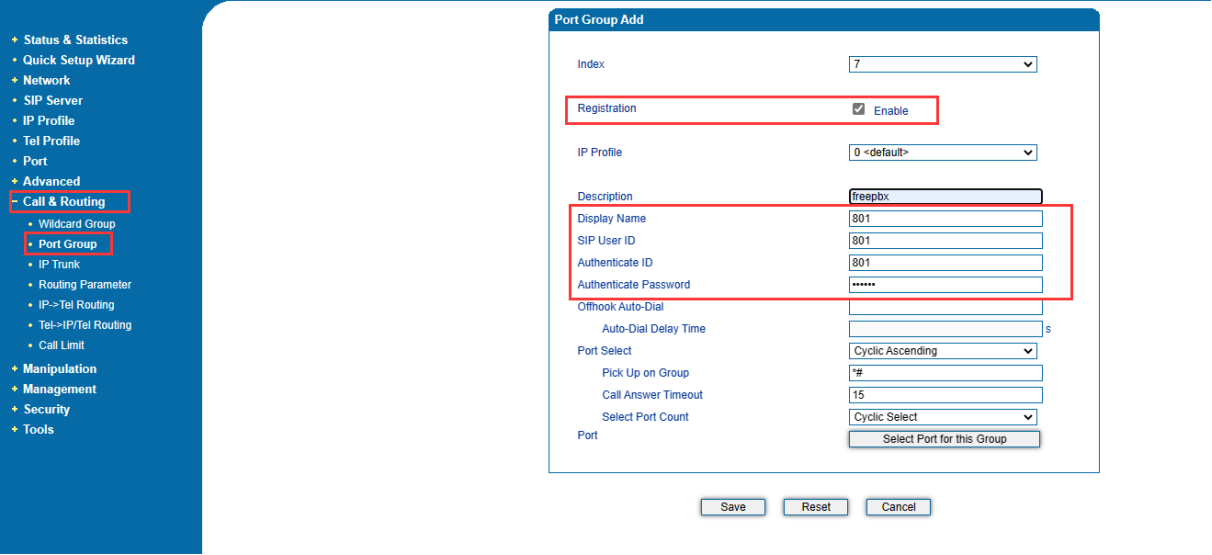
    3. Create port group in DAG1000-4S

    Click Call&Routing>>>>>>>>>Port Group


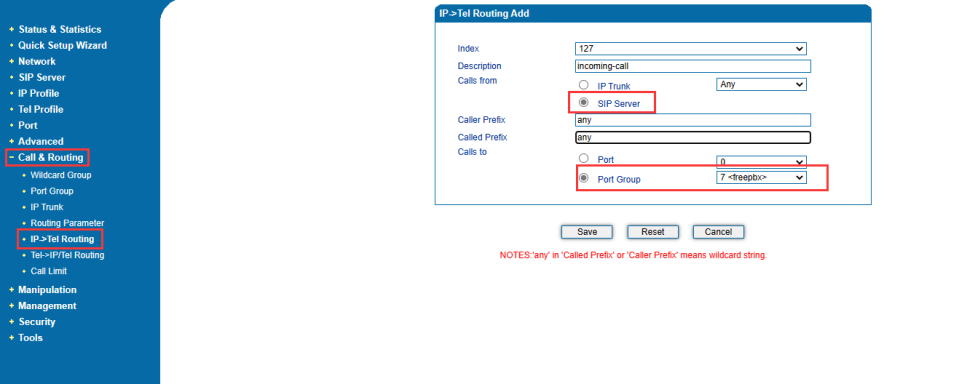
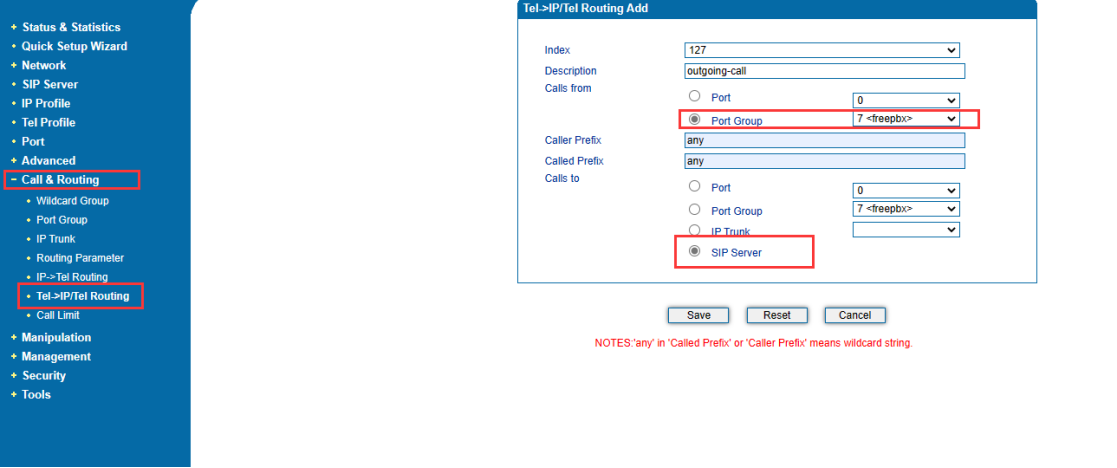
    4. Configure incoming route and outgoing route in DAG1000-4S

    1) . Incoming route

    Click Call&Routing>>>>>>>>>IP->Tel Routing


    2) . Outgoing route

    Click Call&Routing>>>>>>>>>Tel->IP/Tel routing

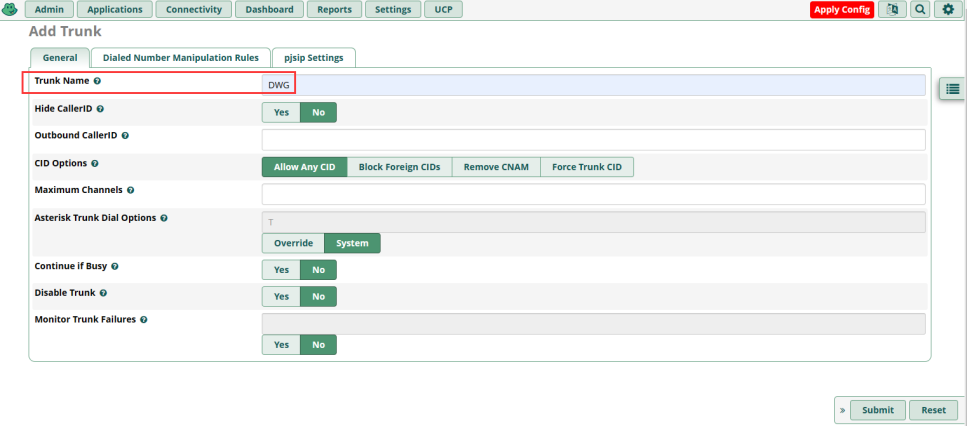
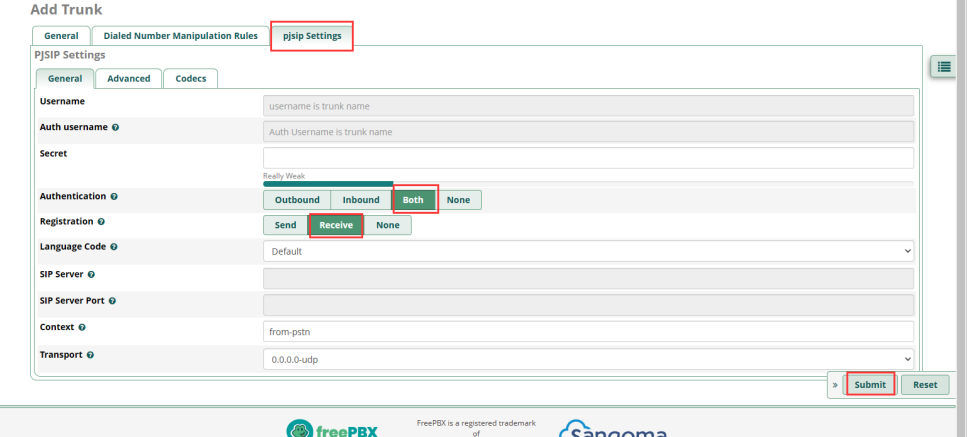
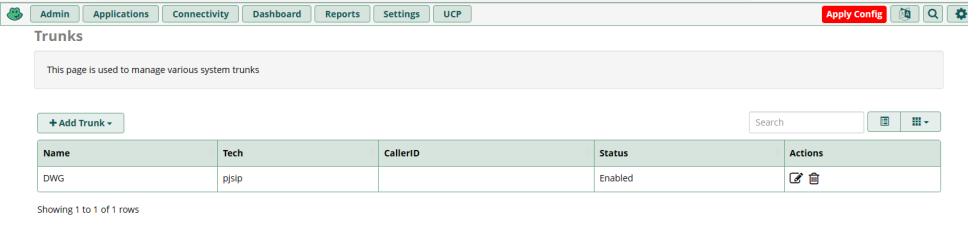
    5. Create SIP trunk in Freepbx for connecting with DWG

    Click Connectivity>>>>>>>>>Trunks


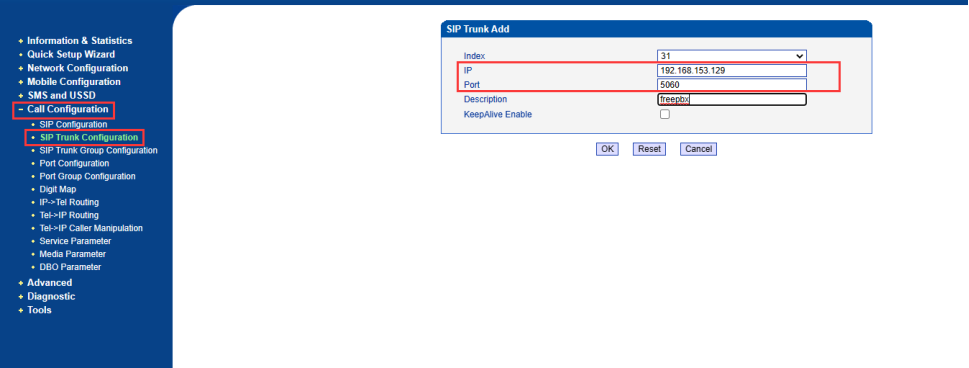
    6.  Connect DWG with Freepbx by sip trunk 

    Click Call Configuration>>>>>>>>>SIP Trunk Configuration


    7. Create incoming route and outgoing route in DWG

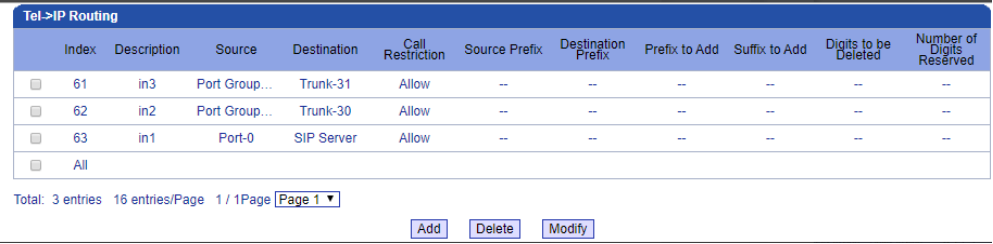
    1) Incoming route

    Click Call Configuration>>>>>>>>>Tel->IP Routing


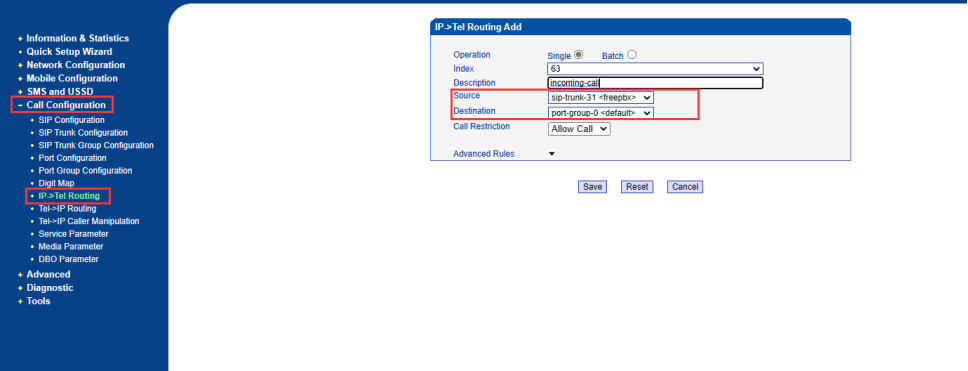
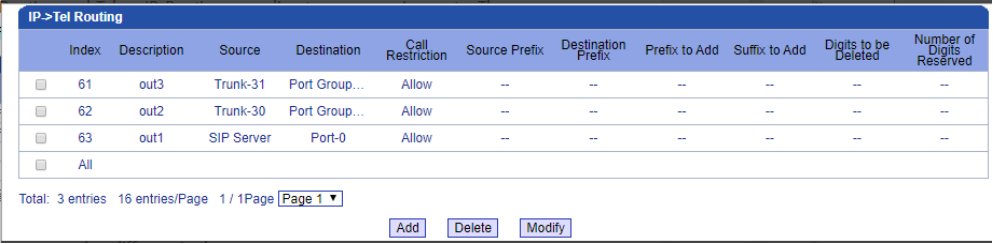
    2) Outgoing route

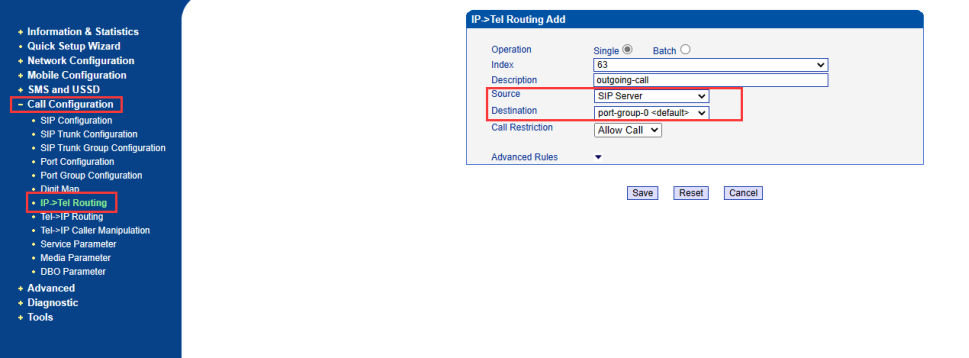
    Click Call Configuration>>>>>>>>>IP->Tel Routing

    8. Create incoming route and outgoing route in Freepbx

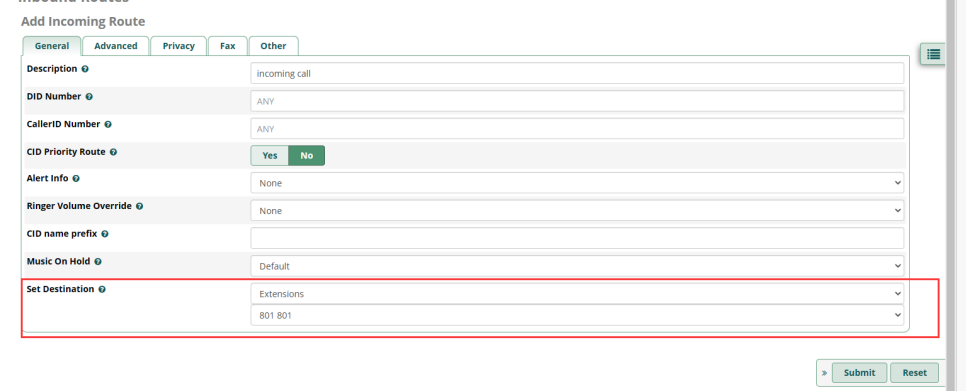
    1) Incoming route

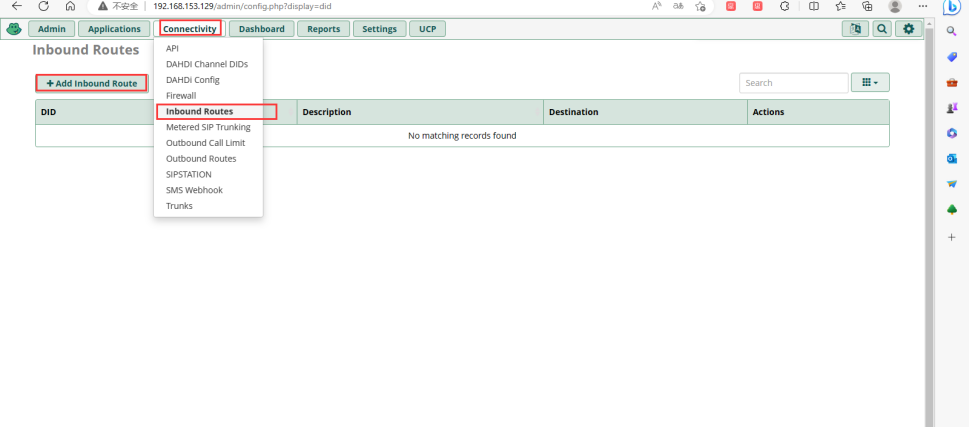
    Click Connectivity>>>>>>>>>>>Inbound routes 


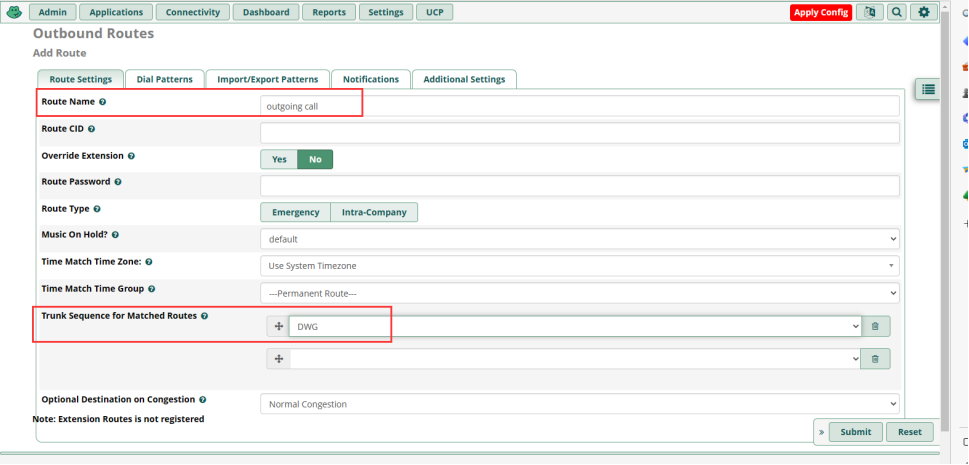
    2) Outgoing route

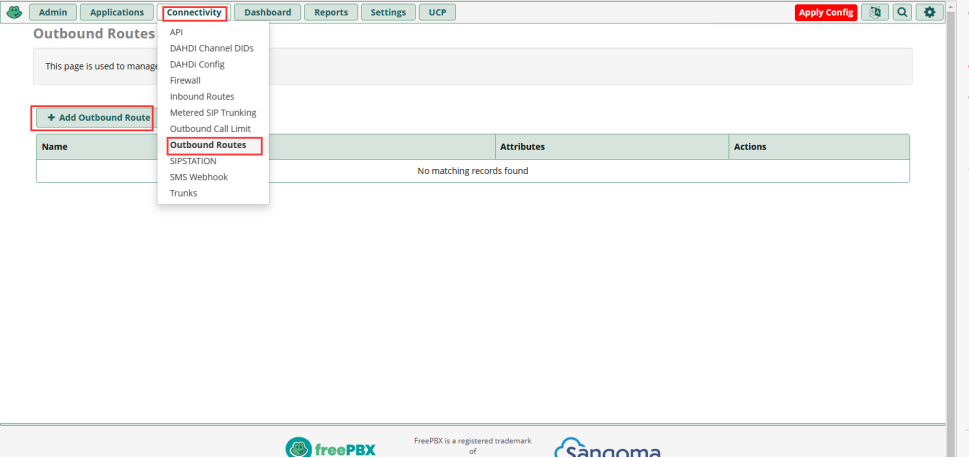
    Click Connectivity>>>>>>>>>>>Outbound routes


  • QHow to set IP trunk mode on UC2000

    A

    Descriptions

    The file targets showing how to common connect through SIP trunk between UC2000 and other client/application or IPPBX/softswtich at the same network segment or different without registering to server side. Both devices would be in trusted network. 


    Operations

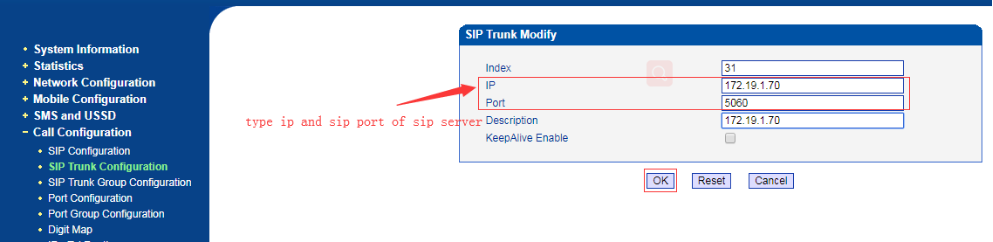
    1.Set SIP Trunk to UC2000

    Add a sip trunk. Open page Call Configuration-->Sip Trunk Configuration. Add a sip trunk with remote IP and sip port (IPPBX/Softswitch side local SIP port). As shown in the figure below,

    (Remote IP: 172.19.1.70; Port:5060; Description: 172.19.1.70)


    Note: If the UC2000 behind router and remote side is public network, should do port forward in router. The forward ports should include the UC2000 side local SIP port and RTP port range.

    2.Set Outbound Call in UC2000 

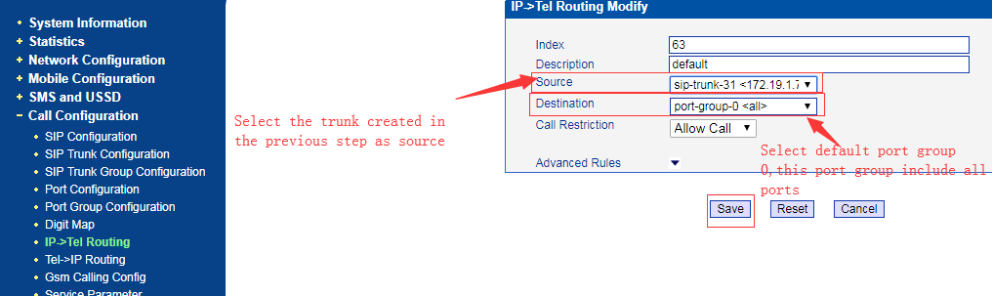
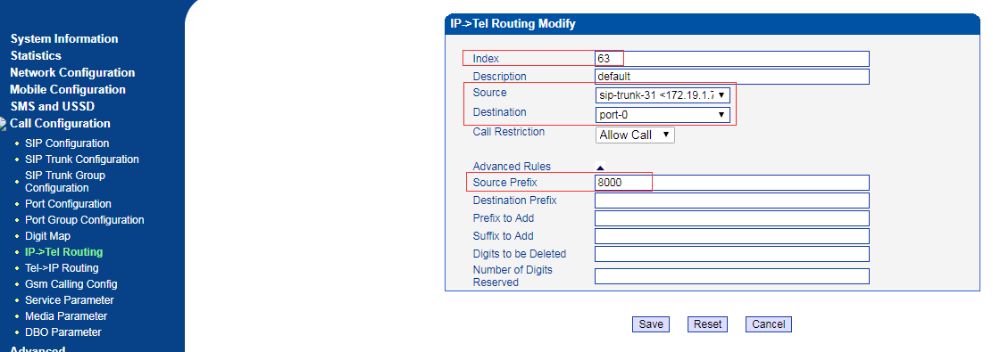
    Open page Call configuration -> IP->Tel, (IP—>Tel means IP to GSM network). Create a new route.

    [A route to all ports or some ports]

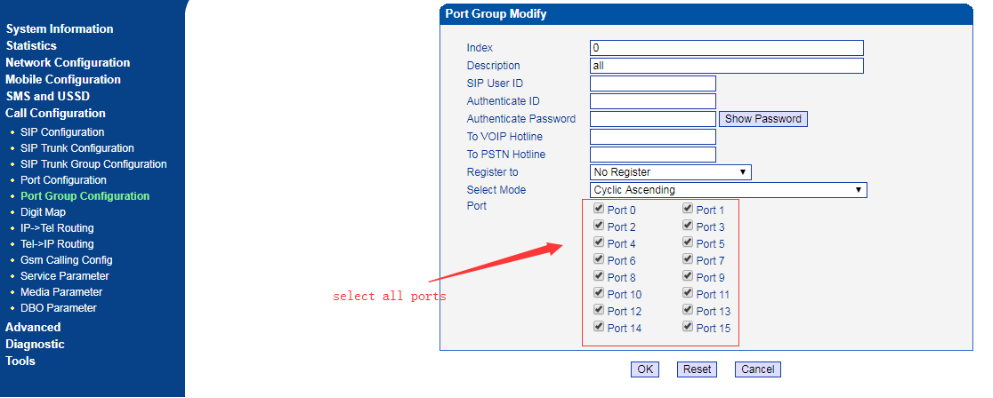
    This means the call from the Trunk31 and goes to port group 0 that include all port default.


    You can define the port group as your scenario also.


    [A route to a specific port]

    If you want to specific call with specific port, like P2P. You can match the prefix of caller number and map the call to target port.


    On node “Advanced Rules”, we can set the condition of route and manipulation the number.

    For example, when call from sip-trunk-31 if want caller number 8000 call out through port 0 always. 

    The Source Prefix set 8000 and the Destination selected port 0.

    Note: The index value means the route priority, Index 0 means highest priority than others. The call will match the route from high to low one by one. If a call had already matched a route already, it will not match other one.

    3. Set Inbound Call to UC2000 

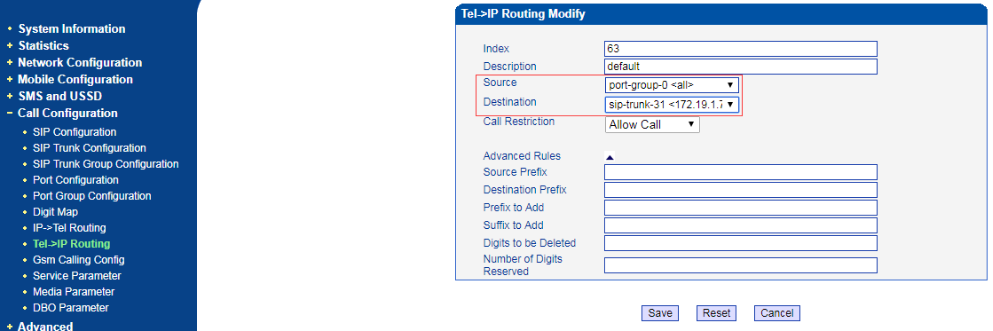
    Open page Call configuration>Tel->IP, (Tel—>IP means GSM network to IP side), create a new rule.


    This one means if a call from GSM network hit to any port that in port group, UC2000 will forward the call to sip-trunk-31.

    Note: if the call at UC2000 port, the call does not have the information of destination number. So the UC2000 will play IVR: ”please dial extension number”. Then the caller side tries to dial the extension number and the UC2000 forward the call to IP side.

    If you want the UC2000 redirect the call to IPPBX side directly, Need set the DID/hotline in UC2000, like the following step.

    [Set VoIP Hotline number]

    The VoIP Hotline number is real destination number when UC2000 forward call to IP side.

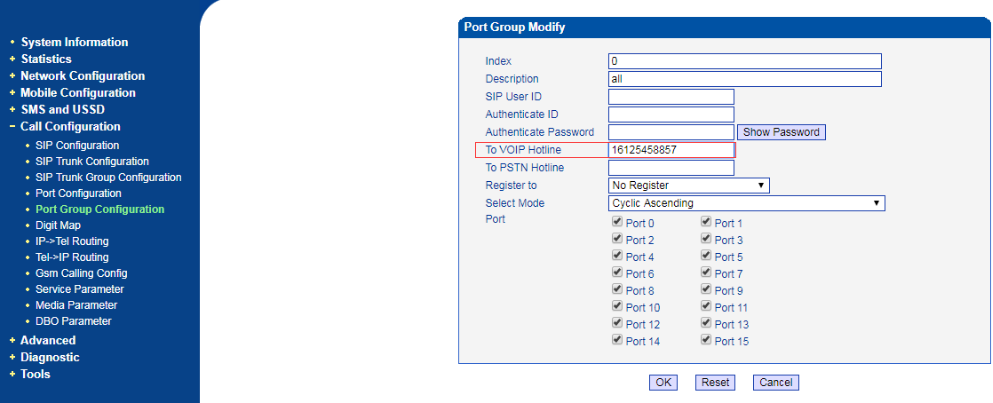
    All channels use same hotline number

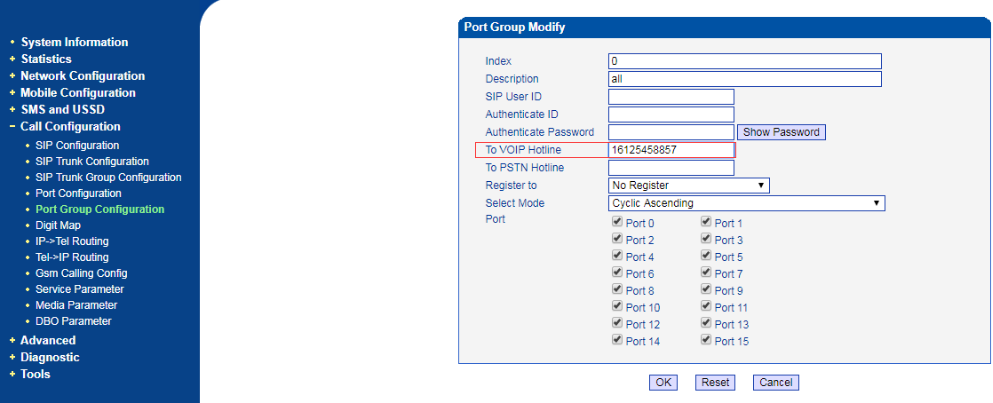
    Open page Call configuration>PortGroupConfiguraiton, choose the port group that used in above route. Input the DID number of IPPBX or existing destination number to field “To VoIP Hotline”.


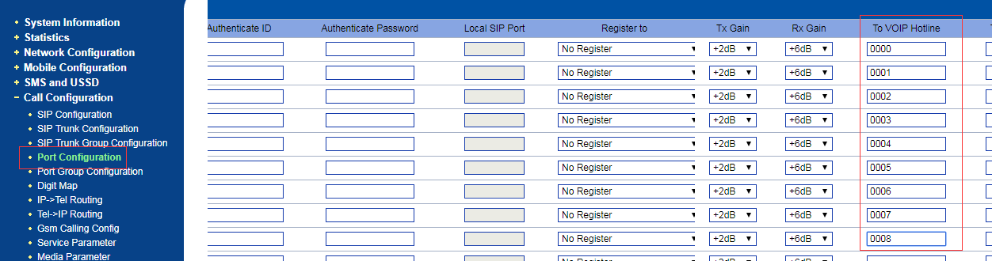
    Different channels use different hotline Number

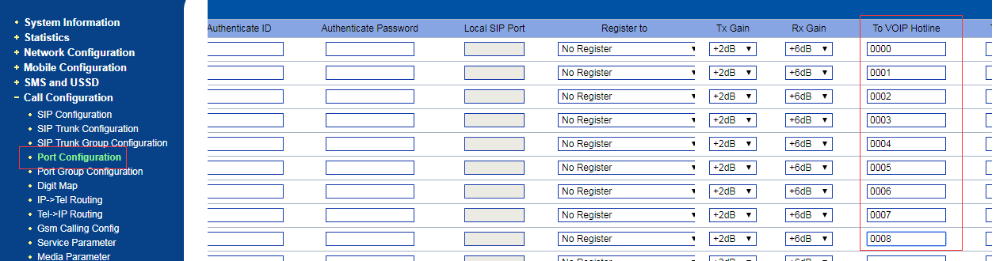
    Open page Call configuration>Port Configuration, input the DID number of IPPBX or existing destination number to field “To VoIP Hotline”.

  • QHow to configure uc2000 register to multiple servers

    A

    [UC2000 register to different sip servers ]


    Backgrouds

    For example,there is a eight port dinstar uc2000 gateway and 3 different sip servers. Users want port 0 register to sip server 1,port1-3 register to sip server2, port 4-7 register to sip server3.

    Sip server1 IP :172.19.1.23

    Sip server2 IP:172.19.1.48

    Sip server3 IP:172.19.1.40

    Note:This application solution first needs to ensure that the servers and the gateway can communicate with each other.


    Operations

    1.Add a sip server 

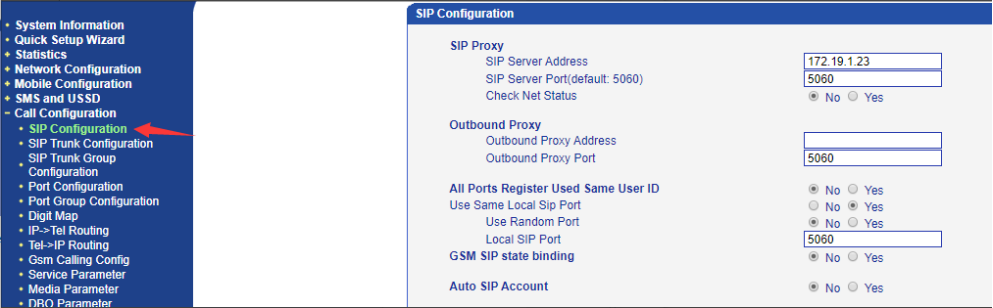
    Click Call configuration>sip configuration.Add SIP Server address with sip server1 and sip port and set “All Ports Register Used Same User ID” option as No.


    2.Add sip trunks

    Click Call configuration>sip trunk configuration,Add two sip trunks of the rest of sip servers.Enter the ip ,ports,and description.


    3.Configure ports

    According to the users demands,let's do the following.


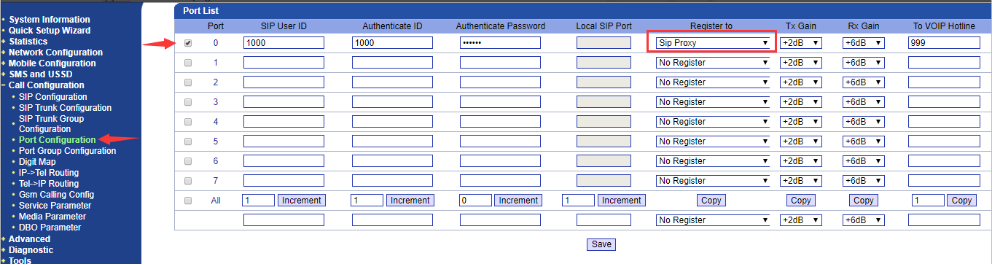
    3.1 Configure port 0 register to SIP Server 


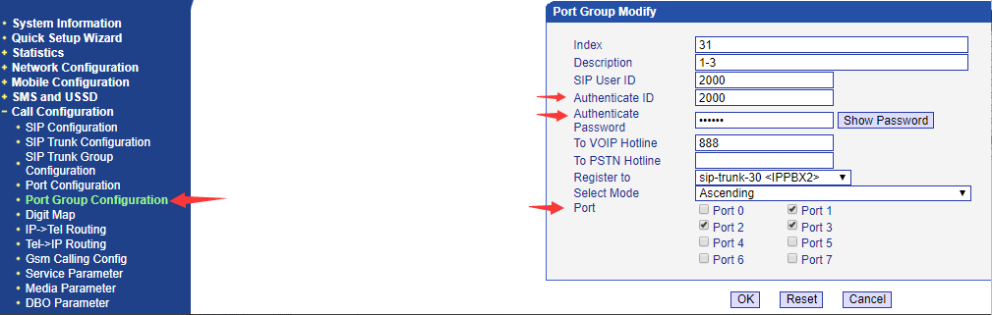
    3.2 Create a port group including port1-3

    Add ports1-3 as a port group and register to sip server 2. 


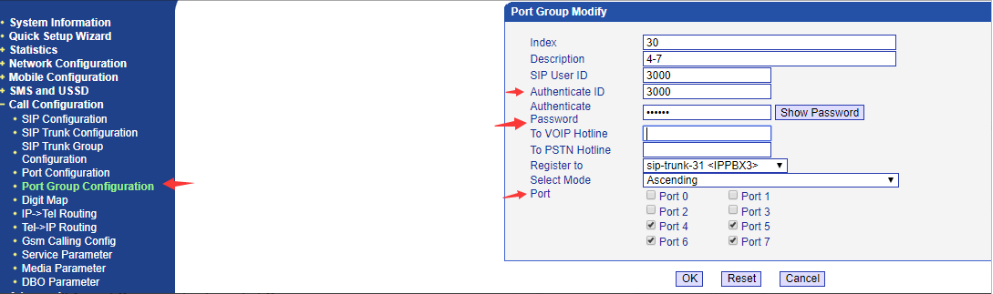
    3.3 Create a port group including ports 4-7

    Add ports4-7 as one port group and register to sip server3. 


    4.Create Inbound routes

    According to the requirements,separate Tel -> IP Routings as following picture shows below


    5.Create outbound routes


    [ UC2000 register to a sip server with different sip ports ]


    Backgrouds

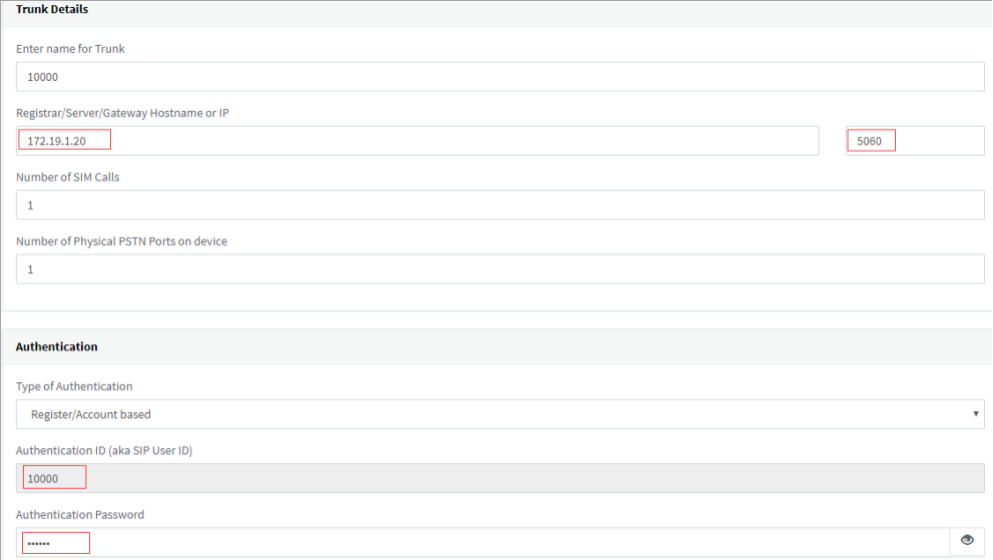
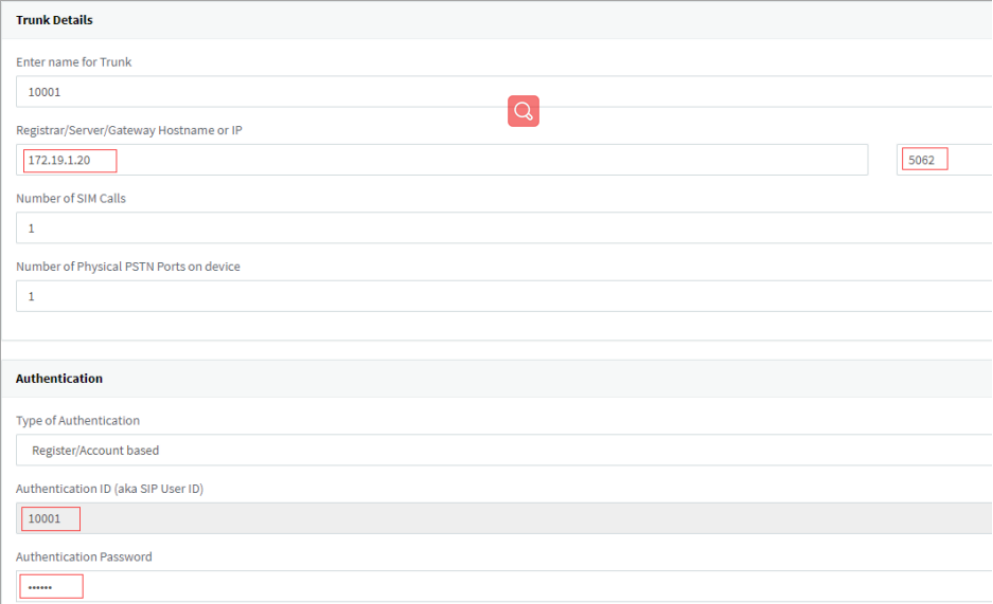
    If users want  different ports register to one sip server with different sip ports on UC2000.First, the sip server side has to add different SIP Trunks with different authentication and sip ports.As the pictures show below.


    ......

    Finish the settings on the sip server side,then continue to configure the uc2000 gateway


    Operation

    1.Add a sip server 

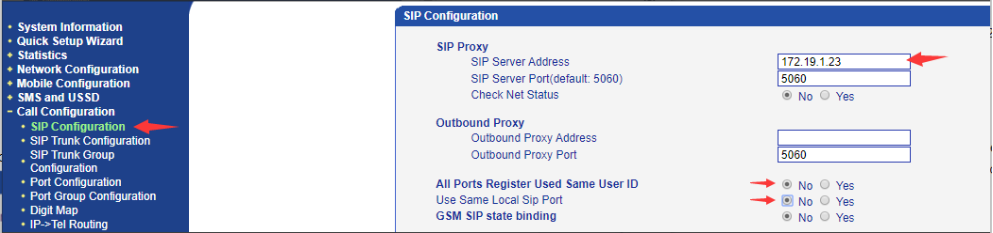
    Click Call configuration>sip configuration.Add SIP Server ip and port and set below “All Ports Register Used Same User ID” and “Use Same Local Sip Port” option as “No”, then click Save.


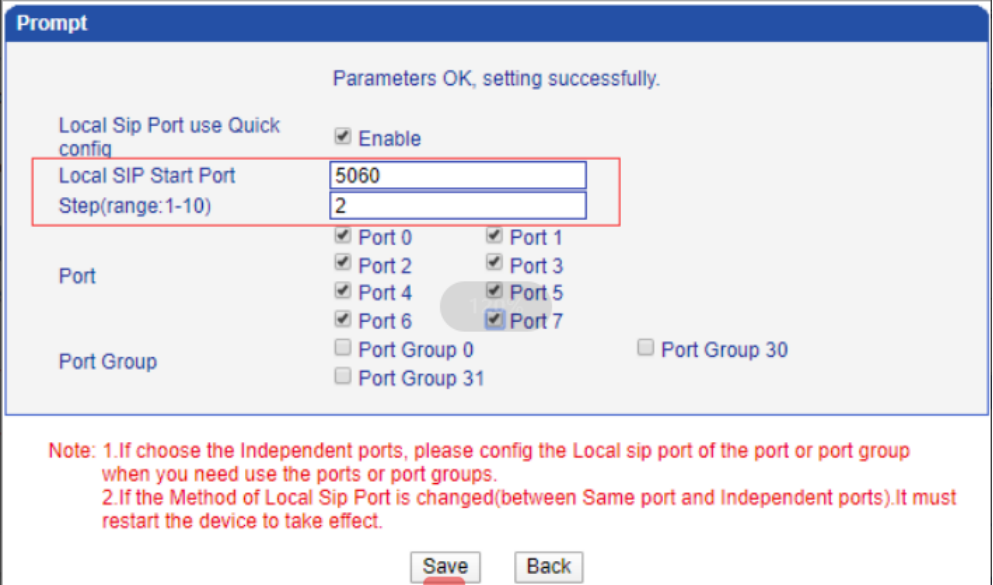
    Then the Gui will get a prompt.Click Enable and set the sip ports.


    Set Local SIP Start Port, Steps and choose the port which you want to apply this rule. Then click Save.


    The picture setting shows port 0 will use sip port 5060, other ports will use sip port  5060+2 like port 1 will use 5062, port 2 will use 5064 and so on. 

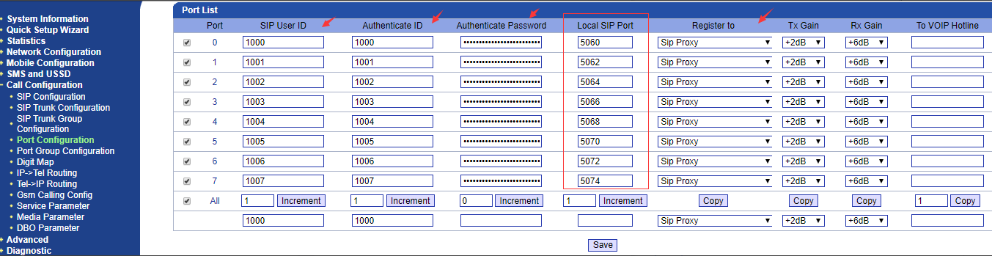
    2.Configure ports

    Click Call configuration>Port Configuration.The port 0-7 are assigned with different Local SIP port . And then continue to enter other information including authentication ID, password and register to Sip Proxy. 

    If the different sip trunks have different DID in your server side, please add the DID number as “To VOIP Hotline” to each port.


    If you only set only one DID number for all the sip trunks, please create a port group including all ports and enter the To VOIP number.


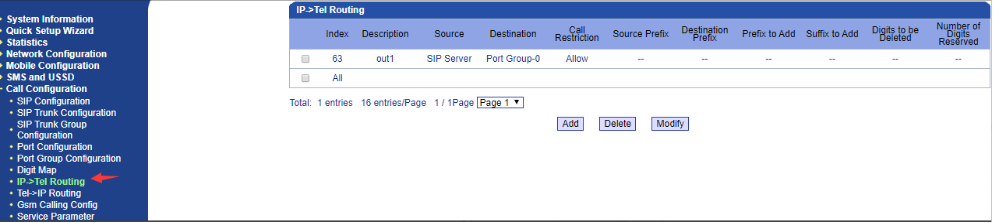
    3.Add outbound routes

    Click call configuration>IP-Tel Routing.Enter description,source and destination.

    Note:Since you set different sip ports register, the call from a trunk will go directly to the port.


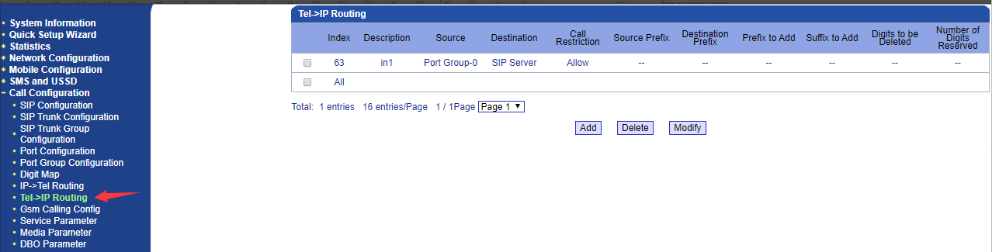
    4.Add inbound routes

    Click call configuration>Tel-IP routing.Enter description,source and destination.


    5.Check the status on Sip server

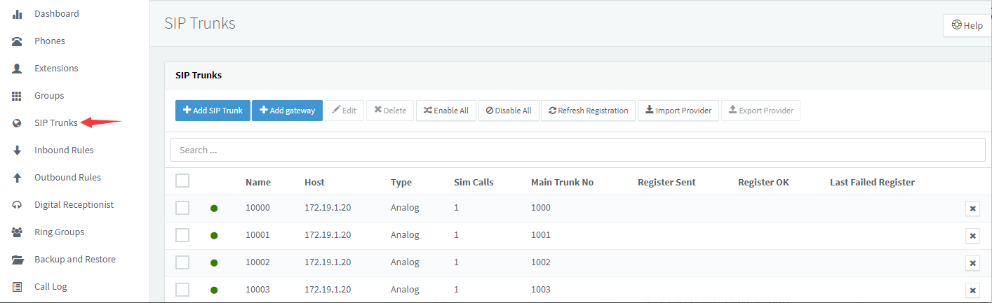
    Please access the sip server GUI,click SIP Trunks then you can see the register status of each trunk. 

    The below picture is an example of 3CX


  • QHow to check no carrier issue in log

    A

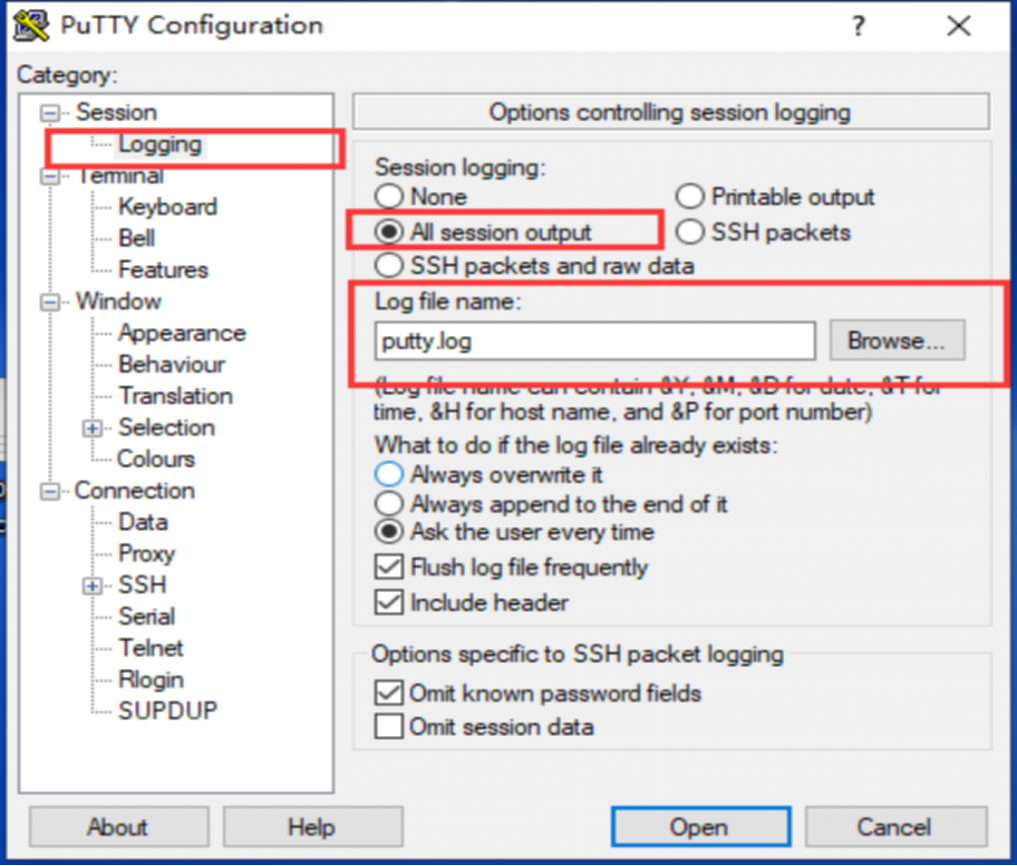
    1. Enable trace log in telnet 

    Login the gateway by telnet and type these commands,then enable save the log

    ROS>en 

    ROS#show details

    ROS#^config 

    ROS(config)#deb sip msg all  

    ROS(config)#deb port all 

    ROS(config)#ex 

    ROS#^ada

    ROS(ada)#[079-19:27:46:370]ADA CONNECTED ...,WELCOME! 

    ROS(ada)#turnon 53

    ROS(ada)#turnon 84

    ROS(ada)#turnon 71


    2. Repeat the no carrier call.After the call end,it will save a log file 

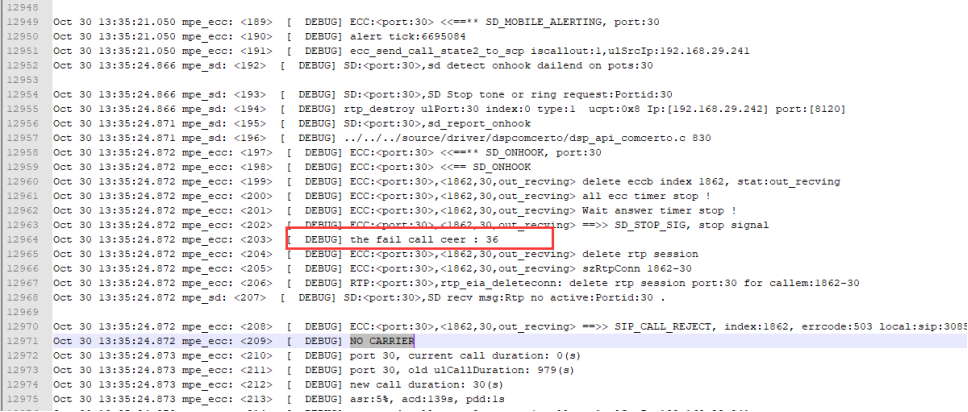
    3. Check the trace

    Use Notepad++ to open the log file and filter the call, find the reject reason during the sip interaction then will see it 


  • QWireless Gateway Quick Guide to Configuring The Network

    A

    Descriptions

    The Wireless Gateway is a high-performance network device that is widely used in home and business environments to provide stable network connectivity. Proper configuration of the wireless gateway can ensure the security and efficiency of the network.This article will detail how to quickly get started with configuring the wireless gateway for your network.

    Operations

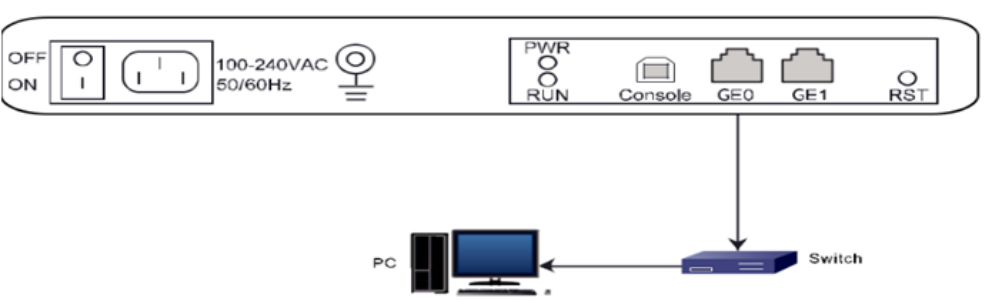
    1. Hardware connection

    Connect the device interface GE0 of UC2000 to PC directly or pass through the switch as following diagram.


    2. Login device web

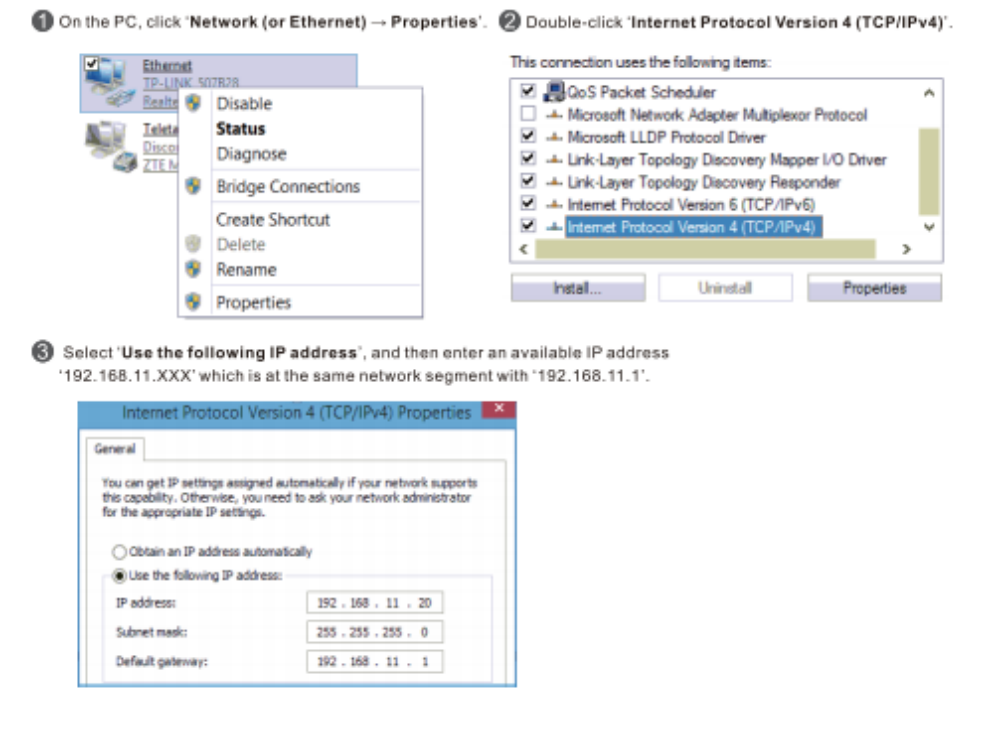
    2.1 Add network segment on PC

    The UC2000 default IP is 192.168.11.1. That’s private IP. If we want the PC can communication with it, please make sure the PC and wireless gateway in the same network range. 

    The following pictures show the detailed steps. 

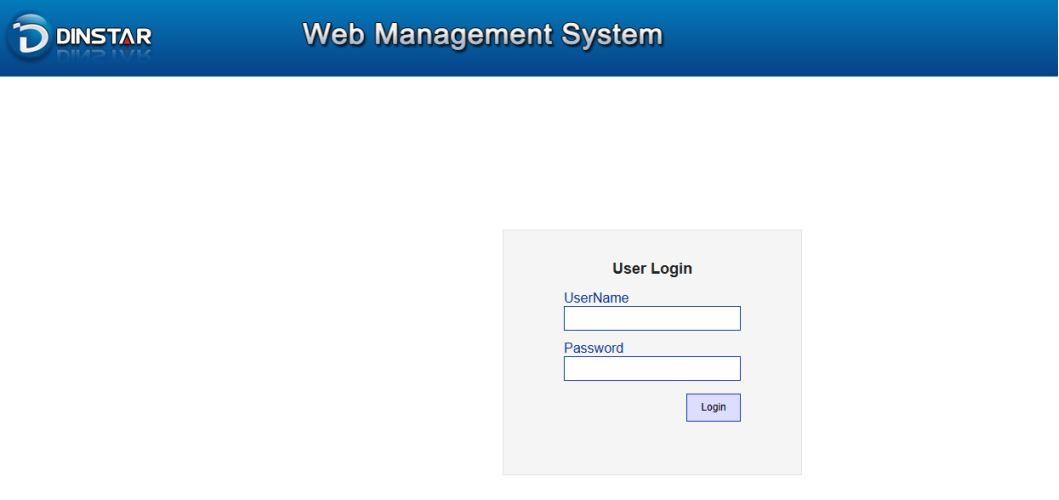
    2.2 Log into Device GUI 

    Log in the Web Management System of the gateway. Enter the default username and password .

    Note :

    1. The default login account is admin /admin 

    2. If the UC2000 firmware version earlier xx.23.14.01, we access it with HTTP. Others use HTTPS.

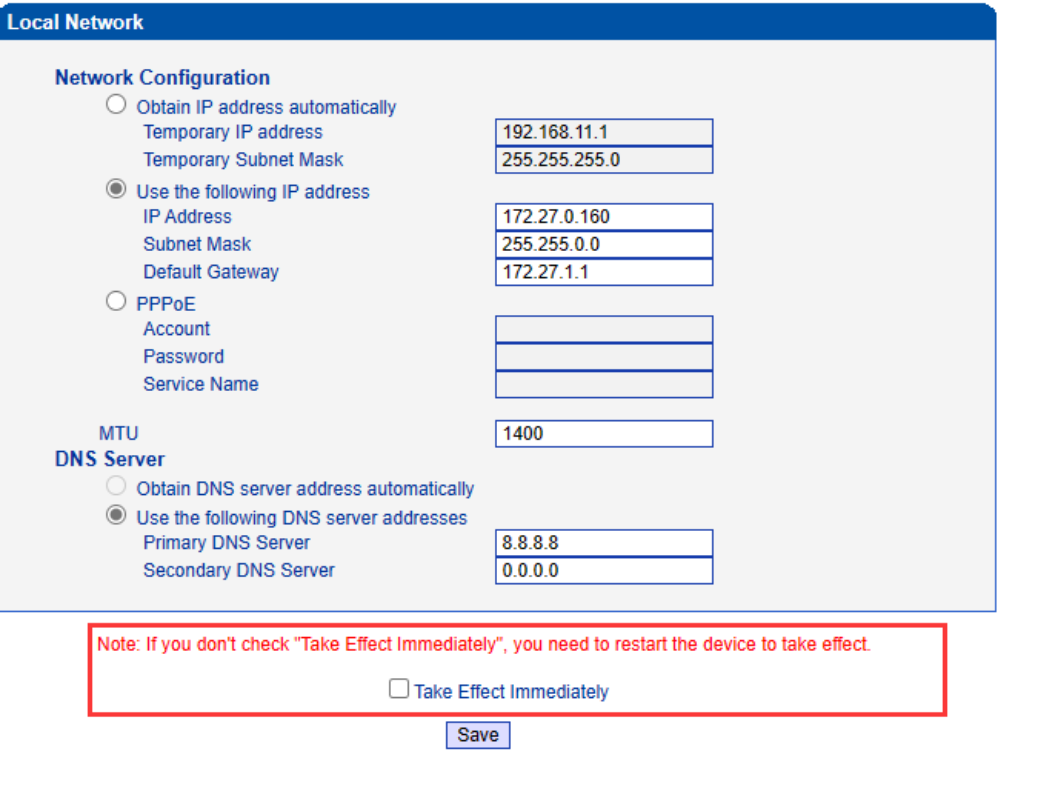
    3.Set IP on Device

    Click Network configuration>Local Network.Fill the target IP address, subnet mask and default gateway IP. After done, saving it. 


    Then please restart the device to active the new IP for the device.

  • QHow to upgrade the device

    A

    Operations

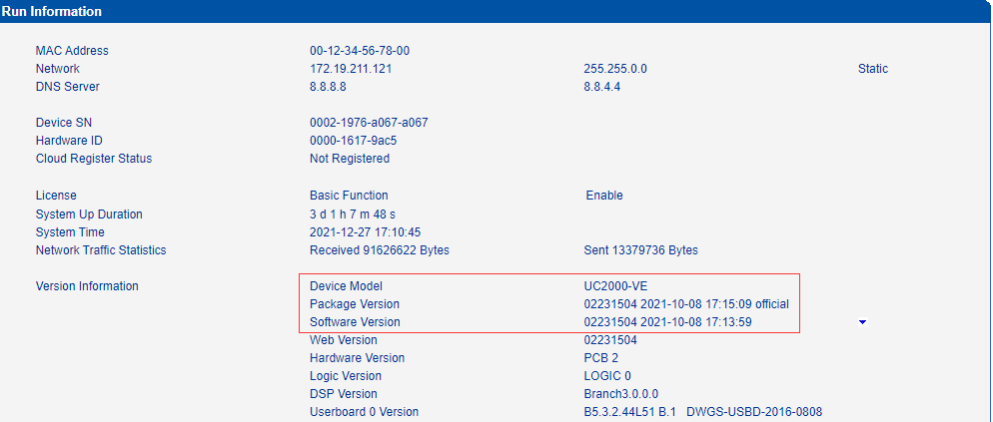
    1.Check the current version on system information 


    As version format AA.BB.CC.DD, Current version is 02.23.15.04.  

    AA means OEM ID,         current is 02 Dinstar (01 is nature)

    BB means hardware ID,    current is 23

    CC.DD means real version, current is 15.04 

    The target firmware file should have same OEM and hardware platform ID with current one, like 02231505.

    If not, will upload failed.


    Note: if the upgrade have much span, like from 10.xx to 12.xx, please contact support before apply it.


    2.Upgrade to new version

    2.1 Upload the file

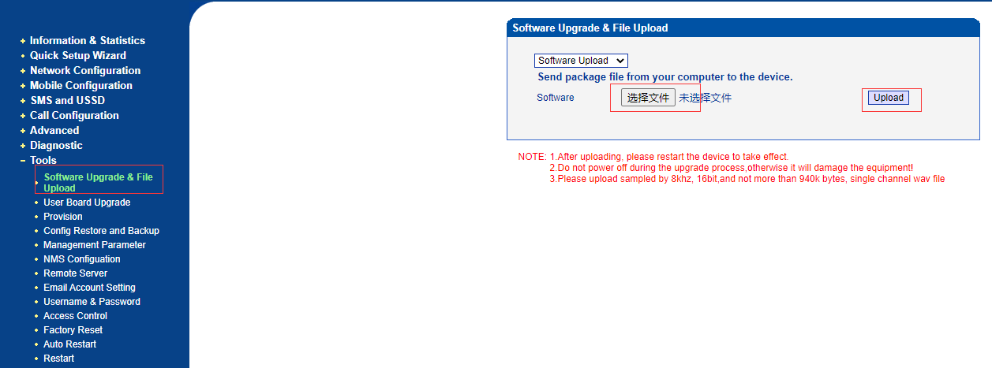
    Open page Tools>Software upgrade& file upload 


    2.2 Choose the corresponding file

    choose the option ’Software Upload’, and upload the corresponded file 

    Note: upload whole xxxxxxxx.tar.gz, no need unzip


    2.3. Restart the device

    After upload successfully, restart the device to active


    Attachment


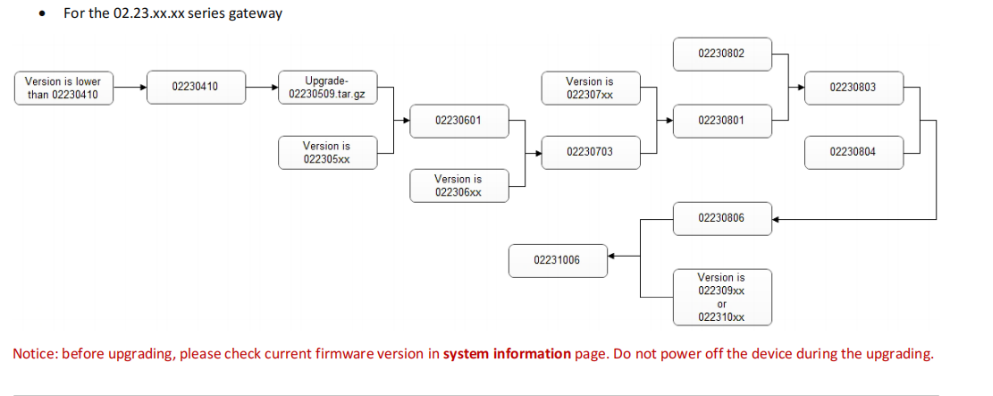
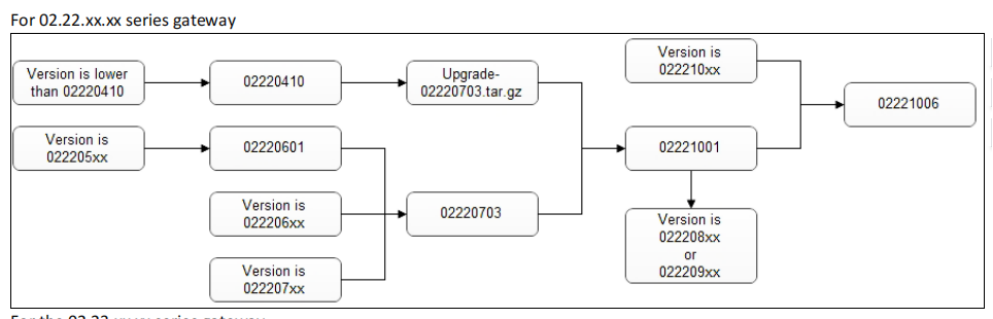
    02231006>02231101>02231110>02231201>02231226...


    NOTE:The device version has to upgrade step by step.Please contact Technical supports when you upgrade the version.


  • QHow to do traffic distribution on UC2000

    A

    Backgrounds

    This document shows a demo about how to set traffic distribution routing on device.Users insert different carriers' sim cards  and want to implement the traffic distribution on the device.

    Environment and Prepartions

    The file set a demo.Port 0-3 insert SIM cards belong to ChinaMobile, the port 4-7 insert ChinaUnicom SIM card , When traffic coming ,the destination number is ChinaMobile(138xxxxxxxx or 159xxxxxxxx) go to ChinaMobile SIM card. And the destination number is ChinaUnicom(130xxxxxxxx or 131xxxxxxxx) go to ChinaUnicom SIM card. The following picture shows the Sims information .
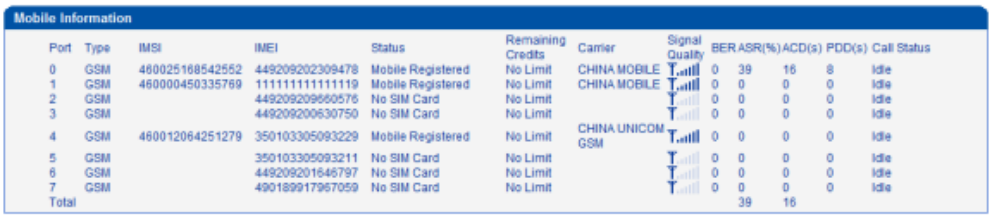


    Operations

    1.Add port groups

    Click Call Configuration > Port Group Configuration. Add two port groups, including port 0-3 named ChinaMobile, port 4-7 named ChinaUnicom.As the pictures are shown
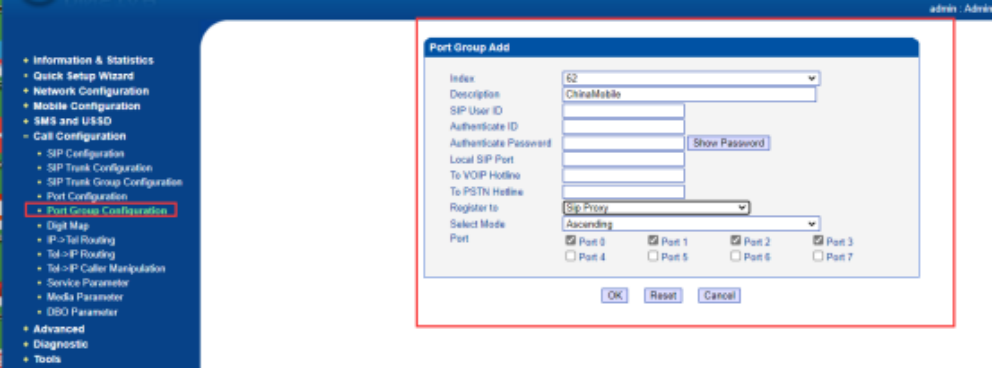
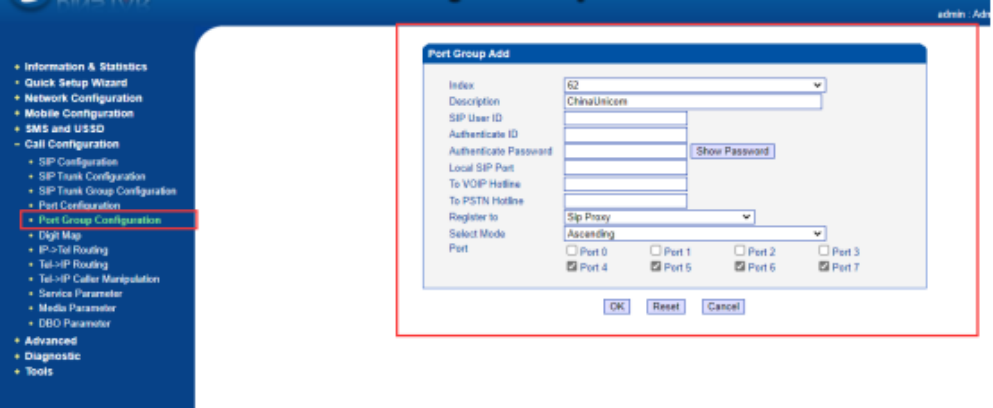

    2.Add Routes

    Click Call Configuration > IP->Tel. Modify the default rule as follow picture. 

    [Forward to port group ChinaMobile]
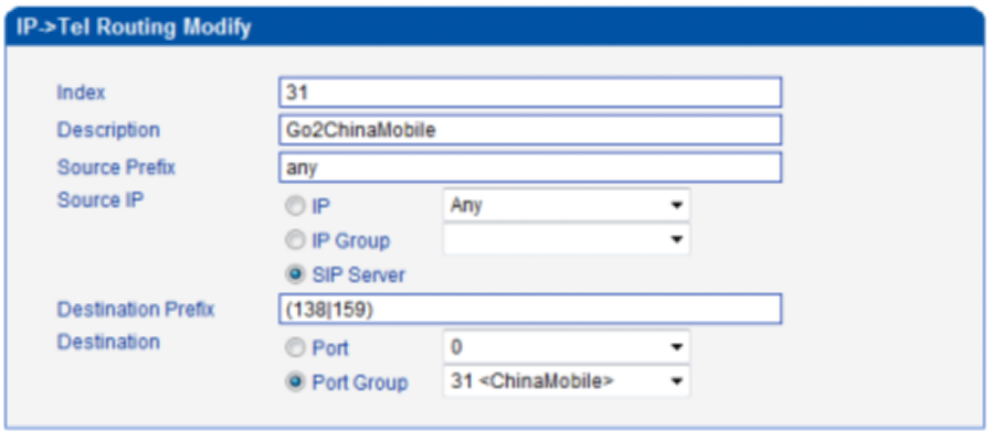
    The setting means if the destination number prefix is 138 or 159 , it will forward to port group ChinaMobile.

    [Forward to port group ChinaUnicom]

    Add a new rule as follow picture.
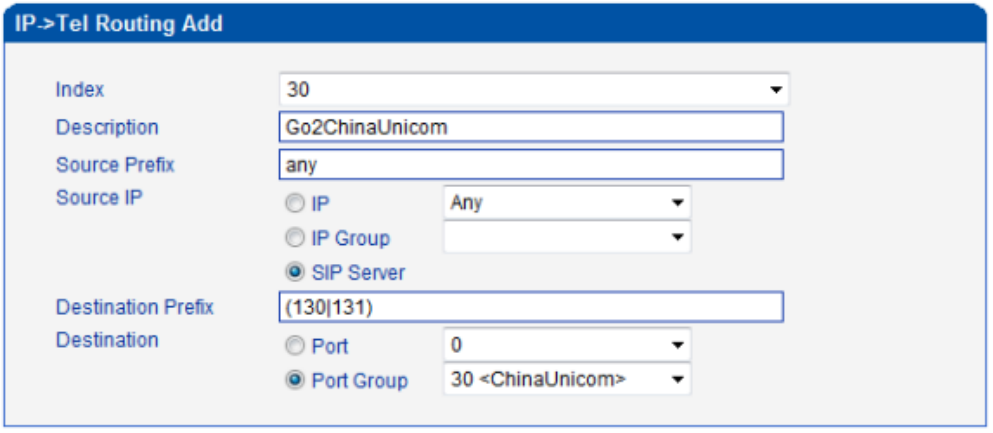
    It means if the destination number prefix is 130 or 131 , it will forward to port group ChinaUnicom.

    After configuring, you can see the two routes in the device GUI.

    The destination prefix, we  base rule of digital  map:

    1. Supported objects 

       Digit: A digit from "0" to "9". 

       Timer: The symbol "T" matching a timer expiry. 

       DTMF: A digit, a timer, or one of the symbols "A", "B", "C", "D", "#", or "*". 

    2. Range [] 

       One or more DTMF symbols enclosed between square brackets ("[" and "]"), but 

       only one can be selected. 

    3. Range () 

       One or more expressions enclosed between round brackets ("(" and ")"), but 

       only one can be selected. 

    4. Separator 

       |: Separated expressions or DTMF symbols.    

    5. Subrange 

       -: Two digits separated by hyphen ("-") which matches any digit between and 

       including the two.  The subrange construct can only be used inside a range 

       construct, i.e., between "[" and "]". 

    6. Wildcard 

       x: matches any digit ("0" to "9"). 

    7. Modifiers 

       .: Match 0 or more times. 

       +: Match 1 or more times. 

       ?: Match 0 or 1 times. 

    9. Modifiers 

       ^m:           Match any string beginning with m. 

       m$:     Match any string endding with m. 

       m{X}:   Match a string contains exactly X times of m. 

       m{X,}:  Match a string contains X or more times of m. 

       m{X,Y}: Match a string contains between X and Y times of m.

    Example: 

    Assume we have the following digit maps: 

    1. xxxxxxx | x11 

       and a current dial string of "41".  Given the input "1" the current dial 

       string becomes "411".  We have a partial match with "xxxxxxx", but a 

       complete match with "x11", and hence we send "411" to the Call Agent. 

    2. [2-8] xxxxxx | 13xxxxxxxxx 

       Means that first is "2","3","4","5","6","7" or "8", followed by 6 digits; 

       or first is 13, followed by 9 digits. 

    3. (13 | 15 | 18)xxxxxxxxx 

       Means that first is "13","15" or "18", followed by 8 digits. 

    4. [1-357-9]xx 

       Means that first is "1","2","3" or "5" or "7","8","9", followed by 2 digits.



  • QCompleted Guideline for Dinstar Wireless Gateway to PortSIP Communication System

    A

    Backgrounds

    PortSIP PBX is a software-based, multi-tenant PBX solution that provides robust Unified Communications collaboration features. It is a powerful IP PBX software that provides unified communication solutions, while Dinstar UC2000 is a VoIP GSM/CDMA/WCDMA gateway that enables connectivity between IP networks and traditional telephony systems.

     Integrate PortSIP PBX with Dinstar UC2000, enabling seamless communication between IP and traditional telephony networks.

    Preparations

    In the guide , we tested UC2000 and PortSip PBX System .

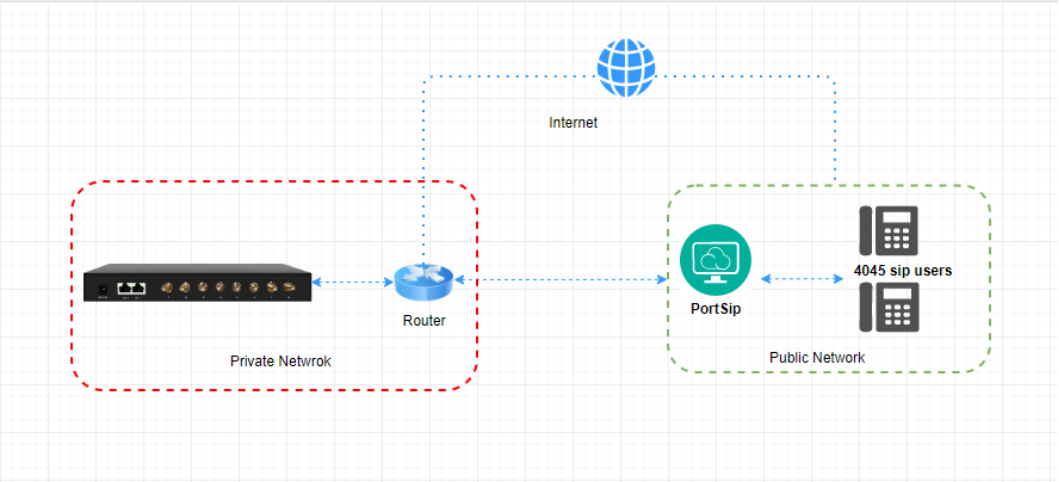
    The UC2000 appliance is deployed on a private network and the pbx is a public cloud account.Like the picture shows as below.

    The pbx side provide  authenticate information including Auth name/password/sip domain/outbound proxy server/port.


    Operations

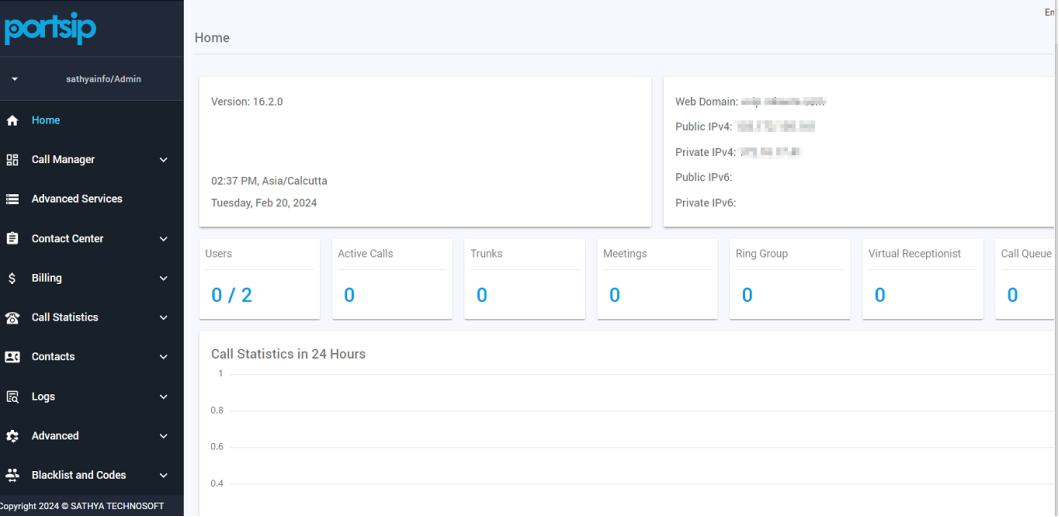
    [Configure PortSIP]

    1. Overview


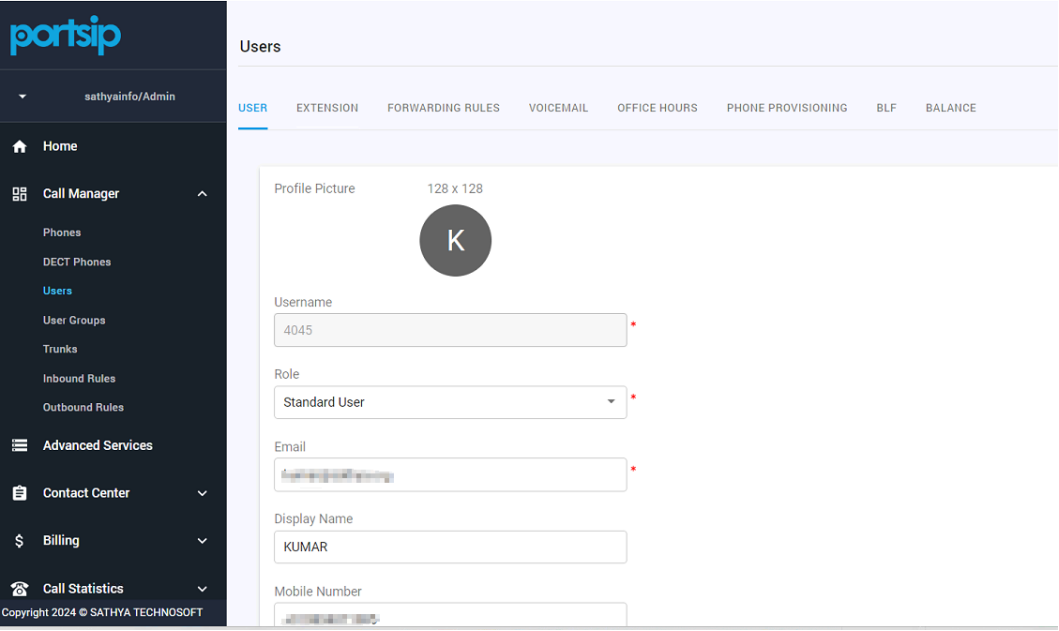
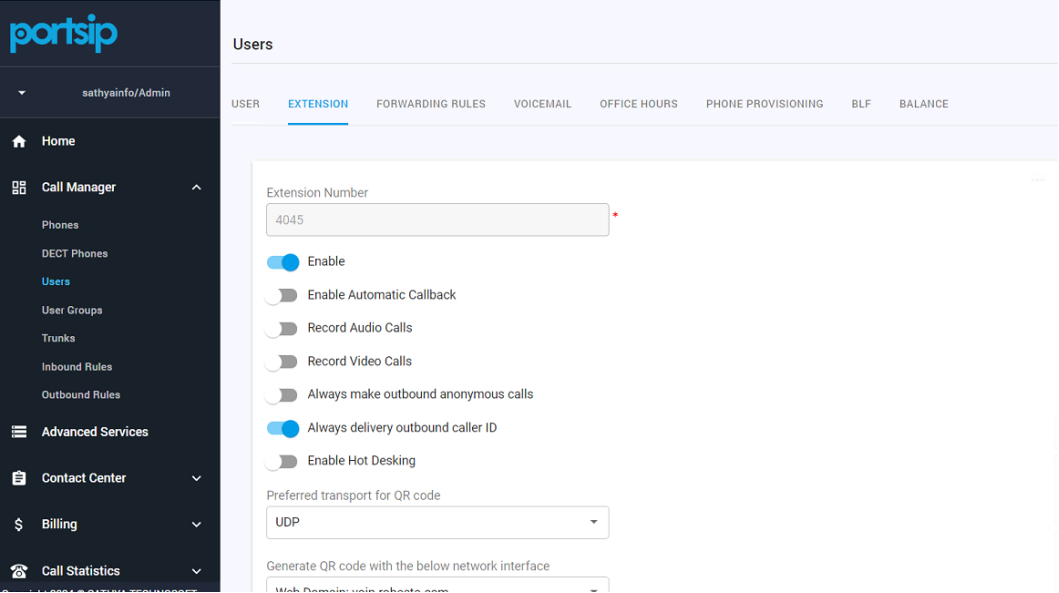
    2 Add users

    Click Call Manager >Users.Add a new user.Enter the username/extension number and other information like the picture shows below.


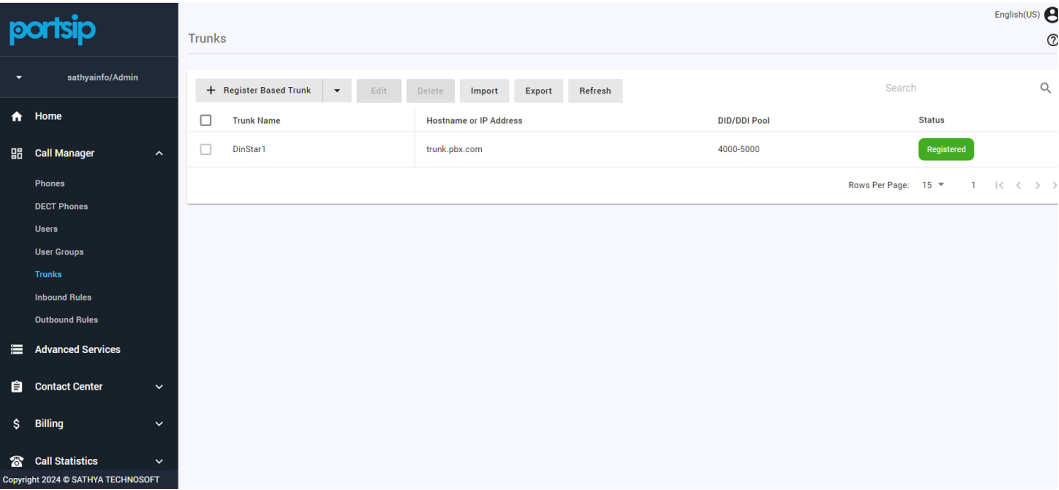
    3. Add a trunk 

    Click Call Manager >Trunks > Register Based Trunk.

    Enter trunk name/DID/Hostname or IP Address/Ports in the server page 

    Enter the authenticate information including name/passowords in the Client verification page.


    Note: This authenticated account information is used for the peer to register to the pbx


    4. Add a Inbound rule

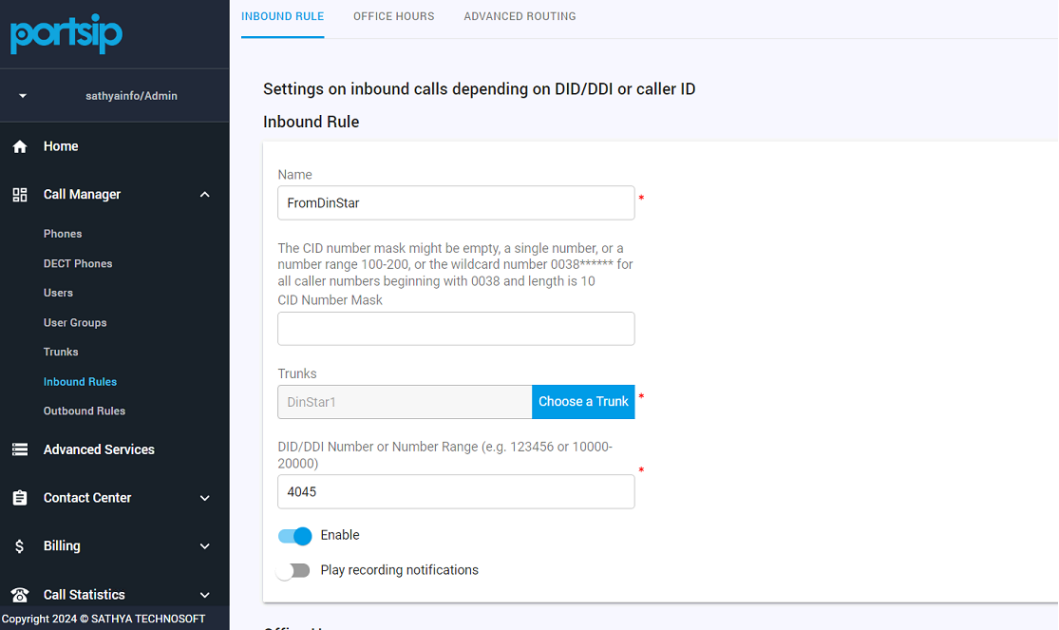
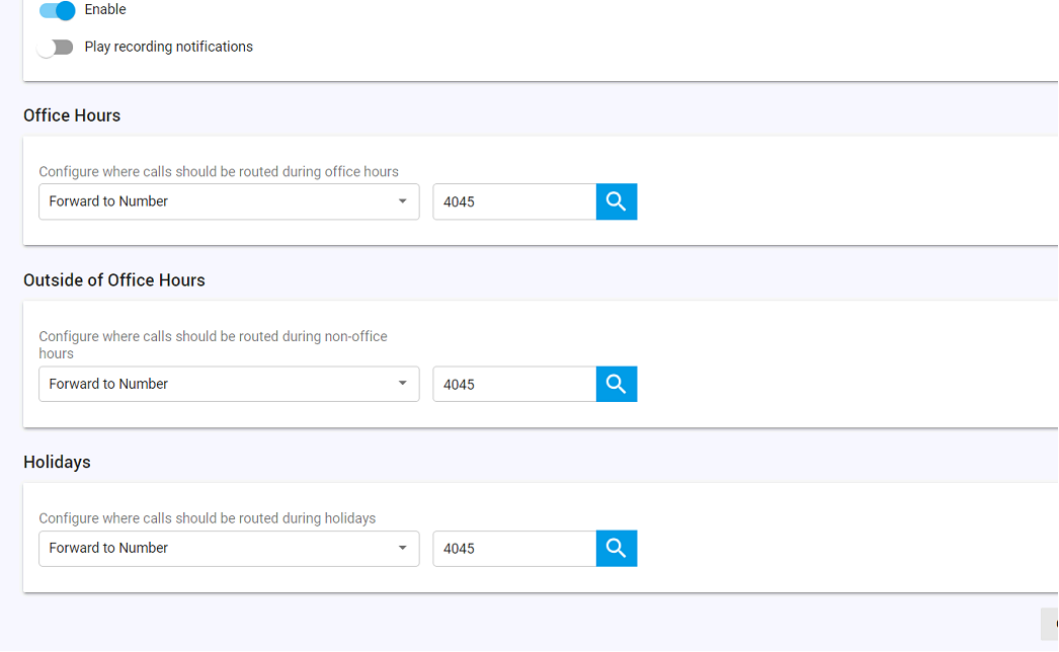
    Click Call Manager >Inbound Rule. Enter name/Trunks/DID. Other options can be configured according to your needs.


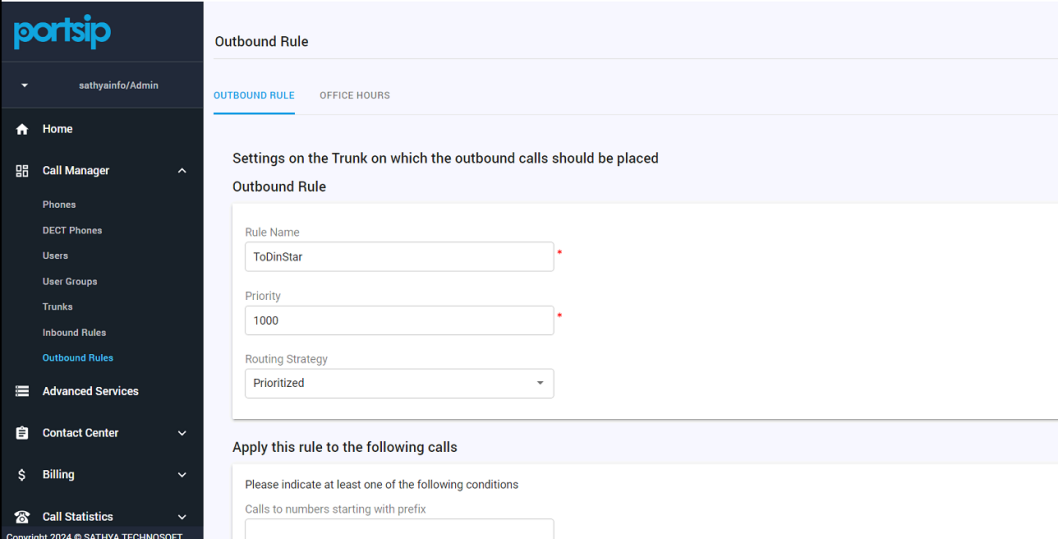
    5. Add a Outbound rule

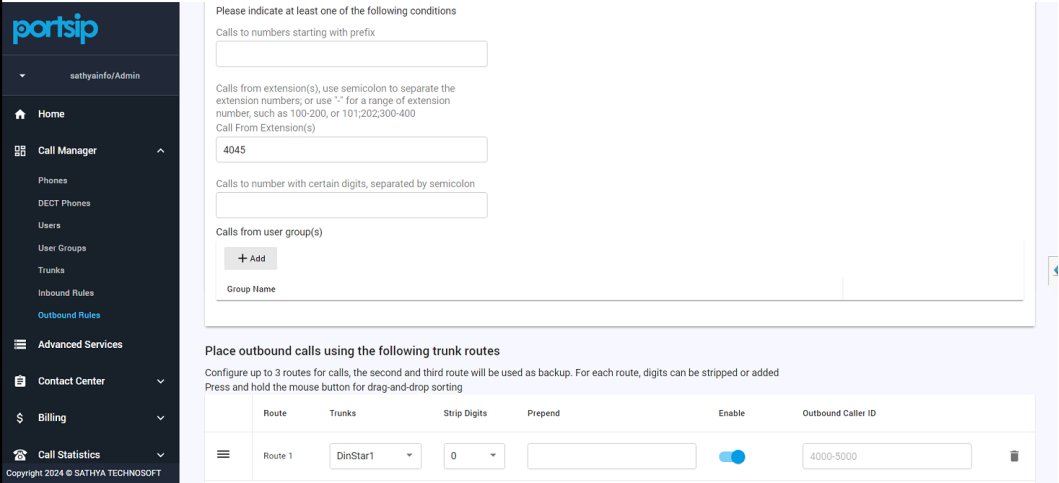
    Click Call Manager >Outbound Rule. Enter name/Priority. Other options can be configured according to your needs. 


    And add a place outbound calls using the following trunks route


    [Configure Wireless gateway] 

    1. Overview


    2. Add the Sip Server

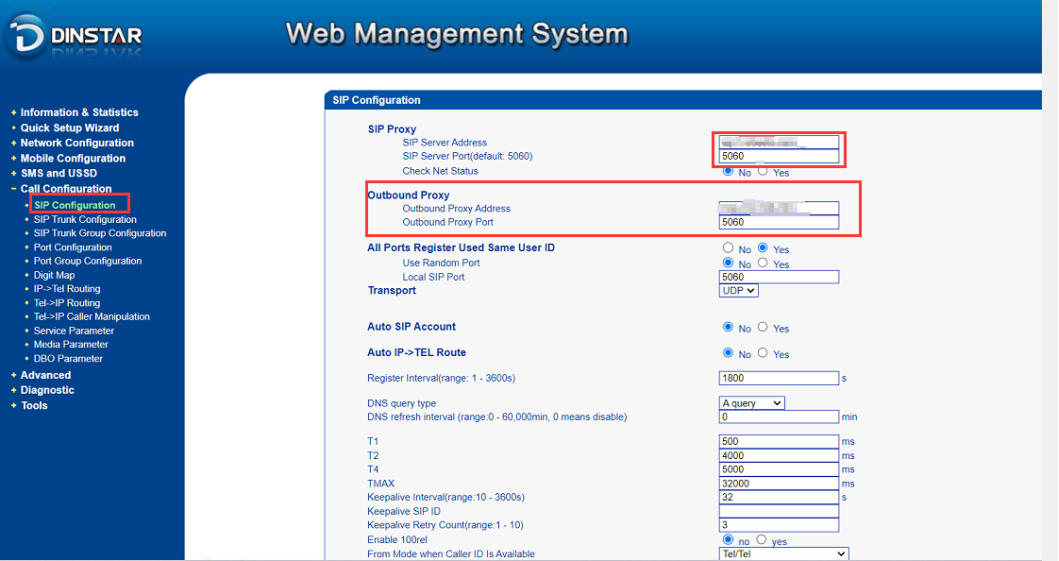
    Click Call configuration -> SIP configuration, enter SIP server Adress and Sip server port.

    Here we enter SIP domian in the sip  server address and port.Also we enter the Outbound Proxy information which provided by PortSip PBX system.


    Notes:

     1. The SIP server IP and  port here are filled with the information provided by the SIP server. 

    2.The default sip port in SIP server is 5060, some regions may limit this port,you can try to modify it to other values, such as 6060 and so on.

    3. Add a port group

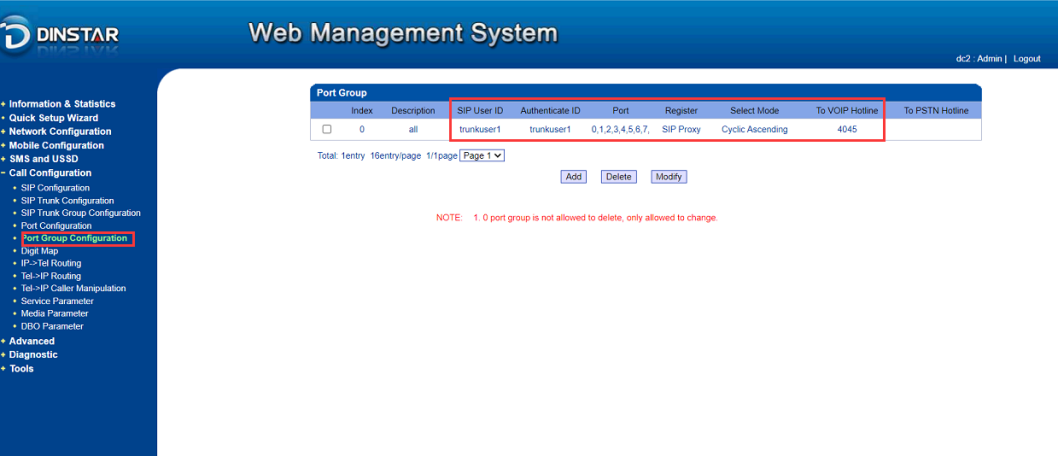
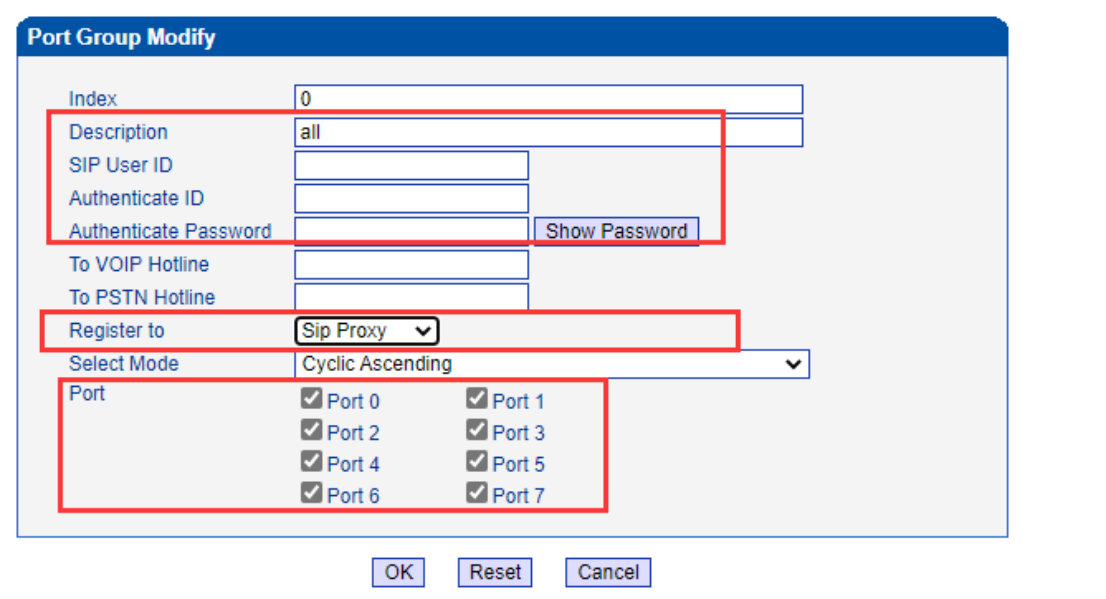
    The device as a whole is registered to the peer server

    Click Call configuration -> Port Group Configuration, enter sip user ID/Authenticate ID/ password. And select register to ”sip proxy”. Select the ports you want included in the group.

    4. Add a Inbound route 

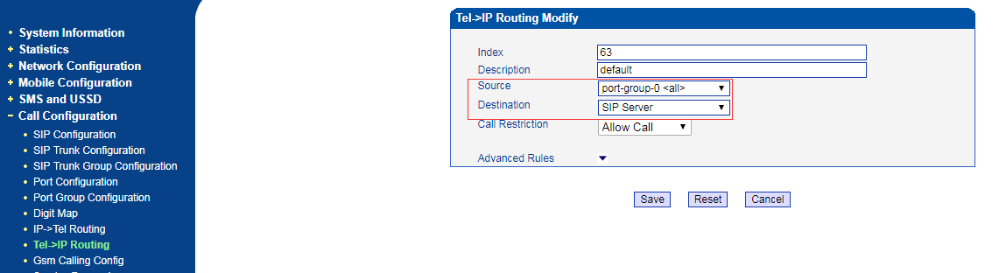
    Click Call configuration > Tel->IP Route. Enter Description/source/destination.

    The call is from port group-0 and go to sip server . 

    If you want the incoming call to the specific extension directly without ivr"please dail the extensio number". Please set "To VOIP Hotline"

    [Hotline setting]

    Operator-->UC2000-->(transfer)sip server

    Set "To VOIP hotline’’.The number is the DID number of inbound route on sip server.

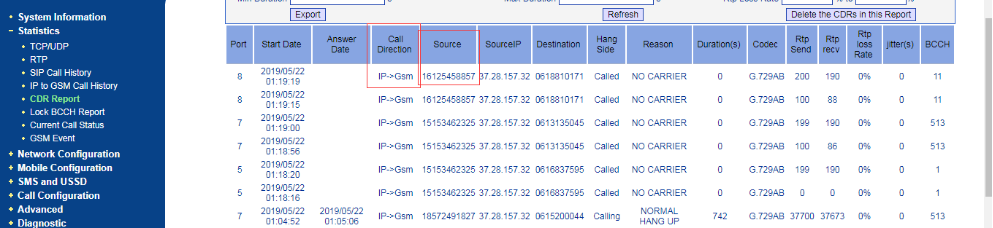
    If you don’t know what is the ‘’ To VOIP hotline’’, you can make a call from IP to Tel .And then check the source number on Statistics—CDR Report .

    [One-to-more to call in]


    [One-to-one to call in]

    Bind a port to a sip server extension to call in,you should set extension number on each port.


    5. Add a Outbound route

    Add a outbound call route (IP>Tel). Click Call configuration -> IP-Tel Route. Enter Description/source/destination.


    [A route to all ports]

    The call is from the SIP server and go to port group 0

    Note:the default port group 0 includes all pots in the new version.If your device without this default group, please add it.


    [A route to a specific port ]

    The extension of sip sever bind a specific number to call out.

    You can choose a destination port by matching the source prefix of caller number.


    Click Advanced Rules to add the Source Prefix

    For example,if a extension of caller number is 8000 ,it need to match port 0 to call out.The Source Prefix add 8000 and the destination select port 0.This means the call from Sip server and go to port 0. 

    Note: the index means the route priority,Index 63 means lowest priority and Index 0 means highest priority.If a call already matched a route of higher priority ,it will not match the route of lower priority.

    Tests and Results

  • QCompleted Guideline for Dinstar UC2000 with X-lite

    A

    Descriptions

    There are lots of scenarios where users need configure gateway directly with soft-phone to do troubleshooting.For example, when users meet UC2000 device voice issues ,to avoid interference from the sip server side, the uc2000 device is usually required to have a direct soft-phone connection to the computer side to check for issues. In this guideline, we will show you how to connect X-lite to Dinstar UC2000 device.

    Operation

    [Configure UC2000]

    1.Check PC IP 

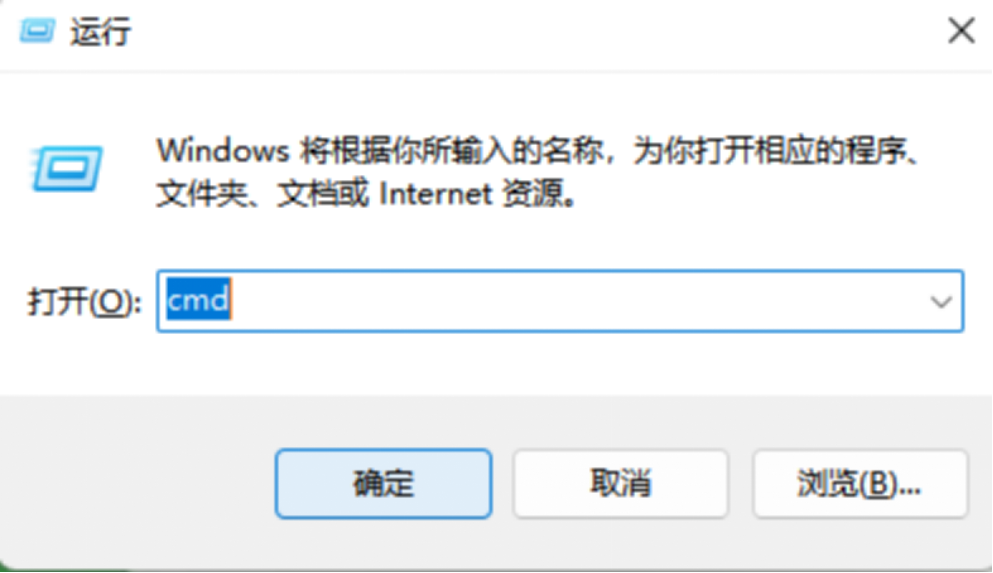
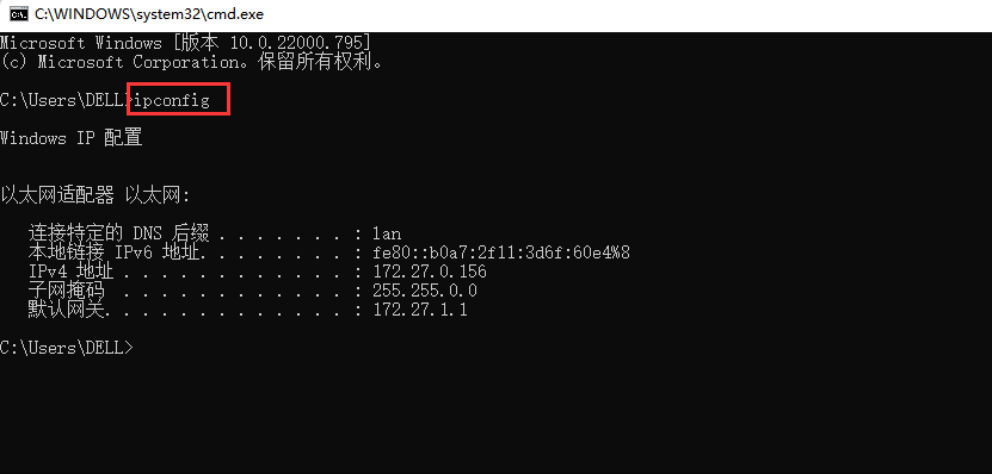
    If the gateway is local ip, check PC ip via CMD windows.


    Enter “IP config"


    If gateway is Public ip,please check router Public ip.You could directly google ‘my ip is’ in browser.

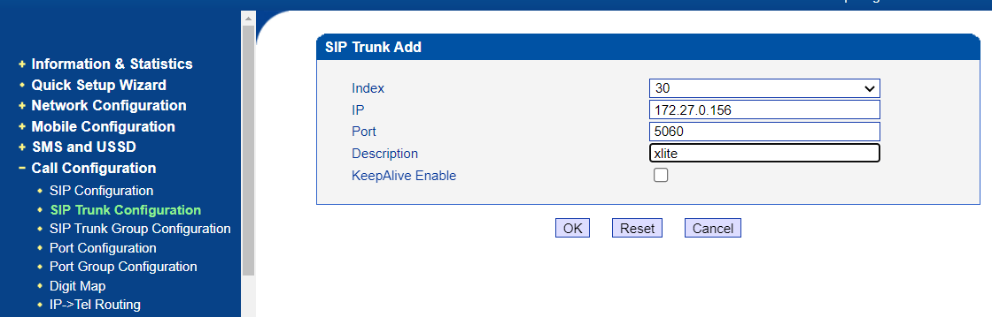
    2.Add a sip trunk on UC2000

    Click Call configuration>Sip trunk configuration.Enter the pc ip in the trunk and port .


    3.Create a port or port group

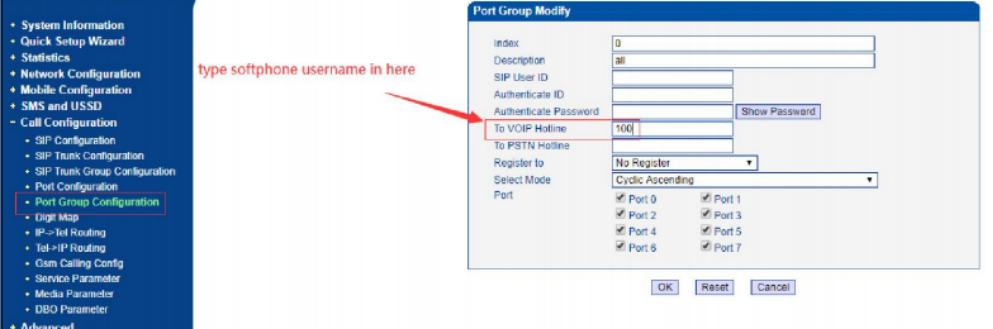
    Now the devices have a default group including all ports named group 0.So please add a Hotline number in the port group, so that the call can arrive to extension 100 directly. 


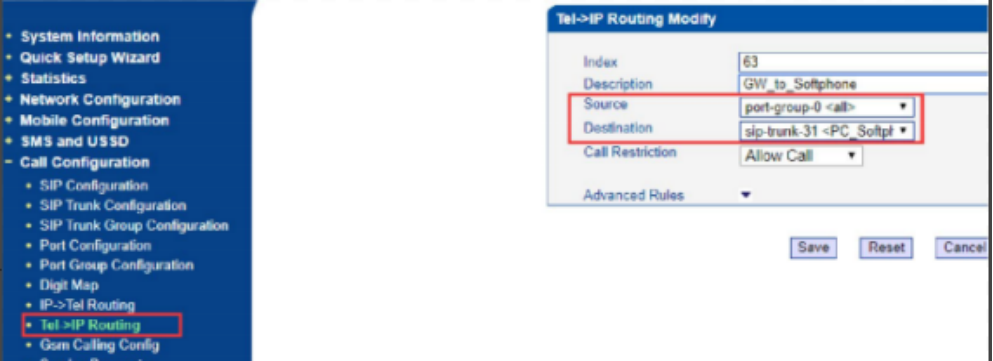
    4.Add an incoming route

    Create one tel—ip routing (incoming call routing) which source is default port group and 

    destination is soft-phone sip trunk .


    NOTE:Users can create a port group but also a port.

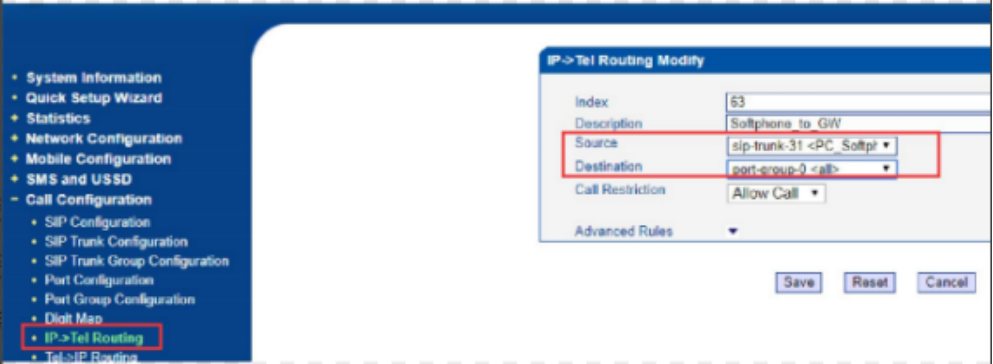
    5.Add an outgoing route

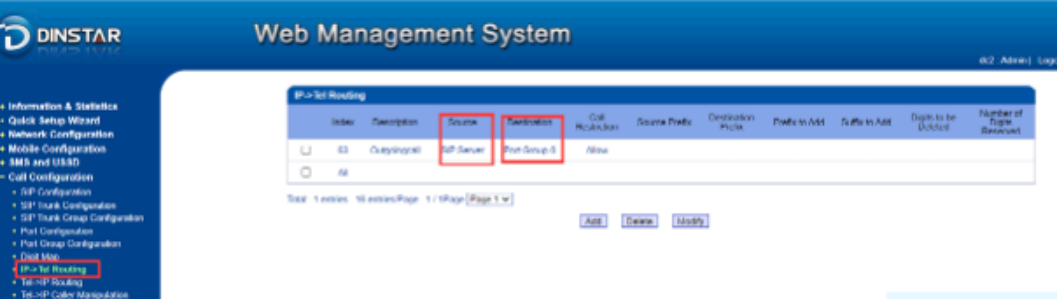
    Create one ip—tel routing (outgoing call routing) which source is soft-phone sip trunk and 

    destination is default port group


    [Configure X-lite]

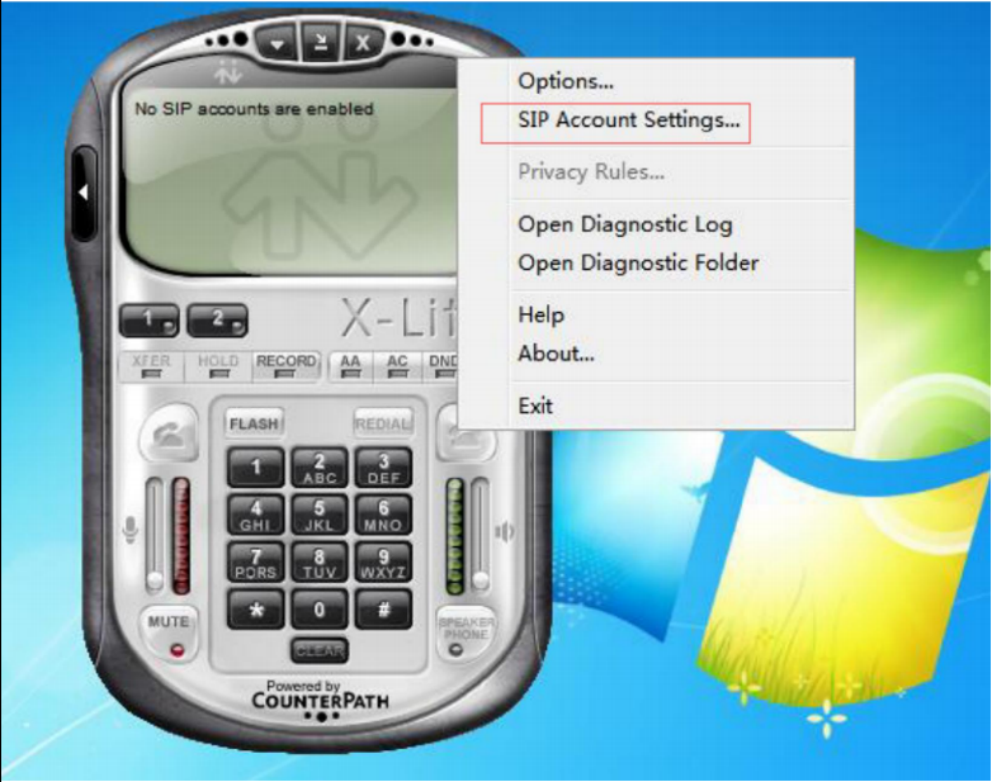
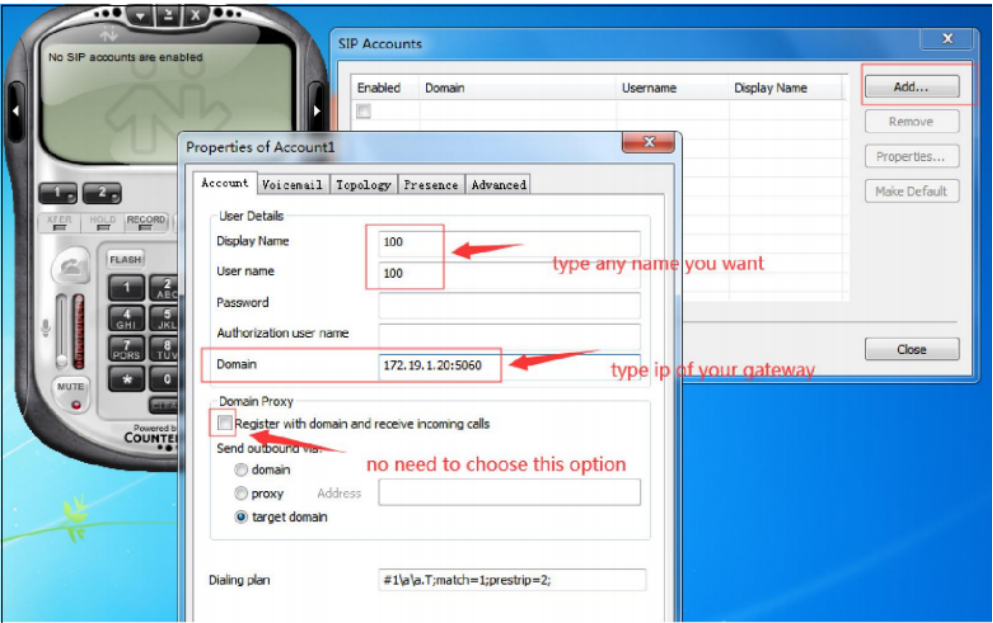
    Please run x-lite and right click.Then click sip account settings .


    Configure an account,like the picture shows below.


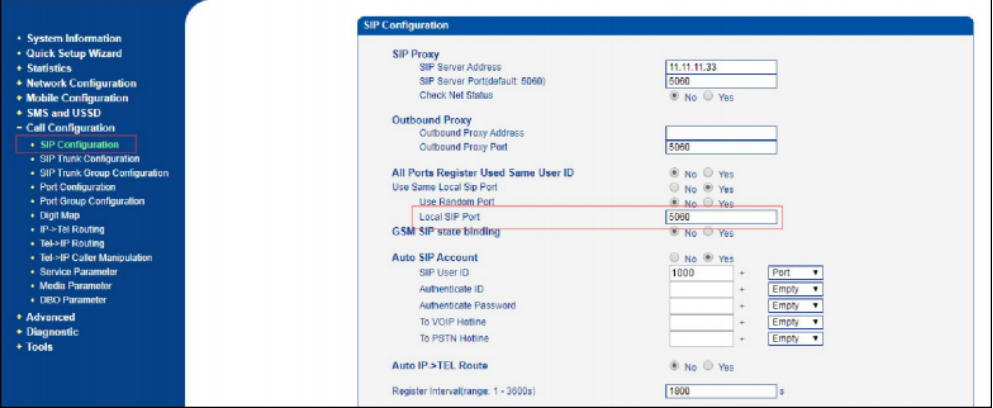
    NOTE:Please confirm the sip port on gateway.If it is not 5060,please fix on 5060 then save and restart device to take effect .


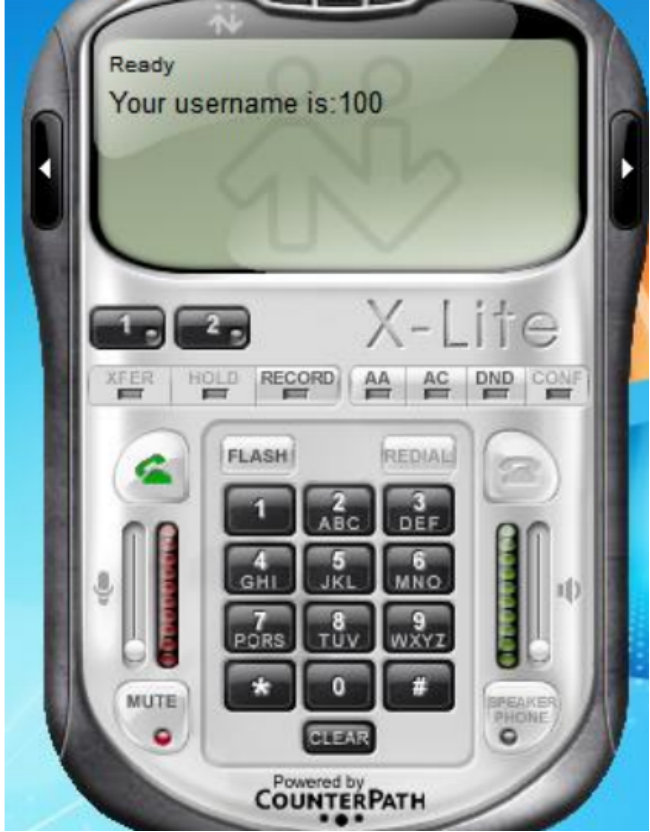
    Now a new account on X-lite has been finished.


  • QHow to check Noise Voice Issue

    A

    Descriptions

    Clients faced with voice stuck, voice delay and noise voice issue. There are many possible reasons, such as weak signal, unstable network band and unbefitting module gain, all of those factors might cause bad voice quality.

    Before checking the issue, check if your headphone and microphone were all working fine first.

    Operations

    1.Check gateway signal


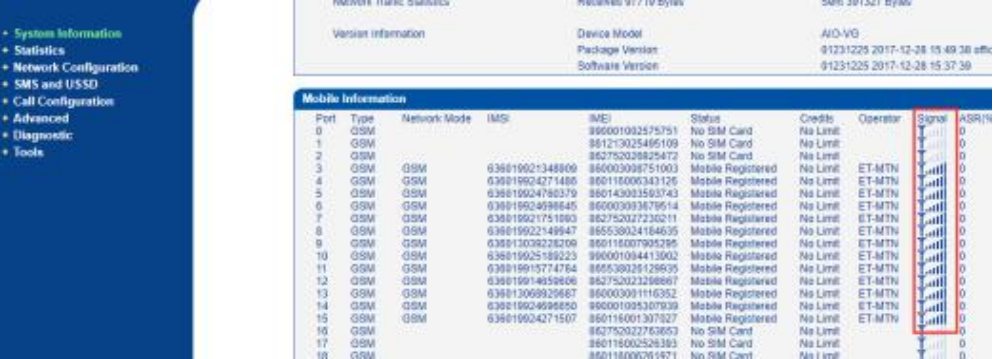
    There are total six grade signal. Normally stable signal is between 4th to 6th grade. It might affect call voice quality if the signal is lower than 4th grade.

    [Solution for weak signal]

    Adjust antennas installing position, try make device near windows.

    Separate gateway with other gateways as far as it could be if too much device nearby.

    Move device to another place if all port with low signal.

    (The local BCCH might with low signal itself, you could move gateway sim in mobile phone first, see if signal also bad in phone.)

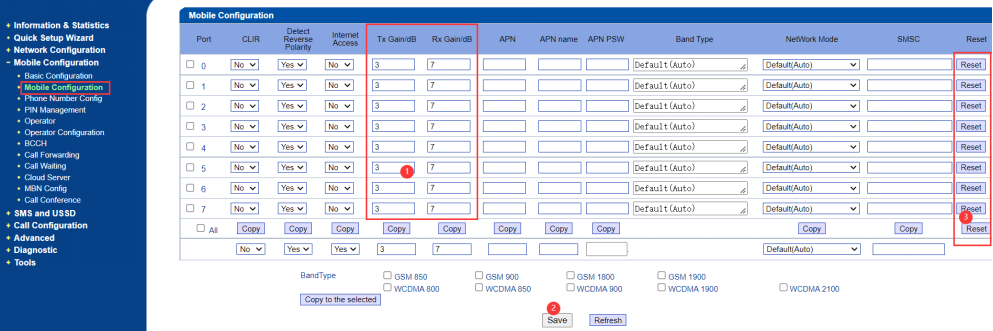
    2.Adjust Gain value

    Default gain value is 3 Tx and 7 Rx. The higher the value is, the louder the voice is.

    Tx Gain:Tx Gain value of chipset. Adjusting it will effect volume on GSM side. Adjust it if GSM side voice too weak or loud.

    Rx Gain:Rx Gain value of chipset. Adjusting it will effect volume on IP side. Adjust it if IP side voice too weak or loud.


    [TIPS] 

    The size of the gain can be simply understood as the amplification and reduction of the sound. If the gain is increased, the sound will be louder. If it is too large, the sound may be distorted and turned into noise. So lowering the gain may solve the noise problem (other causes of noise cannot be solved this way).


    NOTE: After setting, save and reset the module to take effect


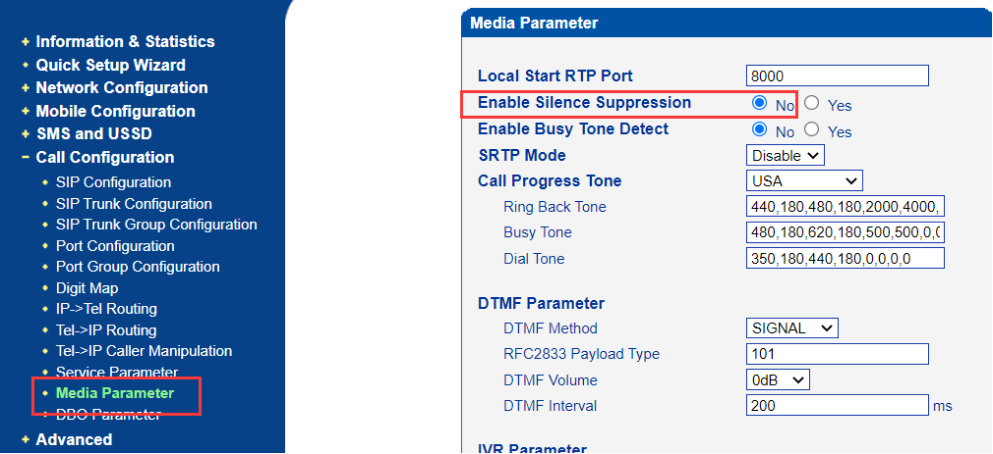
    3.Disable “Silence Suppression”

    Click Call Configuration>Media Parameter, "enable Silence Suppression" select 'No'.


    Note: If you select "Yes" for this option, some devices on the IP side will not be able to handle it, and there may be noise on the IP side, and the sound may be intermittent.


    4.Check network lost rate

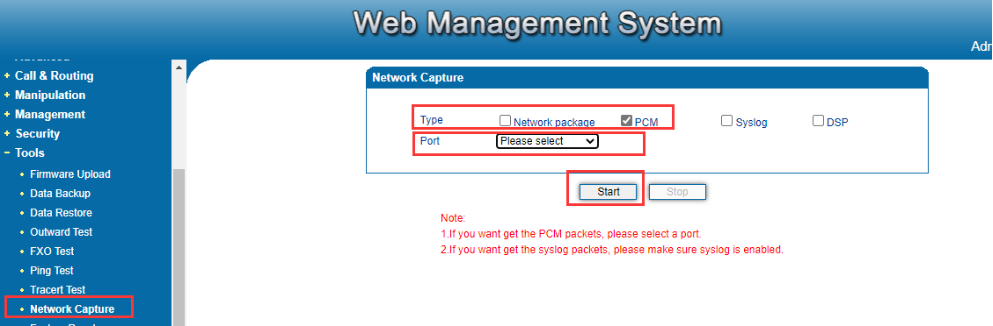
    Do network capture on device 

    click start, then make call test,last click stop after done the call test.send me the auto saved file.

    NOTE: The network capture don’t do too long,make the call in time once started the capture


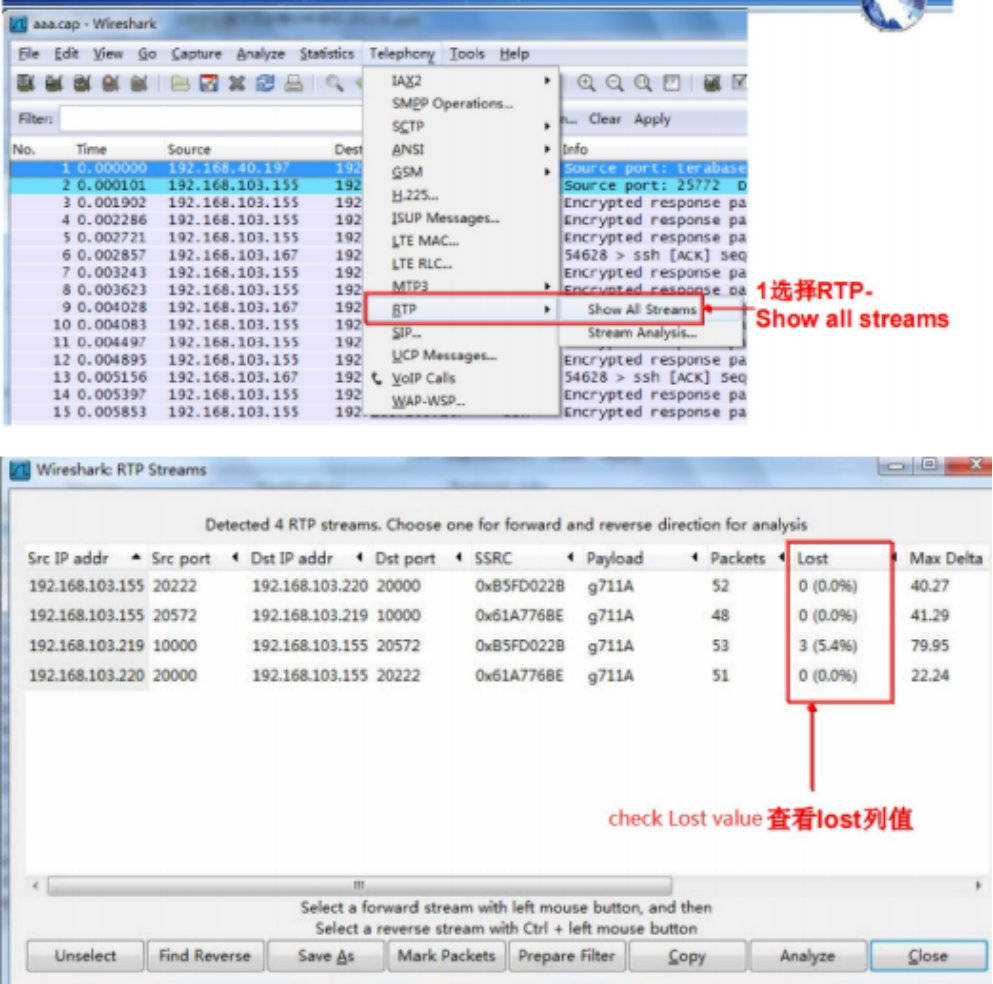
    5.Analyze the package by Wireshark 

    Users can directly send the package to Dinstar support and ask them to check for you.


    If the lost rate is too high, please check the local network situation.

    6.Check the Voice issue side

    6.1 DO a PCM capture on device

     (Make call tests from IP>TEL).Choose PCM only,test port,and click start .Then make the test call and have conversation for a while. Click stop after done the test.


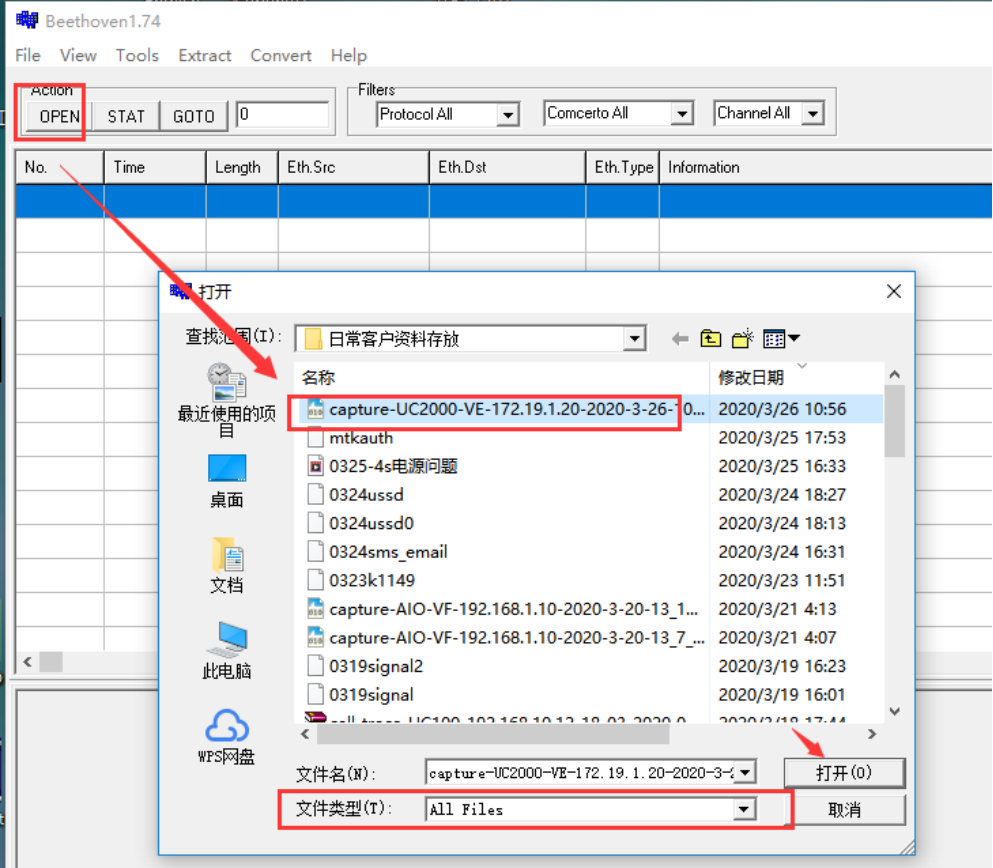
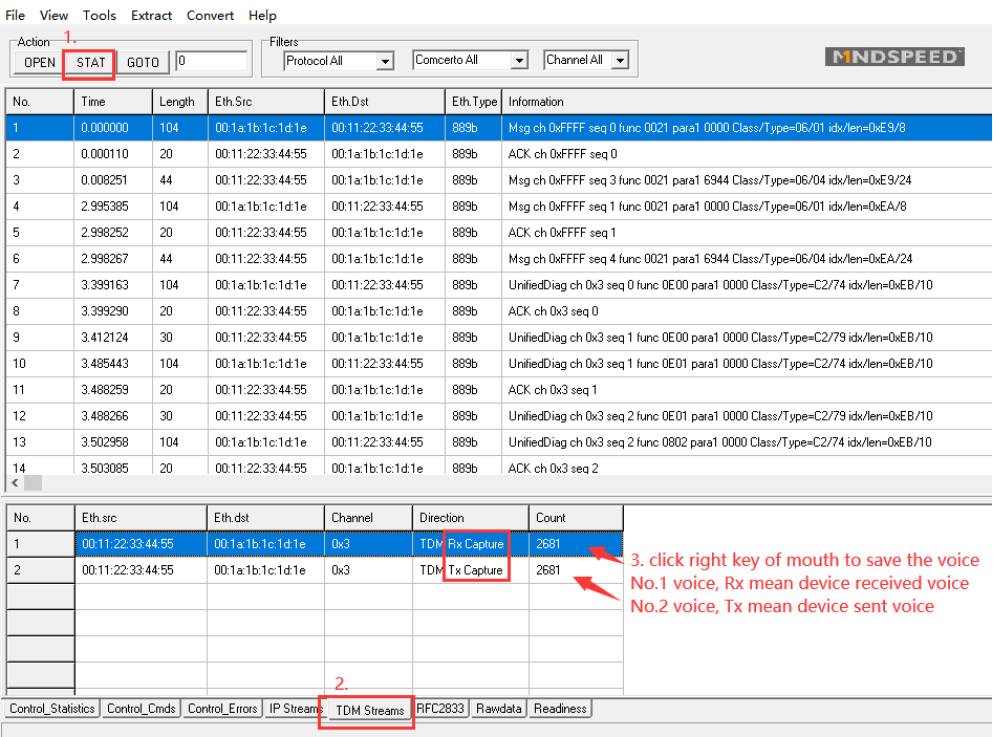
    6.2 Analyze the PCM package via Beethoven.

    Open the package by Beethoven


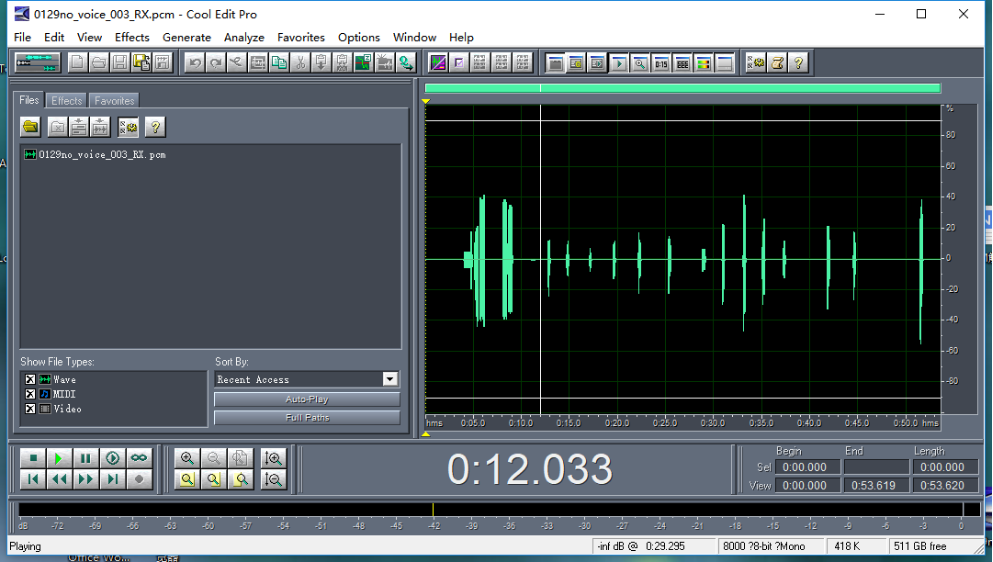
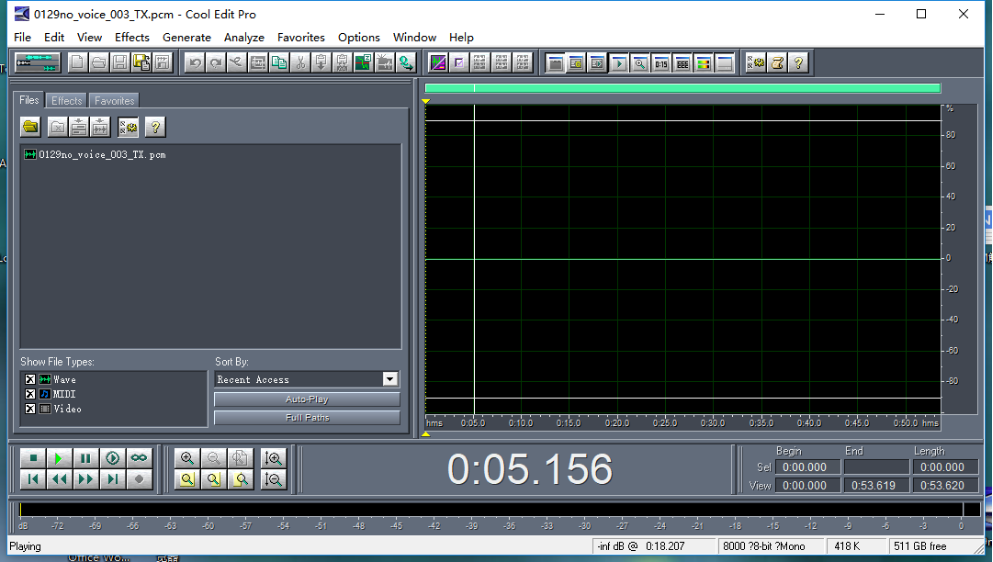
    6.3 Analyze the Rx and Tx voice via Cool Edit Pro

    Compare the two side voice, check if the issue is in the gateway or not.


    Note:Cool Edit Pro opens PCM files in 8000Hz/8bit/mono, 8bit A law format. 

    If the device is H8 platform,please set as 16 bit !!!

    [Analysis]

    It is normal for the sound waveform to be in the upper and lower white lines. If any waveform touches the upper and lower white lines, it means that the gain is too large and the gain needs to be reduced. Refer to the second part to reduce the gain.

    If the PCM of the RX is noisy, it means that the sound sent by the operator has noise, and you need to contact the operator & tel for processing.

    If the PCM of the TX is noisy, then the noise comes from the IP side, and the problem should be solved from the IP side


Service Feedback
Service Feedback
Please fill in the information and submit the service
evaluation and suggestions online
  • *Name

  • *Country

  • *Company Name

  • *Email

  • *DeviceType

  • *DeviceSN

  • *Snapshot of Device SystemInformation Page