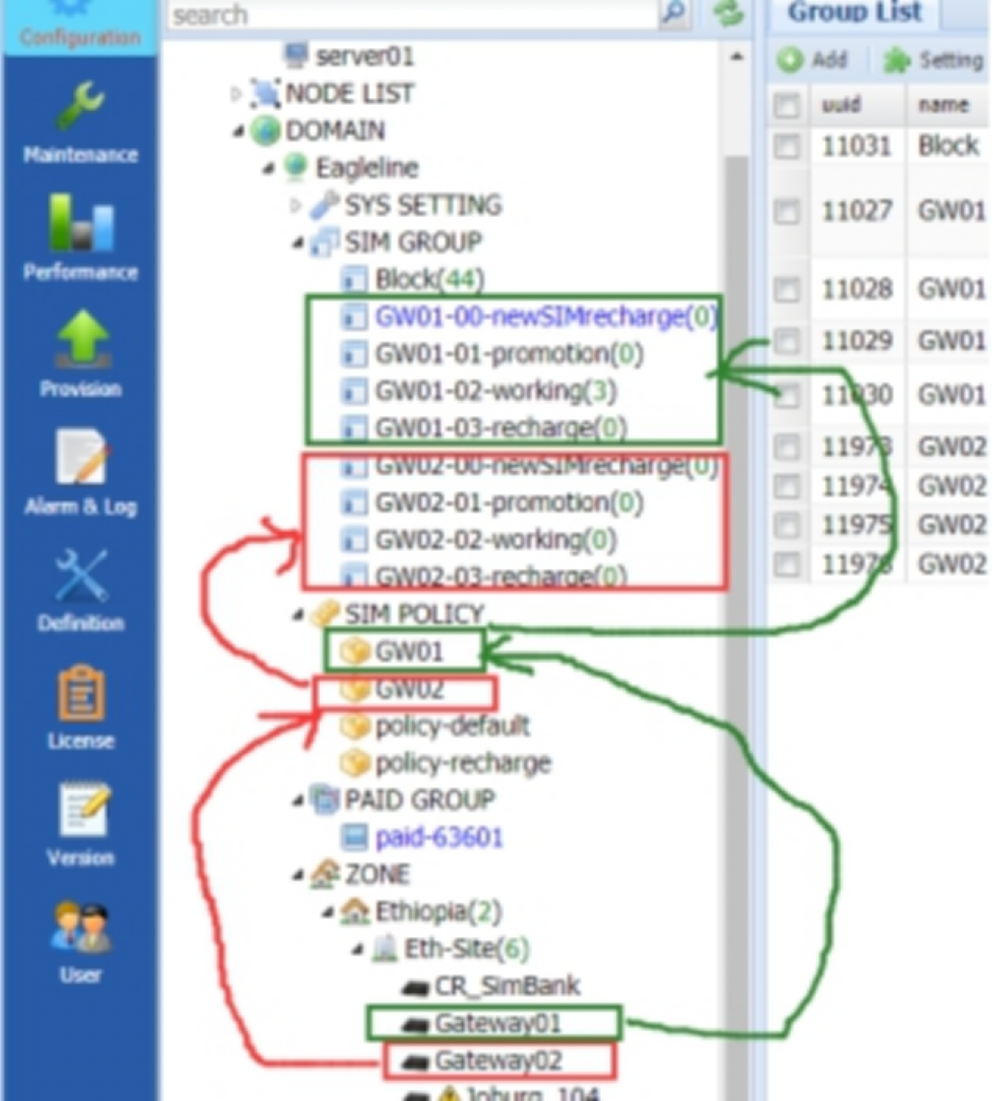
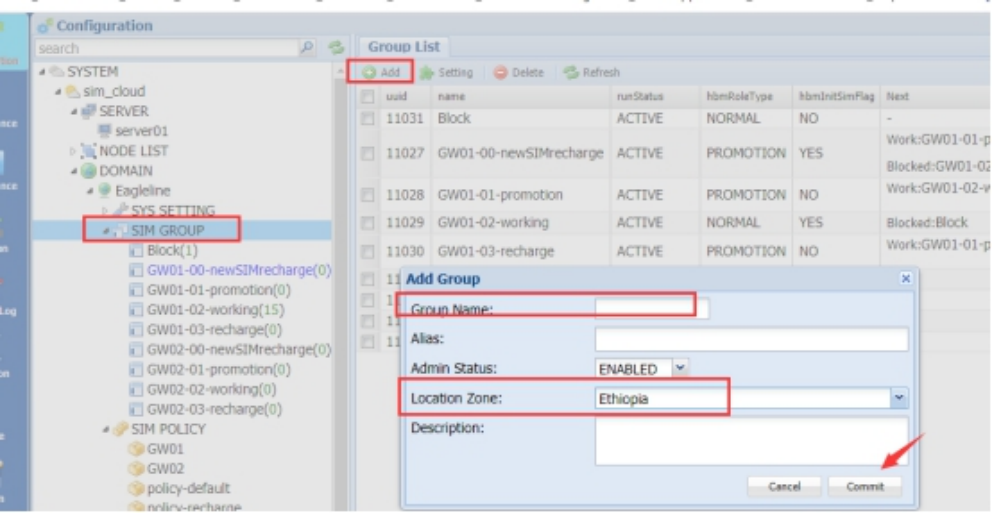
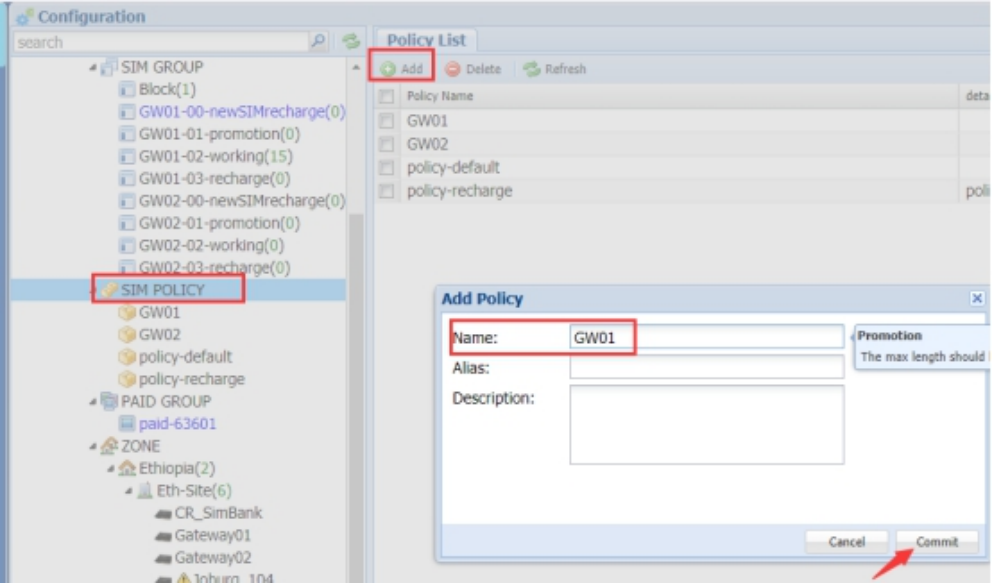
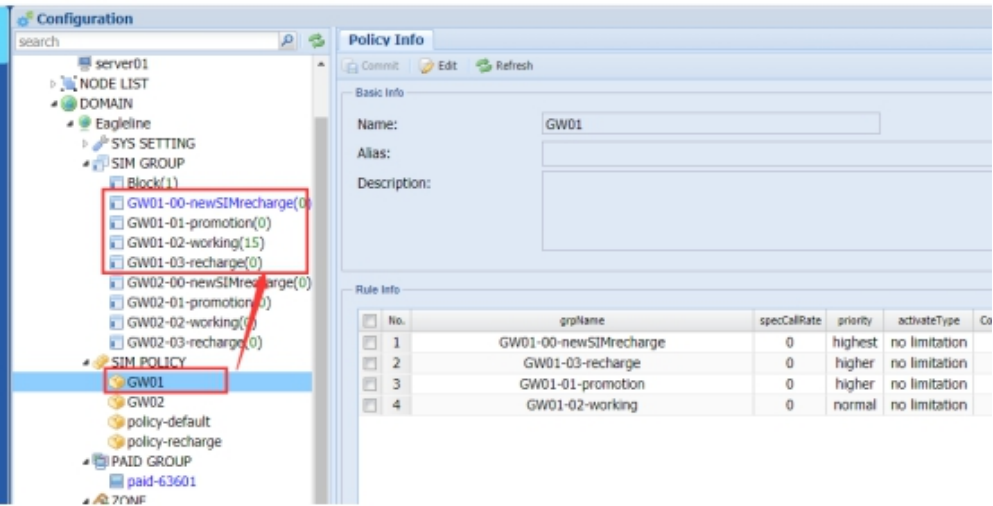
A
Backgrouds
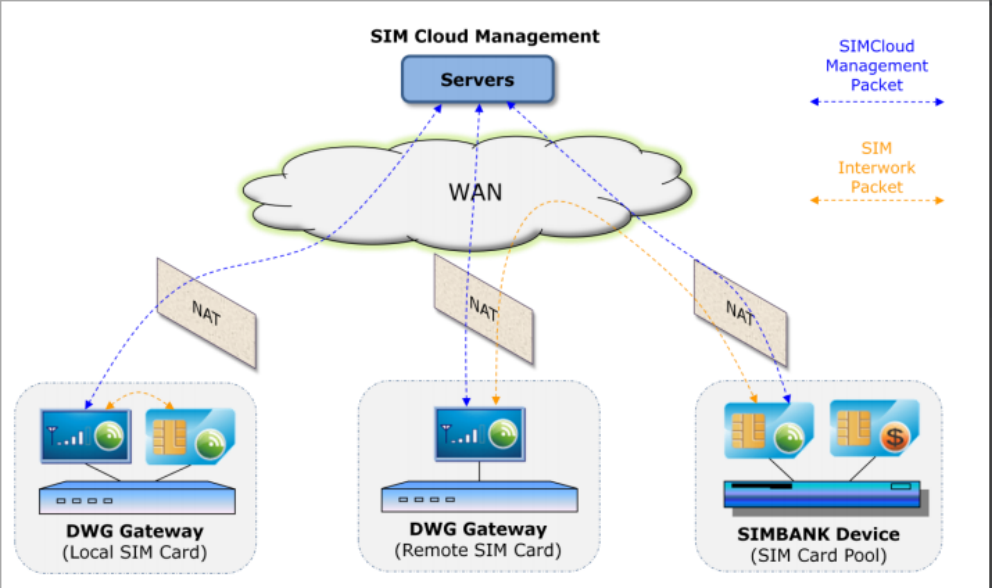
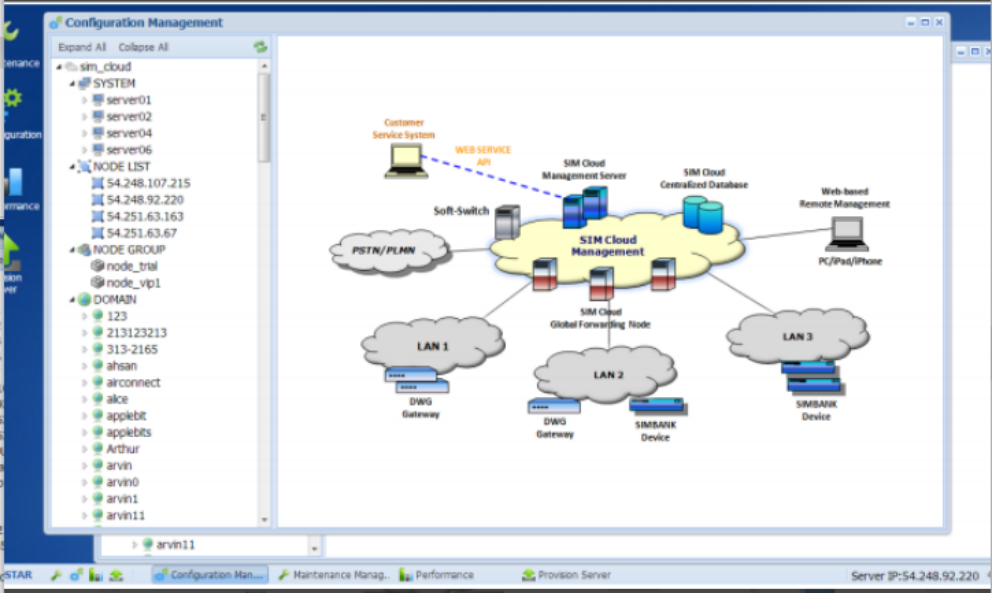
SIMCloud is a software platform used to manage gateway devices and SIM cards. It can help you manage SIM cards much easier. Before you use SIMcloud to manage devices and SIM cards, you need to connect the SIM bank and gateway devices via SIMCloud if you have a SIM bank.
For example, your SIM bank is at the office while your gateway is in another city, and then the SIM bank and the gateway can be connected by SIMcloud.
SIMcloud gets the SIM information from the SIM bank, and then transfers the SIM information to the gateway. After that, if the SIM card can register successfully, it can use the signal of the city where the gateway is placed.In case that the SIM card has no balance or is blocked, you can switch to a new SIM card at your home.
This document is intended to guide how to apply for a new account from our public SIMCloud server.
Preparations
Public Website
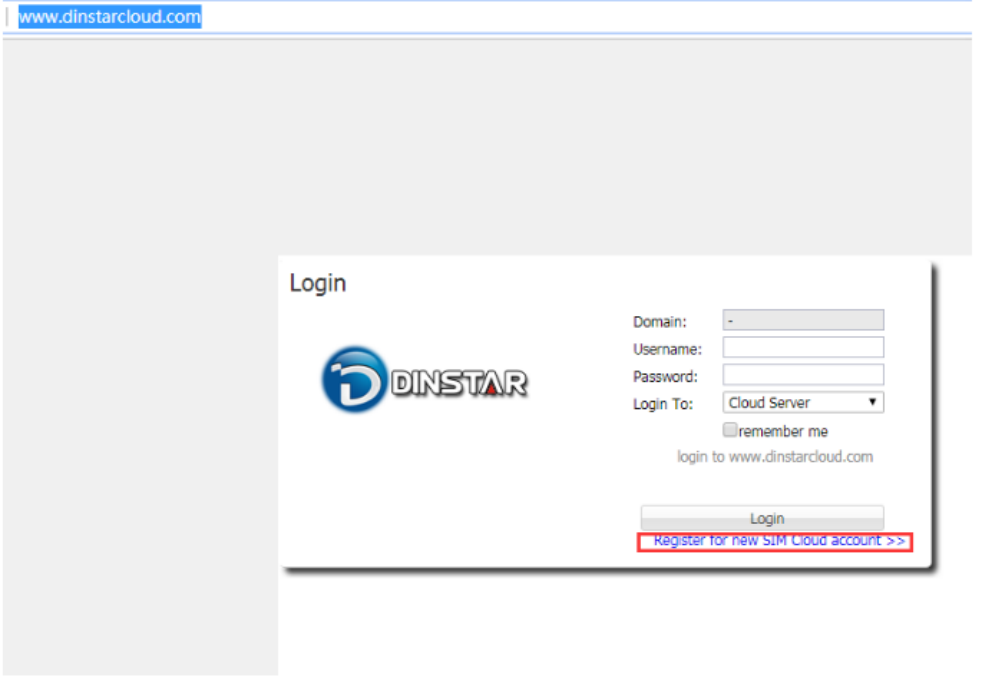
Dinstar SIMCloud URL is http://www.dinstarcloud.com/.
If you don’t want to show the information of Dinstar, you can open nature URL http://www.ucspeed.com/.
Operations
1.Register a new account
Login the website and Click Register for new Sim Cloud account
2.Choose Work Server
Dinstar’s servers are all over the world, and you need to choose a server that has the fastest network to your device.
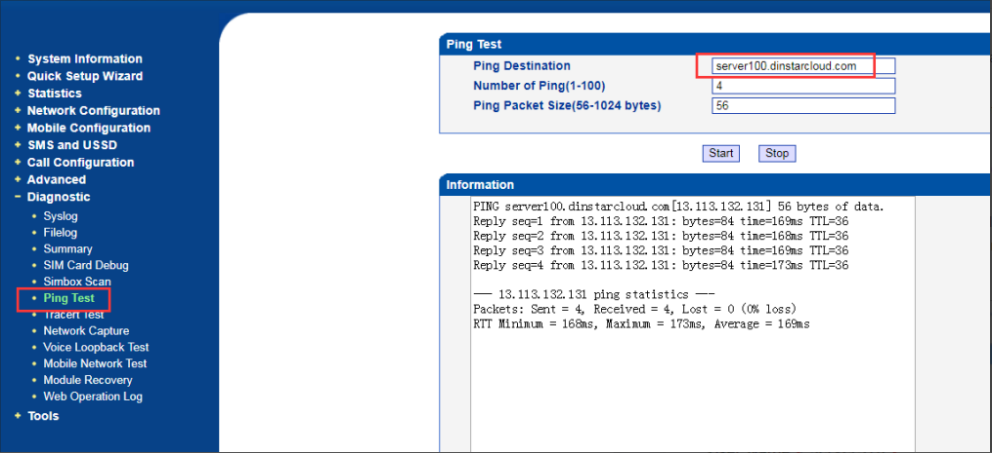
You can ping the server on your device and check whether its network is fast and stable.
Ping format is serverxxx.dinstarcloud.com
For example, if you want to test server100, you can ping server100.dinstarcloud.com on your device or PC.
If the delay time of PING is more than 200ms or there is packet lost, you should prepare a dedicated server where we can help you install SIM cloud software.
3.Fill in the Application Information
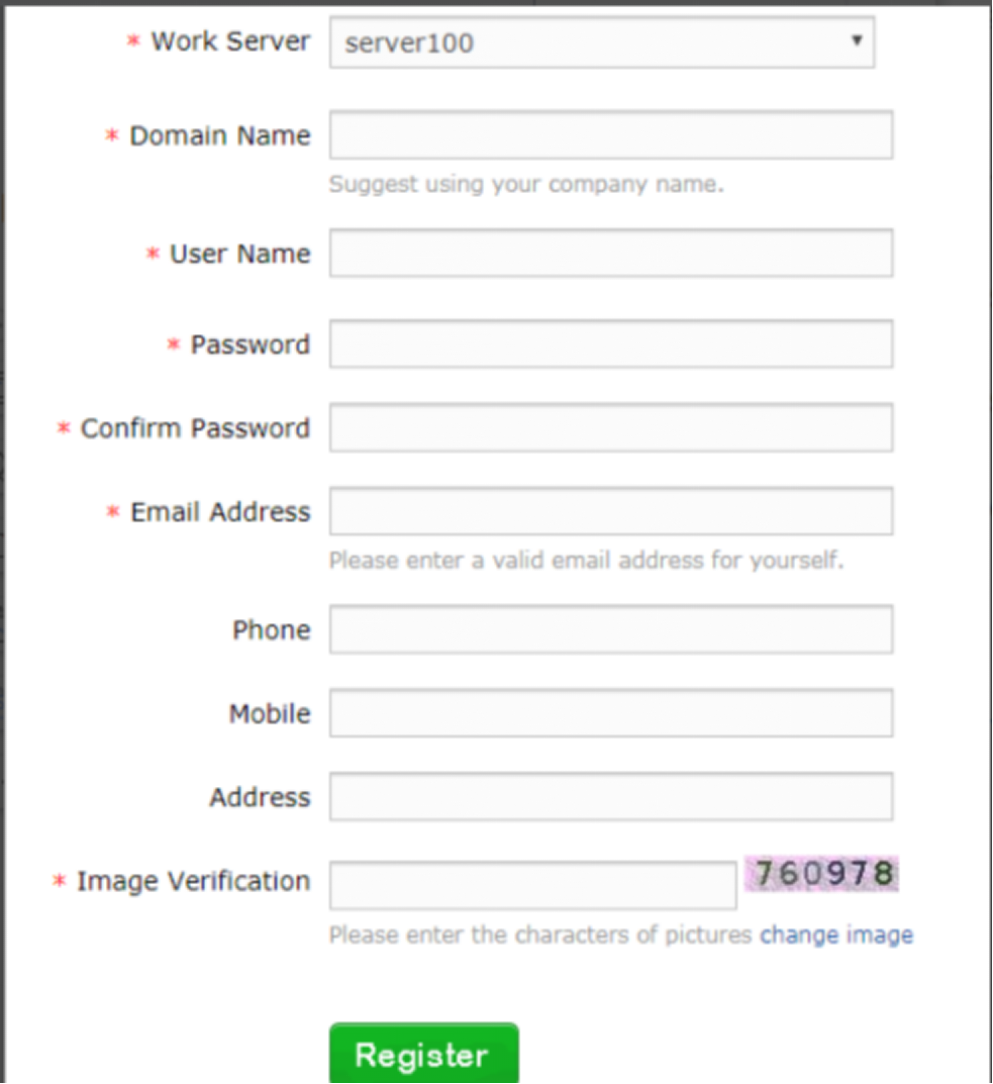
After choosing a server, you need to start filling in the application information.
3.1Domain Name
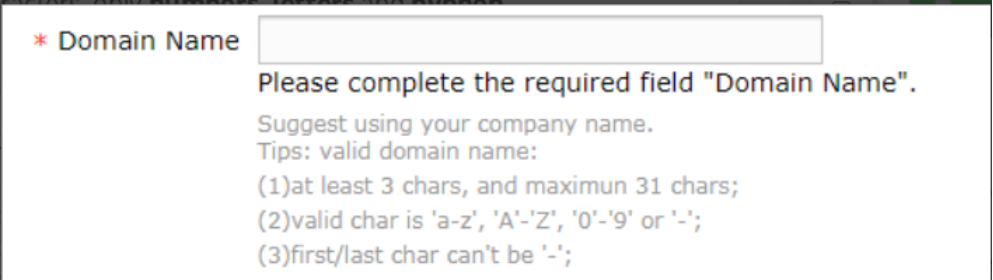
This one is account of Dinstar cloud. The name should be simple and easy to remember. You can use your name or company name . For example, you set voip, and then Dinstar cloud will make are subdomain: it would be voip.dinstarcloud.com. The system will automatically complete it.
Note: You can’t use special characters, only numbers, letters and hyphen allowed.
3.2 User name
You are also required to enter the username when you intend to log into your SIMCloud domain. Also, special characters cannot be used for username.
3.3 Password
Password is used for authentication when you intend to log into your domain. For security consideration, you can set a more complex password, but it’d better not use special characters.
3.4 Email Address
Email is used to send notifications, so you’d better set a real mail address.
4.Apply for Domain Successfully
After completing all the information and making sure you remember all of it, you can click the Register button.
Ten minutes later, you can try to log into the domain you have applied for.
Open the link http://voip.dinstarcloud.com.Fill in the username and pass you set.
Cloud server is the work server used to manage the device.Account server is the license server. Here, you need to check your license.
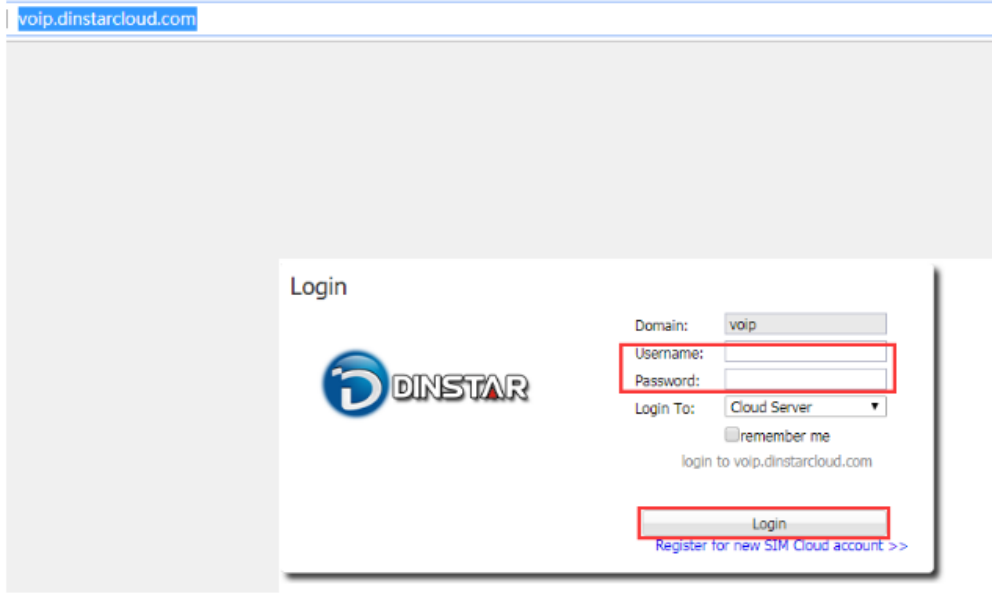
After you have logged into the cloud server, you can start to configure the SIMcloud.