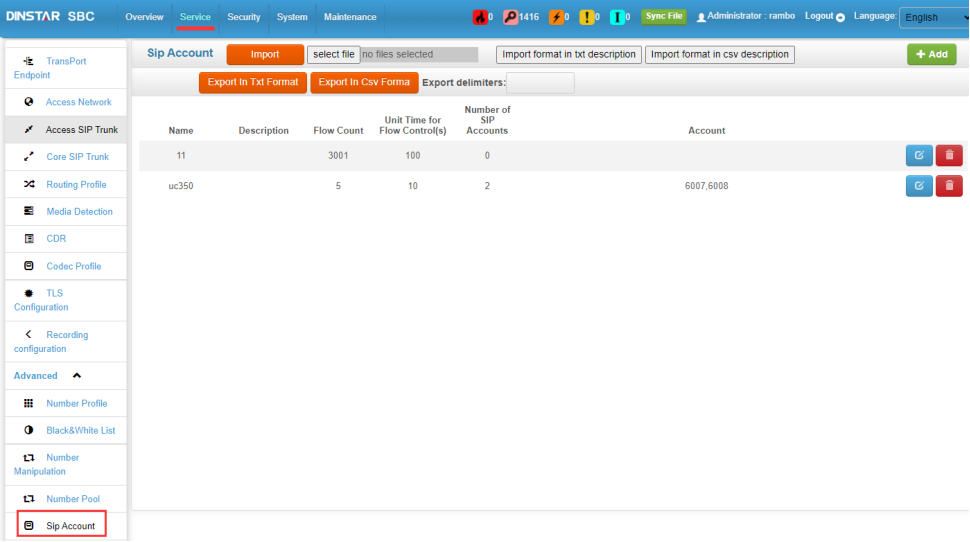
A
1. SBC Interface Description
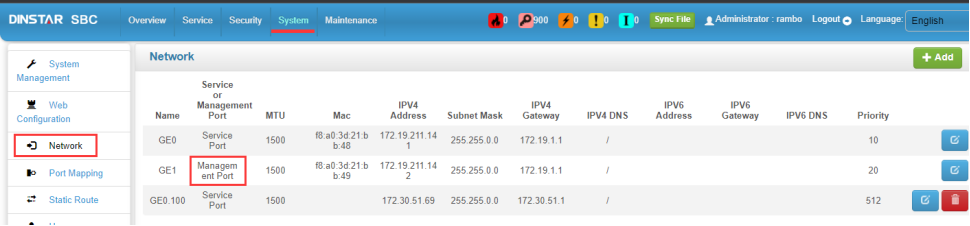
1.1 SBC1000/SBC300 provides 5 network ports, which are MGMT, GE0, GE1, GE2, and GE3, among which MGMT is the management port, and the default IP of MGMT is 192.168.11.1. The default IP of GE0, GE1, GE2, and GE3 are 192.168.12.1, 192.168.13.1, 192.168.14.1, 192.168.15.1.
1.2 SBC3000 provides two network ports, GE0 and GE1. GE1 is the management port, the default IP address of GE1 is 192.168.11.1, and the default IP address of GE0 is 192.168.12.1.
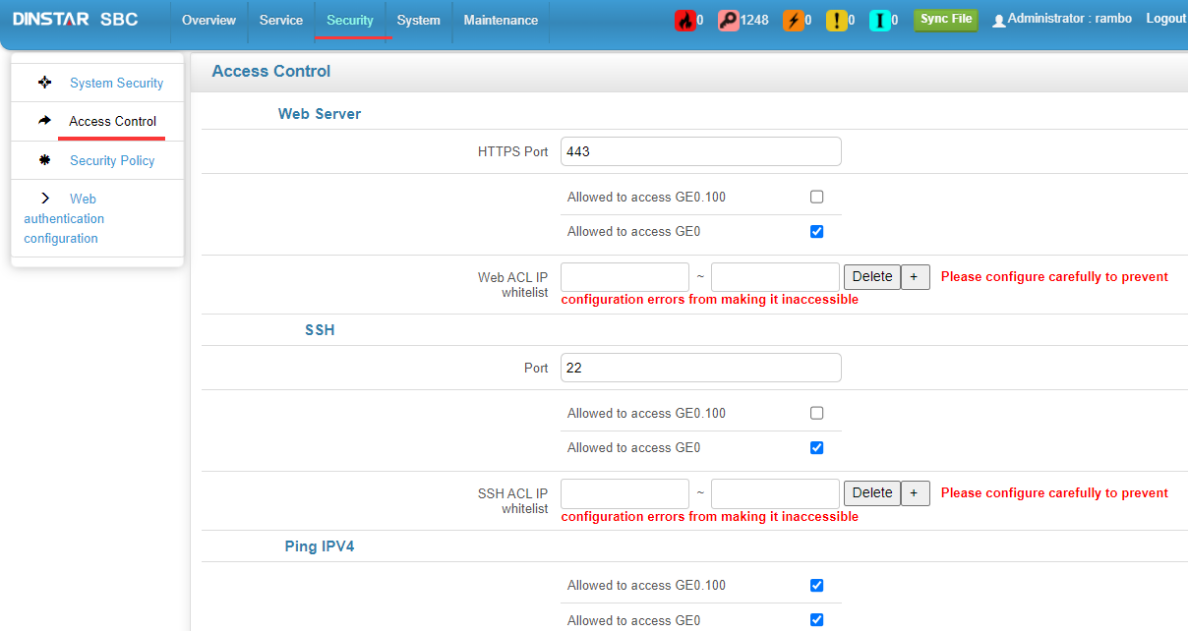
By default, you can only connect to the SBC through the management network port, and other network ports cannot be accessed. If you need to log in SBC through other network port, please enter the web page through the management network port first, and then enable "Allowed to access GEx" in the "Security--Access Control" page. Set the access privileges for ping and SSH in this page as well.
1. Setting the SBC interface IP
2.1 Interface Connection
Power on the device and connect the computer directly to the management port of the device with a network cable. The default IP of the management port is 192.168.11.1 with mask 255.255.255.0. Set the IP of your computer to 192.168.11.X segment with mask 255.255.255.0.
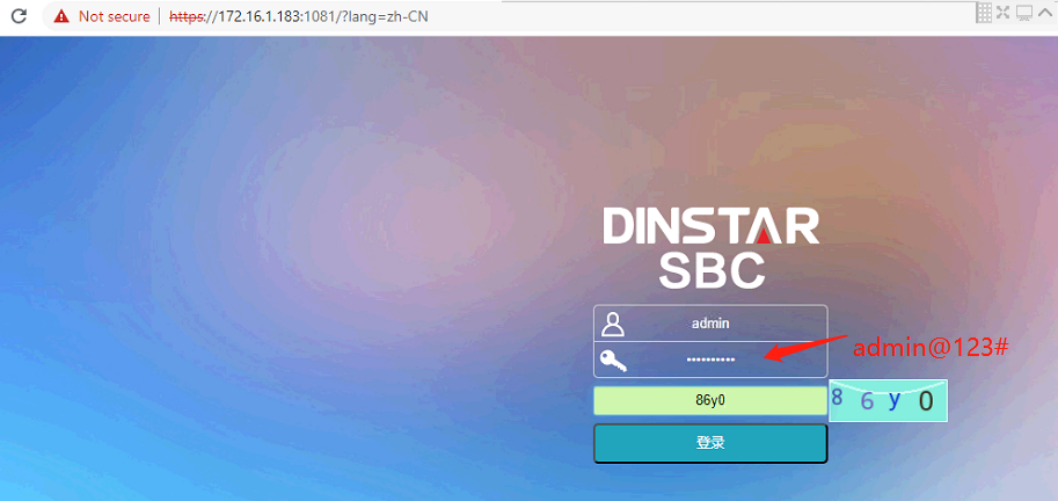
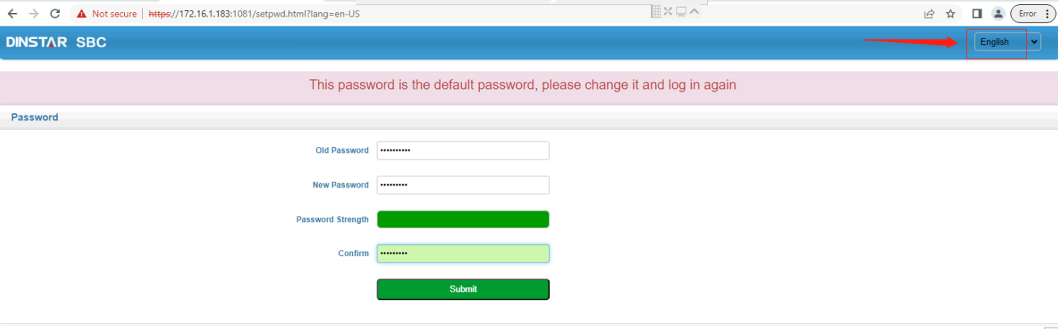
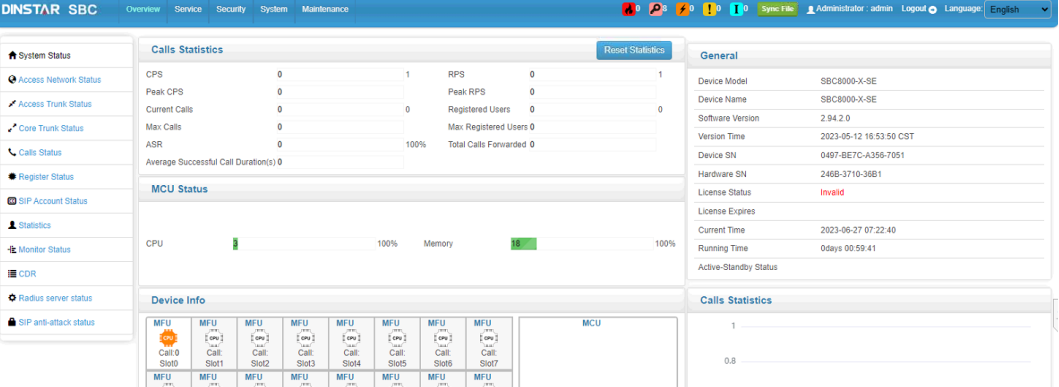
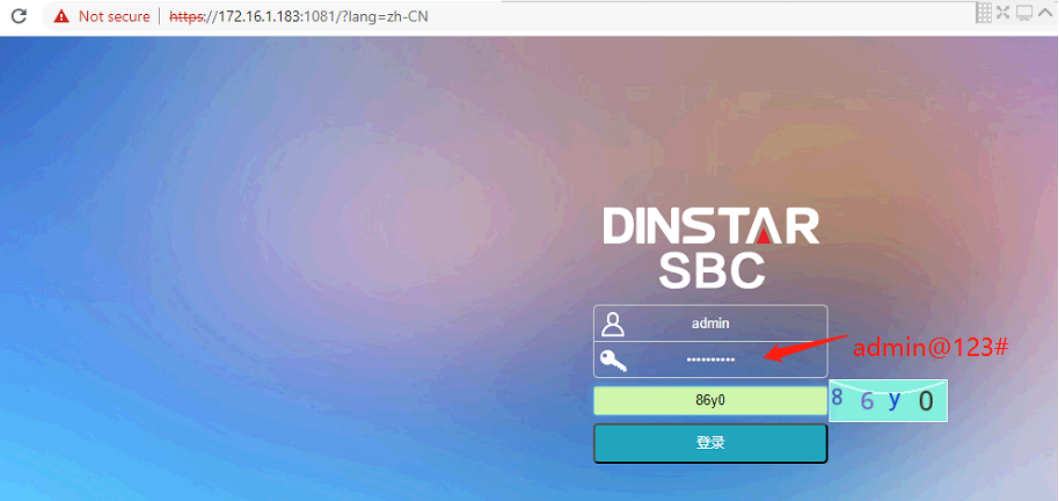
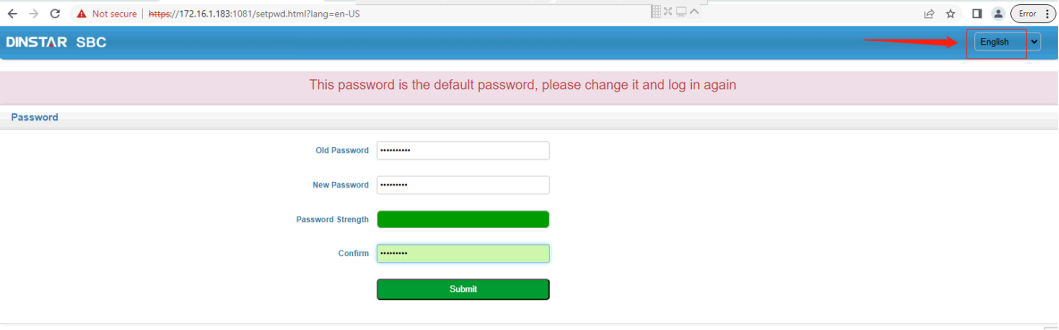
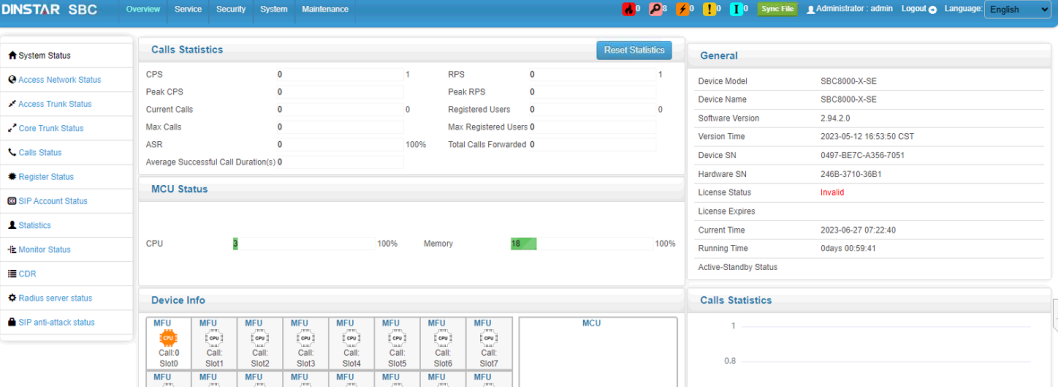
In the browser, use https to access https://192.168.11.1, the default username is admin and the password is admin@123#.
2.2: Change the network interface address
System - network page, select the corresponding interface symbols to modify the IP address, or click "+add" to add the interface IP address (including VLAN fields)
Tips: After modifying the address, you need to reboot the device to take effect.
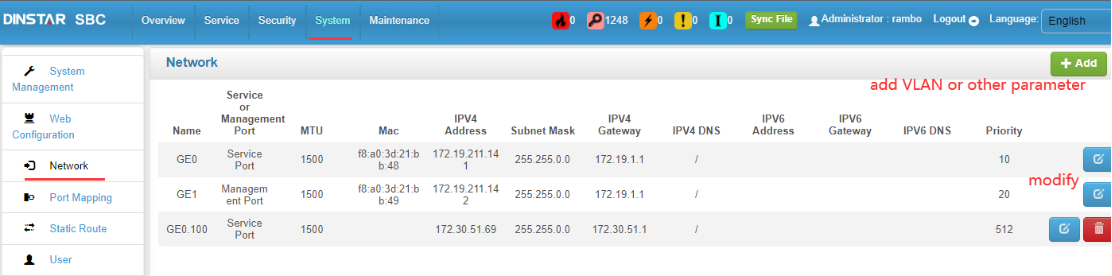
Tips: Please obtain IP information from your local network technician.
3. Service parameter settings
3.1 Collate configuration information
3.1.1 Sort out the logical structure of the Service of the SBC, for example: Enables two-way calls between IPPBX and IMS. IPPBX == (GE1) SBC (GE0) == IMS
3.1.2 IP and port for IPPBX; IP and port for IMS.
3.1.3 Other functional requirements.
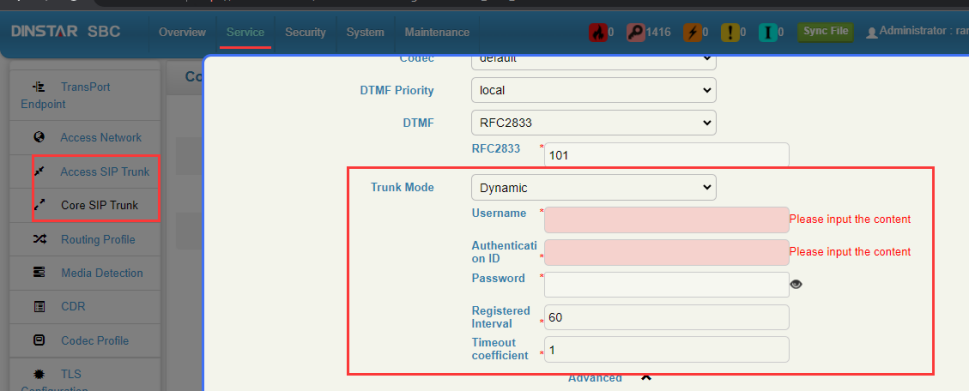
Question: Access Network, Core SIP Trunk and Access SIP Trunk, what is the difference?
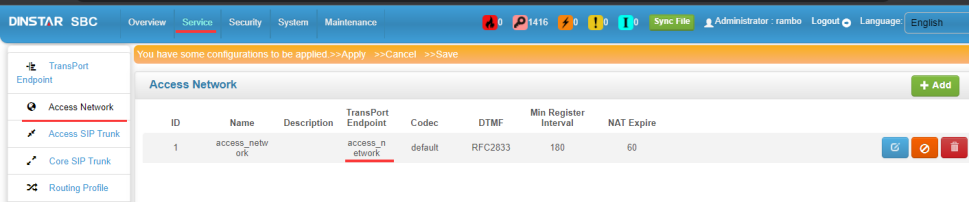
Access Network: connects to the internal network device and is used to connect or register terminals such as softphones, IADs, IP phones, etc.
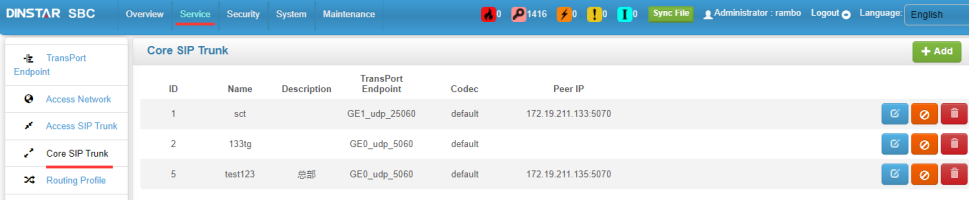
Core SIP Trunk: connects to SIP server and supports registration connection.
Access SIP Trunk: Non-registered connection, such as connection to MTG, DAG.
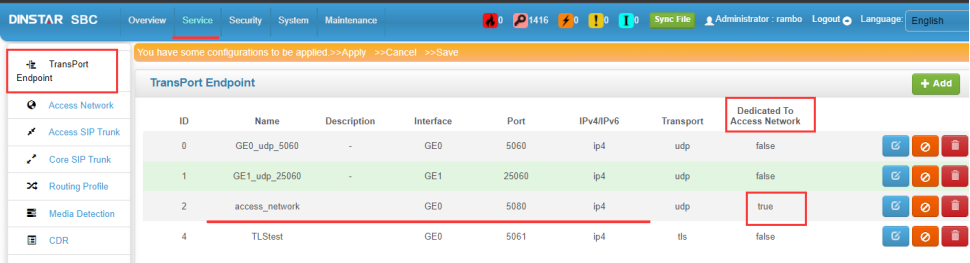
3.2 add TransPort Endpoint
service--TransPort Endpoint page, add the TransPort Endpoint.
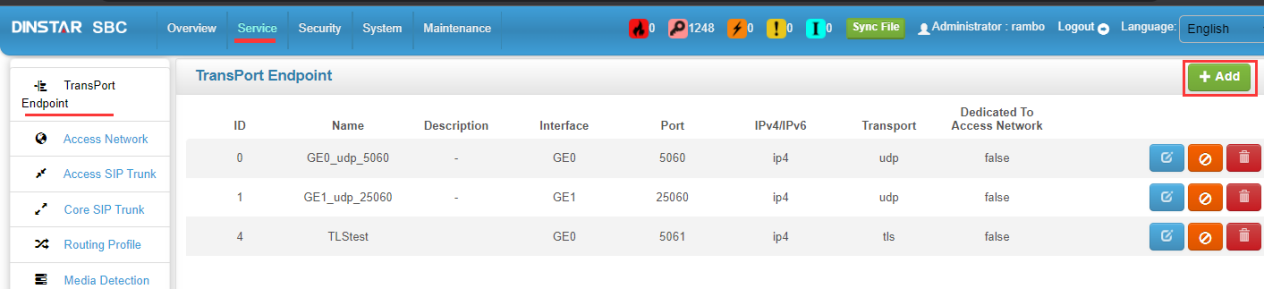
Tip: To add an interface: port, you can add multiple TransPort Endpoints with different ports to an interface for different purposes. For example, GE0:5070 is used for Core SIP Trunk to connect to IPPBX side, and GE0:5080 is used for Access Network to receive extension registration.
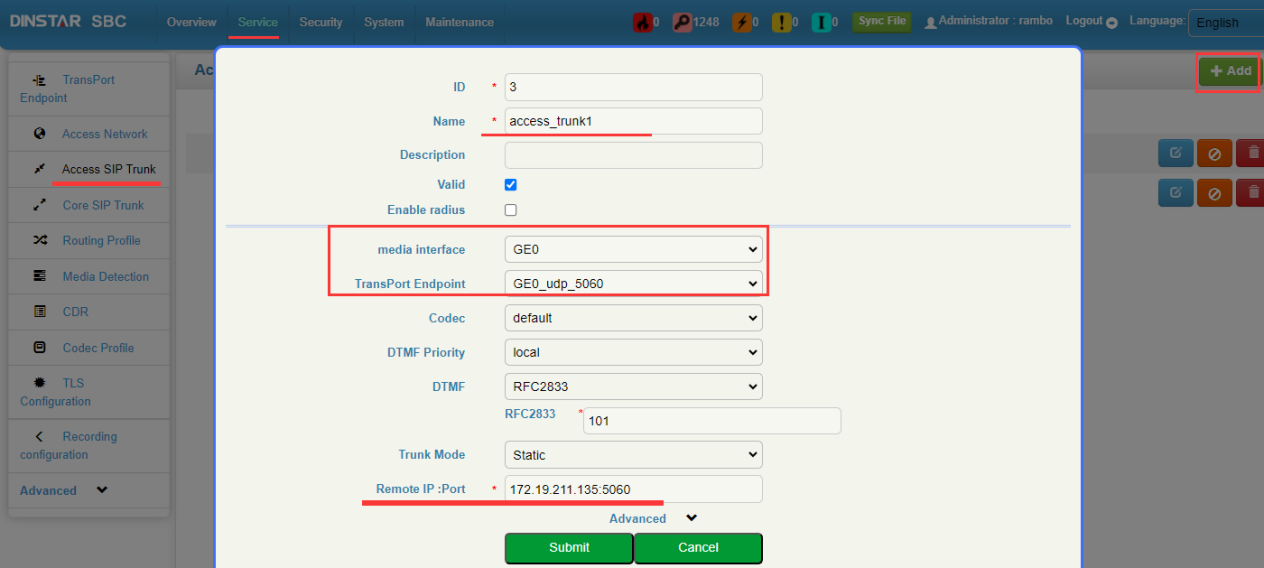
3.3 add Access SIP Trunk
Service--Access SIP Trunk page, click ‘+add' to add Access SIP Trunk, add name, then select "media infterface", "TransPort Endpoint", and then set the remote IP: port. After that, submit/save-apply will take effect.
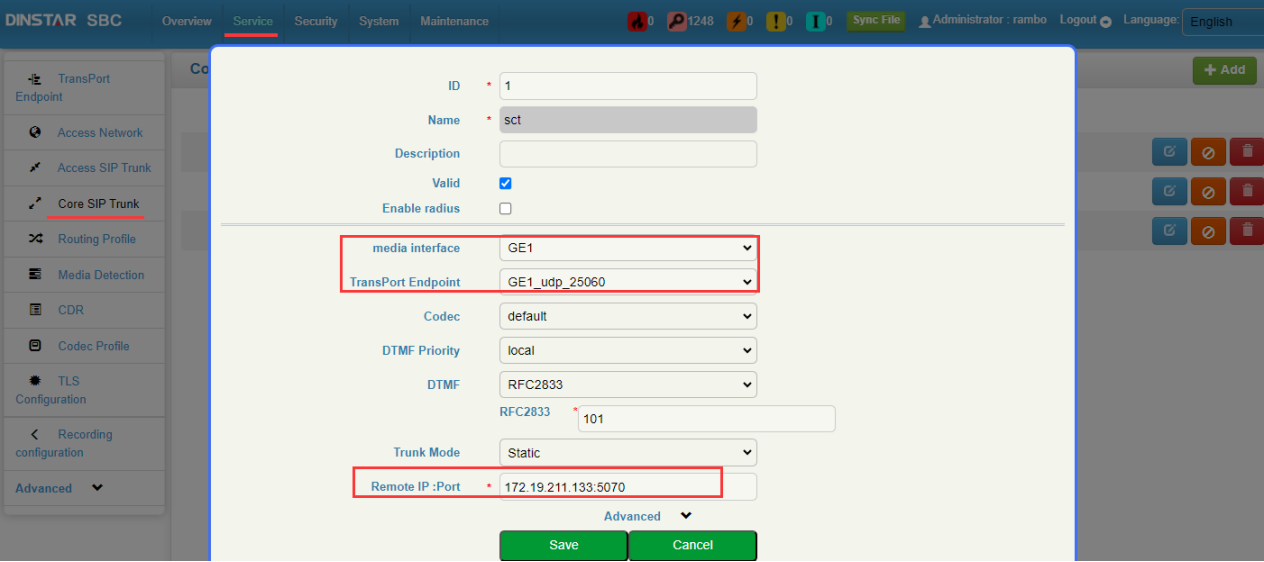
3.4 add Core SIP Trunk
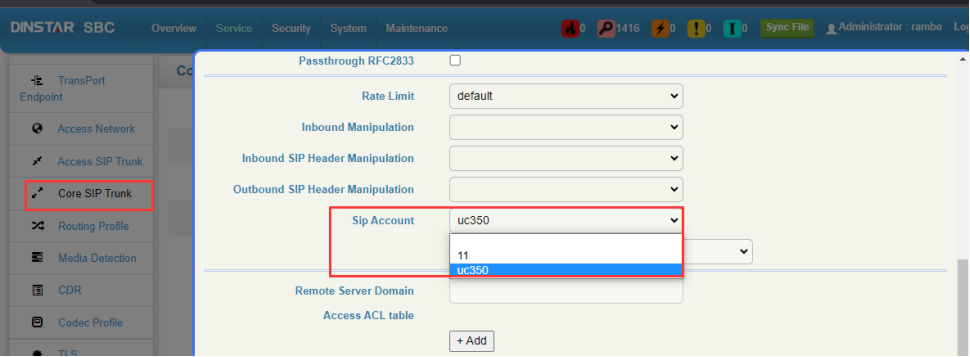
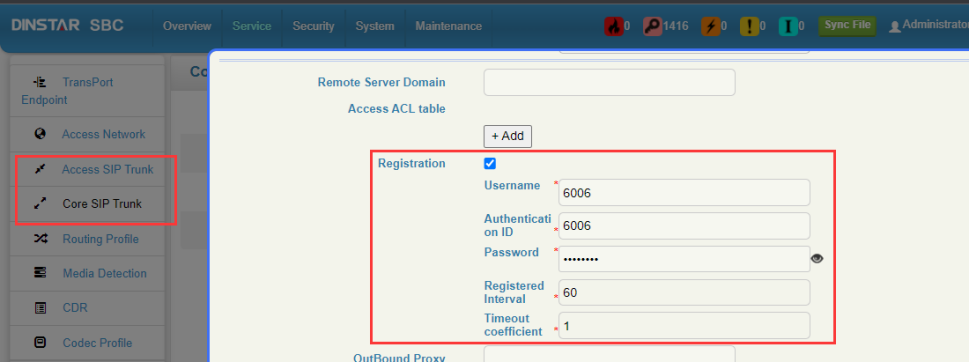
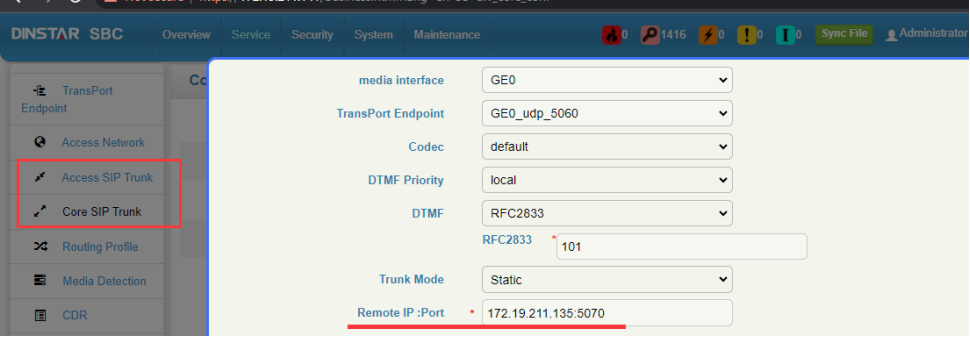
Service--Core SIP Trunk page, click '+add' to add Access SIP Trunk, add name, then select "media infterface", "TransPort Endpoint", and then set the remote IP: port. After that, submit/save-apply will take effect.
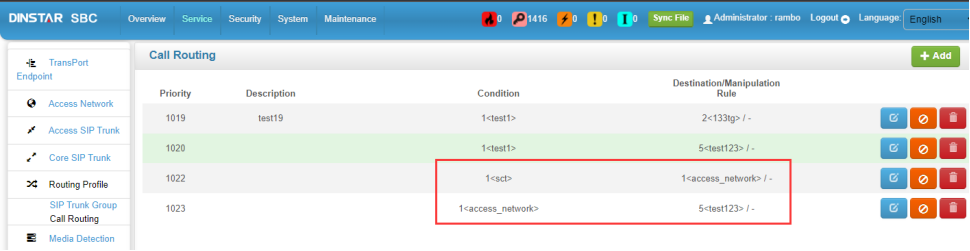
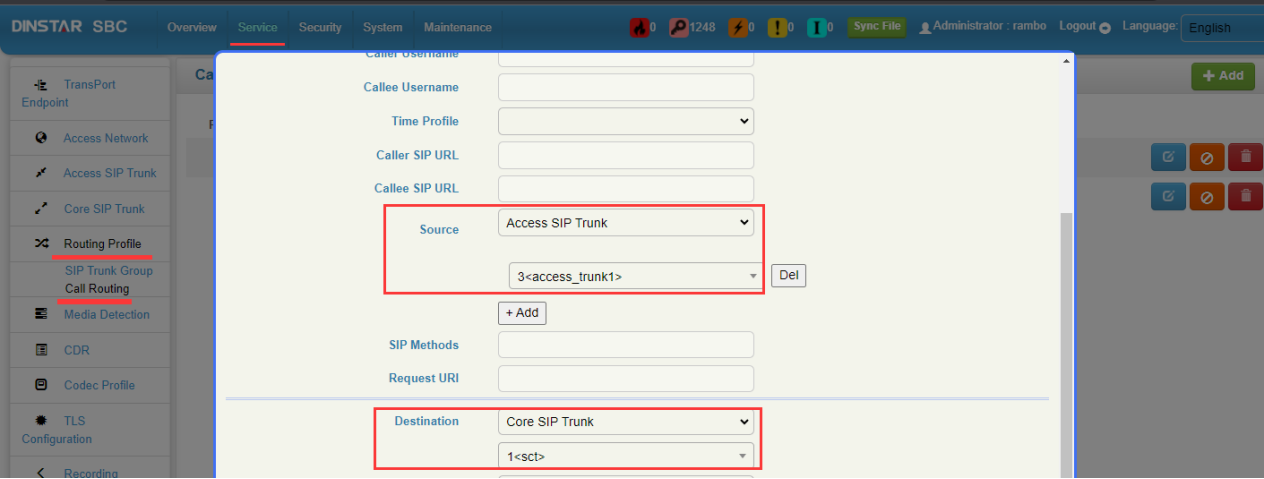
3.5 Add routing for inbound and outbound calls
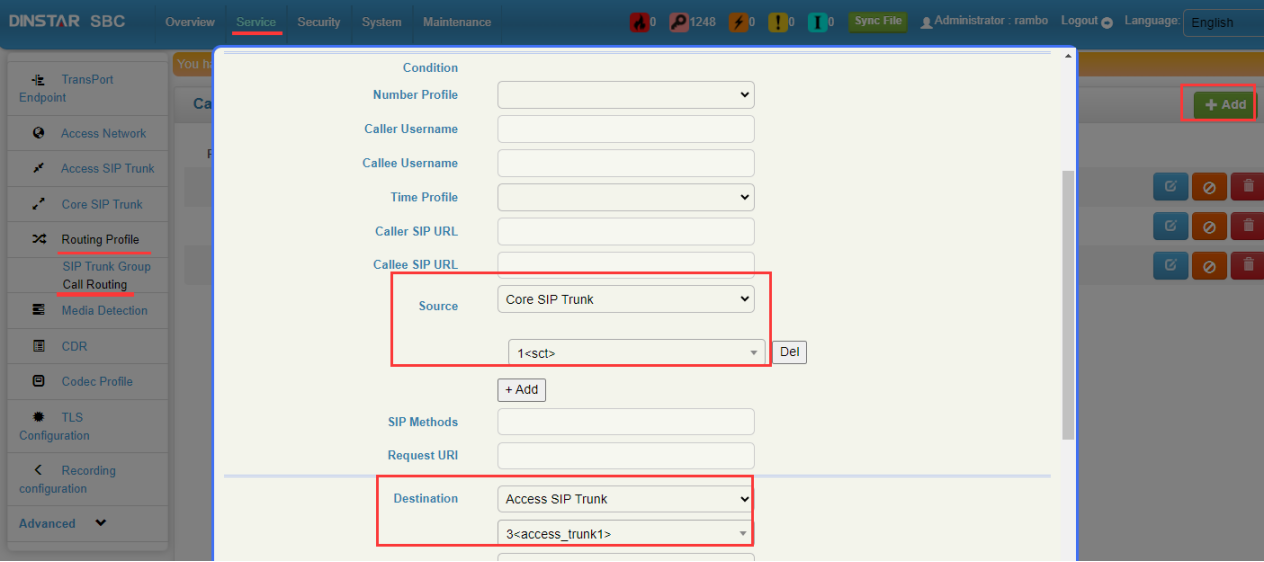
Add inbound routing, call source select added access trunks, destination select added and core trunks! Implement IMS==>SBC==>IPPBX.
Add outbound routing, call source selects added core trunks, destination selects added and access trunks! Implement IMS<==SBC<==IPPBX.
3.6 save&apply and call verify
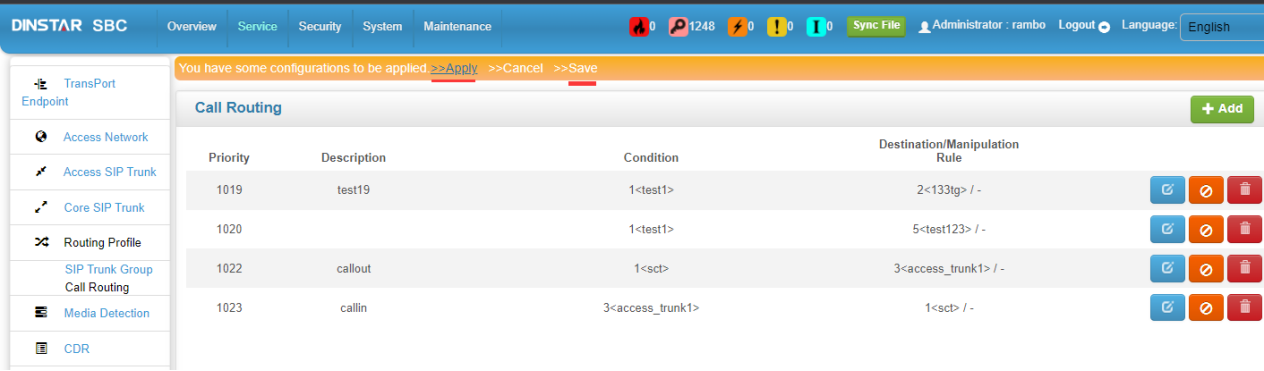
When all settings are complete, you must click save&apply to take effect.
Then initiate a call for verification.
4. Others
4.1 This document was edited on 2023.8.14. The web and interface of the SBC will be different before 2023.
4.2 This document is just a simple case to illustrate the basic configuration of the SBC, different usage scenarios will have different configurations.
If you encounter difficulties in configuration, please gather the required information and inform Dinstar technical staff.
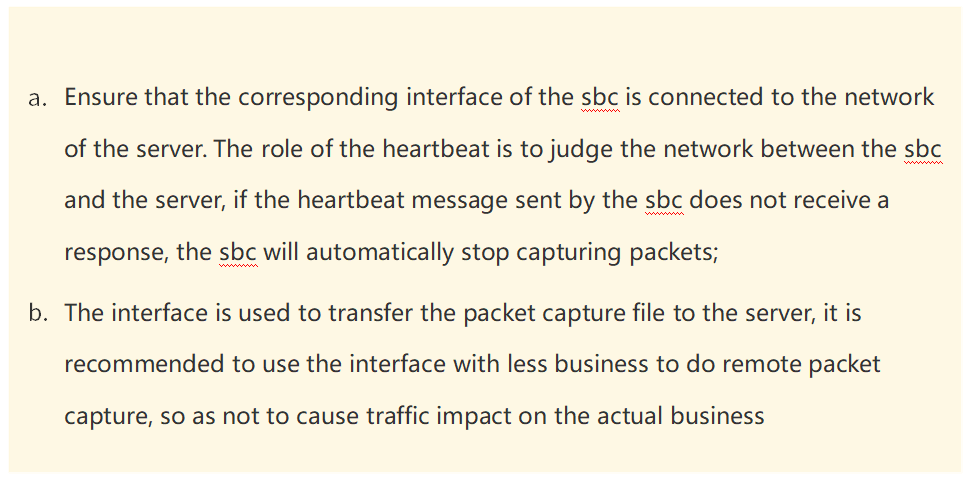
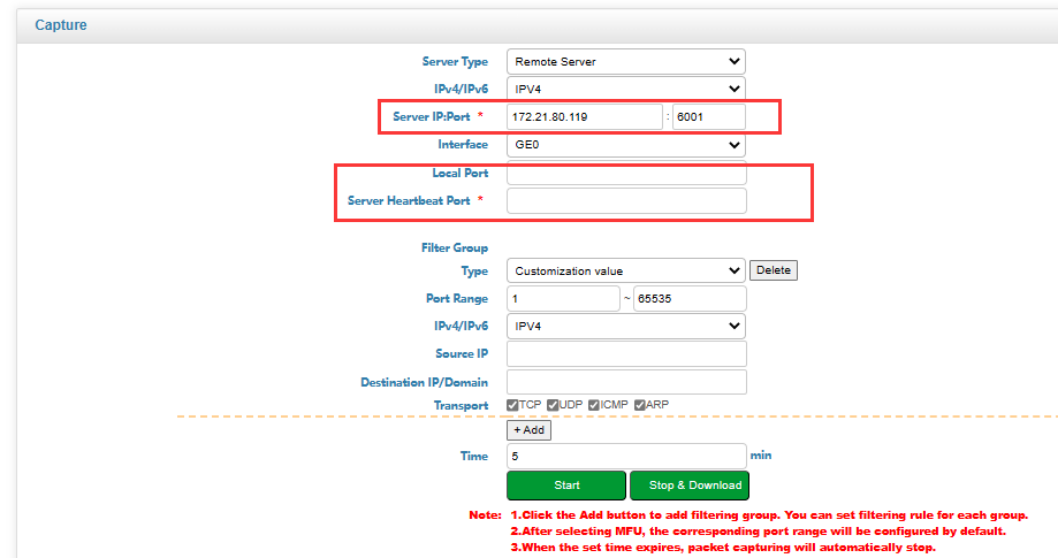
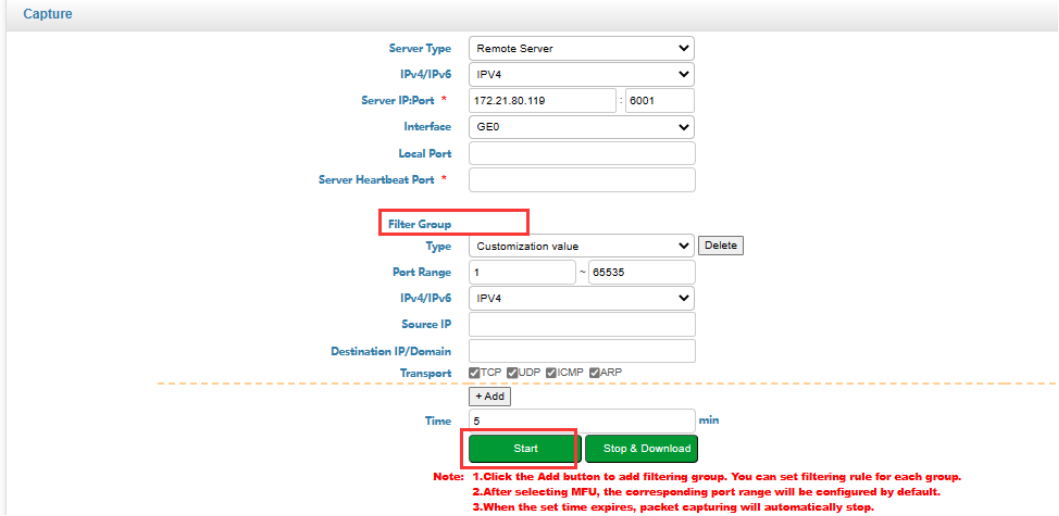
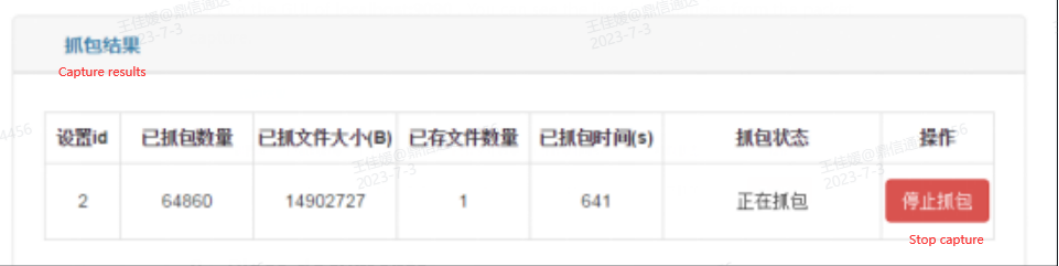
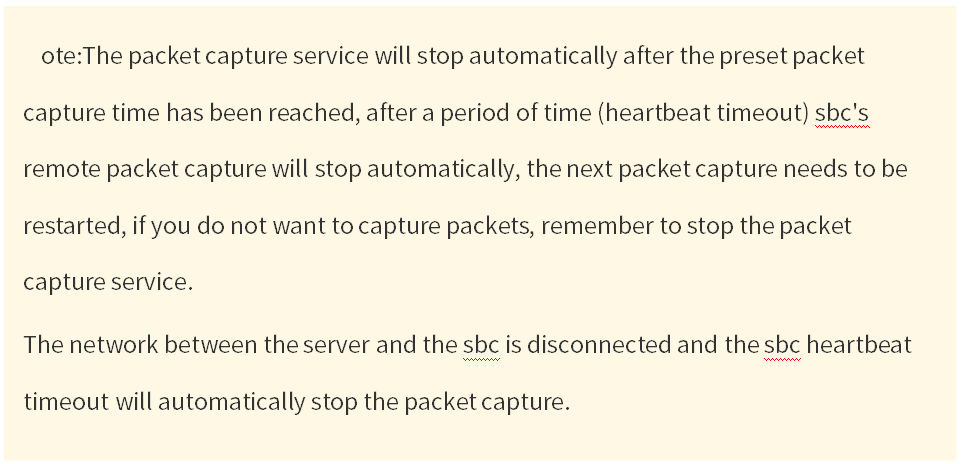
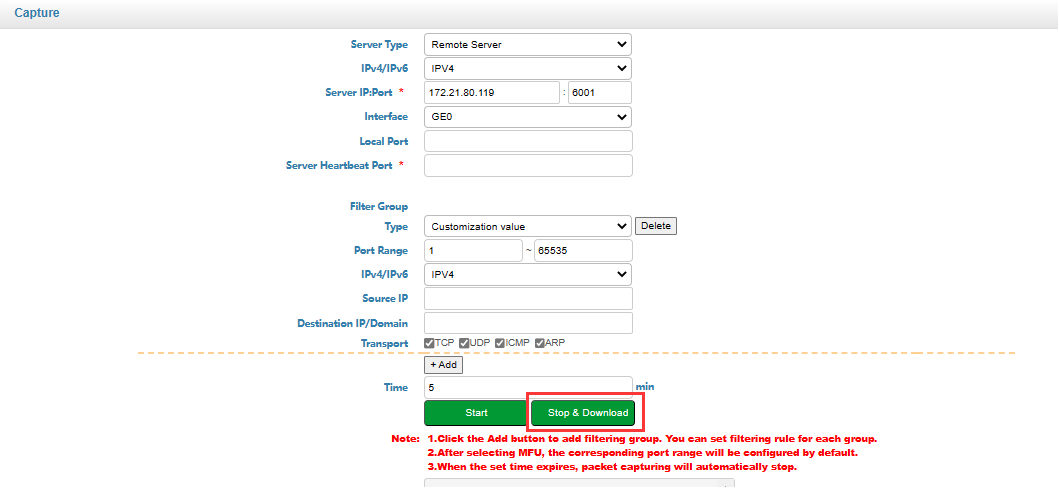
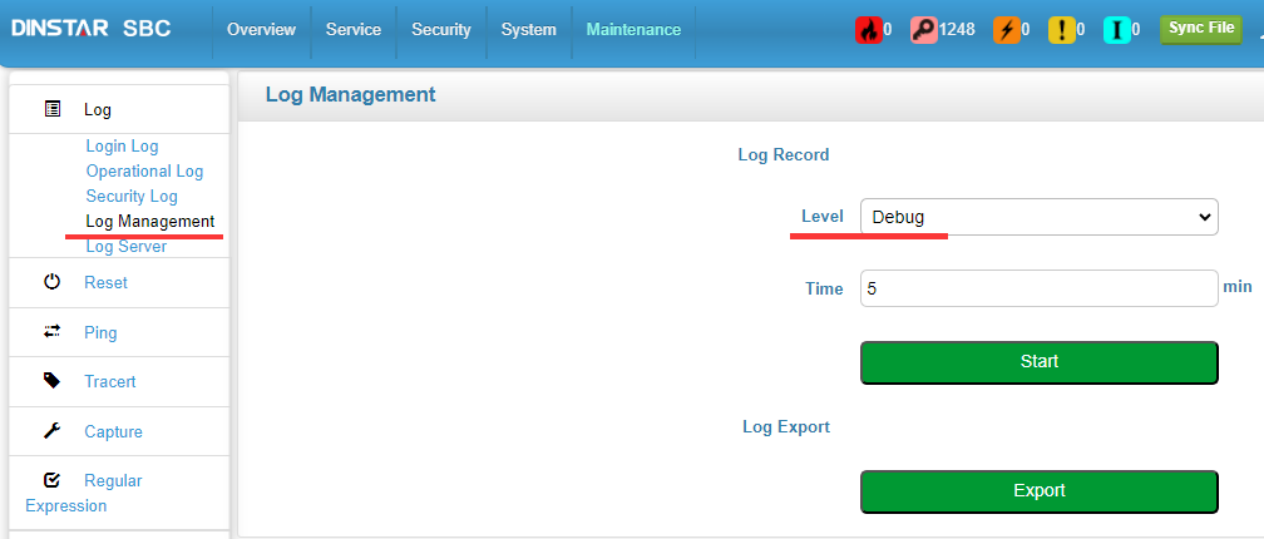
If there is a problem with the call after configuration, please get the network packet, or log to Dinstar technical staff.
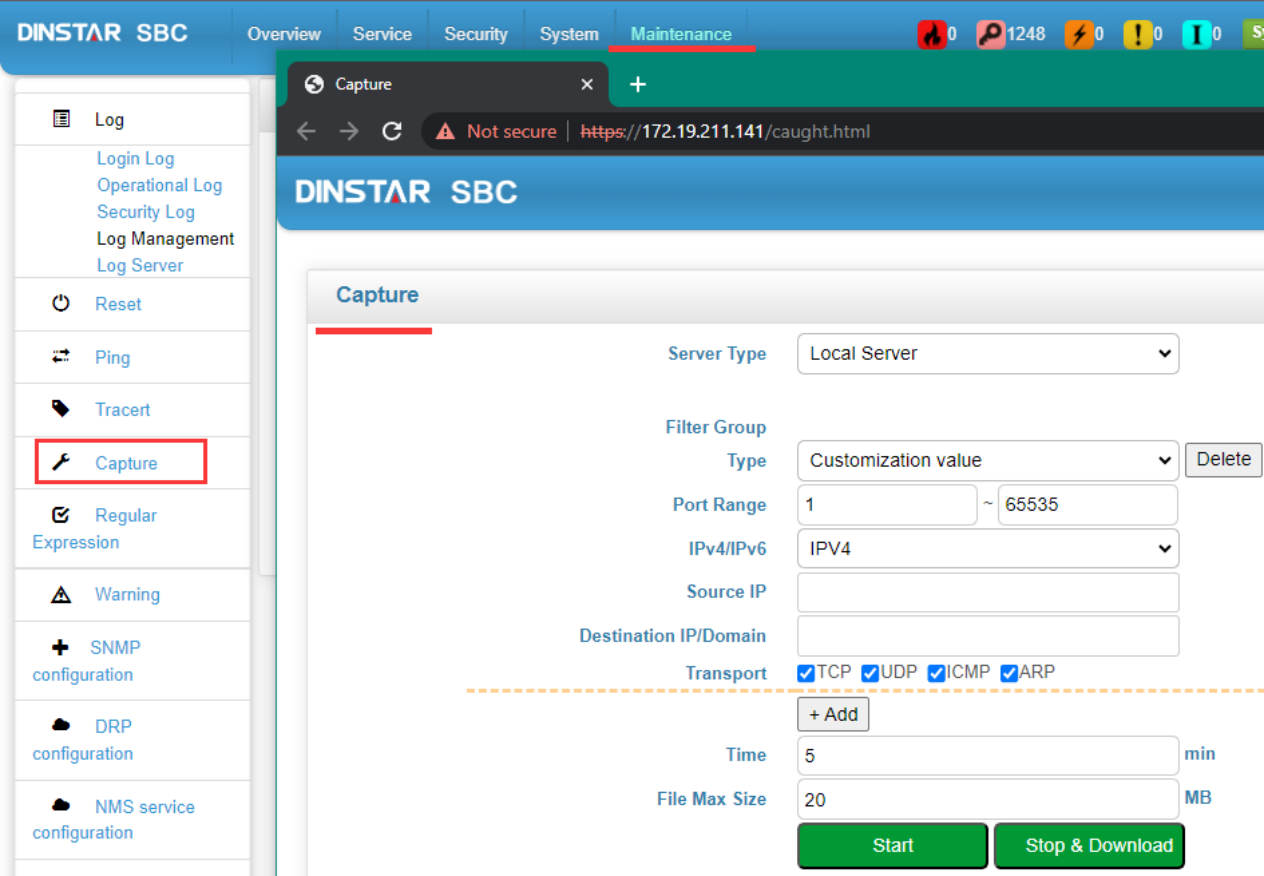



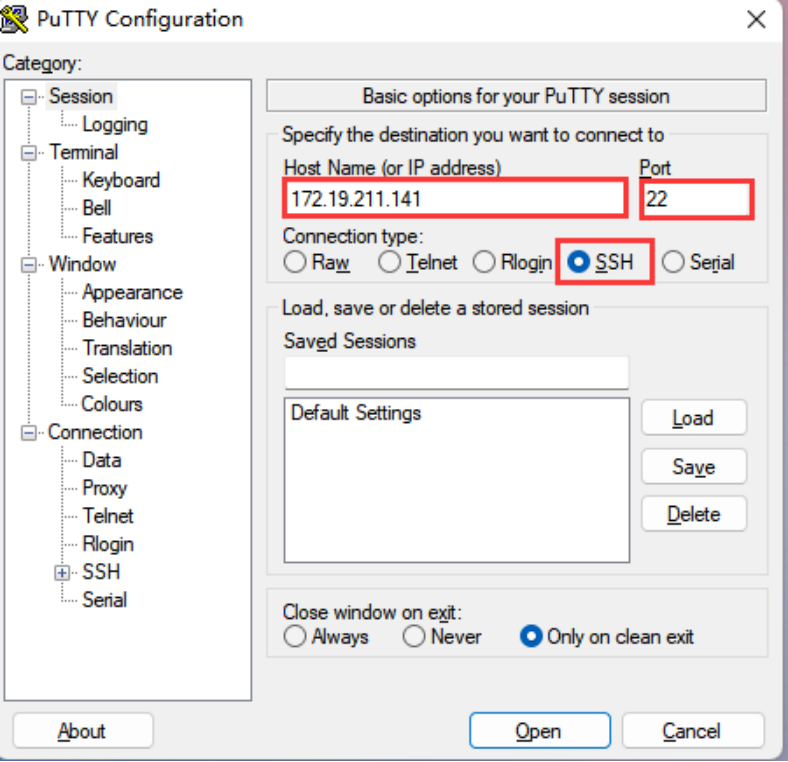
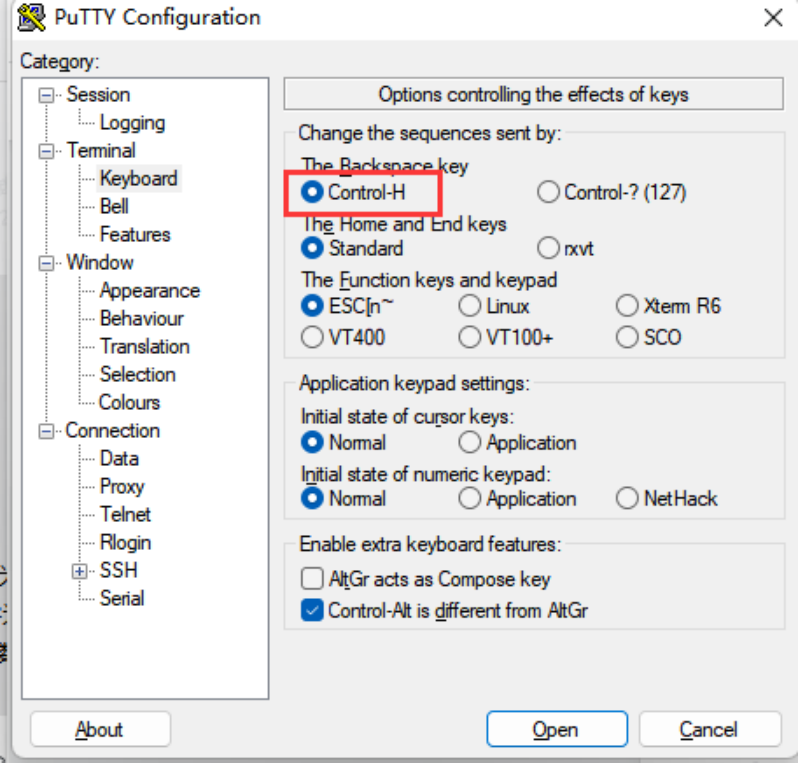
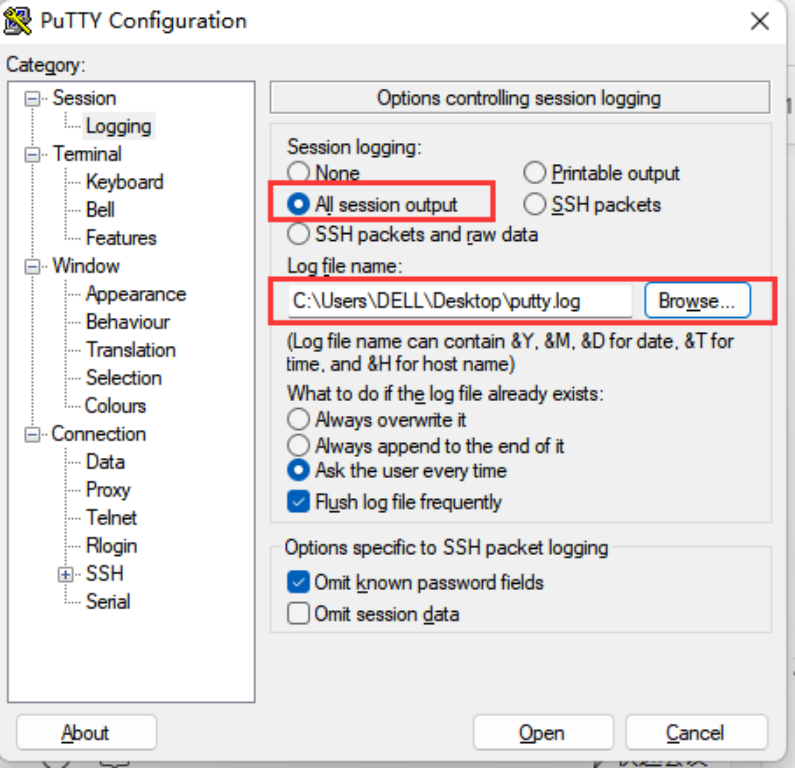
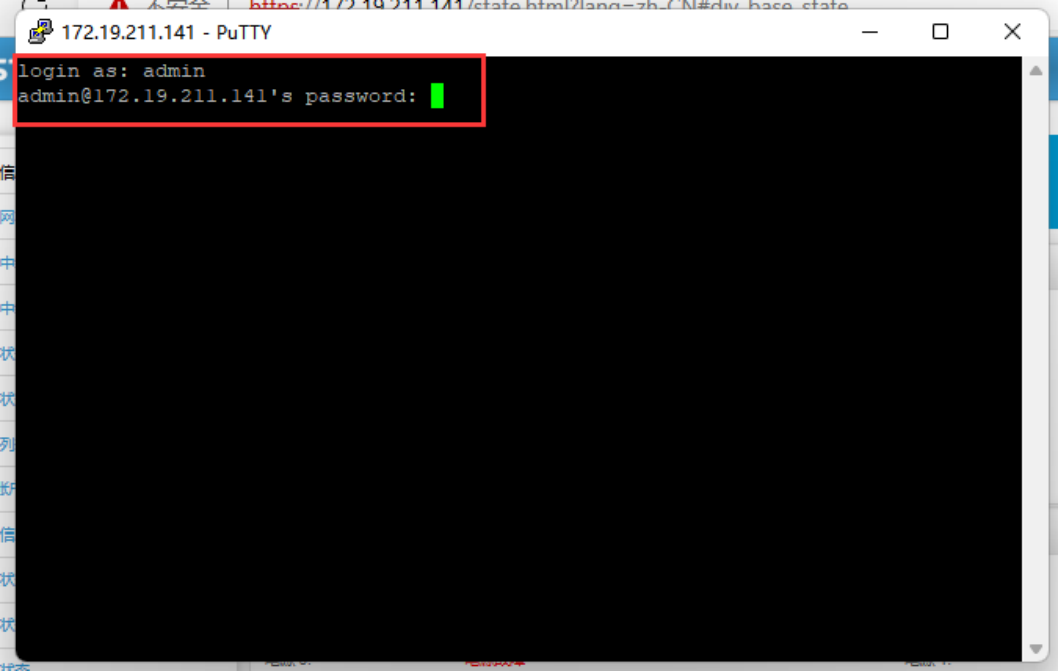
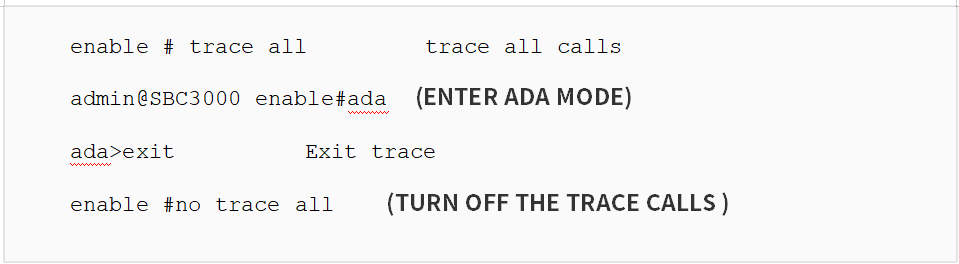
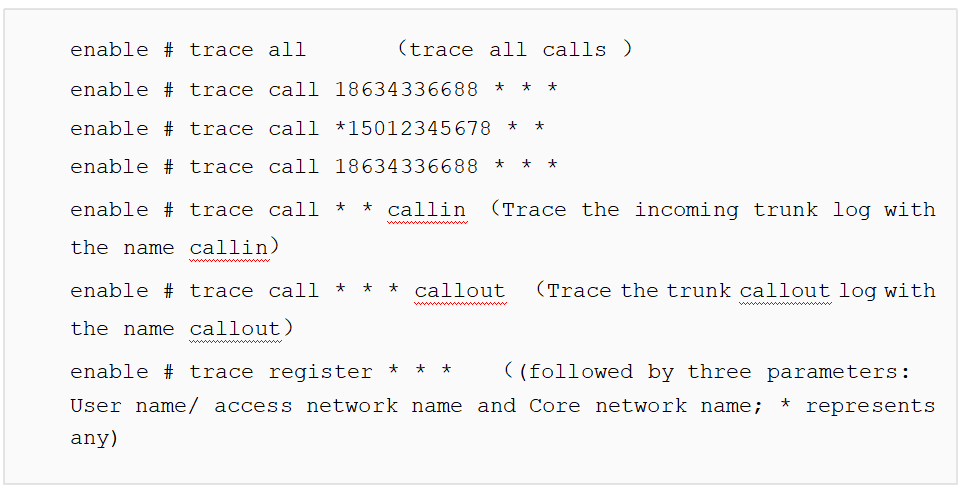
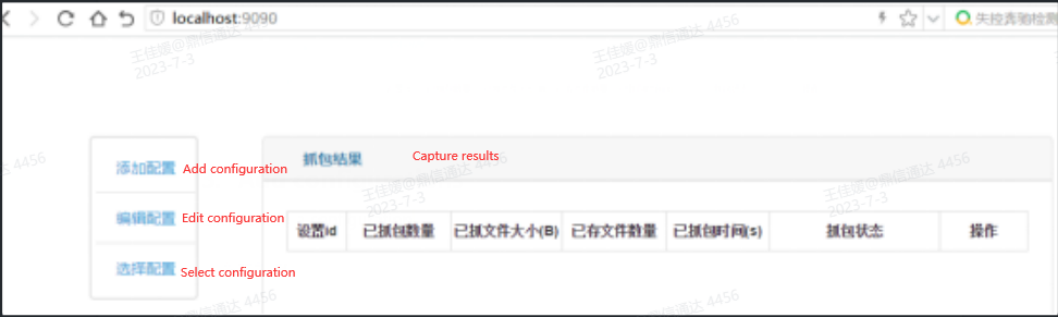
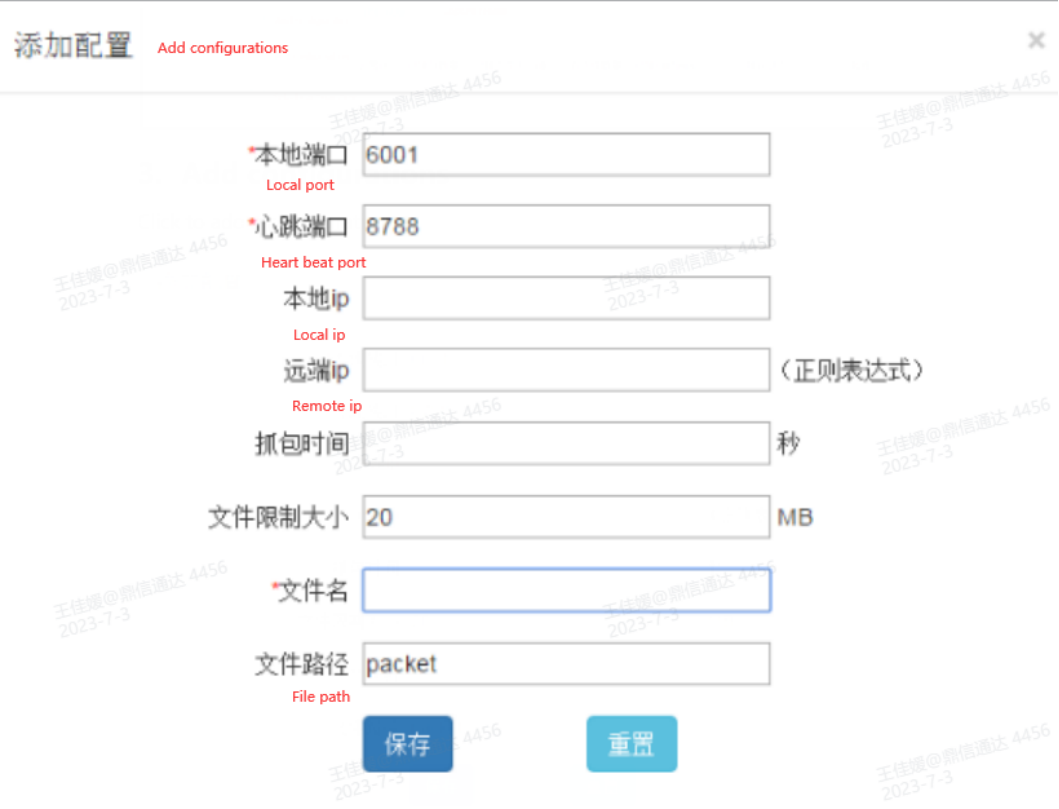
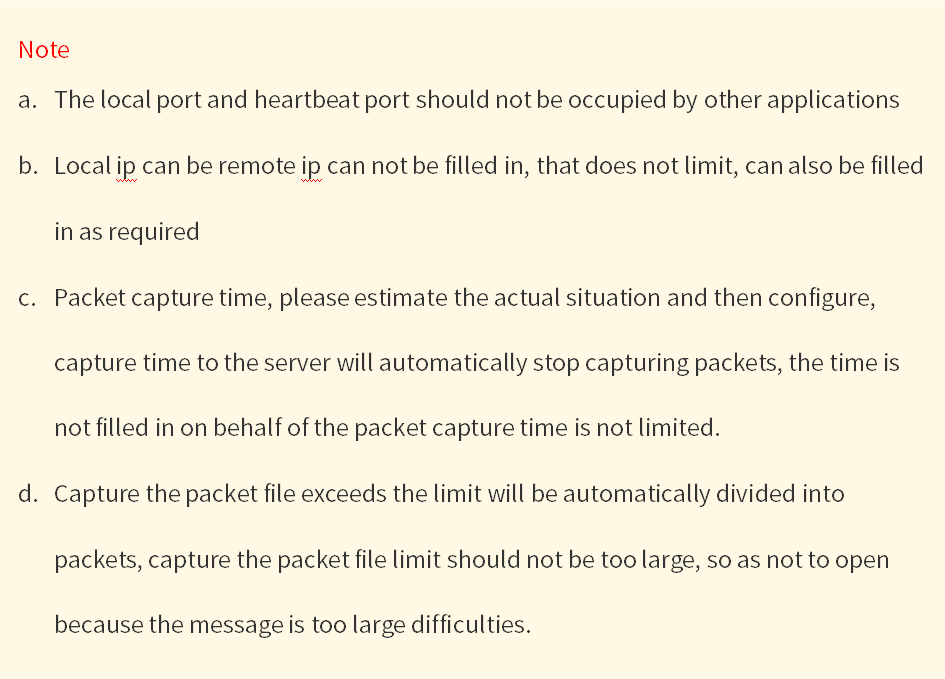
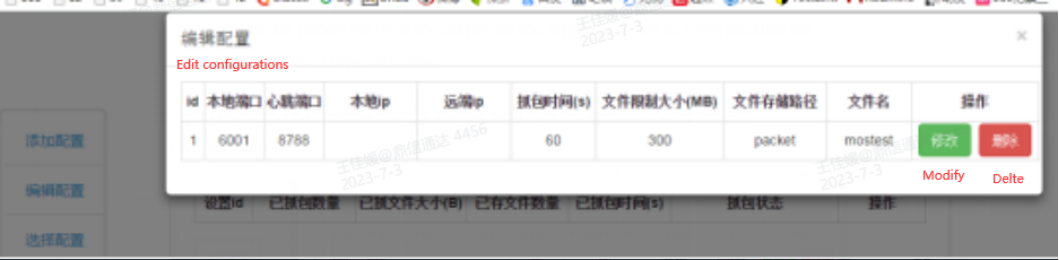
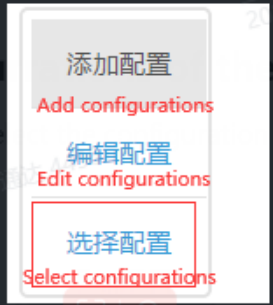
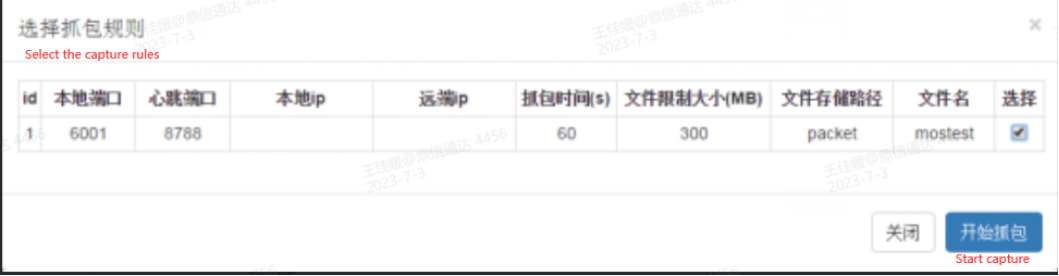
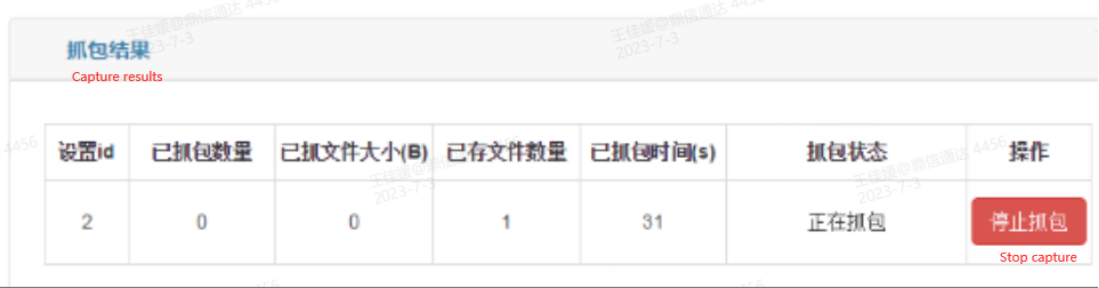
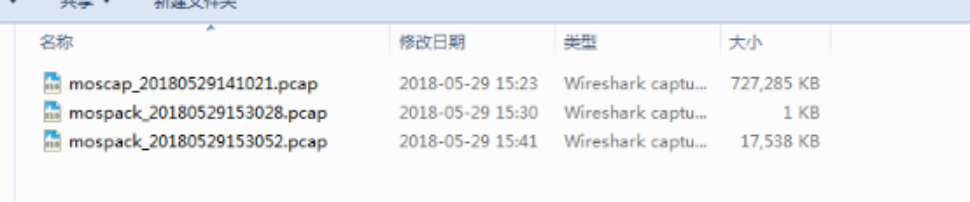
 the executable in a directory on the packet capture server and ensure that the disk where the directory is located has enough storage space to hold the files generated by the packet capture.