Backgrounds
Issabel is Asterisk based open-source Unified Communications PBX software, providing user-friendly web-based configuration, management, and reporting for telephony. Modules providing predictive dialing can be added. It is a fork of the open-source versions of Elastix.
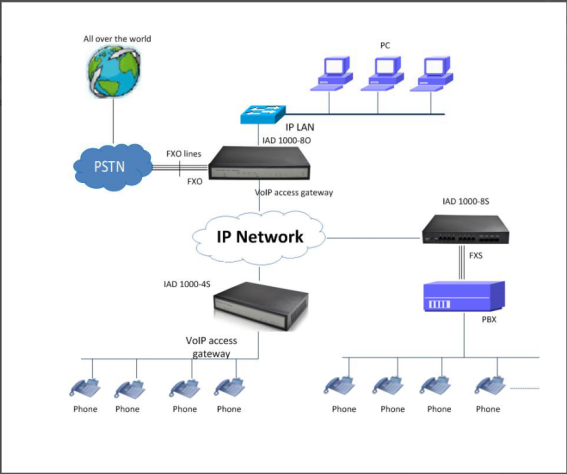
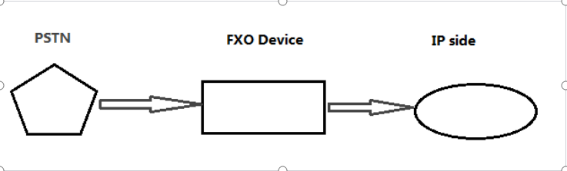
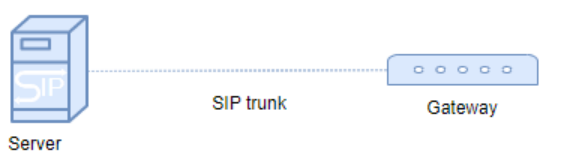
By default, the Issable is pure IP based software phone system, it has no any interface to connect with PSTN. If it wants to support PSTN interface, it has to install analog voice cards with a physical server or connect with extrenal SIP-PSTN gwteways. Nowdays, most of users use gateways to connect with Issabel. Dinstar analog gaeway is the first option to let Issabel work with PSTN. In this guideline, we will show you how to use Dinstar Anaylog gateway to connect with Issabel and make incoming and outgoing calls through Dinstar analog gateways.
Preparations
One Issabel communication server (IP:172.27.0.128,Port:5060)
One Dinstar Analog gateway (IP:172.27.0.100,port :5060)
One extension (Softphone: 100 )
Operation
[Configure Issabel]
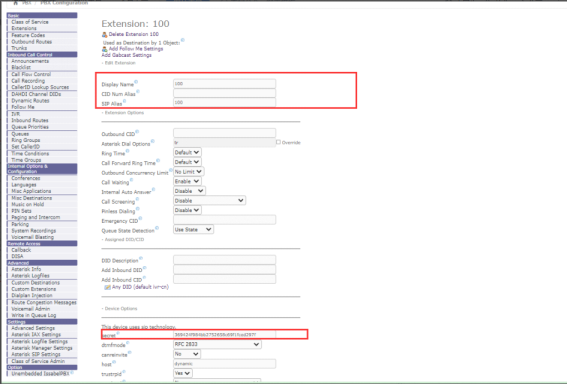
1.Create an extension
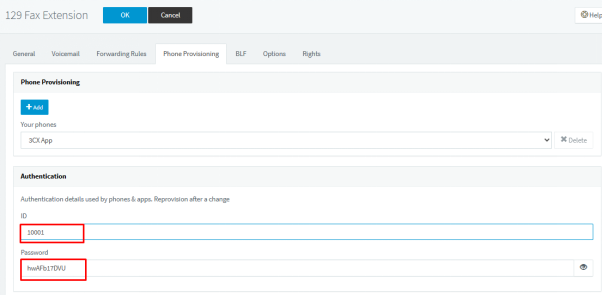
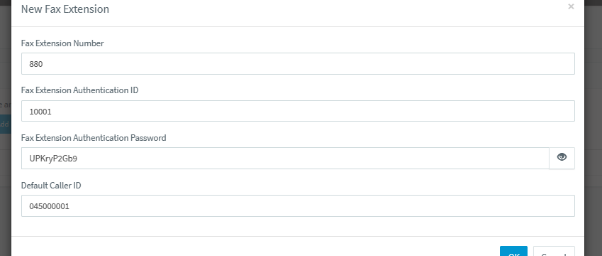
Click PBX >PBX configuration>Extensions.Enter the extension account information like the picture shows below.
2.Create a trunk
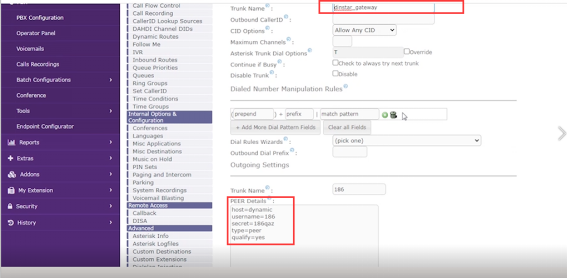
Click PBX >PBX configuration>Trunks and Add SIP trunk.Enter the trunk information like the picture shows below.Enter the host,username,secret,type,quality and so on . After these, please click submit.
3.Create Inbound routes
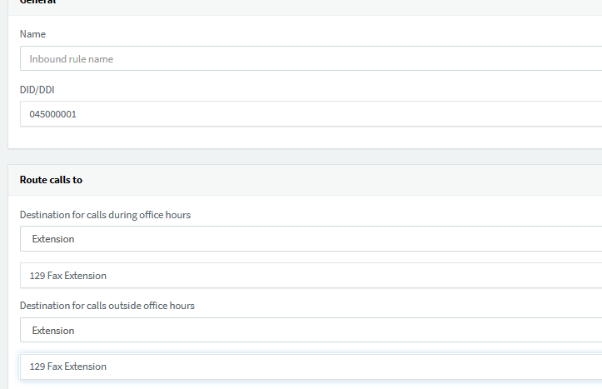
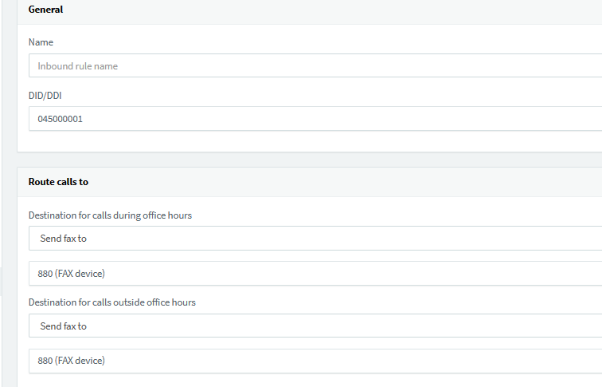
Click PBX >PBX configuration>Inbound routes.Enter the route information like the picture shows below.
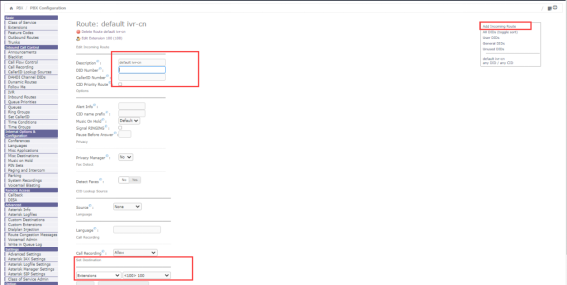
Note: Choose the correct destination
4.Create Outbound routes
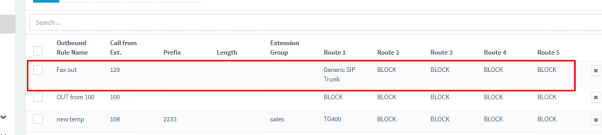
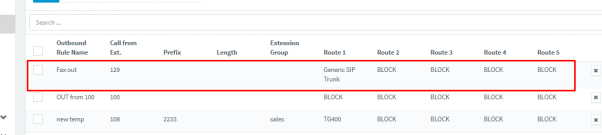
Click PBX >PBX configuration>Outbound routes.Enter the route information like the picture shows below.
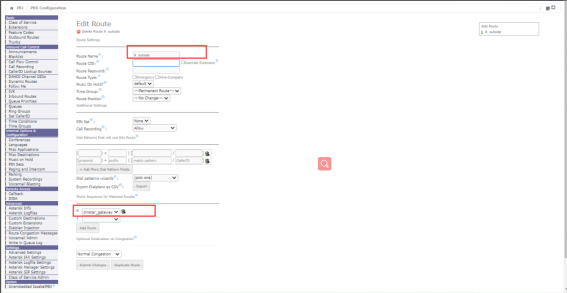
Note: Choose the correct Trunk Sequence for Matched Routes.Here we set dinstar_gateway as the highest
5.Overview
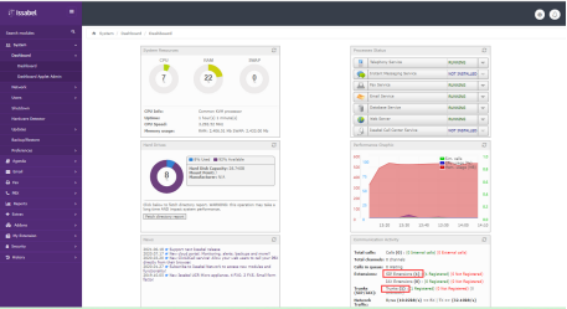
The configured steps on Issabel have finished, users can check the extension and Trunk status in Dashboard.There shows a registered extension and a registered trunk.
[Configure Analog gateway]
1.Overview
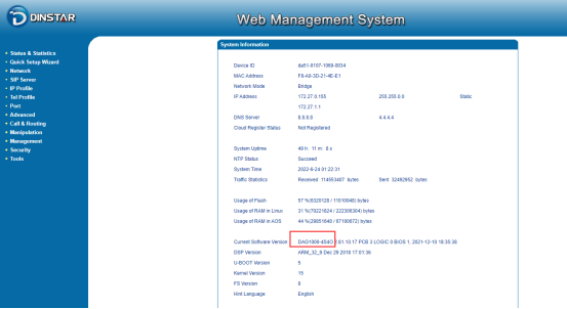
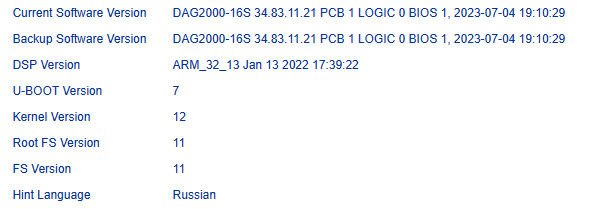
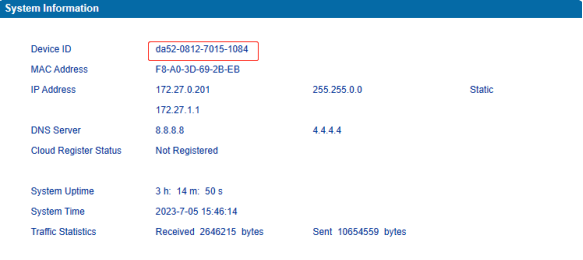
Check the device System information in Status&Statics >System information .
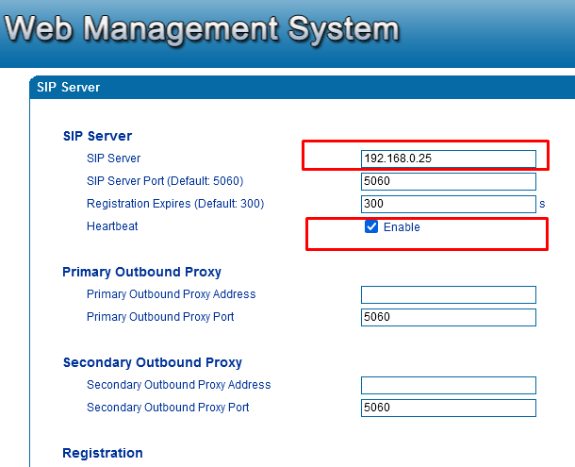
2.Add a sip server
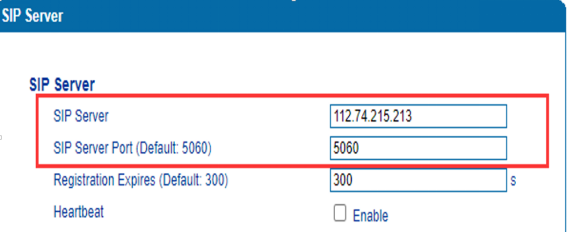
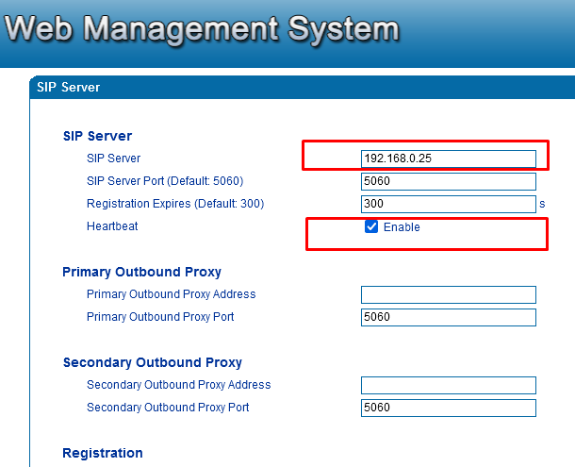
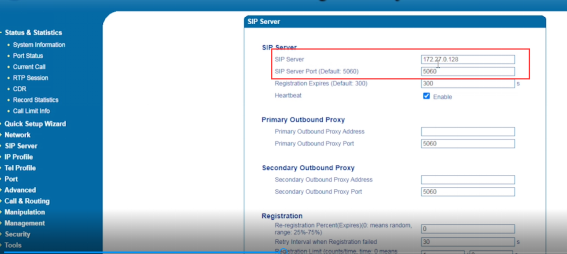
Click SIP Server,enter the server IP and server port(default:5060 ,the remote listen port).As is shown in the picture.
3.Add a port
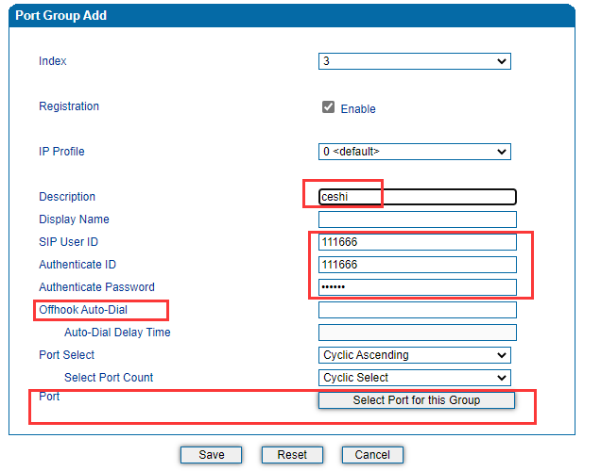
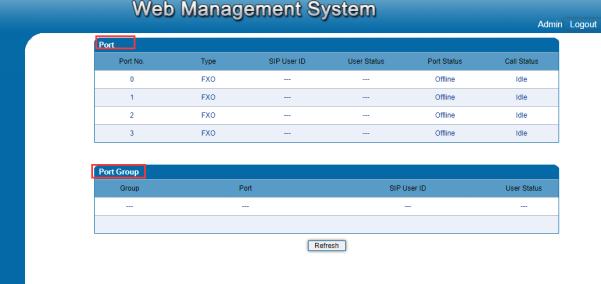
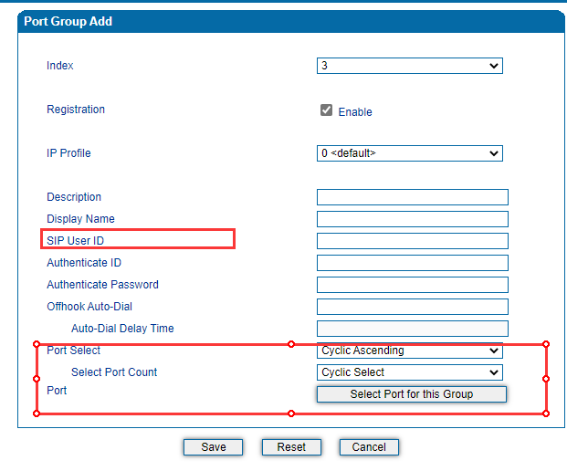
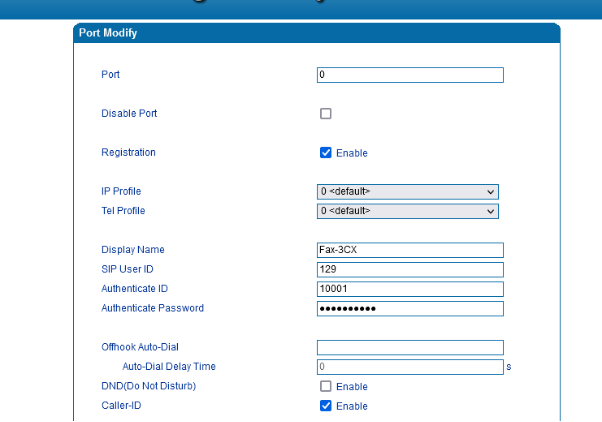
Click Port and Add,then users can add account on the port.Here we use Fxo port 4 and enter the following information on the port ,As is shown in the picture.
Note:The sip username is matched to pbx peer information
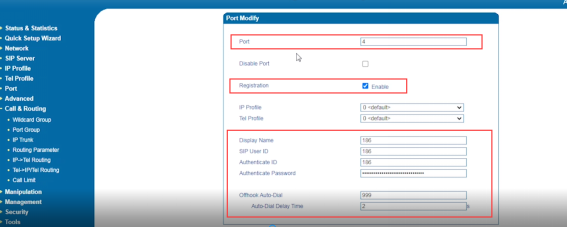
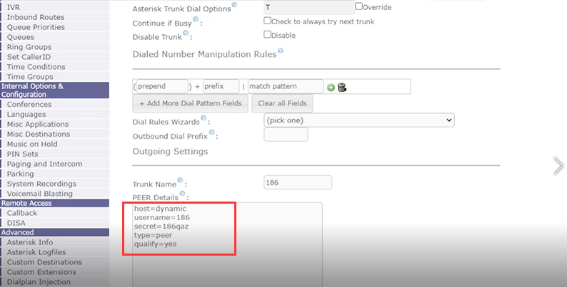
If you want to make incoming calls without prompting “please dial extension number”,Please enter Offhook Auto-Dial.When make incoming calls from FXO to SIP server,the call from sip server go to the corresponded extension.
4.Create an Inbound route
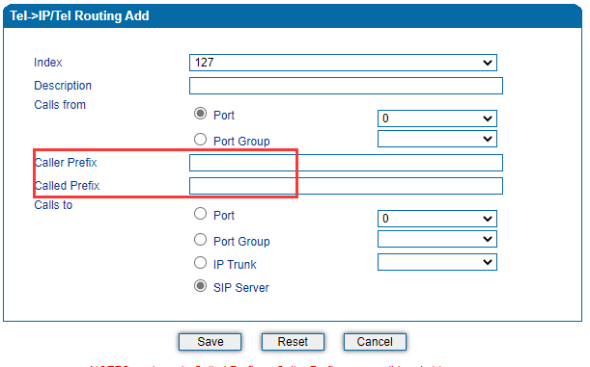
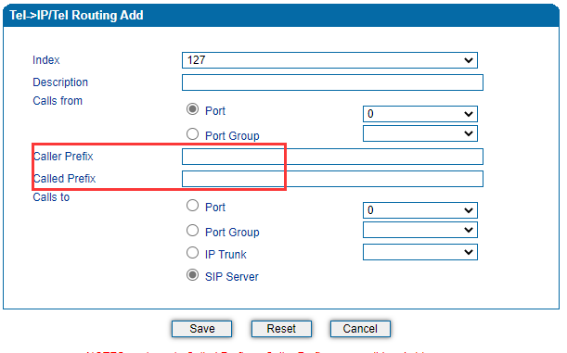
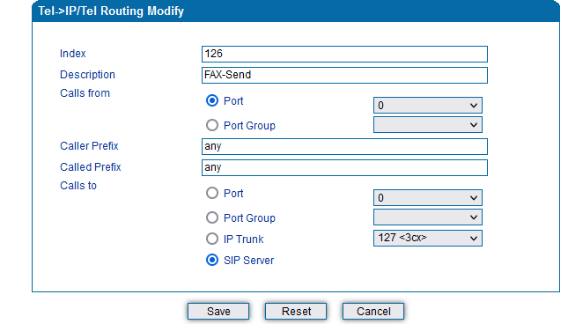
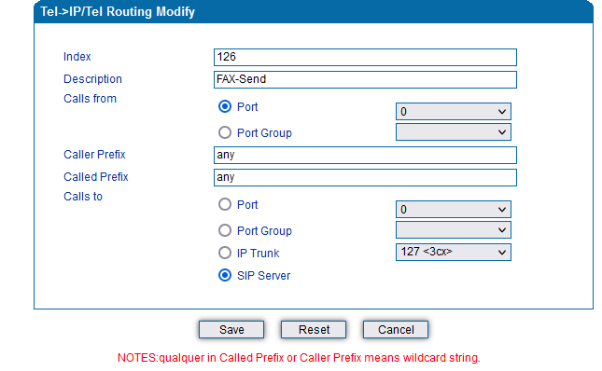
Click Call&Routing> Tel>IP routing.Enter description,call from,calls to and “any” in caller prefix and called prefix without limiting.
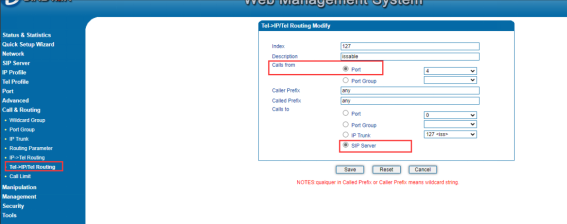
Note : Call from is port and calls to is sip server.
5.Create an outbound route
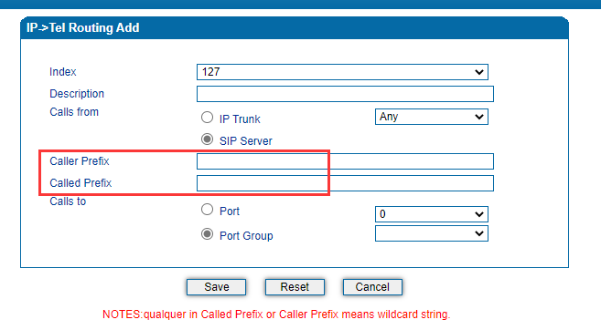
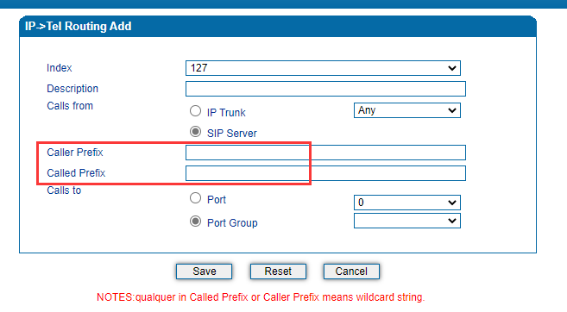
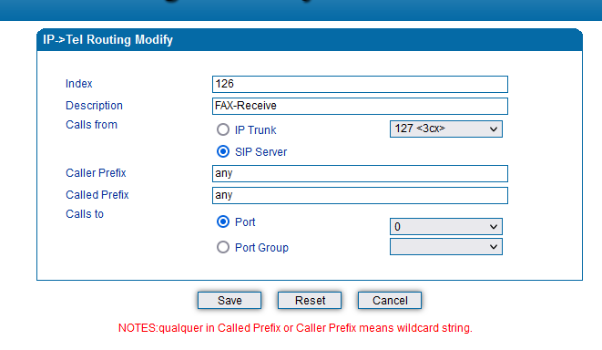
Click Call&Routing> IP>Tel routing.Enter description,call from,calls to and “any” in caller prefix and called prefix without limiting.
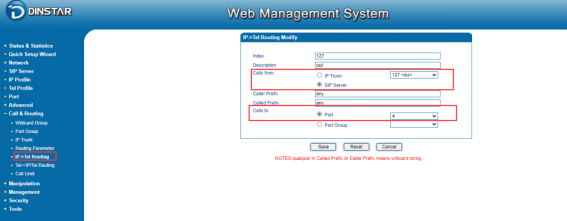
Note : Call from is sip server and calls to is port.
Tests and Results
[Make an outgoing call test]
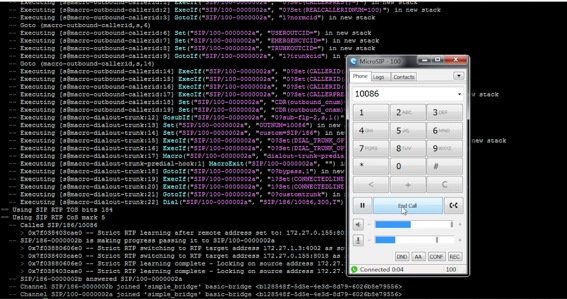
A call from extension 100 to service number 10086.Users can observe the call status in the following picture.
[Make an incoming call test]
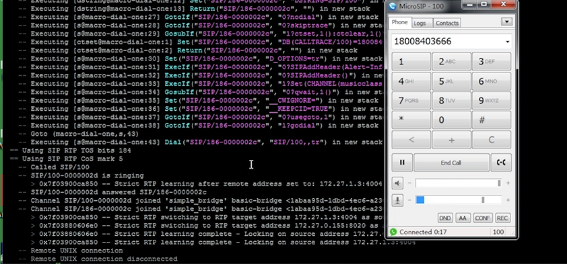
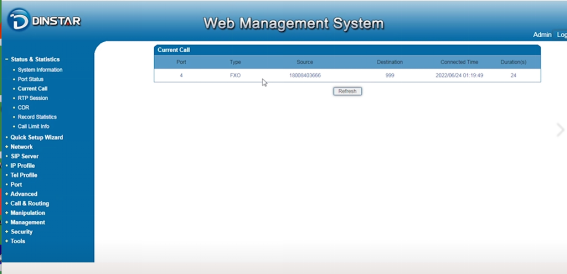
A call from mobile phone to extension 100.Users can observe the call status in the following pictures.