A

1 How to Use Auto-Provisioning
1.1 Description
1 How to Use Auto-Provisioning
This document is written to provide instructions for using the auto-provisioning function, which can make Dinstar Door Phone automatically update with the latest firmware, configurations, customized ringtones and local contacts stored on a DHCP/PnP/TFTP/FTP/HTTP/HTTPS server.
That is to say, Door Phone uses DHCP/PnP/TFTP/FTP/HTTP/HTTPS network protocols to get URL, and then download firmware or configuration files from that server. These configuration files and firmware will be used to update related parameters on the Door Phone.
By default, auto-provision is used only when Door Phone is idle, because the update might trigger a software reboot, which may interrupt a call.
Automatic deployment has the following features:
General configuration provisioning: In this scenario, a general configuration file is stored in the server and all Door Phones download the same configuration file to update their parameters.The General configuration provisioning file usually name as dp00000000008x.cfg.
DP81: dp000000000081.cfg
DP82: dp000000000082.cfg
DP83: dp000000000083.cfg
DP85: dp000000000085.cfg
DP88: dp000000000088.cfg
DP92: dp000000000092.cfg
MAC based configuration provisioning: In this scenario, each configuration file is for a specific Door Phone with the MAC address that matches the file name. The parameters in this configuration file are for that specific Door Phone only.
1.2 Working Principle
A complete automatic update process consists of the following:
Step 1. Administrator sets up the provisioning DHCP/PnP/TFTP/FTP/HTTP/HTTPS servers with the required information;
Step 2. Door Phone gets the URL of the configuration file server;
Step 3. Door Phone downloads the configuration file from the server with URL obtained in step 2.
Step 4. The configuration parameters in the configuration file are written to the appropriate configuration files of the Door Phone;
Step 5. If configuration file contains the content for upgrading the firmware, Door Phone will get the firmware and do a firmware update.
1.3 Ways to Obtain Server URL
When an Door Phone is powered on, it will try to obtain the upgrade server address in the following order: PNP Server à DHCP Custom Option à DHCP Option43 à DHCP Option66àUser Specified Server. You can use any one of the above methods to set up the auto provisioning.
1.3.1 Enable PnP
PnP stands for Plug and Play. PNP provides a proprietary automatic upgrade, when PnP upgrade mode is enabled, the Door Phone will broadcast a "SIP SUBSCRIBE" in the network. A SIP server will reply with a "SIP NOTIFY” with the URL of the firmware and/or configuration file server.
The following procedure is for setting up PnP auto provisioning:
First, you need to configure the SIP server to have PNP and set the update server URL in it.
Click "Upgrade -> PnP" on the Web interface of Door Phone, and then enable PNP(Default is Enabled). The Door Phone will use PNP to get the correct auto provisioning URL and download the firmware and the configuration files;
If Auto Provision mode is set(Default is Power On), the Door Phone will do the auto provisioning on the specified time frame as set in the automatic Auto Provision mode.
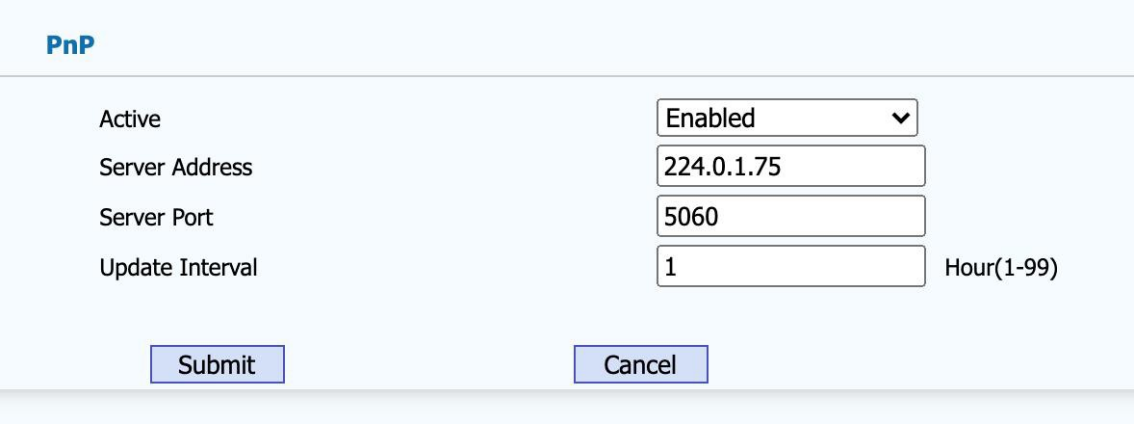
Figure 1-1 Enable PNP Auto Provisioning
1.3.2 DHCP Custom Option
If Door Phone is set to use DHCP Option to obtain the auto provisioning URL, it will send a request to a DHCP server for a specific DHCP option code. First, you need to configure a DHCP option code on the Web interface of the Door Phone.
You can use any custom DHCP option code from 128 to 254:
Configure DHCP server to have a specific custom option code with the update server URL in it, for example, 230. And then the Door Phone will get the upgrade server URL from the DHCP server with the option code 230.
If autop mode is set, the Door Phone will do the auto provisioning on the specified time frame as set in the autop mode.
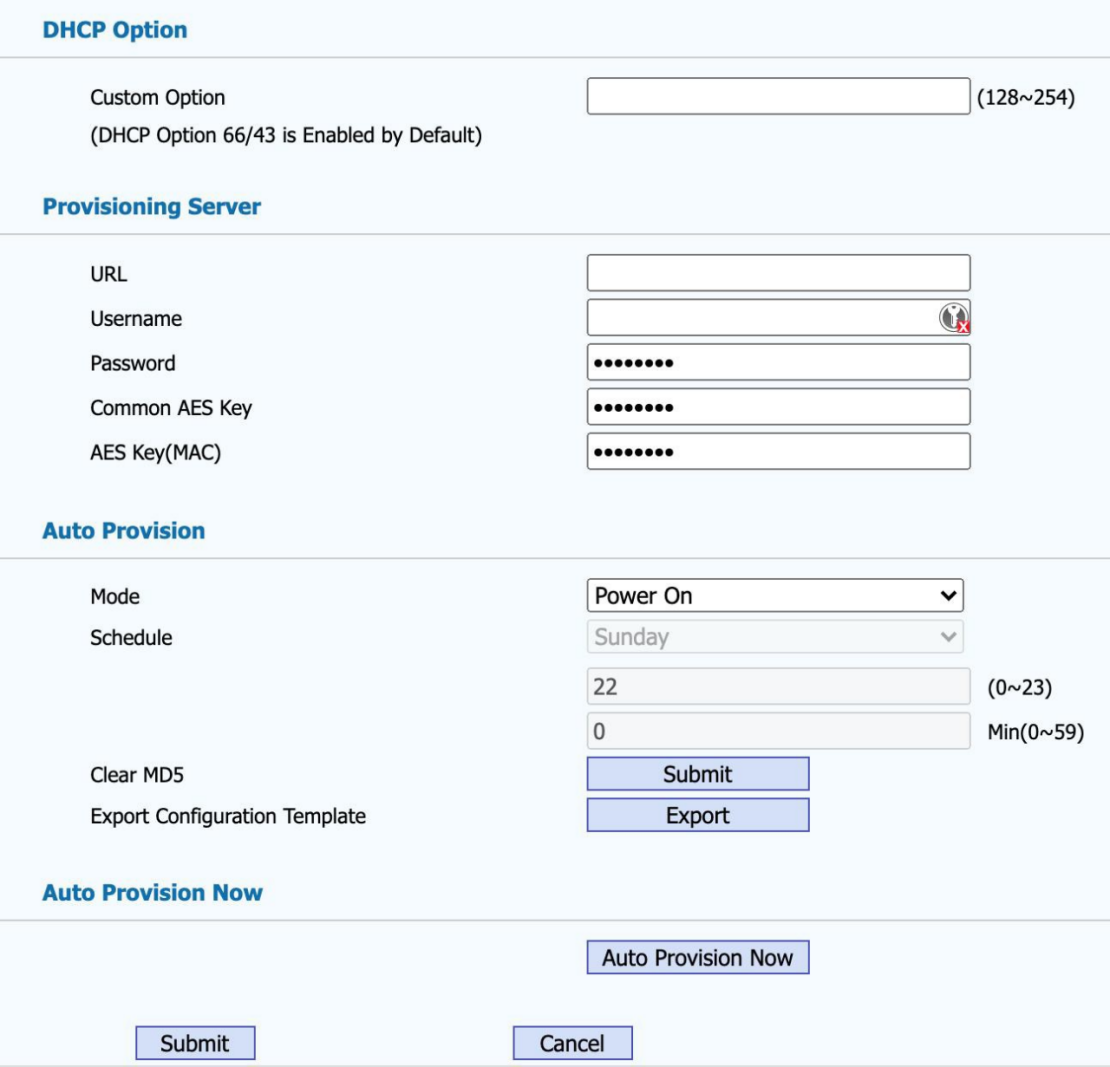
Figure 1-2 Configure DHCP Custom Option
1.3.3 DHCP Option 66
If none of the above is set, Door Phone will automatically use DHCP Option 66 for getting the upgrade server URL. This is done within the software and the user does not need to configure any parameters. DHCP Option 66 is enabled by default.
1.3.4 DHCP Option 43
If the Door Phone does not get an URL from DHCP Option 66, it will automatically use DHCP Option 43. This is done within the software and the user does not need to configure any parameters. DHCP Option 43 is enabled by default.
1.3.5 User-Specified Server:
You can manually set a specific server URL for downloading the firmware and/or configuration file.
Set update server URL (e.g., "tftp://172.21.02.03"), click [AutoP Immediately], the Door Phone will use the URL to download appropriate firmware and/or configuration files from the TFTP server and will upgrade with the downloaded files;
If autop mode is set, the Door Phone will do the auto provisioning on the specified time frame as set in the autop mode.
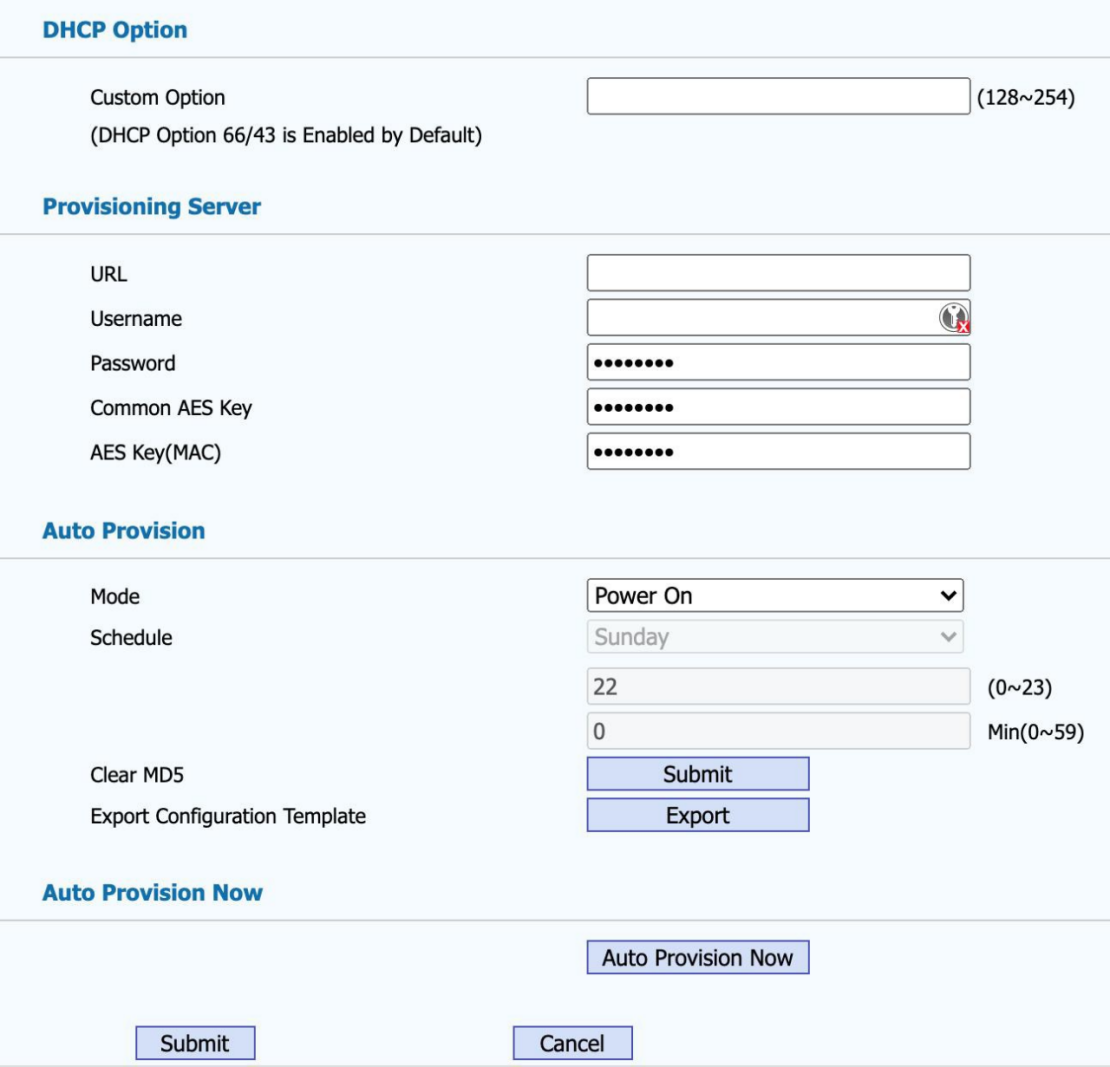
Figure 1-3 Configure Server URL Manually
You can also use FTP, HTTP, or HTTPS as the protocol for upgrading the firmware and/or configurations of the Door Phone. The format of them are as follows:
TFTP Format:
tftp://172.21.02.03/
FTP Format:
ftp://172.21.02.03/ (allows anonymous login)
ftp://username:password@172.21.02.03/ (requires a user name and password)
HTTP Format:
http://172.21.02.03/(use the default port 80)
http://172.21.02.03:8080/(use other ports, such as 8080)
HTTPS Format:
https://192.168.0.19/(use the default port 443)
1.3.6 Auto Provision modes:
Door Phone supports the following three modes:
Disable: Disables auto provision. The Door Phone will not check for any updates and will not upgrade the Door Phone automatically;
Power on: The Door Phone does the auto provisioning when the power is turned on;
Repeatedly: The Door Phone does the auto provisioning at specified time frame periodically;
Power on + Repeatedly: The Door Phone does the auto provisioning when the power is turned on, and meanwhile it will also does the auto provisioning at specified time frame periodically;
Hourly Repeat: The Door Phone does the auto provisioning hourly.
1.4Downloading Configuration File
There are two types of configuration files for download:
General configuration file: This configuration file has common configuration parameters for all Door Phones.
MAC based configuration file: This configuration file is for use by a specific Door Phone with the specified MAC address. It is normally related to account information.
If you have both of these files on the server, Door Phone will first get the General configuration file first and then get the MAC-based configuration file using its MAC address as the ID.
1.5 Configuration Parameter Description and Application
1.5.1 Update configuration parameters
The parameters that will be updated should follow the following format in the configuration file, as shown in the following figure.
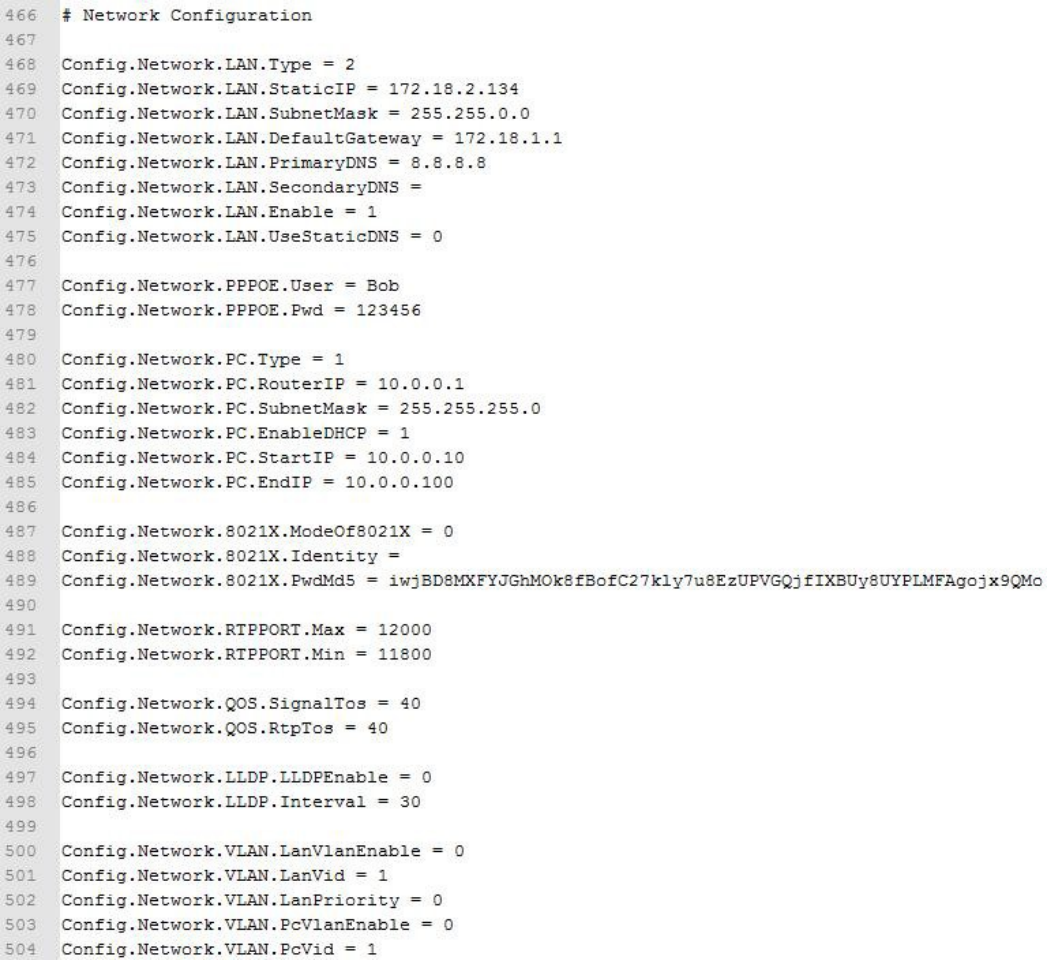
Figure 1-4 part of the configuration file content
The name of the parameters in the configuration file is fixed, and the user can not make any changes, the user can only fill in the value, otherwise the update will fail.

Example: To set the PPPOE username and password info, you use the following format:
Once the configuration file is updated successfully with the configuration file shown above, the user will login to the pppoe server by username (Bob) and password (123456).
1.5.2 Firmware and/or Configuration File Update
The followings are some of the common file updates.
Firmware Update
To update firmware, you define the following lines in the configuration file: Config.Firmware.Url = protocol name://address/path/filename
Example:
Config.Firmware.Url = tftp://172.21.02.03/1.0.0.135.rom
Note: there is no filename in the above Ulrl. If no filename is in the firmware URL configuration, Dinstar Door Phone will search the default filename in the defined URL address.
Customized Ringtones
To set customized ringtones, you can define the following lines in the configuration file: Config.Ringtone.Url = protocol name://address/path/filename
Example:
Config.Ringtone.Url = tftp://172.21.02.03/Ring1.wav
Note: Ring1.wav is a ringtone wav file. Total custom ringtone file size cannot be more than 100KB.
Update Local Contacts
To update local contacts, you define the following lines in the configuration file: Config.Contact.Url = protocol name://address/path/filename
Example:
Config.Contact.Url = tftp://172.21.02.03/Contact.xml
Note: Contact.xml is the file name for the address book.
Update client certificate
To update client certificate, you can define the following lines in the configuration file: Config.Certificate.01.Url=protocol name://address/path/filename Config.Certificate.02.Url=protocol name://address/path/filename Config.Certificate.03.Url=protocol name://address/path/filename
Config.Certificate.04.Url=protocol name://address/path/filename Config.Certificate.05.Url=protocol name://address/path/filename Config.Certificate.06.Url=protocol name://address/path/filename Config.Certificate.07.Url=protocol name://address/path/filename Config.Certificate.08.Url=protocol name://address/path/filename Config.Certificate.09.Url=protocol name://address/path/filename Config.Certificate.10.Url=protocol name://address/path/filename Example:
Config.Certificate.01.Url=tftp://172.21.02.03/Cert1
Update Auto Provision Settings
To update auto provision settings, you define the following lines in the configuration file: Config.Autoprovision.GENERAL.Url = url
Config.Autoprovision.GENERAL.UserName = username Config.Autoprovision.GENERAL.Pwd = password Config.Autoprovision.CFG.Version = 1.3
Example:
# Autoprovision Configuration Config.Autoprovision.GENERAL.Url = http://192.168.0.20 Config.Autoprovision.GENERAL.UserName = dinstar Config.Autoprovision.GENERAL.Pwd = admin Config.Autoprovision.CFG.Version = 1.3
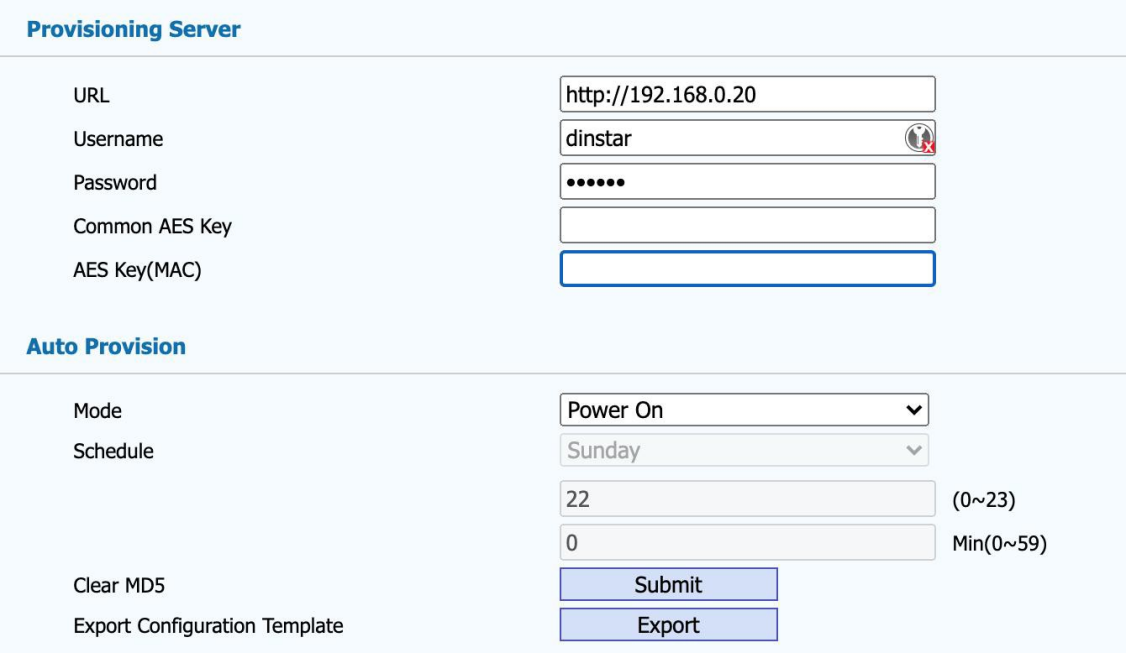
Update SIP Account
To set sip account, you can define the following lines in the configuration file: Config.Account1.GENERAL.Enable = 1
Config.Account1.GENERAL.Label = label_dispaly_on_door_phone
Config.Account1.GENERAL.DisplayName = display_name Config.Account1.GENERAL.UserName = sip_account Config.Account1.GENERAL.AuthName = sip_account_for_authentication Config.Account1.GENERAL.Pwd = password Config.Account1.SIP.Server = sip_server_addr
Config.Account1.SIP.Port = sip_server_port Example: Config.Account1.GENERAL.Enable = 1 Config.Account1.GENERAL.Label = test
Config.Account1.GENERAL.DisplayName = test Config.Account1.GENERAL.UserName = 800
Config.Account1.GENERAL.AuthName = 800
Config.Account1.GENERAL.Pwd = 800
Config.Account1.SIP.Server = 172.16.0.8
Config.Account1.SIP.Port = 5060
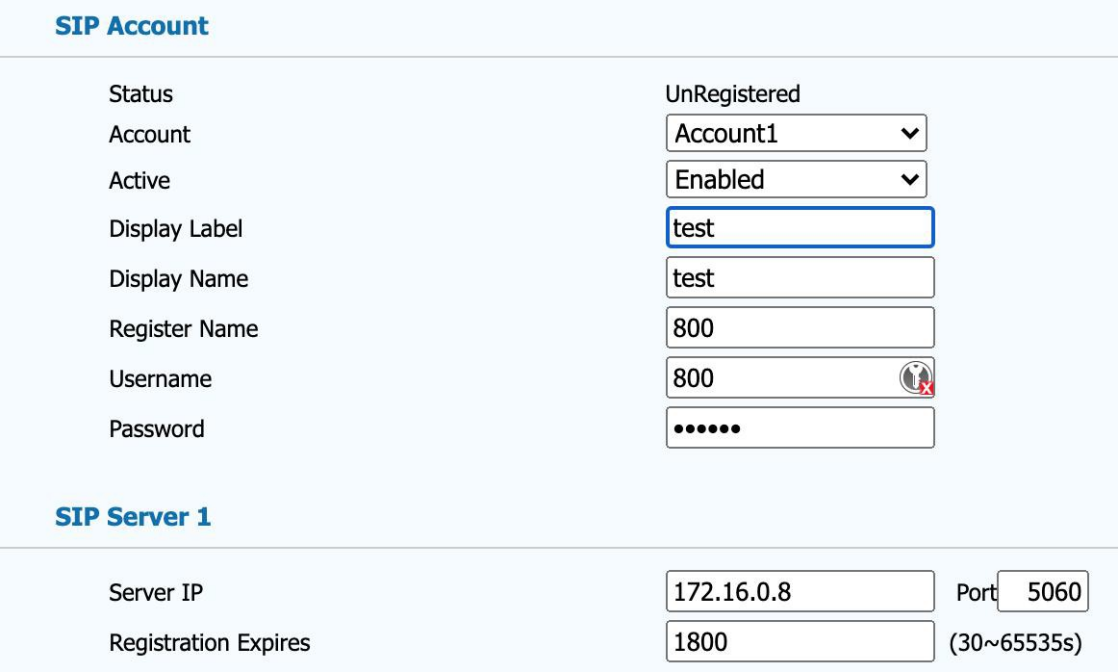
To update other sip account, you can replace Account1 to Account2 or Account3, etc...
Update Language
To update Language, you define the following lines in the configuration file:
Config.Settings.LANGUAGE.Type = language_id Config.Settings.LANGUAGE.WebLang=language_id Example:
Config.Settings.LANGUAGE.Type = 2
Config.Settings.LANGUAGE.WebLang = 2 The language id is ranged from 0 to 15.
0:ENGLISH
2:CHINESE SIMPLIFIED
3:CHINESE_TRADITIONAL
5:PORTUGUESE
6:SPANISH
7:ITALIAN
8:DUTCH
9:FRENCH
10:GERMAN
13:POLISH
14:TURKISH
15:RUSSIAN
Update Key
Update Line Key
To update Line Key, you define the following lines in the configuration file: Config.Programable.LINEKEYx.Type = linekey_type Config.Programable.LINEKEYx.Label = label_dispaly_on_phone Config.Programable.LINEKEYx.Param1 = value Config.Programable.LINEKEYx.Param2 = account Config.Programable.LINEKEYx.Param3 = extra
Note: x for the number of line key , is ranged from 1 to 10.
The following tables list valid value of account for each phone model.
Note: If account is set to 0, it means automatic.
|
DP81
|
DP82
|
DP83
|
DP85
|
DP92
|
|
account
|
1-2
|
1-2
|
1-2
|
1-2
|
1-2
|
|
linekey_type
|
Functional Description
|
Param1
|
Param2
|
Param3
|
|
0
|
N/A
|
-
|
-
|
-
|
| 1 |
DND
|
-
|
-
|
-
|
| 2 |
Menu
|
-
|
-
|
-
|
| 3 |
SMS
|
-
|
-
|
-
|
| 4 |
Status
|
-
|
-
|
-
|
| 5 |
Book
|
0 - all
10 - local
11 - allcontacts
22 - remote
30 - broadsoft
40 - ldap
|
-
|
-
|
| 6 |
Forward
|
-
|
-
|
-
|
| 7 |
PickUp
|
pickup code
|
account
|
-
|
| 8 |
Group PickUp
|
group pickup code
|
account
|
-
|
| 9 |
Intercom
|
extension
|
account
|
|
| 10 |
Speed Dial
|
speed dial number
|
account
|
-
|
| 11 |
History
|
-
|
-
|
-
|
| 12 |
Favorites
|
-
|
-
|
-
|
| 13 |
Redial
|
-
|
-
|
-
|
| 14 |
Account
|
-
|
account
|
-
|
| 15 |
ACD
|
-
|
account
|
-
|
| 16 |
BLF/NewCall
|
extension
|
account
|
-
|
| 17 |
BLF/BXFER (blind transfer)
|
extension
|
account
|
-
|
| 18 |
BLF/AXFER (answer transfer)
|
extension
|
account
|
-
|
| 19 |
BLFList
|
-
|
account
|
-
|
| 20 |
CallReturn
|
-
|
-
|
-
|
| 21 |
HotDesking
|
-
|
-
|
-
|
| 22 |
Record
|
-
|
-
|
-
|
| 23 |
XML Browser
|
xml url
|
-
|
-
|
| 24 |
DTMF
|
dtmf key
|
-
|
-
|
| 25 |
N/A
|
-
|
-
|
-
|
| 26 |
Multicast Paging
|
paging group
|
-
|
-
|
| 27 |
N/A
|
-
|
-
|
-
|
| 28 |
Voice Message
|
-
|
-
|
-
|
| 29 |
Transfer
|
-
|
-
|
-
|
| 30 |
Call Park
|
call park code
|
account
|
-
|
| 31 |
XML History
|
-
|
-
|
-
|
| 32 |
XML PhoneBook
|
-
|
-
|
-
|
Example:
Config.Programable.LINEKEY1.Type = 16 #Configure line key 1 as BLF/NewCall
Config.Programable.LINEKEY1.Label = blf2000 #Display on the phone as blf2000
Config.Programable.LINEKEY1.Param1 = 2000 #Press line key 1 will dial 2000
Config.Programable.LINEKEY1.Param2 = 1 #Use account 1 when dialing
Config.Programable.LINEKEY1.Param3 = *072000 #Use *072000 to direct pickup
Update Soft Key
To update Soft Key, you define the following lines in the configuration file: Config.Programable.SOFTKEY0x.Type = softkey_type Config.Programable.SOFTKEY0x.Label = label_dispaly_on_phone Config.Programable.SOFTKEY0x.Param1 = value Config.Programable.SOFTKEY0x.Param2 = account
Note: x for the number of soft key , is ranged from 1 to 4.
About account , see above.
|
softkey_type
|
Functional Description
|
Param1
|
Param2
|
|
0
|
N/A
|
-
|
-
|
|
1
|
DND
|
-
|
-
|
|
2
|
Menu
|
-
|
-
|
|
3
|
SMS
|
-
|
-
|
|
4
|
Status
|
-
|
-
|
|
5
|
Book
|
0 - all
10 - local
11 - allcontacts
22 - remote
30 - broadsoft
40 - ldap
|
-
|
|
6
|
Forward
|
-
|
-
|
|
7
|
PickUp
|
pickup code
|
account
|
|
8
|
Group PickUp
|
group pickup code
|
account
|
|
9
|
Intercom
|
extension
|
account
|
|
10
|
Speed Dial
|
speed dial number
|
account
|
|
11
|
History
|
-
|
-
|
|
12
|
Favorites
|
-
|
-
|
|
13
|
Redial
|
-
|
-
|
|
14
|
N/A
|
-
|
-
|
|
15
|
ACD
|
-
|
account
|
|
16-19
|
N/A
|
-
|
-
|
|
20
|
CallReturn
|
-
|
-
|
|
21
|
HotDesking
|
-
|
-
|
|
22
|
N/A
|
-
|
-
|
|
23
|
XML Browser
|
xml url
|
-
|
|
24-26
|
N/A
|
-
|
-
|
|
27
|
Simple Menu
|
-
|
-
|
|
28
|
Voice Message
|
-
|
-
|
|
29
|
N/A
|
-
|
-
|
|
30
|
N/A
|
-
|
-
|
|
31
|
XML History
|
-
|
-
|
|
32
|
XML PhoneBook
|
-
|
-
|
Example:
Config.Programable.SOFTKEY02.Type = 10
Config.Programable.SOFTKEY02.Label = call2000
Config.Programable.SOFTKEY02.Param1 = 2000
Config.Programable.SOFTKEY02.Param2 = 1
Configure soft key 02 as speed dial , press soft key 02 will call 2000 with account 1.
Update Function Key
To update OK Key, you define the following lines in the configuration file: Config.Programable.OK.Type = functionkey_type Config.Programable.OK.Param1 = value Config.Programable.OK.Param2 = account
To update CANCEL Key, you define the following lines in the configuration file: Config.Programable.CANCEL.Type = functionkey_type Config.Programable.CANCEL.Param1 = value Config.Programable.CANCEL.Param2 = account
To update BOOK Key, you define the following lines in the configuration file: Config.Programable.BOOK.Type = functionkey_type Config.Programable.BOOK.Param1 = value Config.Programable.BOOK.Param2 = account
To update MUTE Key, you define the following lines in the configuration file: Config.Programable.MUTE.Type = functionkey_type Config.Programable.MUTE.Param1 = value Config.Programable.MUTE.Param2 = account
To update REDIAL Key, you define the following lines in the configuration file:
Config.Programable.REDIAL.Type = functionkey_type Config.Programable.REDIAL.Param1 = value Config.Programable.REDIAL.Param2 = account
To update VOICEMESSAGE Key, you define the following lines in the configuration file: Config.Programable.VOICEMESSAGE.Type = functionkey_type Config.Programable.VOICEMESSAGE.Param1 = value Config.Programable.VOICEMESSAGE.Param2 = account
To update FORWARD Key, you define the following lines in the configuration file: Config.Programable.FORWARD.Type = functionkey_type Config.Programable.FORWARD.Param1 = value Config.Programable.FORWARD.Param2 = account
About account , see above.
|
functionkey_type
|
Functional Description
|
Param1
|
Param2
|
|
0
|
N/A
|
-
|
-
|
| 1 |
DND
|
-
|
-
|
| 2 |
Menu
|
-
|
-
|
| 3 |
SMS
|
-
|
-
|
| 4 |
Status
|
-
|
-
|
| 5 |
Book
|
-
|
-
|
| 6 |
Forward
|
0 - all
10 - local
11 - allcontacts
22 - remote
30 - broadsoft
40 - ldap
|
-
-
|
| 7 |
PickUp
|
pickup code
|
account
|
| 8 |
Group PickUp
|
group pickup code
|
account
|
| 9 |
Intercom
|
extension
|
account
|
| 10 |
Speed Dial
|
speed dial number
|
account
|
| 11 |
History
|
-
|
-
|
| 12 |
Favorites
|
-
|
-
|
| 13 |
Redial
|
-
|
-
|
| 14-19 |
N/A
|
-
|
-
|
| 20 |
CallReturn
|
-
|
-
|
| 21 |
HotDesking
|
-
|
-
|
| 22 |
N/A
|
-
|
-
|
| 23 |
XML Browser
|
xml url
|
-
|
| 24-27 |
N/A
|
-
|
-
|
| 28 |
Voice Message
|
-
|
-
|
| 29 |
Transfer
|
-
|
-
|
| 30 |
N/A
|
-
|
-
|
| 31 |
XML History
|
-
|
-
|
| 32 |
XML PhoneBook
|
-
|
-
|
Example: Config.Programable.OK.Type = 10
Config.Programable.OK.Label = call2000
Config.Programable.OK.Param2 = 1
Configure OK key as speed dial , press OK key will call 2000 with account 1.
Config.Programable.OK.Param1 = 2000