Support Center

FAQ

Filter
  • QCommon Application Case with Dinstar UC120

    A

    Overview

    The client had a batch of hotel renovation projects, and one of the renovation projects was IP-based voice communication. The customer approached us to communicate and consult the solution. Communicate with the client about the requirements of the project as follows:

    1. each hotel needs to have an independent internal communication system, each point has about 50 rooms, with 1 - 2 hotel outside lines;

    2. the requirement that room phones can only call customer service phones, and customer service can call any room phone;

    3. cell phone or telephone call to the hotel outside line phone to be sent to the customer service phone, to achieve telephone consultation and booking hotel business.

    Program Development

    We recommend the hotel application scenario solution for IPPBX. According to the customer's cost control requirements, we recommend the product UC120-2O with IPPhone/Intercom combination application solution, which meets the basic hardware requirements and the functional requirements can be achieved through configuration.

    Note,

    1. IPPhone mounted on the bedside table or desk in the guest room

    2. Intercom (supports IP65 water and dust resistance) installed in the bathroom for bathroom emergency distress

    3. The same extension number is used for IPPhone and Intercom in the same room.

    Operation

    1. Physical connection

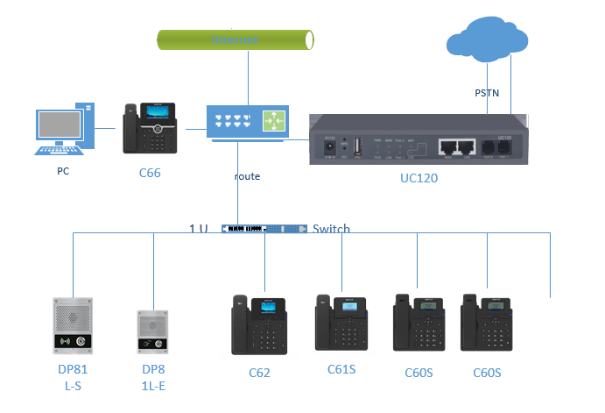
    2 hotel outside pstn lines are connected to 2 FXO ports. The WAN port of UC120 is connected under the router and static IP is set.IPPhone & Intercom are installed in each guest room and connected to the switch through the network cable and converged under the router .The customer service landline is connected to the router through the network cable and the PC of the front desk customer service is connected to the network through the PC port of the phone.

    2. The configurations on uc120

    2.1 Batch to add  extensions 

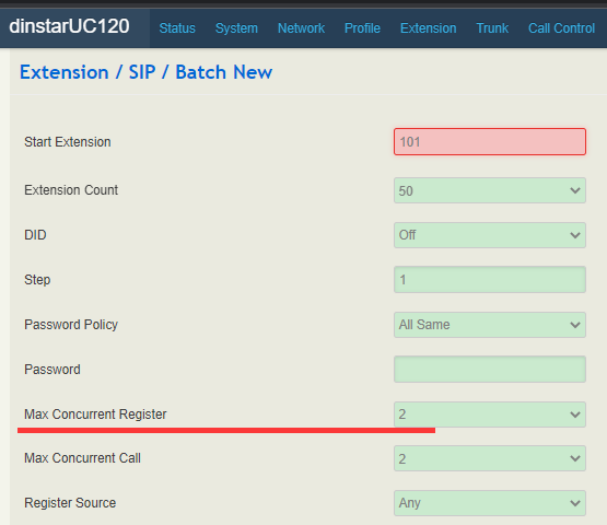
    Add extension 101 to 150 . And one customer service extension 9999

    Note: Max Concurrent Register is set to 2, which will allow 2 terminals to register the same account, so that IP Phone and Intercom in the same room can use the same room extension account.

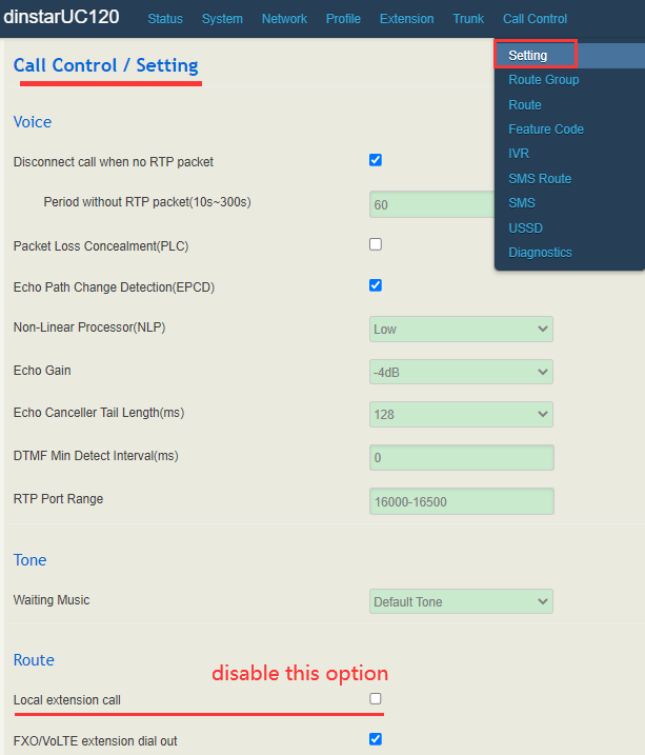
    2.2  Disable "local extension call "

    "Local extension call" is on by default, allowing local extensions to call each other. This customer's request is not to allow guest room extensions to call each other, so this feature should be turned off.

    2.3 Add routes

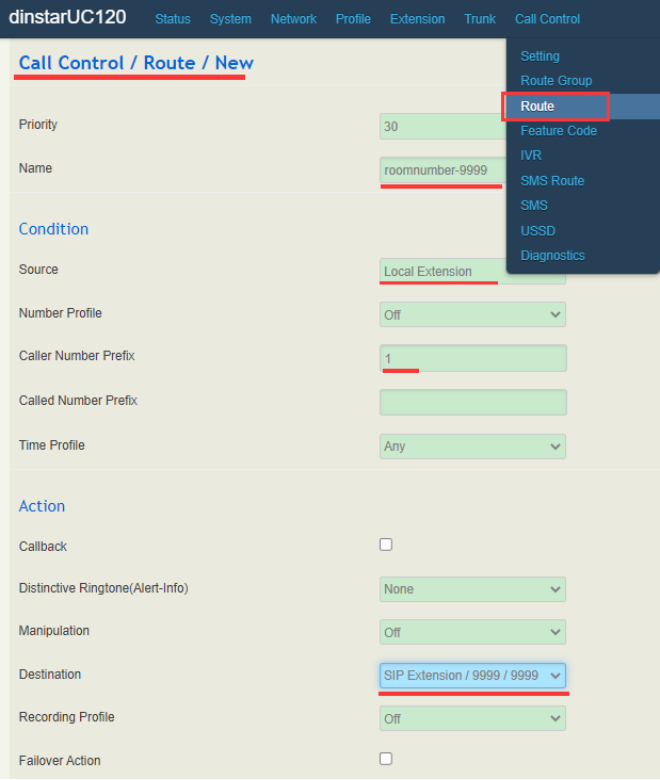
    (1) Route calls from local extensions to service extension . 

    Add routes to achieve room extensions call destinations are customer service numbers.

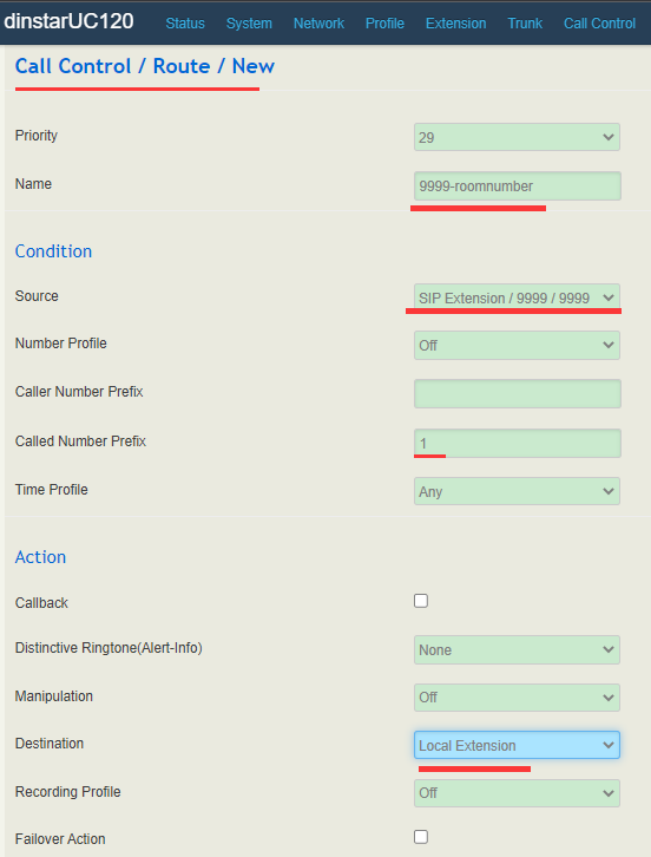
    (2) Route calls from service extension to local extensions 

    Add routes for customer service extension 9999 to call the room number (local extension).

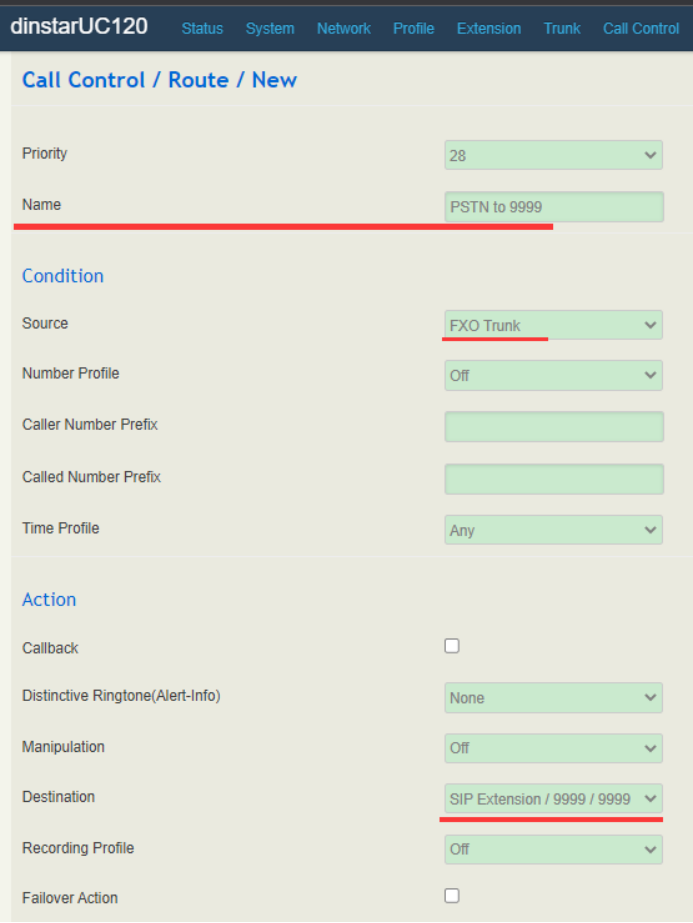
    (3) Route calls from pstn to service extension 

    Configure the routing of inbound calls from outside lines to customer service phones.

    Note: Another FXO port needs to be added as well.

    (4) Route calls from service extension to pstn 

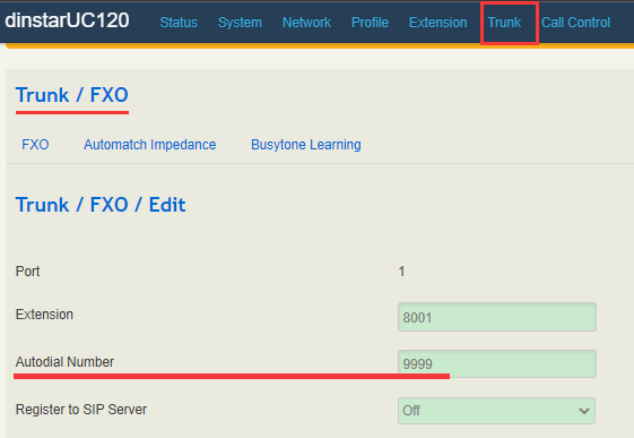
    Set the default dial-in customer service number 9999 for FXO calls.

    Note: Another FXO port needs to be added as well.

    3. The configurations on IP phone and Intercom 

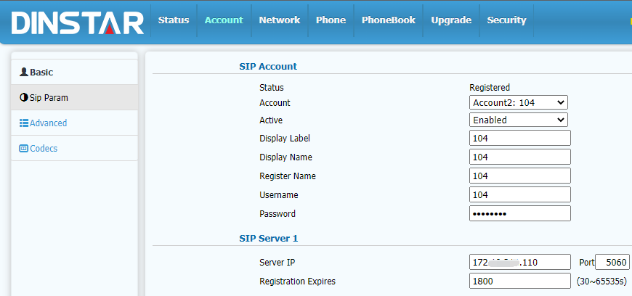
    3.1 Register accounts on Ipphone&Intercom

    Customer service phone and room IPPhone & Intercom configuration registration account, refer to the following.

    Note: The way to register an account is the same, refer to the diagram above to the customer service phone, room IPPhone & Intercom configuration SIP account respectively.

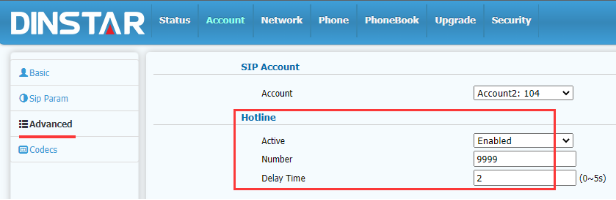
    3.2 Room phone configuration hotline number

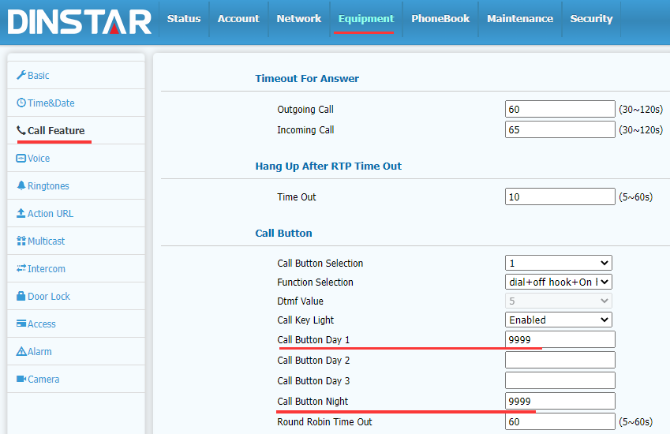
    3.3 Intercom in the bathroom sets the one-touch call number to the customer service number 9999.

    Note: Call Button Day 1 & Call Button Night both need to be set up to ensure that customer service calls can be made throughout the day.

    Test 

    1. The guest room IPPhone calls 9999 automatically after taking off the phone, and the customer service answers the call normally;

    2. The guest room IPPhone calls other guest room extensions, the call is sent to the customer service number 9999, the customer service answers the call normally;

    3. The guest room IPPhone calls other non-existent numbers, calls sent to the customer service phone 9999, customer service answered the call is normal;

    4. The guest room bathroom Intercom call 9999 automatically after the key, customer service answered the call normal;;

    5. Customer service telephone call to the room extension number, the room IPPhone and Intercom normal ringing, IPPhone or Intercom answer the call is normal;

    6.  Customer service telephone calls to non-existent room extension numbers, direct busy tone, hang up;

    7. PSTN phone line call, the phone call to the customer service phone 9999, the answer call normal.

    Based on the above verification, the user's requirements are met and the acceptance is passed.

  • QGuideline for connecting Dinstar analog gateway with UC2000 to UC

    A

    Backgrouds

    UC series gateway provides intelligent switchboard, call conference, recording and other functions Every extension can be free to dial each other, improve communication efficiency. UC2000 gateway can support GSM/WCDMA/LTE type , the maximum support for inserting 64 SIM cards at the same time access to operators, for outbound calls. The whole communication scenario is distributed based on IP network. This guide shows how to connect FXS&UC2000 series gateways with UC gateway. The same configuration will also apply to other same series gateways.

    [Target]

    FXS gateway registered to UC gateway successfully.

    UC2000 gateway connected with UC gateway via trunk mode.

    Make incoming and outgoing calls successfully. 

    Preparations

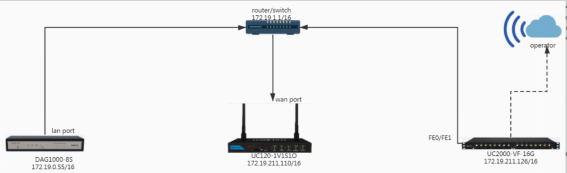
    In this guide, we take UC2000-VF-16T/ DAG1000-8S/ UC120-1V1S1O as the example. 

    IP address of DAG1000-8S: 172.19.0.55

    IP address of UC2000-VF-16T: 172.19.211.126

    IP address of UC120-1V1S1O: 172.19.211.110

    IP address of router: 172.19.1.1

    FXS gateway and UC120 gateway both have WAN/LAN ports and they both support router/bridge mode.

    If they are set to Router mode, you need to connect to WAN port. If set Bridge mode, any port is OK.

    In the guide, we set the FXS gateway as bridge mode and UC120 gateway as router mode. so we connected the LAN port of the FXS gateway and WAN port of UC120 gateway to the router/switch.

    Operations

    1. Connect UC120 with FXS gateway

    [ Understand the UC120 Profile ] 

    On the Profile-SIP page, set SIP profile which will include SIP information such as listening port and voice codec. SIP profiles will be used in extension and trunk. Multiple SIP profiles can be added into a UC device, so you can choose different SIP profiles according your scenario.

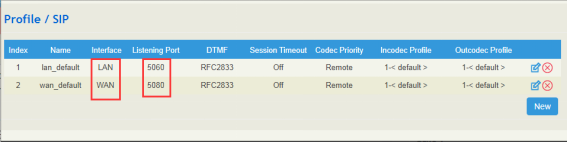
    UC120 has two default sip profiles. One is LAN port profile and the other is WAN port profile. The sip profile will be applied in SIP extension and trunk.

    UC120 supports mulite interface, like WAN/VPN/LAN. When we add SIP extensions or trunks, we need to determine which network port to connect with. SIP profile is the role of this, which profile we choose means that the interface of this profile and SIP port is used to connect with this extension or relay.

    In the guide, the FXS gateway and UC2000 gateway are connected with WAN port of UC120 gateway. So we choose the WAN profile to connect them to sip extensions and trunks.

    If your gateway is a connection with LAN port of UC120 gateway. Please choose LAN profile to apply.

    1.1 Create sip extensions on UC120

    There are two ways to create SIP extensions . The first way is that, create sip extensions one by one, and the second way is that batch creates sip extensions.

    [Create one by one]

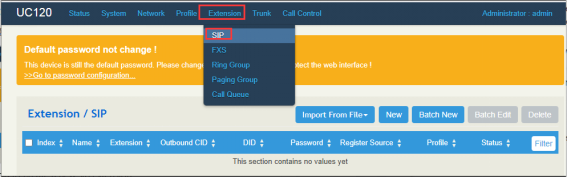
    Click sip>extension. Click the new button to create a new sip extension 


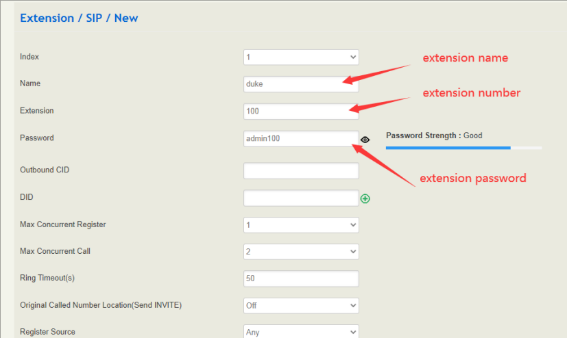
    Enter name/extension/password and other options keep default .then click the save button


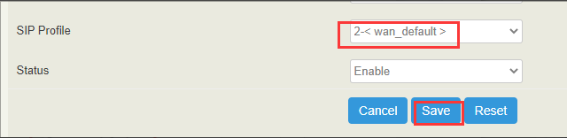
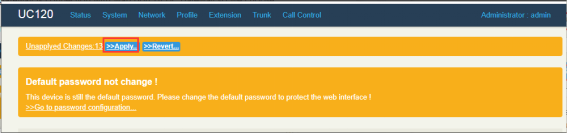
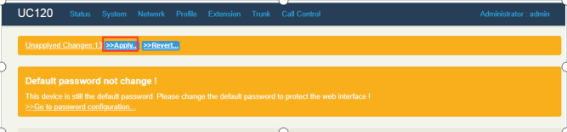
     Note:The FXS gateway is connected with wan port of UC gateway, so we choose wan profile as sip profile. Please click the apply button and those configurations will take effect.

    [Batch to create sip extensions]

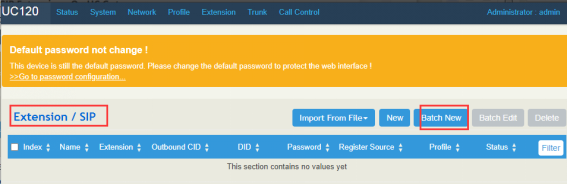
    Please click batch new button to create multi sip extensions at once.

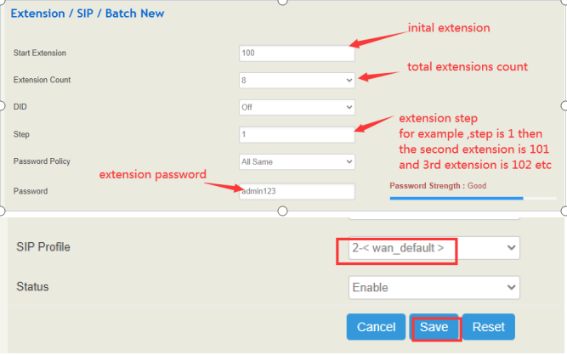
    Enter start extension/extension count/password and other options keep default .then click save button. 

    Note:to batch and set those extensions on FXS gateway ,we suggest that all extension set the same password for all extensions. 


    1.2 Create a ring group

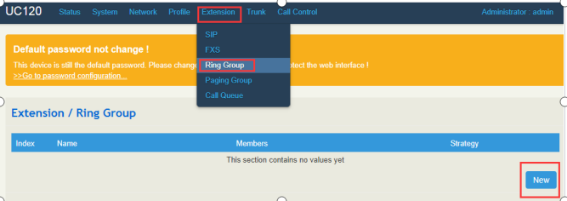
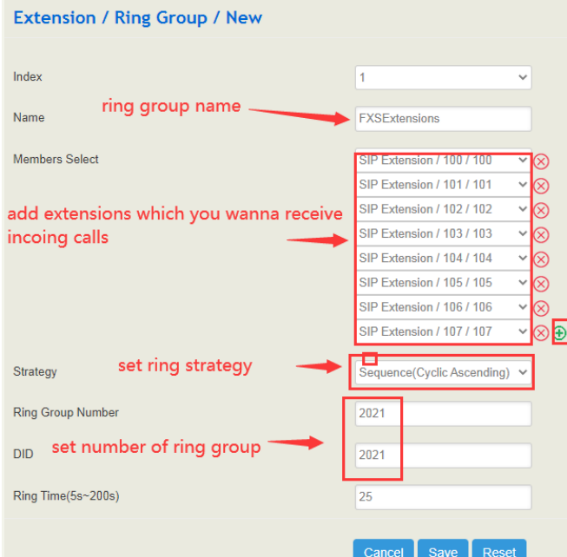
    Click Extension>Ring Group and New button to create a ring group. Add sip extensions into the ring group then those sip extensions will receive incoming call from UC2000 gateway.


    Please click save and apply after configuration done.

    2.Register FXS gateway to UC gateway

    2.1 Configure sip server on FXS gateway

    Access FXS gateway and click sip server.Enter the ip of UC gateway as sip server and listening port as sip server port.

    Note:the sip port must be the listening port of sip profile.in the demo,we use wan profile for those sip extensions and the listening port of WAN profile is 5080.  


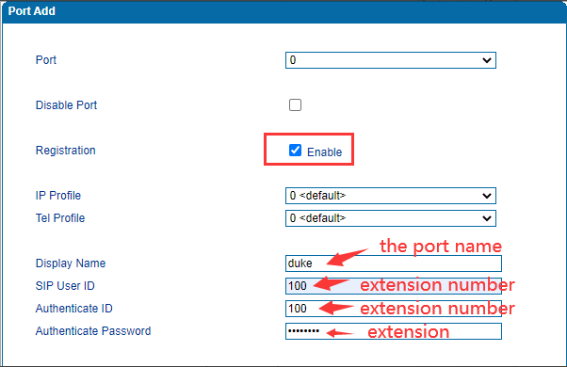
    2.2 Create ports on FXS gateway 

    [one by one to create]

    Set the extensions of UC as authenticating account of FXS gateway then the FXS gateway will register to UC with those extensions.

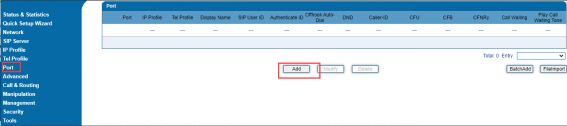
    Please click Add button .Enter one extension number/password as authenticate ID and authenticate password , and select the registration.


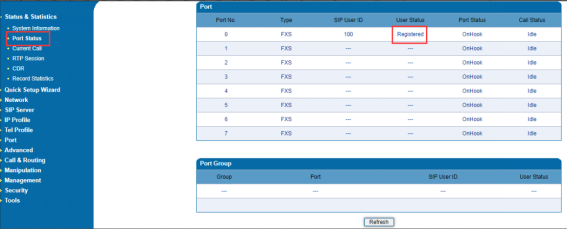
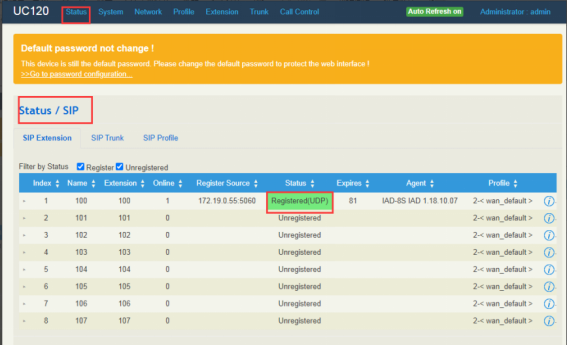
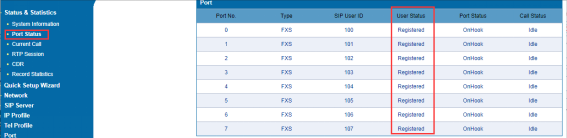
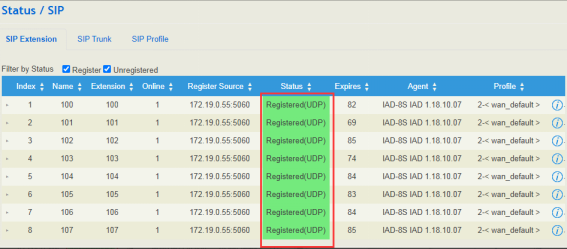
    Then we can check the status on FXS and UC gateaway 


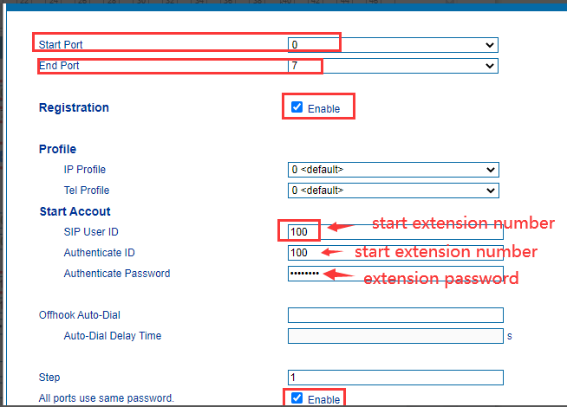
    [Batch to create]

    Batch to set the extensions of UC as authenticating accounts of FXS gateway, then the FXS gateway will register to UC with those extensions.Select the start port and end port and set the start extension number.

    Note:If all extensions have same password ,please select the option ‘All ports use same password.’ Otherwise, the password will also auto increase one step size 

    Check the registration status 


    3.Connect UC2000 to UC120 

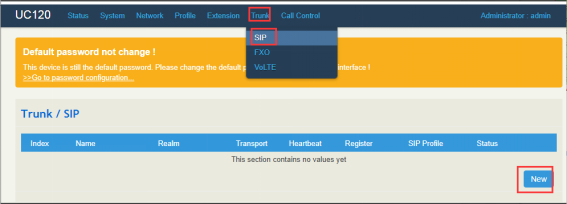
    3.1 Add SIP trunk on UC gateway 

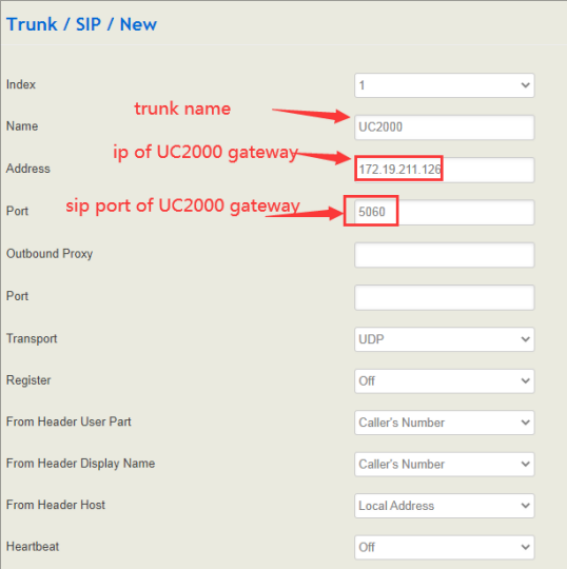
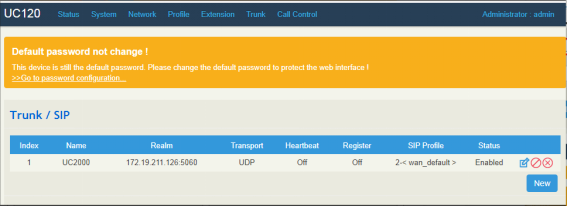
    Click Trunk-SIP and click save to add new sip trunk.Enter trunk name/address/port and other options keep default.


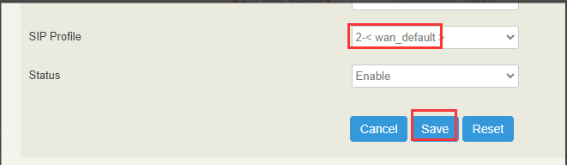
    Choose the connection profile and click save.In the demo, the wan profile is connection with UC2000 gateway . Click apply, then those configurations will take effect.


    3.2 Create route on UC gateway

    [Create an outbound route]

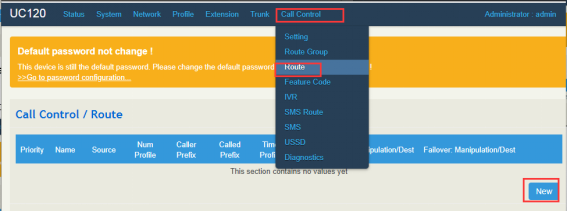
    Click call control>route and click new to create a route.

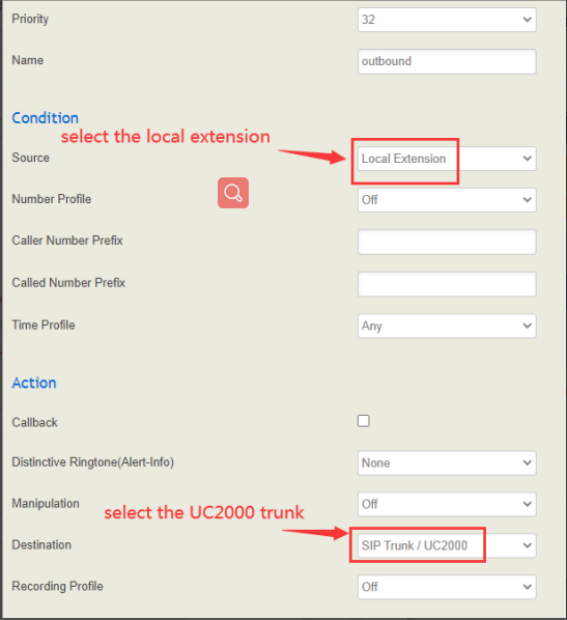
    Select local extension as source and UC2000 trunk as destination and other options keep default .

    Please click save and apply after configurations are done.

    [Create an inbound route]

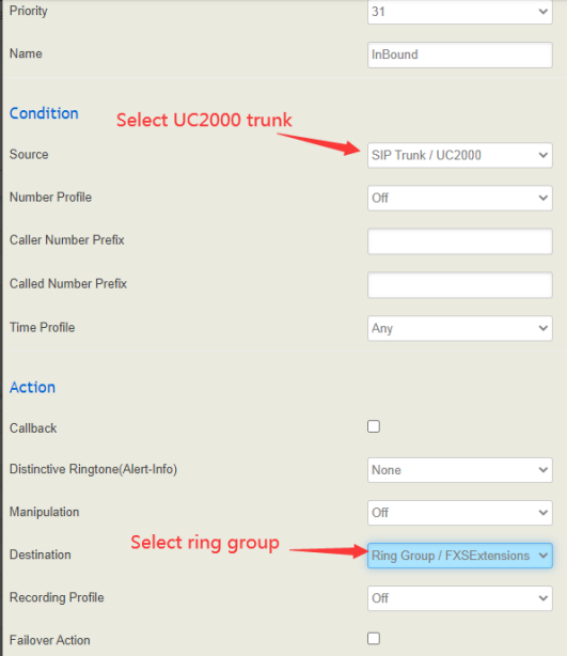
    Select UC2000 trunk as source and ring group as destination and other options keep default .


    Please click save and apply after configurations are done.

    3.3   Add a SIP trunk on UC2000 gateway

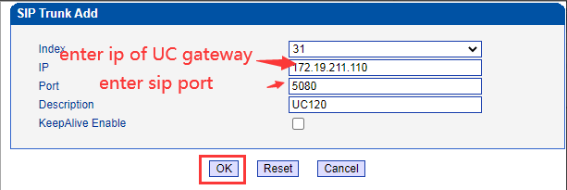
    Click Call Configuration>SIP Trunk Configuration and add. Enter ip and sip port of UC gateway .

    In the guide,we used WAN profile to connect UC2000 gateway and the listening port of WAN profile is 5080 .so set 5080 as port.

    3.4 Create routes

    [Create an outbound route]

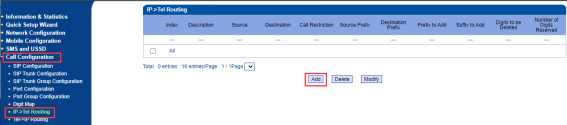
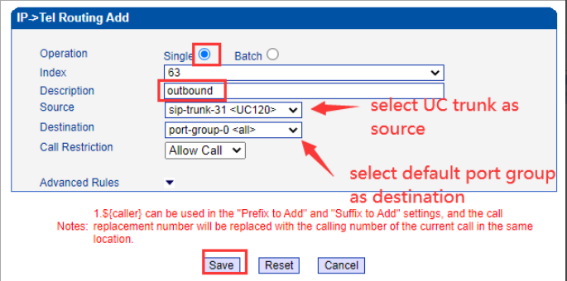
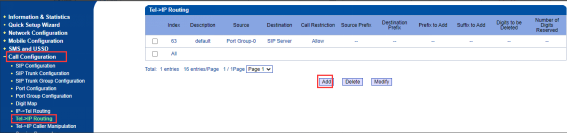
     Click Call Configuration>IP-Tel Routing and click Add button to create outbound route. Select UC trunk as source and default port group as destination.


    [Create an inbound routes]

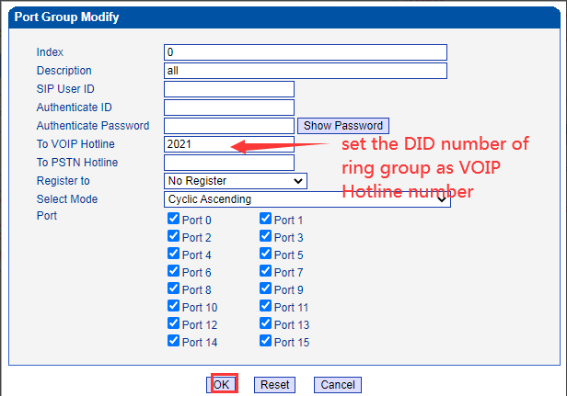
    Click Call Configuration—Port Group Configuration and click Modify .

     Set the DID number of ring group as VOIP hotline number .

    Click Call Configuration>Tel-IP Routing and click Add  to create Inbound route.select the default port group as source and UC trunk as destination.

    Testing

    Test the incoming calls and outgoing calls.

    [Outgoing calls testing]

    Flow (Analog phone ---->fxs gaeway----> UC gateway---->UC2000 gateway ---->called side (mobile phone side)

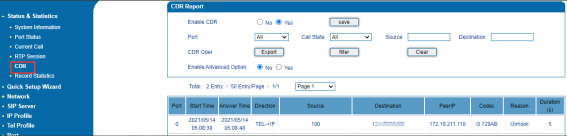
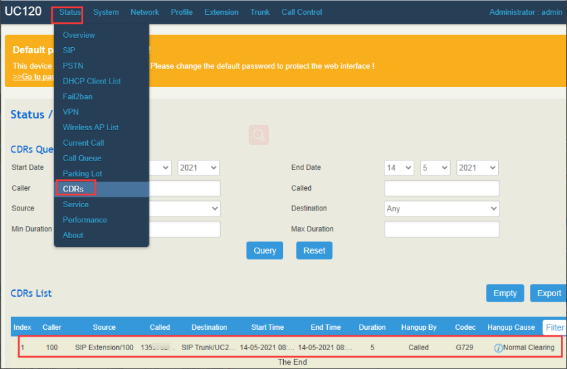
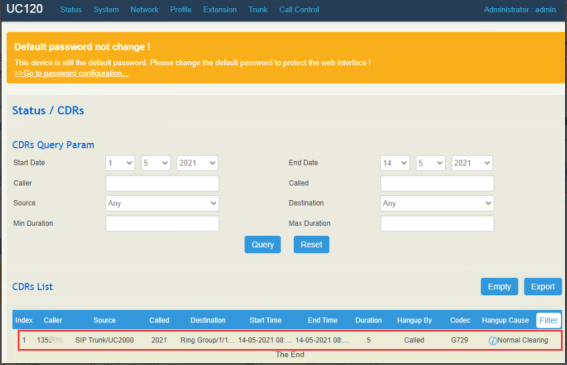
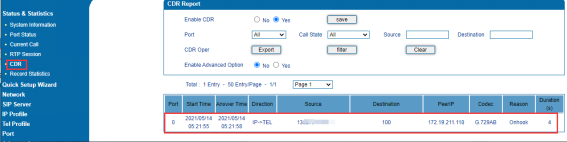
    Outgoing call is successful and we can check the CDR on  gateways.

    The CDR on FXS gateway

    The CDR on UC120

    The CDR on UC2000

    [Incoming calls testing]

    Just call back, then we will make an incoming call to hit on the sim of UC2000 gateway .

    Flow:

    mobile phone side(caller side) ---->UC2000 gateway---->UC gateway ---->fxs gateway---->analog phone

    The incoming call will hit on ring group of UC gateway.(please note we set the sequence(cyclic ascending) as ring strategy ). it will hit on sip extension 100 first and port 0 of fxs gateway registered with extension 100.So the analog phone of port 0 will ring.

    Incoming call is successful. and we also can check the CDR on all gateways.

    The CDR on UC2000 gateway

    The CDR on UC120

    The CDR on FXS gateway

  • QHow to configure openvpn on UC120 and connect to Dinstar products

    A

    Backgrounds

    OpenVPN is a software package for creating encrypted tunnels for virtual private networks, allowing established VPNs to be authenticated using public keys, electronic certificates, or usernames/passwords. It makes heavy use of the SSL/TLS protocol function library from the OpenSSL cryptographic library.

    OpenVPN currently runs on Solaris, Linux, OpenBSD, FreeBSD, NetBSD, Mac OS X and Microsoft Windows, as well as Android and iOS, and includes many security features.

    Dinstar product lines such as IP Phones, DoorPhone, DWG for H8 platforms, and DAG for RK platforms use OpenVPN for their VPN types.

    This document describes the steps to configure OpenVPN on Dinstar UC120 to connect to other products, using Dinstar's IP phone C63 as a case study, other products can be connected to OpenVPNserver in a similar way.

    Steps 

    Configure OpenVPN server on UC120

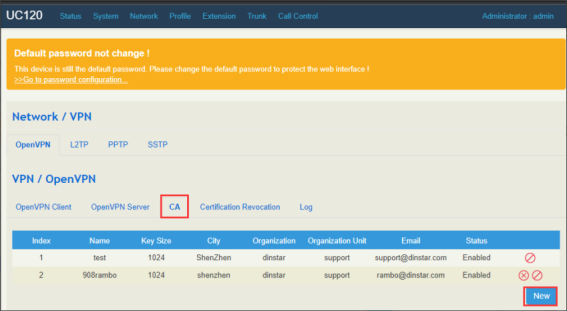
    1. Add CA Certificate

    On the Network / VPN / openVPN / CA page, click “New” to add a CA certificate.

    Note: There is a test certificate by default that can also be used directly.

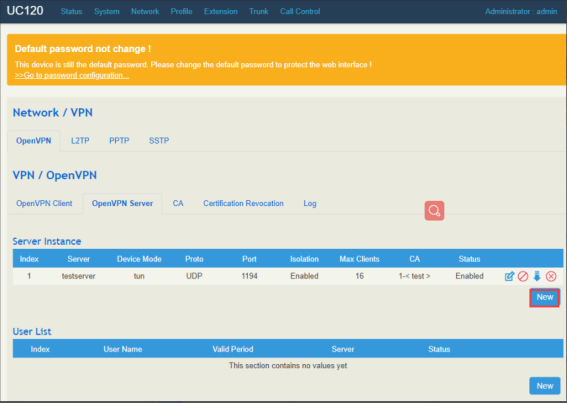
    2. Add Server

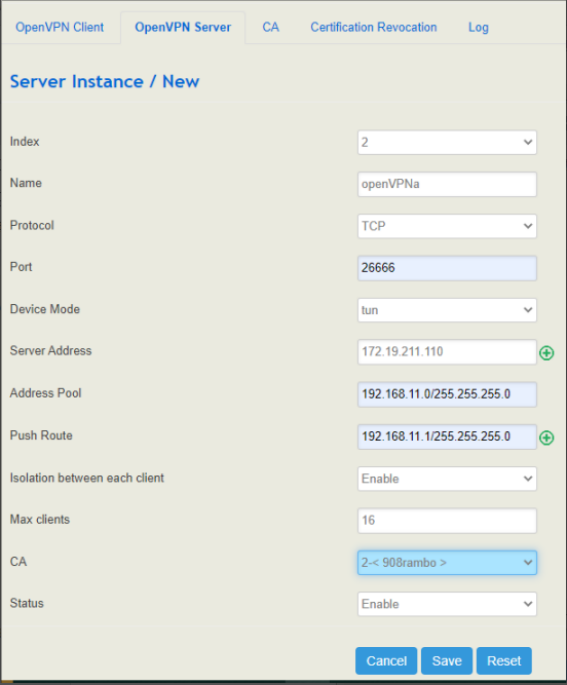
    On the Network / VPN / openVPN / openVPN server page, click "New" in SERVER Instance to add a server.


    name : Customize a server name.

    Protocol: you can choose TCP or UDP.

    Port: customize a port for connection, don't conflict with other common ports.

    Device Mode: Choose tup or tap.

    Server Address: Default external IP, the IP that allows the client to connect.

    Address Pool: the address pool to assign IP to the client, note that you need to fill in the subnet mask.

    Push Route: The IP address of the route that assigns the IP to the client, and the gateway address of the client's VPN IP.

    Isolation between each client: Isolation between clients, choose whether to turn it on or off as needed.

    CA: Select CA certificate, CA certificate is called root certificate.

    Status: Status, choose whether to enable or not.

    3. Add User 

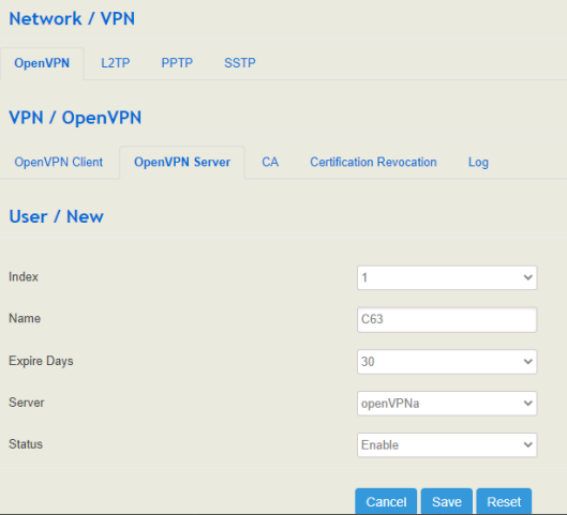
    On the Network / VPN / openVPN / openVPN server page, under the User List column, click "New" to add a user.

    Name: customize the name, for example, if you want to use it for C63, name it C63.

    Expire Days: the expiration date of the certificate, choose or set it as needed.

    Server: select OpenVPN server.

    Status: Whether to enable this User account.

    Note: After adding the above contents, click Apply to let the settings take effect.

    4. Export OpenVPN User certificate

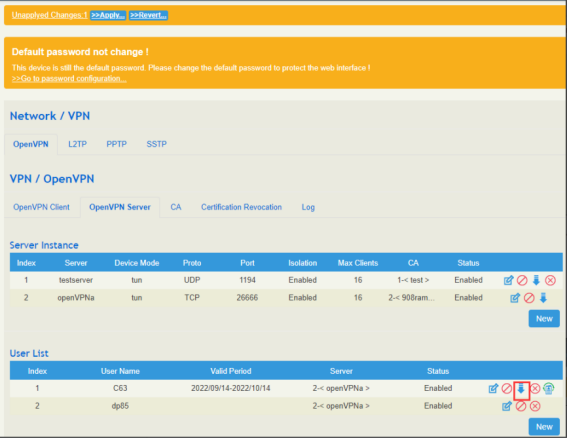
    Click the "Export"  to export the User certificate.

    Note: After modification or addition, before apply, there is no export button icon, such as the user certificate of DP85 in the screenshot. after apply, there will be export button icon. As the user certificate of C63 in the screenshot.

    [User Certificate Description ]

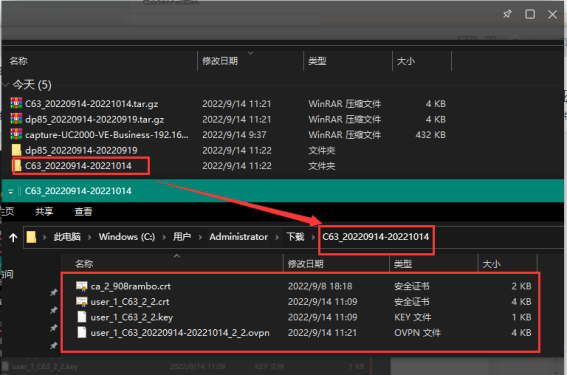
    Export's certificate name is [username]_[expire].tar.gz zip, unzipped there are 4 files. 4 files have different roles.

    (1)ca_xxx.crt This is the root certificate, and the server side with the same root certificate, the same server under the user's root certificate is the same;

    (2)user_xxx.crt This is the user certificate, each user has a different user certificate;

    (3) user_xxx.key This is the user's secret key, each user uses a different secret key;

    (4) user_xxx.ovpn This is a complete openVPN client certificate.

    Note: Different devices use different certificate files for openVPN. Some need to use ca_xxx.crt root certificate, user_xxx.crt user certificate, user_xxx.key user secret key as above; some devices directly use the full user_xxx.ovpn certificate.

    Dinstar's device acts as an openVPN client, directly using the full user_xxx.ovpn certificate.

    IPPhone C63 Connected to OPenVPN

    Here we use Dinstar IP phone C63 to configure openVPN client. Other series such as Door Phone/ DWG for H8 platforms, and DAG for RK platforms set up openVPN in a similar way.

    1. Upload OpenVPN certificate

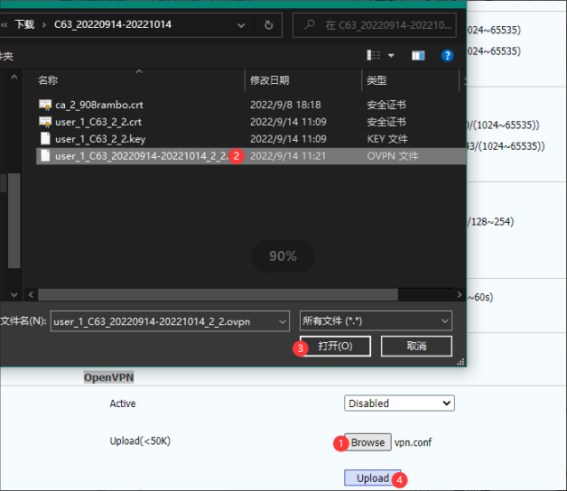
    On the Network / Advanced page of the phone, in OpenVPN, click "upload", select user_xxx.ovpn certificate, after loading successfully, the vpn.conf file will be displayed, which means that the openVPN file is saved in the phone.

    2. Enable OpenVPN 

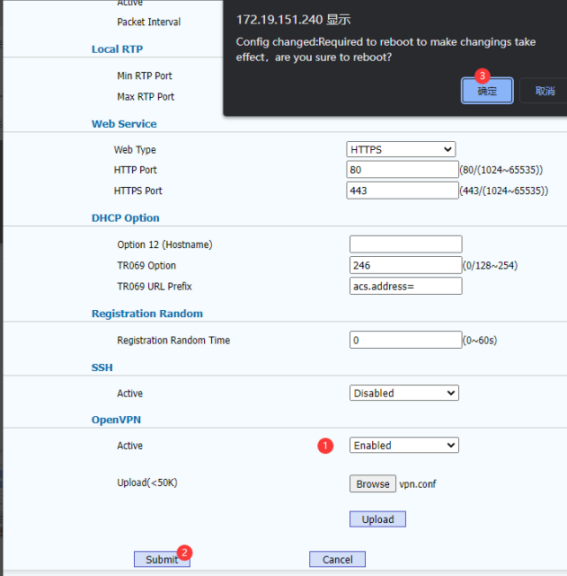
    On the Network / Advanced page, in the OpenVPN column, set Active to Enabled. and click Submit.

    Then will see promt “Config changeed: Required to reboot to make changings take effect, are you sure to reboot?”, click“确定(OK)”, The IP phone will then automatically reboot. 

    3. Check VPN status on the phone

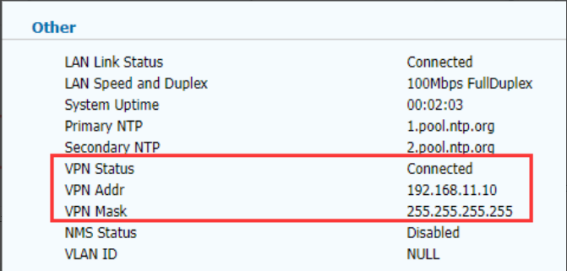
    After rebooting and logging into the phone, on the Status / Basic / Other page, you will see the status of the VPN, the assigned IP, and the VPN mask.

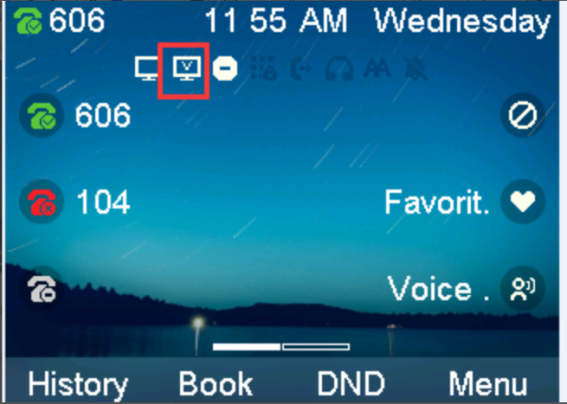
    The above figure shows the status of VPN connected. In addition, if the VPN connection is successful, you can see the VPN logo on the display of the phone, as shown in the following figure.

    4. Check VPN connection status on UC120

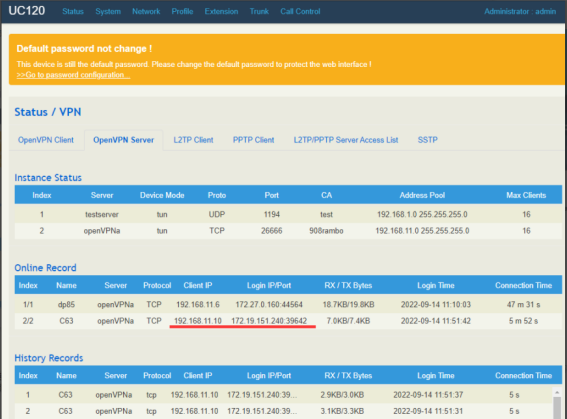
    Log into the UC120, on the Status / VPN / OpenVPN server page, in the Online Record, you can see the OpenVPN User that is connected online, as shown below.

    This is the OpenVPN client has connected to the OpenVPN server normally.

  • QHow to configure UC8000 HA

    A

    1. Prepare two UC8000

    Prepare two UC8000 need can ping ip address of UC8000 each other sucessfully

    2. Configure HA with UC8000

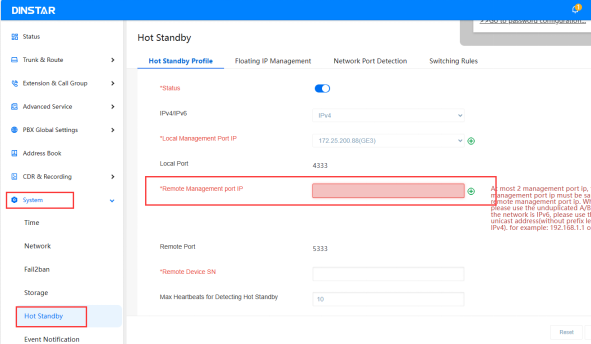
    Remote Management port IP means the ip address of the other one UC8000

    The remote port can custom,but it can’t be same with other ports, like RTP port、sip port and so on.

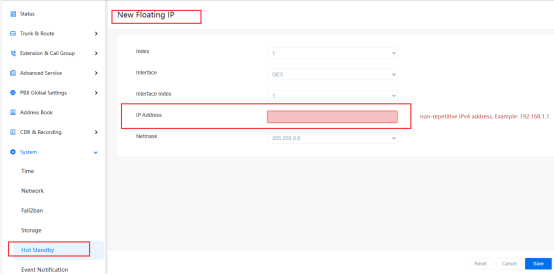
    3. Configure Floating ip address

    NOTE: This float ip is as service ip to connect to other device,make sure the ip address is not in use before setting it 

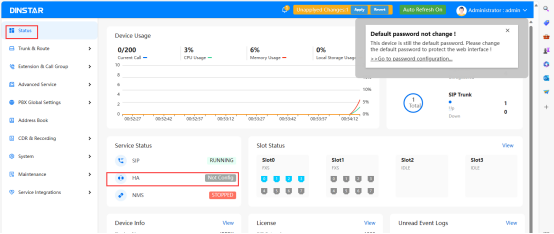
    4. Check the HA status

    After configuration, can check the HA status in web,also can check which is the master and which is the slave

  • QHow to forward UC voice-mail to Email

    A

    User demand scenarios

    A customer is using Dinstar UC350 as an enterprise IPPBX. it is required that the extension must answer the call quickly after receiving it. Off-duty or temporary departure causes unable to connect the phone in time, the call needs to go to Voicemail and send Voicemail to the relevant employee's Email.

    Dinstar UC series products are designed with customers' needs in mind and can perfectly fulfil this need. Let's take a look at the Dinstar UC350's Voicemail Forward to Email function.

    Parameter configuration

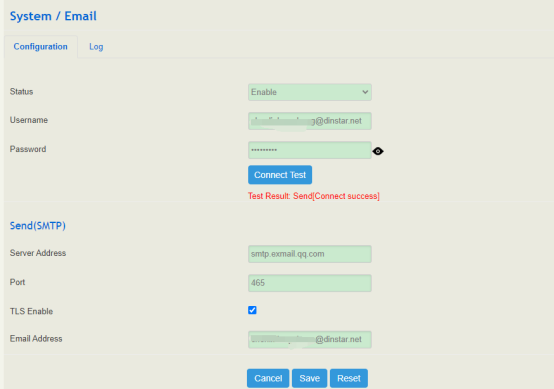
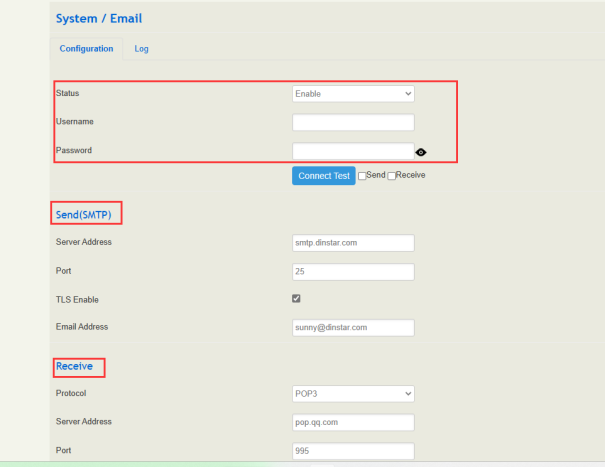
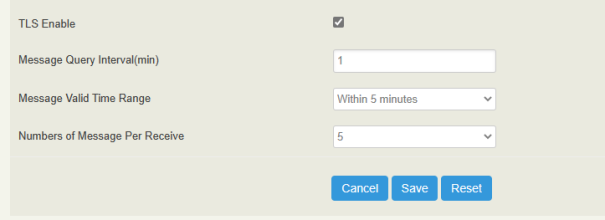
    1. Set Email parameters

    System/Email, Enable and set Email parameters

    NOTE

    This Email parameter is used to send an email.

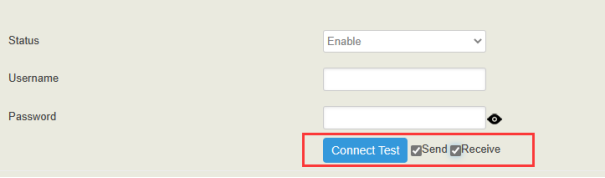
    After setting the Email parameter, click "Connect Test", if the test result is "Test Result: Send[Connect success]", it means the parameter is correct, you can save it then apply it.

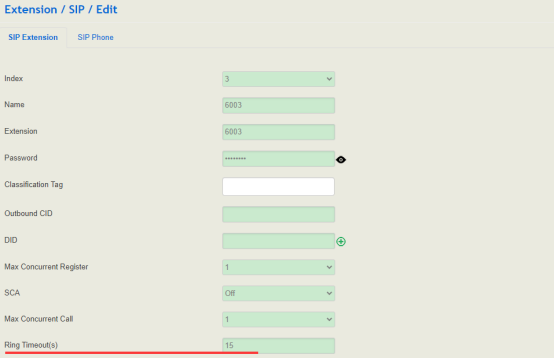
    2. Set the extension parameters

    Set the extension parameters in the extension/SIP, set the Ringing timeout(s), voicemail(on), enable “Message Forford Email” and set “Destinasion Address”.


    NOTE

    The Ringing Timeout duration is set to 15s to avoid the caller side waiting too long to hang up; it goes to Voicemail after ringing for 15s. The Destination Address can be set more than one to notify more than one person.

    That's all the basic configuration.

    Functional verification

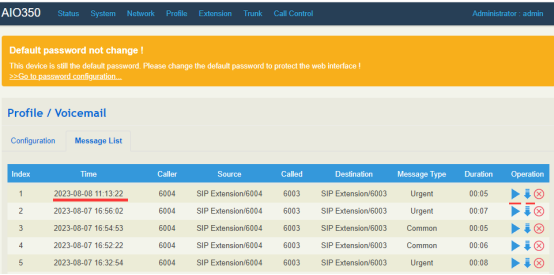
    Initiate a call to the destination extension, which does not answer; after 15 seconds of ringing timeout, the caller side hears the Voicemail prompt and leaves a message to the extension as prompted.

    Note:Profile/Voicemail/Message List page can view the generated Voicemail, you can play it directly on the web, or download it to PC to play.

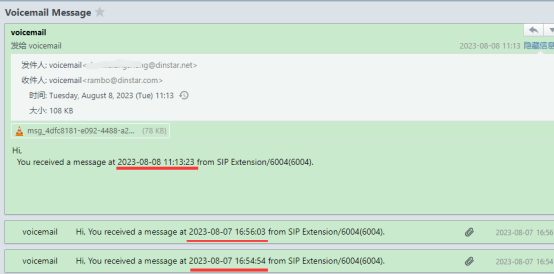
    3.2 In the destination Email, an audio file was received from Voicemail . And prompted for time, source extension.

    NOTE

    (1) Voicemail is an audio file in wav format, which is the same as the VoiceMail file downloaded from the web. It confirms that Voicemail to Email function is normal. 

    (2) From the time, after generating Voicemail +1s, VoiceMail Message has been received in the Email.

  • QHow to login mini system on UC

    A

    Backgrouds

    When the user is not satisfied with the current device version and needs to downgrade to the original version, we can try to let the device into the minimal system to achieve the downgrade process.In the guide,we will show how to login mini system on UC

    Operations

    1.Active mini system 

    Please follow the steps to active mini system. 

    First,power off the device.

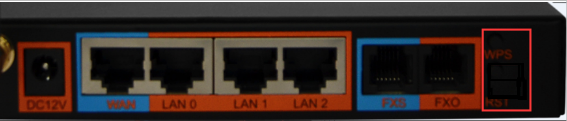
    Second,press and hold RST+WPS button at the same time, then power on and hold on 30 seconds.

    Note: When the step is done ,the device Ip will go back to default(192.168.11.1)

    Third,wait for gateway up for about 5 mins .

    2.Connect device with PC directly

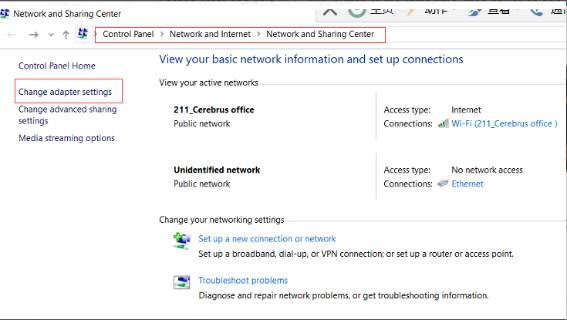
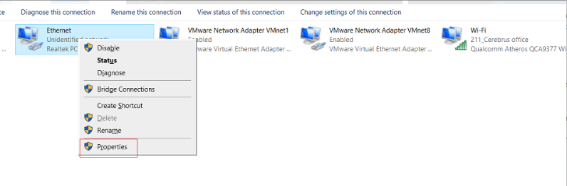
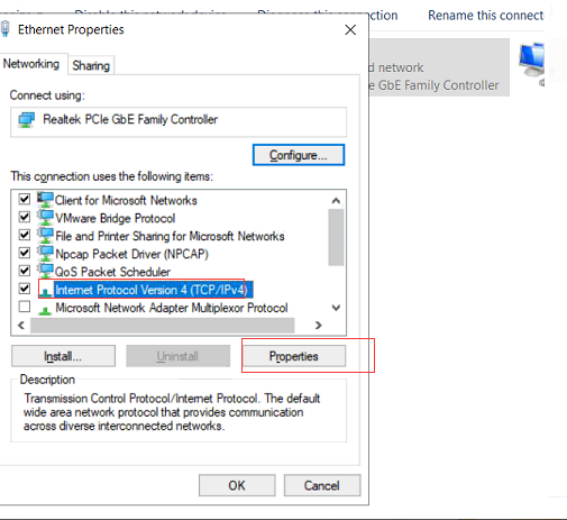
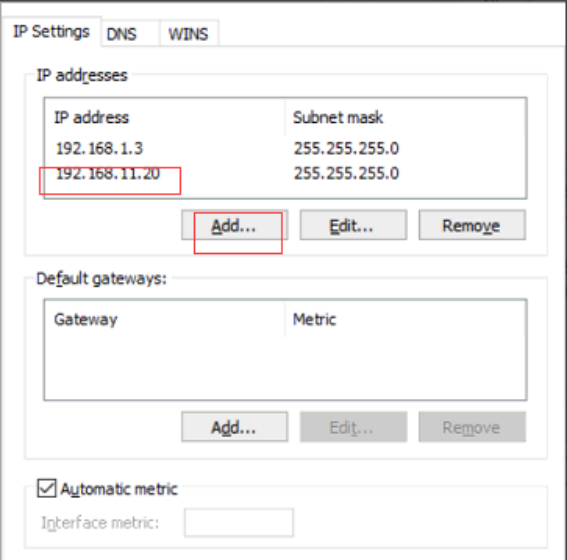
    Please connect device lan port with PC directly .Then add 192.168.11.x ip on PC .

    (For example, 192.168.11.3)The following picture shows how to add the IP on PC.


    3.Upload firmware files

    Now please access 192.168.11.1 on brower.We can see the device 's current Gui into the mini system page.Please upload the files sent by technical support .

    4.Reboot the device

    When the firmware file upload successfully ,please  click reboot .

  • QHow to set conference on UC200

    A

    Introduction 

    Introduce the conference room configuration options.

    Index : Conference Number

    Name : Conference name (The name cannot be empty, up to 32 characters)

    Number : The number available for extensions to join the conference (The Number should be numeric and not the same as other configured extensions’ number, with a maximum length of 32) 

    Public Mode : Extensions can join the conference without password after being enabled public mode.

    Password : Password for common members to join conference in non-public mode.(Members who use this password to join conferences are common members .)

    Administrator Password : Password for administrator member to join conference in non-public mode.(Members which use this password to join conference are administrator )

    Quiet Mode : members will not hear any broadcast voice in the conference .

    Wait For Administrator : The conference will not begin until the administrator joins the conference, otherwise it will stay idle .

    Play Waiting Music When is Idel : members will hear waiting music when the conference is idle .

    Enable Menu : all members can use DTMF features via dial DTMF  

    Invite Member or Conference Room : non-administrators can invite members or other conference rooms via dialing DTMF

    [Conference menus introduction]
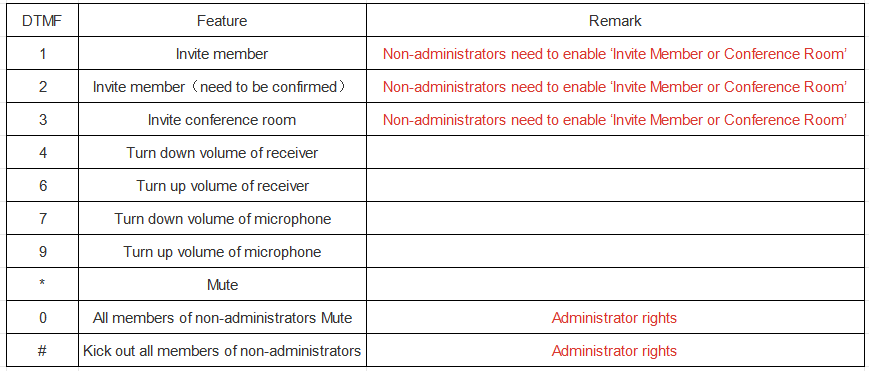
    [Example]

    (1) Press DTMF 1 to invite members 

    Extension which is already in conference room press 1 .it will hear IVR ‘please dial destination number’ and then dial number of extension which you want to invite.

    The invited Extension ring 

    Extension pick up and join the conference as non-administrator

    (2) Press DTMF 2 To Invite Conference Room

    extension which is  already in conference room press 2 .then will hear IVR ‘please dial destination number’ and then dial number of extension which you want to invite.

    The invited Extension ring 

    extension picked up and press 1 to join conference and press other keys to reject conference

    (3)Press DTMF 2 To Invite Conference Room

    extension which is already in conference room press 2 .it will hear IVR ‘please dial destination number’ and then dial number of conference room which you want to invite.

    If you have a conference room password, you are prompted for the password and enter the conference room password 

    Then connect to another conference room

    Preparations

    In the demo, there are two fxs ports of UC200 both connected analog phones and already configured and enabled them . 

    The first FXS extension is 100 .The second FXS extension is 200 .
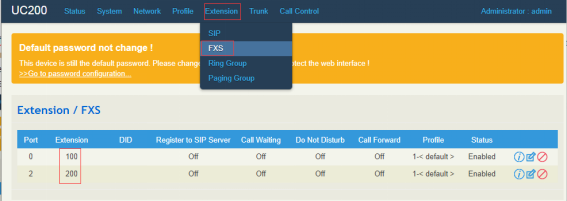
    Two sip extensions registered to UC200 .One is 300,the other is 400.

    Operations

    [Call conference in one room]

    1.Without Administrator  

    1.1 Create a conference room 

    Click Call Control—Conference—New to create a new conference room
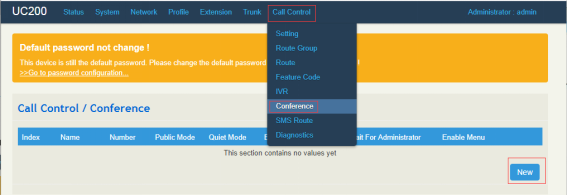
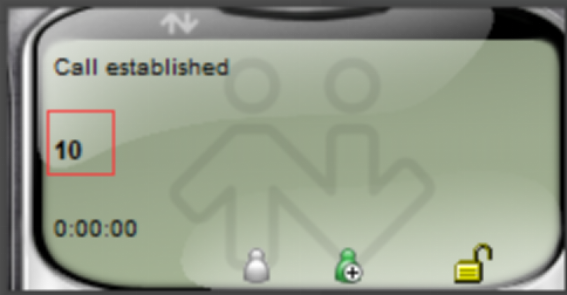
    Conference name is ConferenceRoom1 and conference number is 10 .And please enable Public Mode and it means all extensions can join the conference without password then all members are non-administrator.
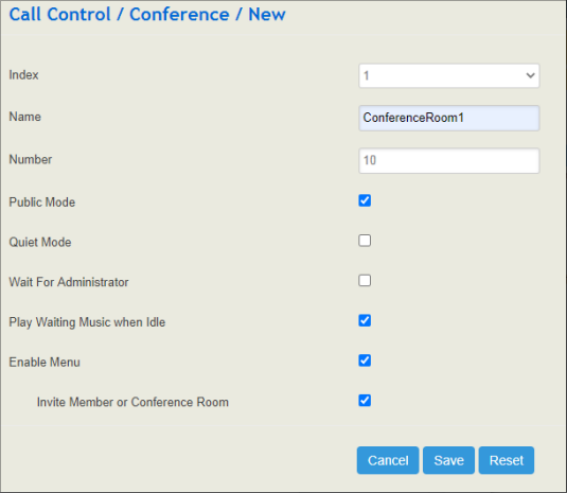
    Note:

    1.Don‘t enable Wait For Administrator because there have no administrator and conference will keep idle forever if enabled this options.

    2.Enable Enable Menu and Invite Member or Conference Room .Then all members can invite members to join conference .

    1.2 Extension joins the conference 

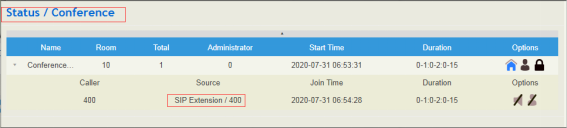
    Sip extension 400 dialed conference number 10 to join the conference room 
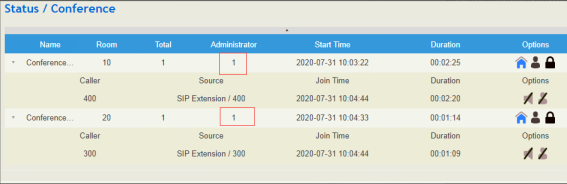
    We can check status of conference in status—conference 
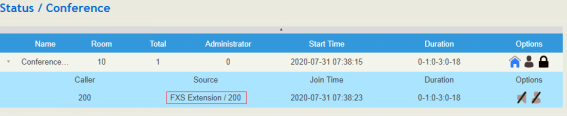
    We also can use fxs extension to dial 10 to join the conference room
    1.3 Invite members and start conference

    If press 1 directly, you will hear ‘please dail destination number’then dial extensions number which you want to invite .if the invited extensions are online ,it will ring and the extensions will join the conference after picked up .

    If press 2 directly to invite extensions ,the extensions can press 1 to join conference and press 2 or other DTMF button to reject the conference .
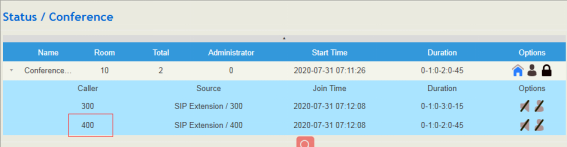
    From the picture there are at least two members in the conference room. Now we can start the conference and talk .

    1.4 Control Members

    We can control members on web status—conference 
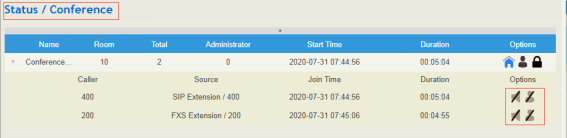
    Option one can mute and unmute ,option two can kick out members from the conference room

    NOTE:Members which are in conference also can press * to mute itself.

    2.With Administrator

    2.1 Create a conference room and enable feature of administrator

    Please click Call Control—Conference—New to create a new conference room.

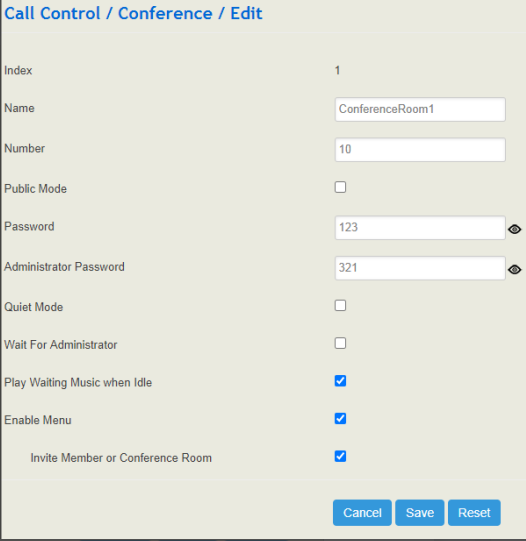
    Please disable Public Mode and it will show Password and Administrator Password.

    We set 123 as password and 321 as administrator password.
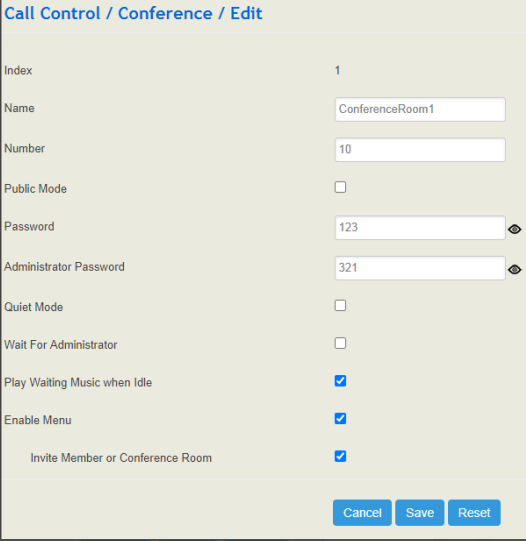


    Note:Enable Enable Menu and Invite Member or Conference Room .Then all members can invite members to join conference .

    2.2 Extensions Join The Conference As Administrator

    Sip extension 400 dialed conference number 10 to join the conference and it will hear ‘please enter password , following by # key’.
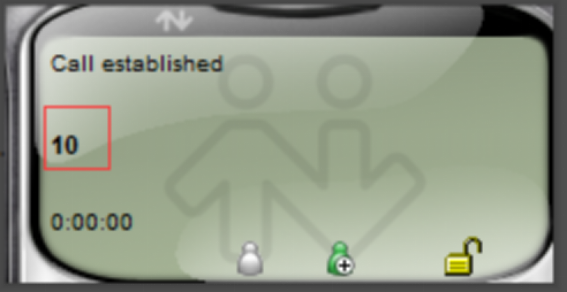
    When enter password 123 to join the conference, sip extension 400 as non- administrators.When enter password 321 to join the conference, sip extension 400 as administrator. 

     2.3 Invite members and start conference

    If press 1 directly and you will hear a broadcast voice ‘please dail destination number’then please dial number of extensions which you want to invite .if the invited extensions are online ,it will ring and the extensions will join the conference after picked up .

    If direct press 2 to invite extensions ,the extensions can press 1 to join conference and press 2 or other DTMF button to reject conference .

    Now there are at least two members in the conference room, we can start the conference and talk .

    2.4 Control members

    when administrator extension 400 press 0 , the non-administrator extension 200 will mute .

    when administrator extension 400 press 0 again , the non-administrator extension 200 will unmute.

    when administrator extension 400 press # key , the non-administrator extension 200 will be kicked out.

    We can control members on web status—conference 

    Option one can mute and unmute ,option two can kick out members from the conference room

    Note :Members which are in conference also can press * to mute itself.

     [Call conference between two or more rooms]

    1.Without Administrator  

     1.1 Create Multi Conference Rooms

    Please click Call Control—Conference—New to create multi conference rooms.

     The first conference name is ConferenceRoom1 and conference number is 10 .The Second conference name is ConferenceRoom2 and conference number is 20.Please enable Public Mode and it means all extensions can join the conference without password then all members are non-administrator.

    Note:

    Donot enable Wait For Administrator because there have no administrator and conference will keep idle forever if enabled this options.

    Enable Enable Menu and Invite Member or Conference Room .then all members can invite members to join conference .

    1.2 Extensions join in the Conferences separately

    Sip extension 400 dial conference number 10 to join the conference 

    Sip extension 300 dial conference number 20 to join the conference 

    1.3 Invite members and connect multi conferences

    If  press 1 directly and you will hear a broadcast voice ‘please dail destination number’then please dial number of extensions which you want to invite .If the invited extensions are online ,it will ring and the extensions will join the conference after picked up .

    If press 2 directly to invite extensions ,the extensions can press 1 to join conference and press 2 or other DTMF button to reject conference .

    Now extension 400 invited extension 100 to join the conference room 10 and extension 300 invited extension 200 to join conference room 20 .

    Extension 200 pressed 3 then dialed number 10 of conference room 10 to invite conference 10 connect conference room 20 .

    Actually, all members of the same conference room can invite other conference rooms.

    Now conference room 10 connects conference room 20 and four members can start conference and talk .

    1.4 Control Members

    We can control members on web status—conference

    Option one can mute and unmute ,option two can kick out members from the conference room

    Members which are in conference also can press * to mute itself.

    2.With Administrator

    2.1 Create multi- conference rooms and enable feature of administrator

    Please click Call Control—Conference—New to create multi conference rooms 

     The first conference name is ConferenceRoom1 and conference number is 10 . The second conference name is ConferenceRoom2 and conference number is 20.Please disable Public Mode and it will show Password and Administrator Password.

    We set 123 as password and 321 as administrator password in conference room 10.And set 456 as password and 654 as administrator password in conference room 20

    Note :Enable Enable Menu and Invite Member or Conference Room .then all members can invite members to join conference .

    2.2 Extensions join in the Conferences separately 

    Sip extension 400 dialed conference number 10 and entered password 321 to join conference room 10 as administrator 
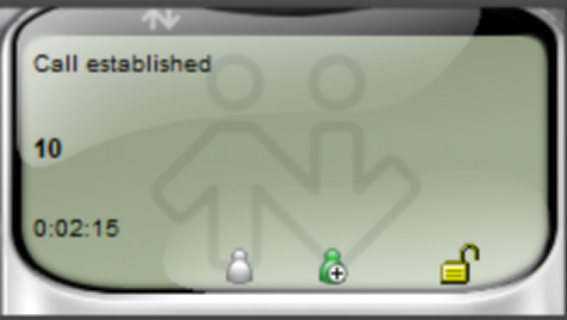
    Sip extension 300 dialed conference number 20 to enter password 654 to join conference room 20 as administrator  
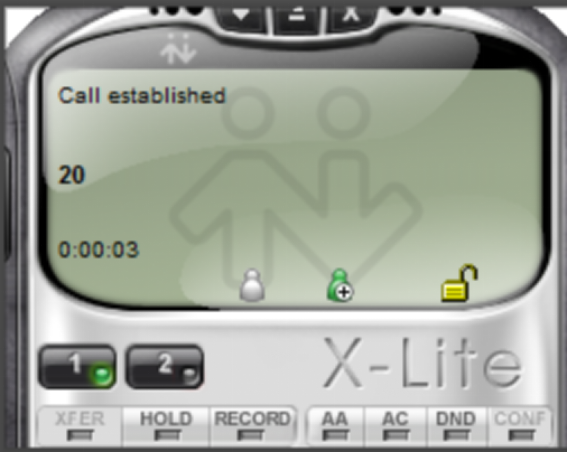


    2.3 Invite members and connect multi conferences

    If press 1 directly and you will hear a broadcast voice ‘please dail destination number’then please dial number of extensions which you want to invite .if the invited extensions are online ,it will ring and the extensions will join the conference after picked up .

    If press 2 directly to invite extensions ,the extensions can press 1 to join conference and press 2 or other DTMF button to reject conference .
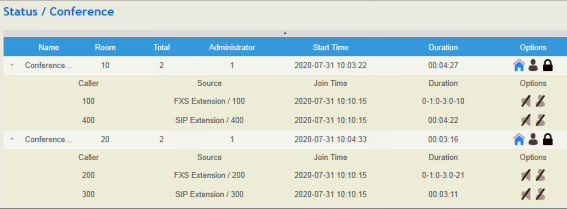
    Now extension 400 invited extension 100 to join conference room 10 and extension 300 invited extension 200 to join conference room 20 .

    Extension 200 pressed 3 then dialed number 10 of conference room 10 to invite conference 10 connect conference room 20 .

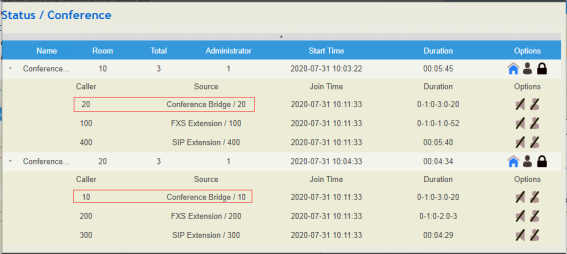
    Actually, all members of the same conference room can invite other conference rooms.Now conference room 10 connects conference room 20 and four members can start conference and talk .

    Now there are at least two members in the conference room, we can start the conference and talk .
    2.4 Control Members

    Administrator 400 press 0 ,extension 100 muted and press 0 again ,extension 100 unmuted .

    Administrator 400 press # ,extension 100 was kicked out .

    We can control members on web status—conference
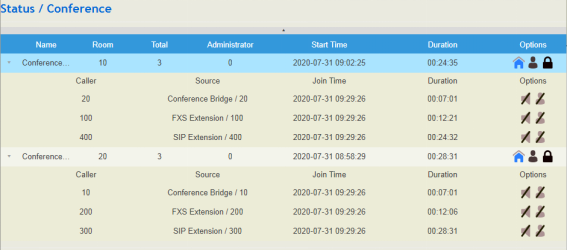
    Option one can mute and unmute ,option two can kick out members from the conference room

    We also can mute the another conference room.
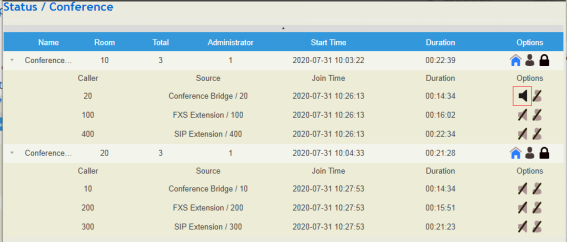
    Note: Members which are in conference also can press * to mute itself.

  • QHow to transfer e-mail to sms &sms to e-mail on uc120

    A

    Operations 

    1. Configure E-mail 
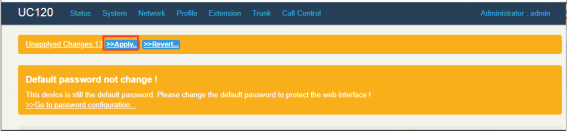
    Click system > e-mail ,Enable .And then enter the red box information.


    Note

    (1) The user name must be the full e-mail address.

    (2) The server address and port of the mailbox, please contact the mailbox server provider.

    2. Connect test 

    Check Send, Receive and then click on "Connect Test" to ensure that the test result is a successful connection.

    3. Configure e-mail to sms &sms to e-mail 

    3.1.  Add a e-mail to sms route

    Click call control > sms routes .Add the e-mail to sms routes.

    3.2.  Add a sms to e-mail route

    Click call control > sms routes .Add the sms to e-mail routes.

    Testing 

    Q&A

    1. E-mail to sms ,If the Chinese characters seen on the mobile phone are garbled,what to do? 

    2. If you recieved the e-mail but transfer to sms unsuccessful ,what to do? 

    3. Others 

  • QHow to use AutoCLIP function on UC

    A

    Backgrouds 

    AutoCLIP is mainly used to SIP trunks, FXO trunks ans VoLTE trunks and it helps record the  outgoing and incoming calls of a trunk. 

    We think of it as a memory route. The extensions call the trunk through the route, and if the trunk is configured with autoclip. When the trunk calls back later, it does not need to match the route and can call directly to the extension that autoclip recorded before talking to the trunk.

    Introduction

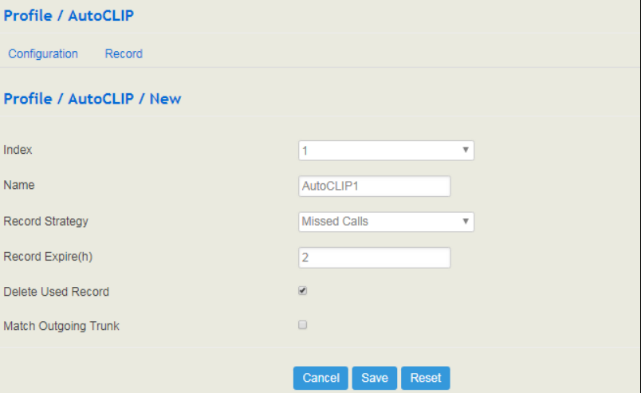
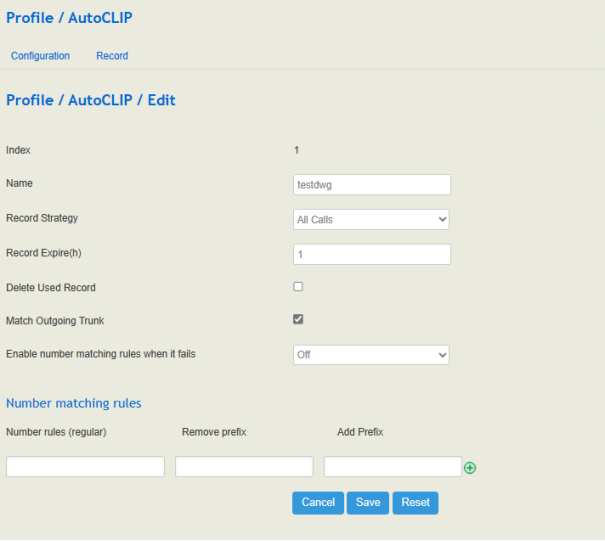
    Record Strategy.You can choose missed calls or all calls. If missed calls is selected, uc  will record the missed calls of the trunk. If all calls are selected, all the calls going through the trunk will be recorded.

    Record Expire (hour) .The validity period of a record. For example, if this parameter is set as 2 hours, the record will be valid in 2 hours since the record is generated.  

    During the validity period, if there is coming call for the extension number contained in the record, the call will directly led to the extension without routing. 

    Delete Used Record. By default, this parameter is disabled. If this parameter is selected, those records that have been used to match  extension number or trunk will be deleted. 

    Match Outgoing Trunk. By default, this parameter is enabled. If this parameter is enabled, those calls going through the trunks in the record can coming in without routing.

    Preparations

    An UC ( Here we use dinstar uc200 ) 

    An analog gateway ( Here we use dinstar 2S2O) 

    An extension register on uc named 103

    Steps

    1. UC Setup

    1.1 Register extesions  on uc 

    Here we create a test extension 103 and register well. 

    1.2 Create AutoClip profile on uc 

    Click Profile >AutoCLIP .Choose the record strategy (all calls)  and enter the record expire . Enble the match outgoing trunk. Other options are up to you usage.

    1.3  Create sip trunk with IAD

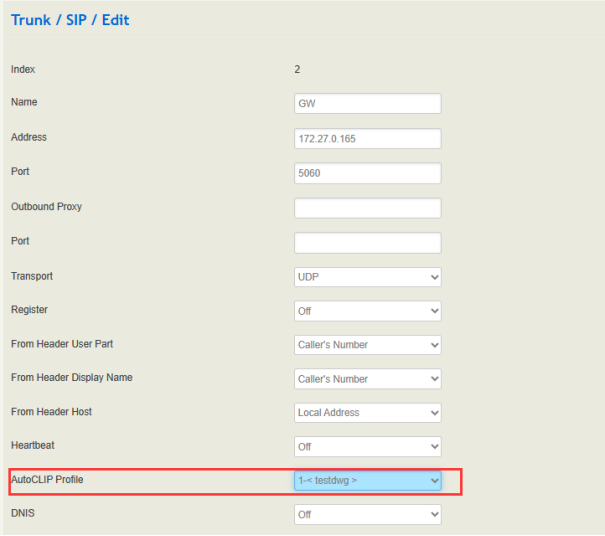
    Click Trunk > sip . Enter the ip and ports. And select the AutoCLIP profile in the trunk.

    1.4 Create outbound route

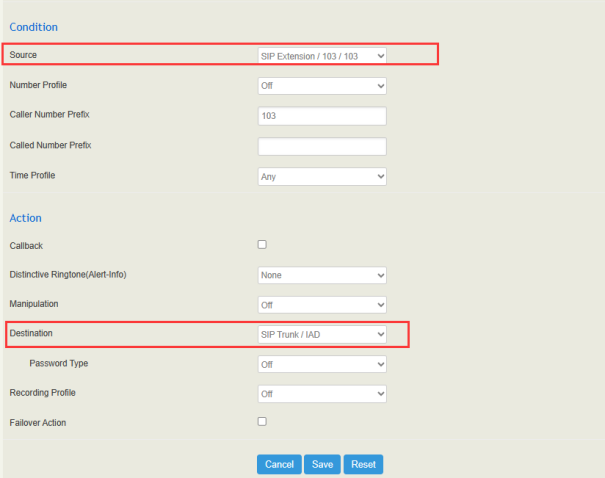
    Click Call Control > Routes.And create the outbound routes. We choose source as extension 103 and destination as IAD trunk. 

    2. IAD Setup 

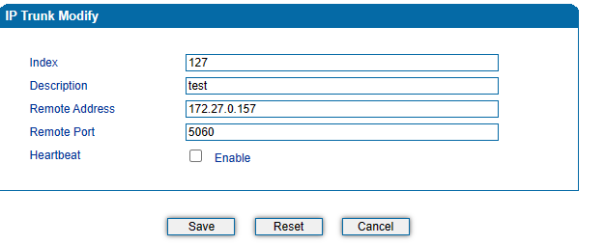
    2.1 Create a trunk with uc

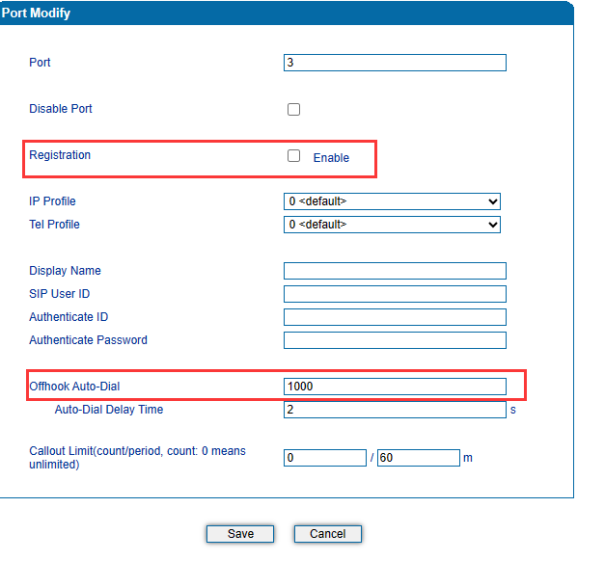
    2.2 Add ports 

    Here we enter offhook auto-dail number to avoid when incoming call come to hear "please dail extension number" 

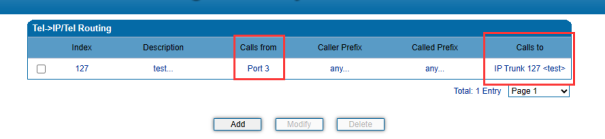
    2.3 Add outbound routes

    2.4 Add Inbound routes.

    Tests

    1. 103 call out through the IAD trunk 

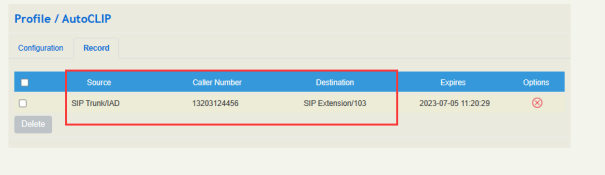
    After we do the outgoing calls ,we will get a record in the Auto Clip page.

    2. Call to 103 directly without inbound routes. 

    According to the record from auto clip .We can make incoming calls to extension 103 directly without the inbound routes. 


  • QHow to use call monitor function on UC

    A

    Backgrouds 

    A call monitor is a tool used in telephony to allow a supervisor or manager to listen in on a phone conversation between an agent and a customer. The call monitor function is typically found in call center software and can be used for training purposes, quality assurance, and compliance monitoring. 

    Introduction

    There are three call monitor mode on the UC. They are Listen Mode, Whisper Mode,and Barge-in Mode. 

      Listen mode, only monitor the call .

    Whisper mode , the one who are be monitored can hear the monitor 's vocie.

    Barge-in mode, the participant on the call can hear the monitor's voice.

    Example, 

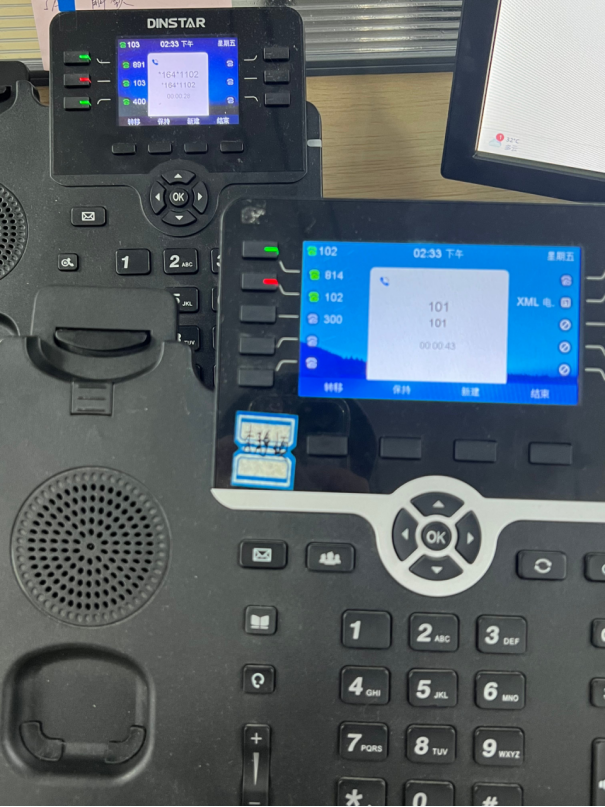
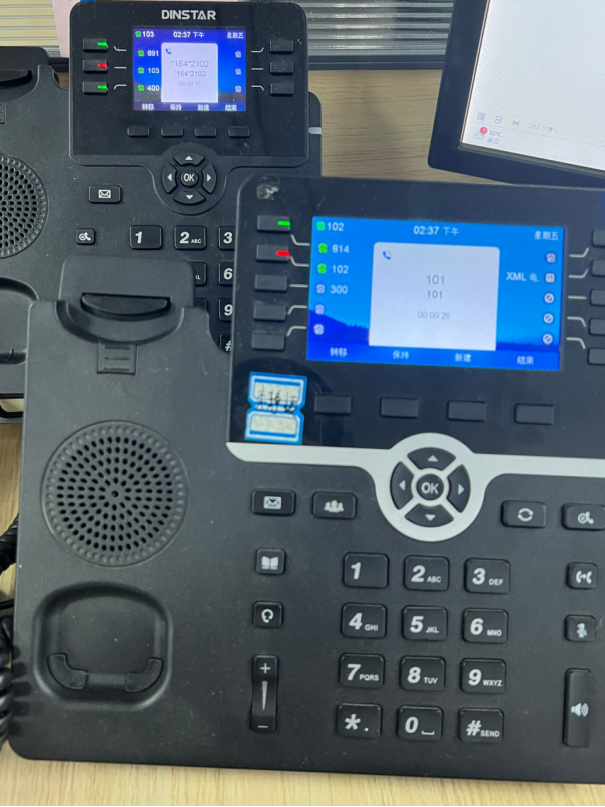
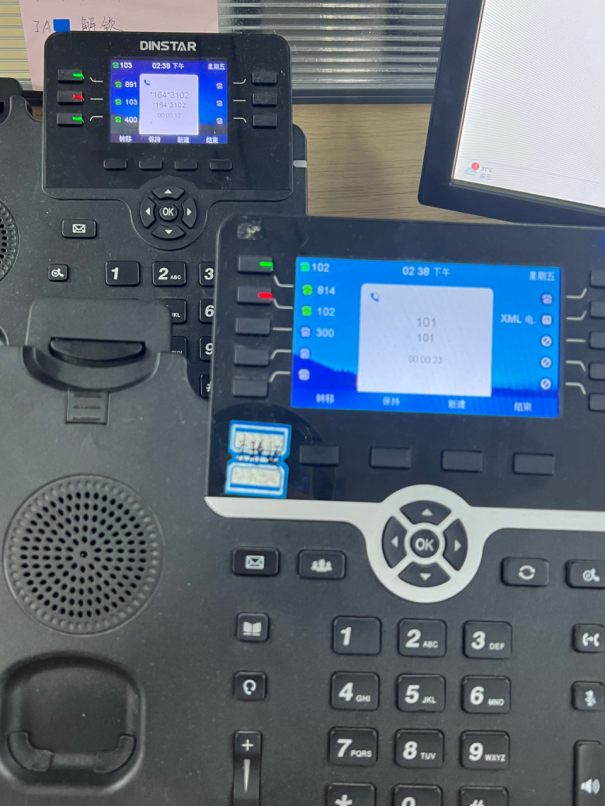
    101 and 102 on the call . 103 dail *164*1102 to monitor 102.

    When using listen mode,103 only monitor the call ,101 and 102 can't hear the voice from 103 . 

    When using whisper mode,  103 monitor the call ,at the same time 102 can hear the voice from 103 .

    When using barge-in mode, 103 monitor the call ,101 and 102 can hear 103 also.

    Preparation

    An UC ( Here we use dinstar uc200 ) 

    3 sip extensions register on uc200 which are  named 101,102,103.

    Note: Extension 101 is used to simulate an outside line number.

    Operation   

    Here is a test example. We set listen mode which shows how the function work on the uc200.  There are three extension register to uc120 named 101,102 and 103 . We use 103 to monitor the 102's call .

    1. Add and register 3 extensions on UC

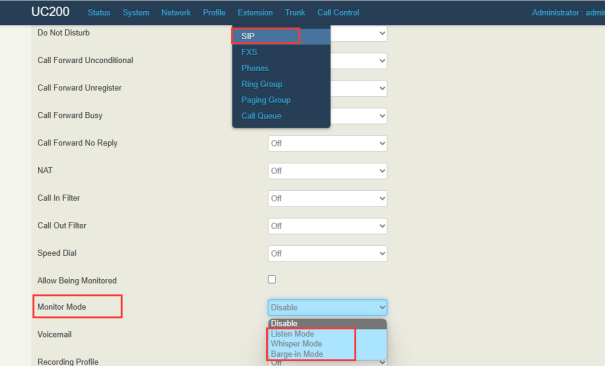
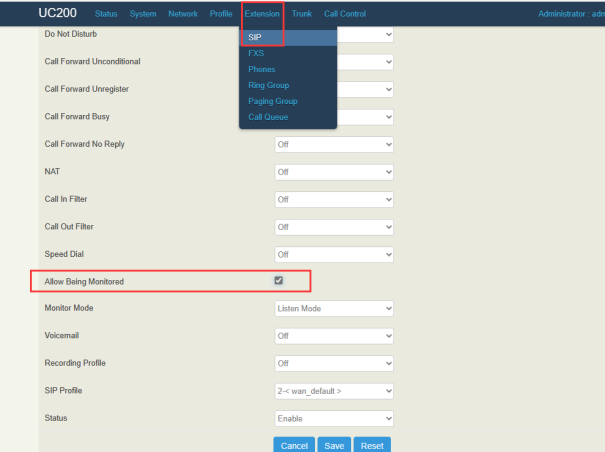
    2. Enable allow being monitored on extensions

    Here we enable allow being monitored on 102.  

    3. Select the monitor mode 

    Extension 103 acts as the monitor. Select the monitor mode.

    Please note that the selected monitor mode and the monitor code used by the following phones need to match. 

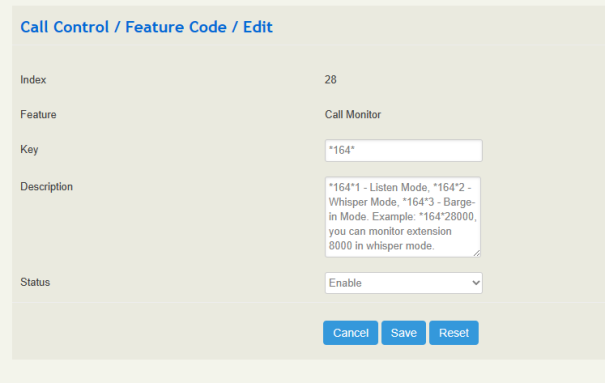
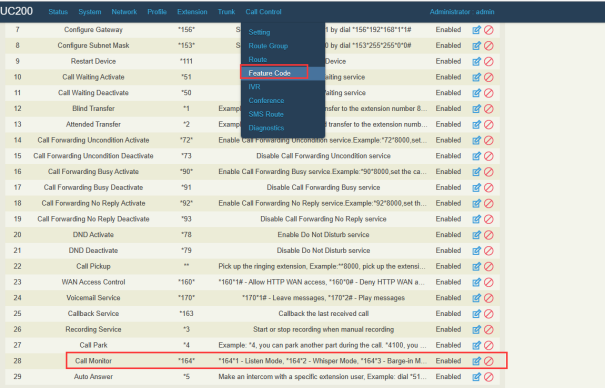
    4. Check the monitor code on uc

    When 103 monitor the 102 with liseten mode, please dail *164*1102 .

    When 103 monitor the 102 with whisper mode, please dail *164*2102.

    When 103 monitor the 102 with barge-in Mode., please dail *164*3102.

    Test 

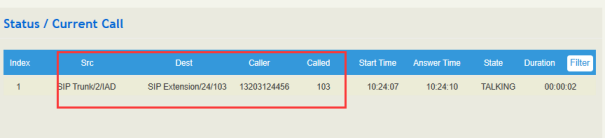
    103 monitor the 102 with liseten mode


    103 monitor the 102 with whisper mode 


    103 monitor the 102 with barge-in Mode


Service Feedback
Service Feedback
Please fill in the information and submit the service
evaluation and suggestions online
  • *Name

  • *Country

  • *Company Name

  • *Email

  • *DeviceType

  • *DeviceSN

  • *Snapshot of Device SystemInformation Page