A
Backgrouds
FreePBX is one of the world’s most popular open source IP PBX.It is an interface management system based on the open source Asterisk, which has become the most used open source IPPBX in the world through nearly 10 years of effort. Many of the world's leading open source IPPBXs are based on the FreePBX platform for secondary development, including the famous Elastix,Issabel, AsteriskNOW and Asterisk in Flash.
By default, the Freepbx is pure IP based software phone system, it has no any interface to connect with E1/T1. If it wants to support E1/T1 interface, it has to connect with extrenal gateways. Nowdays, most of users use Dinstar media gateways to connect with FreePbx. Dinstar media gateway is the first low cost choice for Freepbx to work with PSTN network. In this guideline, we will show you how to use Dinstar media gateway to connect with freepbx and make incoming and outgoing calls through Dinstar media gateways. Here we take the Dinstar media gateway200 as an example. Other models also apply the guideline .
Note: the chan_sip channel is used with FreePBX-13 and 14 versions, the later version of SIP would use PJSIP. Therefore, the setup of SIP trunk would be quite different from the old version of chan_sip.
Operations
[Configure FreePBX]
1.Add a SIP trunk
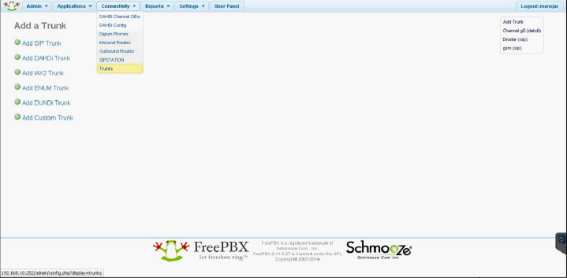
Click Connectivity>Trunks, Add Trunk to create a new sip trunk for the MTG200
Edit the parameters of the SIP trunk.Set a trunk name and other parameters, please keep the default.
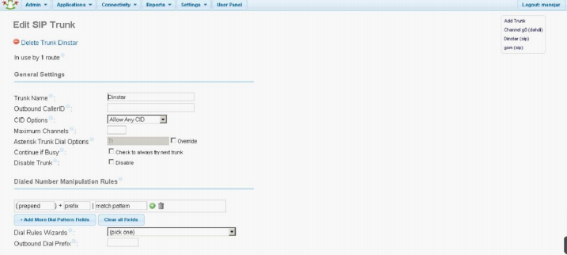
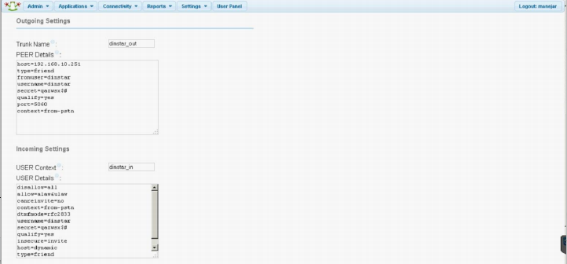
Outgoing Settings: Define the outgoing settings, trunk name and peer details.
Trunk Name: dinstar_out
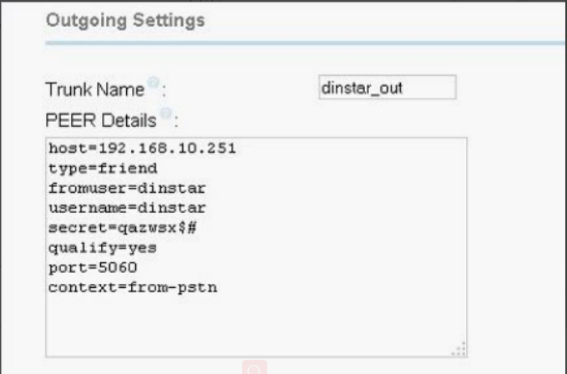
Peer Details:
Bash
host=192.168.10.251
type=friend
fromuser=dinstar
username=dinstar
secret=qazwsx$#
qualify=yes
port=5060
context=from-pstn
If the FeeePBX server and the MTG200 device are on different networks, please make host to be
dynamic.
Port 5060 is used to define the communication port between MTG200 and FreePBX server,
user can define other ports too, but it must be same on both sides.
Incoming settings: Define the incoming settings, user context and user details.
User Context: dinstar_in
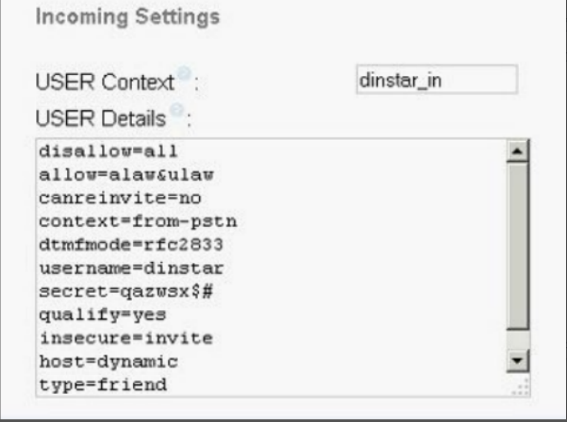
User Details:
disallow=all
allow=alaw&ulaw
canreinvite=no
context=from-pstn
dtmfmode=rfc2833
username=dinstar
secret=qazwsx$#
qualify=yes
insecure=invite
host=dynamic
type=friend
After finishing the settings, click Submit Changes to save the configurations and click Apply to
make them effective.
2.Create an outbound route
Click Connectivity>Outbound Routes, click Add Route to add a new route, and configure
the settings.
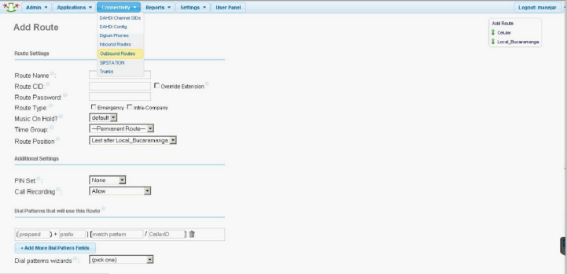
Route Name: Local_Bucaramange, for example
Dial Patterns that will use this Route: 6XXXXXX, this means all the dial pattern begins with 6
and its length is equal to 7, which matches this outbound route to call out.
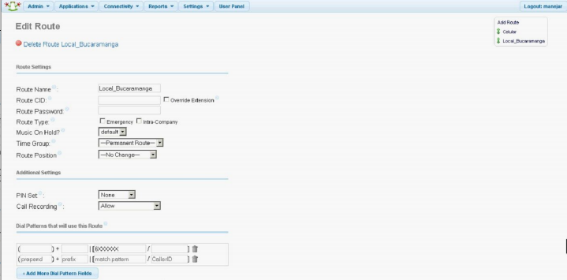
Trunk Sequence for Matched Routes:
Select the trunk for this route to send out the calls. Users can set several ones, here we only use the one Dinstar which we defined for the MTG200.
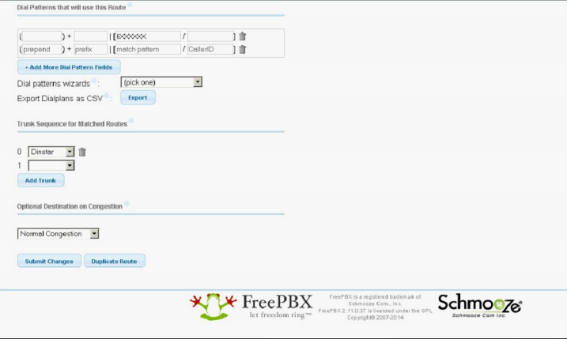
After finishing these, click submit changes to save the settings and apply the configurations.
3.Create an inbound route
Click Connectivity-->Inbound Routes , click Add Incoming Route to add a new inbound route.
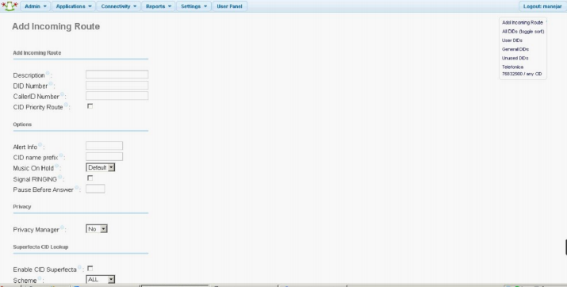
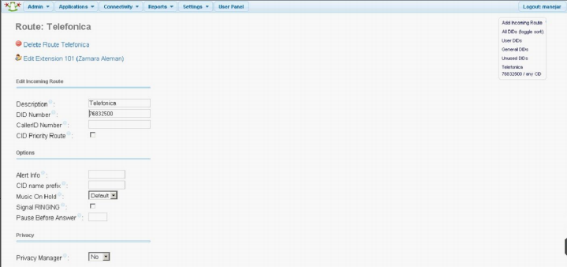
Enter the name of this inbound route in Description option, Telefonica, for example. And
configure the DID Number, make sure the DID number is same with the E1 line’s number.
Set the destination for this inbound route . It can be an IVR or an extension or else.
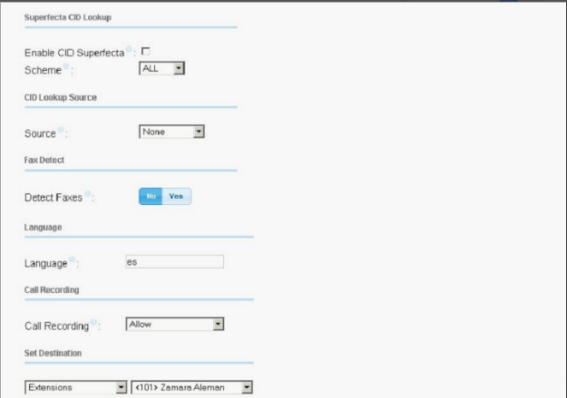
Other parameters, please keep them as default. Submit the settings and apply.
[Configure MTG200]
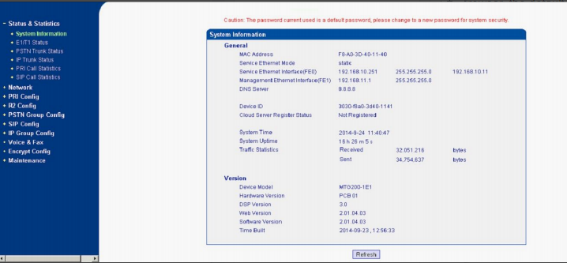
Login the MTG200 by entering its IP address in web browser, the default IP of
MTG200’s FE1 port is 192.168.11.1, and default ip of MTG200’s FE0 port is 192.168.1.111, user
can connect to either network port and use the corresponding IP to access the web of the device.
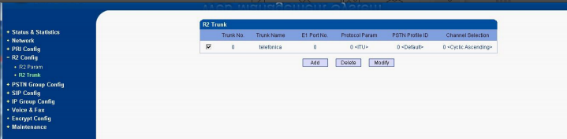
1.Set an R2 trunk
Connect the E1 line then you get from the provider to MTG200’s E1 port, and access the web page.
Click R2 Config>R2 Trunk page, add a R2 trunk.
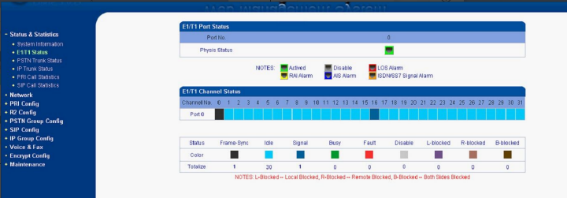
2.Check R2 status
Click System&Statistics>E1/T1 Status , check the R2 trunk’s status, make sure
the E1 cable is connected and the protocol you setting is right.
3.Configure a sip trunk
Click SIP Config>SIP Trunk page, add the sip trunk on the MTG200
Trunk Name: Freepbx
Remote Address: 192.168.10.252, the IP address should be the freepbx server’s.
Register to Remote: Yes
Outgoing Call Mode: Access
SIP Username: dinstar_in
SIP password: qazwsx$#
SIP Confirm Password: same with the sip password
Detect Trunk Status: No.
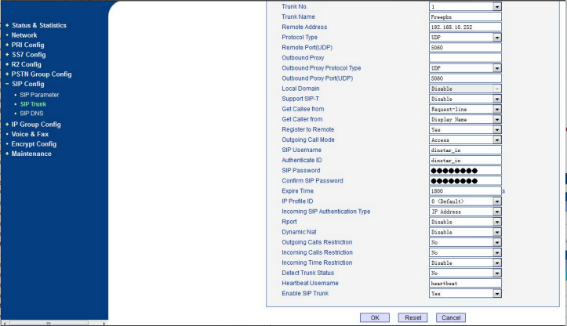

Note: SIP username and password must be same as the one user created on FreePBX server.
Outgoing call mode can be either access mode or peer mode.
4.Check trunk status
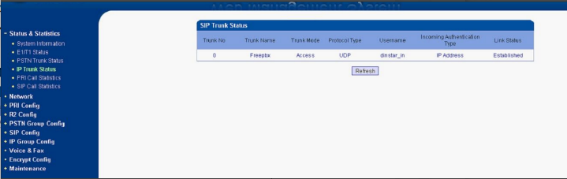
After finishing the settings,Click Status&Statistics>IP trunk Status to check if the trunk has
been setup well.