
Backgrounds
When using multiple FXS to interconnect with each other, the general way is to register all the FXS ports to an IPPBX , thus realizing the scenario of using IPPBX to achieve extension interoperability centered on IPPBX or SIP server. However, in some special environments, some customers do not need to purchase and deploy an IPPBX specifically, and require the configuration of the FXS gateway to achieve the mutual calling function of the FXS gateway in environments without IPPBX deployment. Such a requirement and its deployment method is in a limited environment and can reduce the system deployment cost and reduce the complexity of environment configuration and maintenance. Now we are going through two simple configuration steps to achieve the requirements.
Supported business application scenarios
1.There is no PBX in the application environment, and then communicate with each other through the FXS gateway
2.There is no SIP server invrionment
Preparations
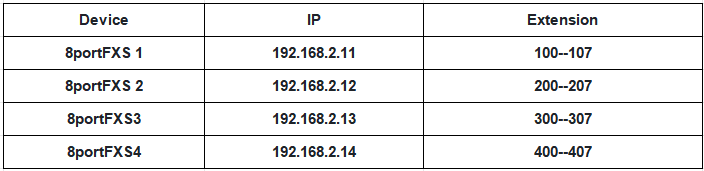
The documentation shows a case of four FXS devices inter-working. including an FXS extensions inter-working solution and inter-working between multiple FXS devices.
The following is information about the devices used in the documentation
Operations
Case 1 . Interworking between extensions of one device
1.1 Add extensions
Click port,enter the extensions. As the picture following shows.Enter Display name,SIP user ID,Authenticate password.
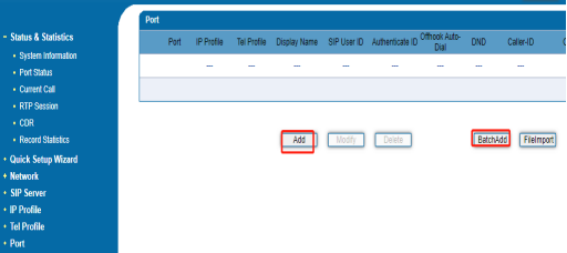
You can use "add" to add accounts one by one, or click "batchAdd" to add them in batches. Because the accounts we add are continuous, it is faster to use batch additions. We add extensions in batches as follows.
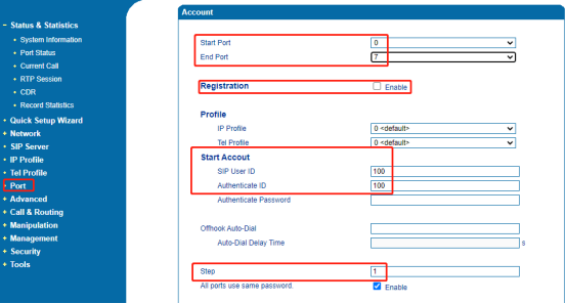
Note:
Registration must be unchecked, and cannot be enabled without IPPBX.
Authenticate Password does not need to be filled in without registration.
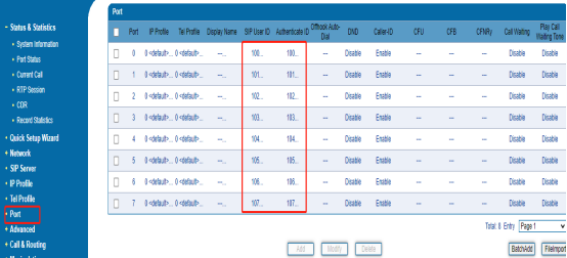
After adding the port extensions as shown in the figure.
1.2 Enable” Local Extension is Prefered(Tel in)”
Click Advanced >SIP Compatibility.Enabling this feature enables interoperability of extensions within the device.
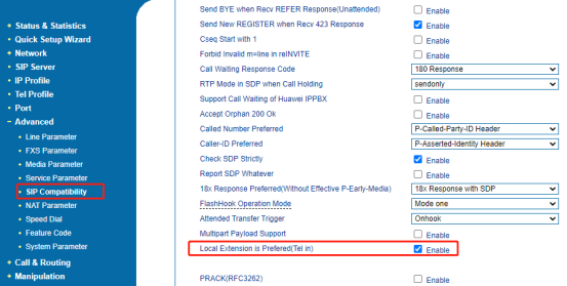
The above configuration process is to configure the device FXS1 as a demo to achieve interoperability within a device, and to achieve internal interoperability on other devices in the same way.
Case 2. Intercommunication between multiple FXS gateways
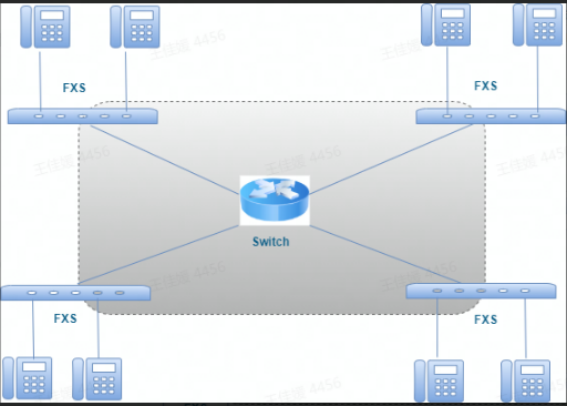
This document uses 4 FXS devices as demos to implement interworking between extensions. As shown in the diagram, each FXS needs to be connected to the other FXS devices via IP to be able to send calls to and receive calls from the other FXS gateways. For the following instructions we use one of the configuration processes as a demo to illustrate.
2.1 Add an IP trunk
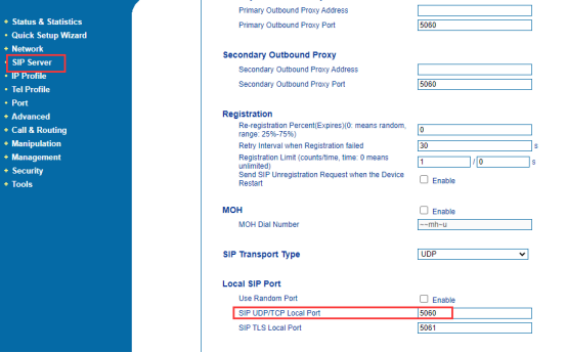
Before configure the sip trunk . Go to the "SIP server" page, "Local SIP Port", check the device "SIP UDP/TCP Local Port" . The default is 5060.
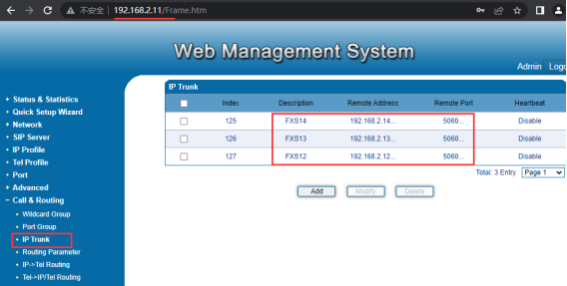
Click Call&Routing >IP trunk ,enter the IP of the other devices,we take one here as an example (192.168.2.12). As the picture shows. (IP Trunk adds the IP of other connected devices.)
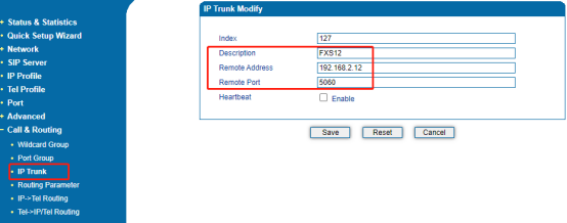
After three trunks have been configured .You can see them at the page .
2.2 Add IP-Tel Route
Click Call&routing ->IP->Tel Routing. The FXS gateway will select the local extesions&ports according to the called number .(IP >Tel Routing can be added one by one or in batches)
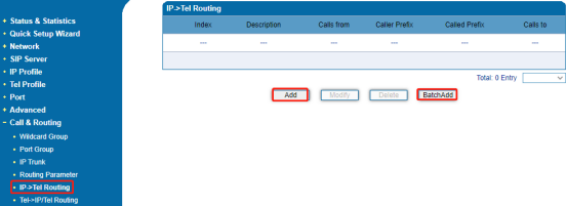
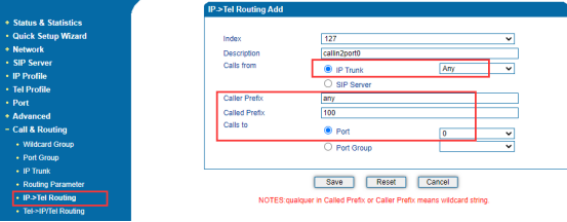
Use “add”to add one route(IP->Tel) first .
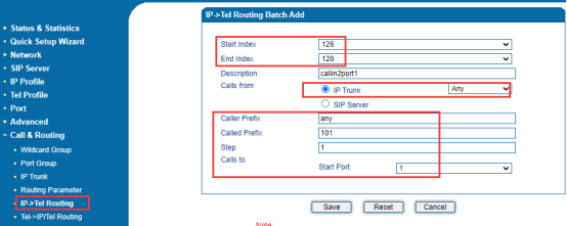
Use "Batch Add" to add others.
After adding,you can see the configuration on the page .
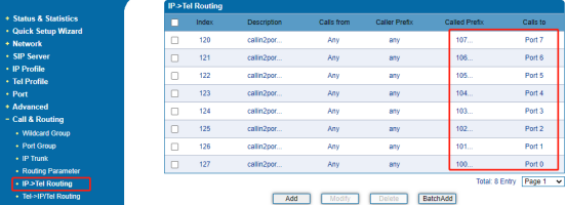
After done,for calls to FXS1 will select the corresponding port according to Called number.
2.3 Add Tel-IP Routing
According to the called prefix, the call will be sent to different FXS gateways.
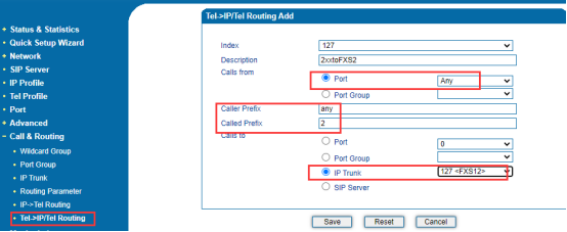
After configuration ,you can see on the page .
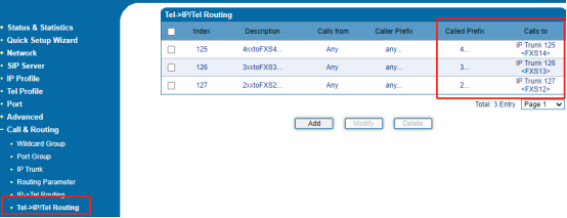
This is a setting demo on FXS1. The other 3 FXS can be set in the same way to realize intercommunication of 4 FXS.